

- Sign in to the Azure portal and search for “Microsoft Foundry”. Open the Microsoft Foundry service page and choose to create a new Foundry resource.
-
When creating a resource, keep Azure’s resource hierarchy in mind: subscription → resource group → resources. Below we create a resource group named
RGAI901Foundryand a Foundry resource namedAI Foundry, AI90101. Region is set to East US and project name toAI90101. The create form exposes configuration tabs including Basics, Storage, Networking, and Content review policy.
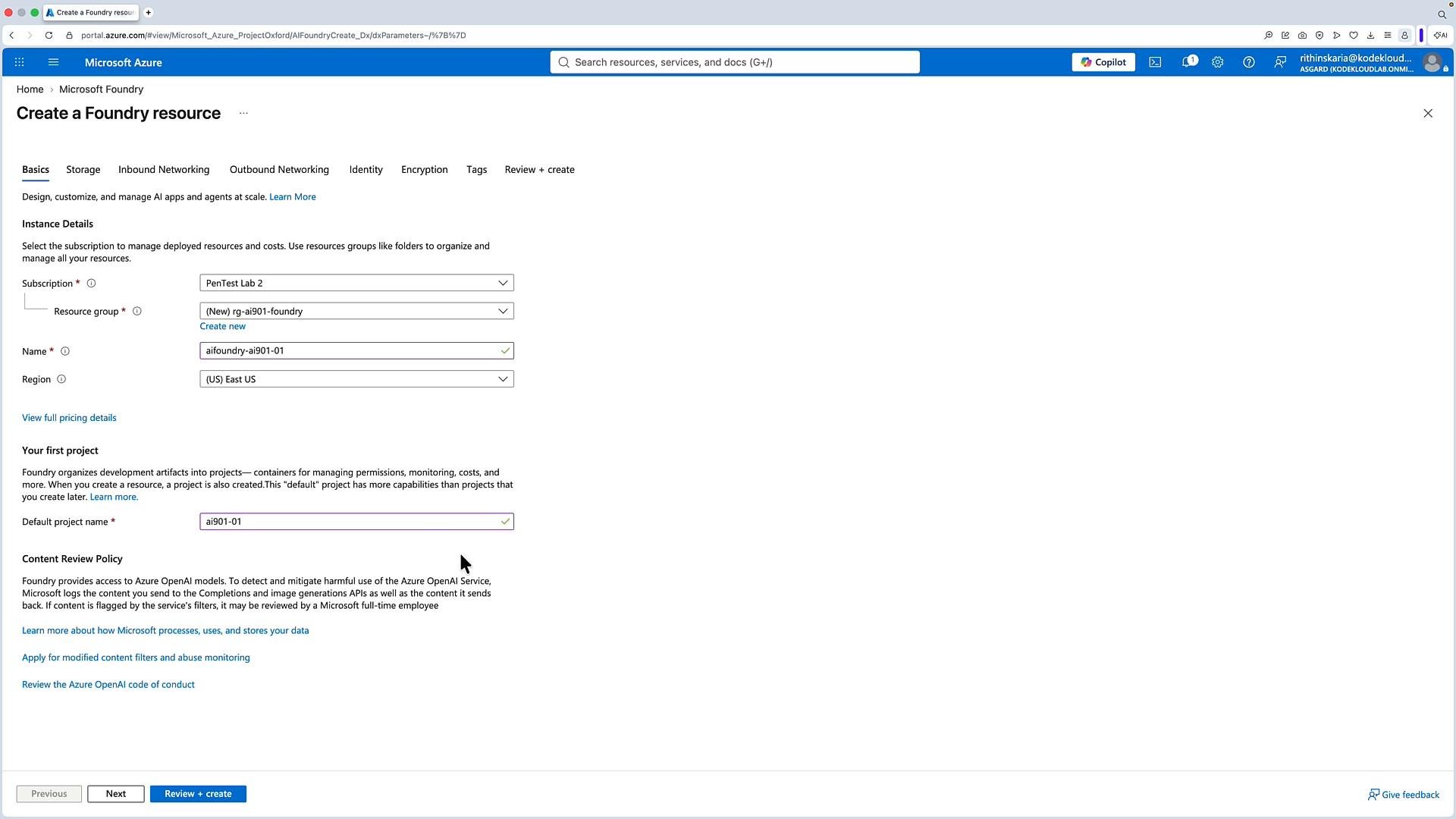
When entering values, use consistent naming and verify the target region matches the models and endpoints you plan to use. Azure regions determine availability of specific model families and integrations.
- Click Review + create. After the final validation completes, the Foundry resource will be provisioned. From the Foundry resource overview you can:
- See contained projects
- View keys and endpoints used to access Foundry capabilities
- Open the Microsoft Foundry portal via the “Microsoft Foundry portal” link
These endpoints demonstrate that Foundry aggregates multiple AI services: model endpoints, speech-to-text, text-to-speech, translation, and more. You can authenticate to these endpoints using an API key or Microsoft Entra ID (Azure AD). After creating the resource, assign appropriate roles (for example,
Foundry User) to users or applications via Access Control (IAM) so they can use the service.
Ensure the principal (user, service principal, or managed identity) you plan to use has the correct Foundry role via Access Control (IAM). Without proper role assignment, API calls will be rejected even if the endpoint and API key appear valid.
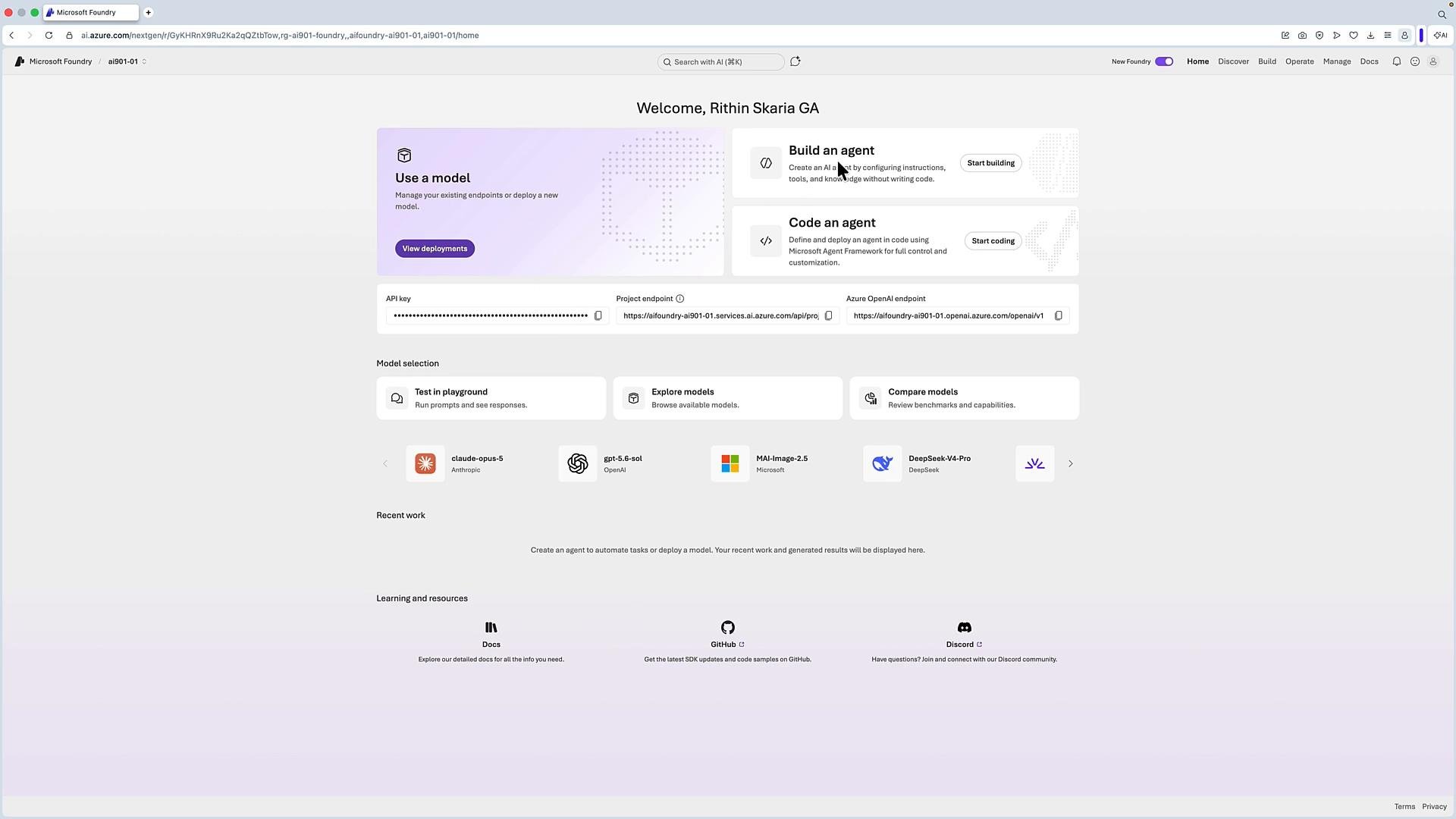
gpt-5.4-mini).
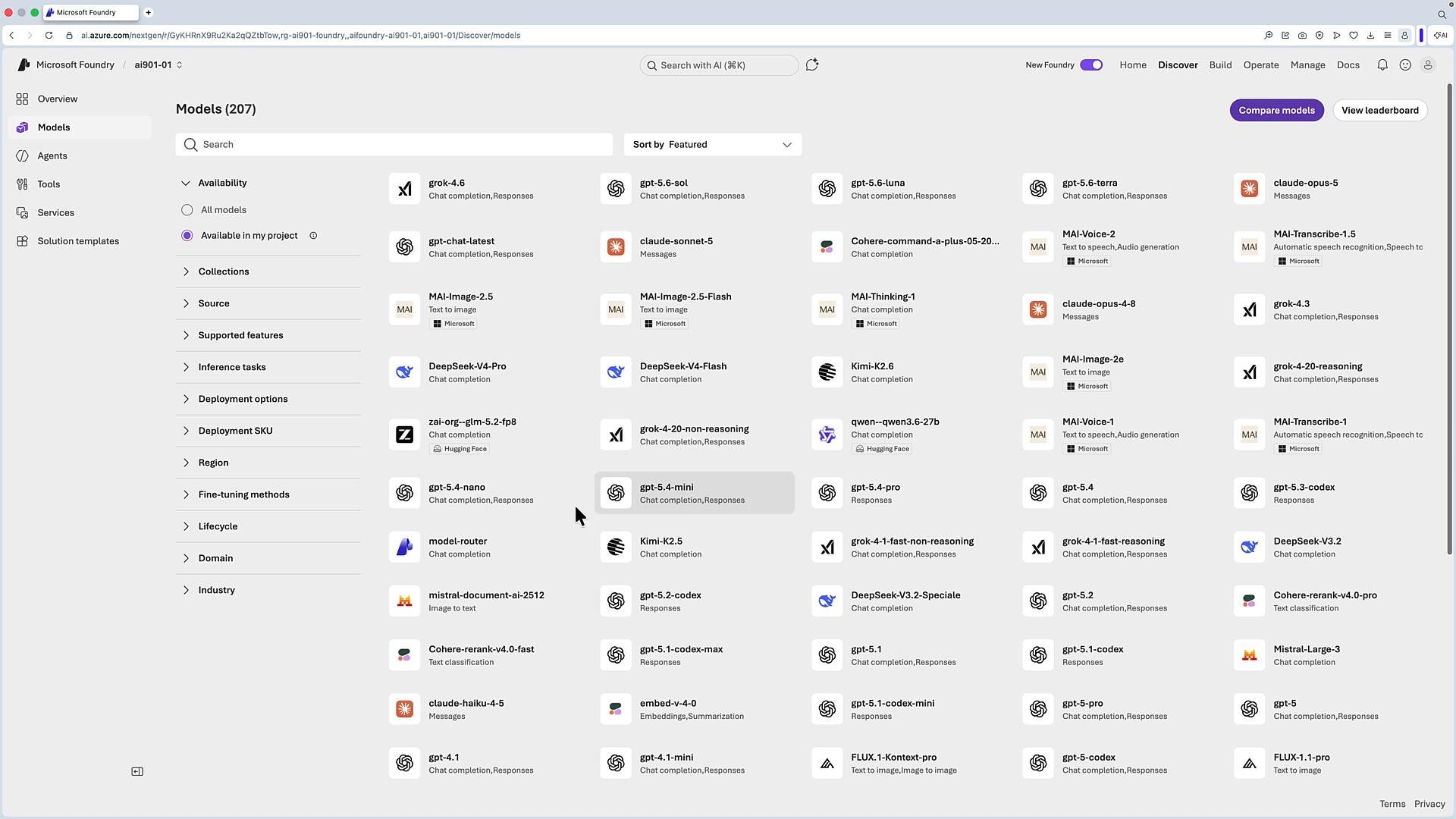
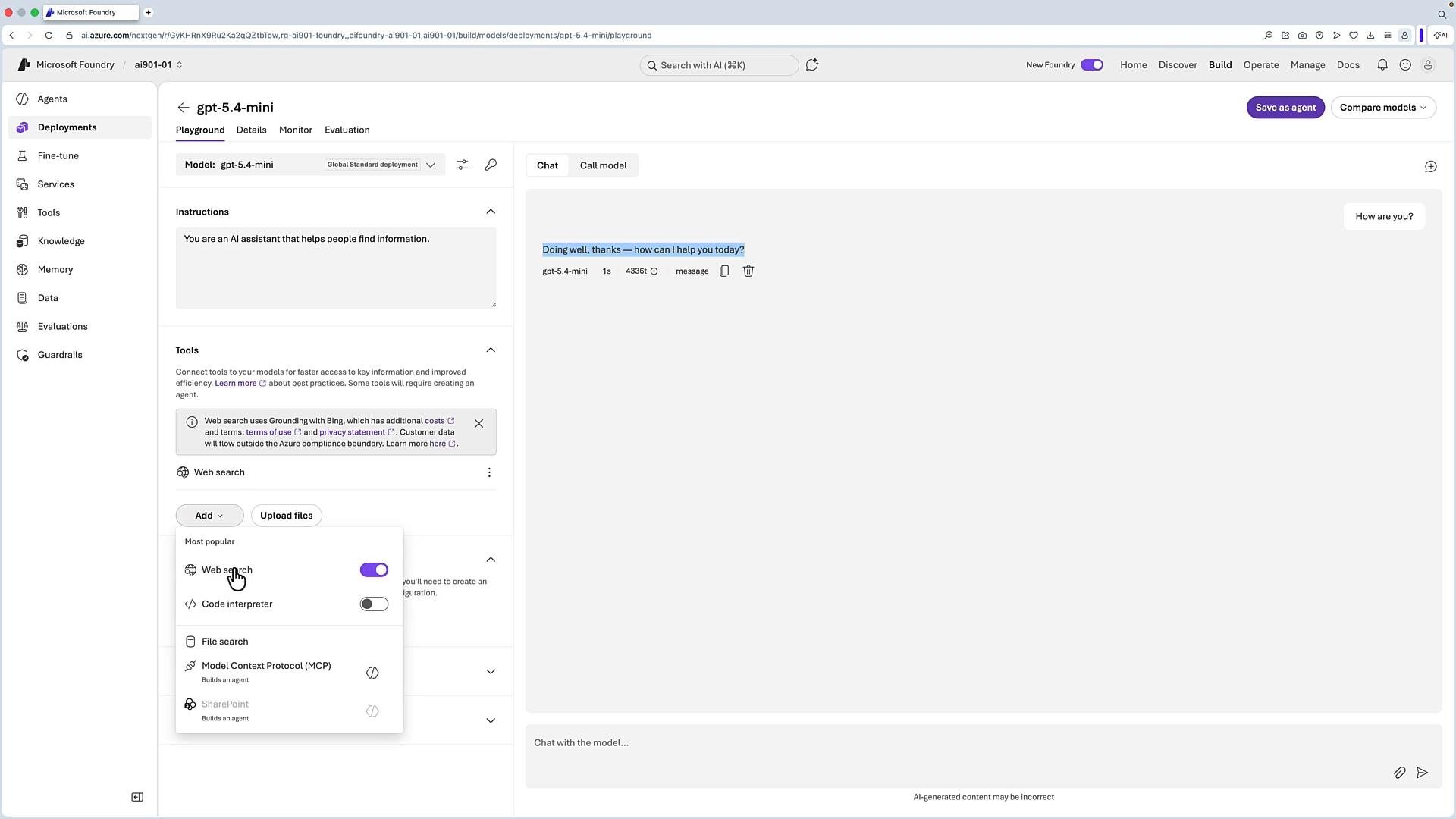
gpt-5.4-mini), open the Foundry playground for that deployment. In the playground you can:
- Chat with the model
- Add knowledge files (context/knowledge bases)
- Attach tools and connectors (e.g., Web search, Outlook, or third-party integrations)
Foundry supports both API keys and Microsoft Entra ID (Azure AD) authentication. Use API keys for quick testing and Entra ID (managed identities) for production scenarios that require fine-grained access control.
- Example: REST / cURL call to a model (chat completions endpoint)
- Example: Python using API key authentication
- Example: Python using Microsoft Entra ID (Azure AD) token provider
- Example: C# (illustrative; consult the SDK docs for exact types and initialization in your SDK version)
- Microsoft Foundry centralizes multiple AI endpoints and model catalogs in Azure.
- Use the portal to deploy models, test in the playground, attach tools, and generate example SDK/REST calls.
- For production, prefer Microsoft Entra ID (Azure AD) authentication and grant the appropriate Foundry roles via IAM.
- Microsoft Azure documentation: https://learn.microsoft.com/azure/
- Azure Active Directory developer docs: https://learn.microsoft.com/azure/active-directory/develop/
- Azure SDKs and tools: https://learn.microsoft.com/azure/developer