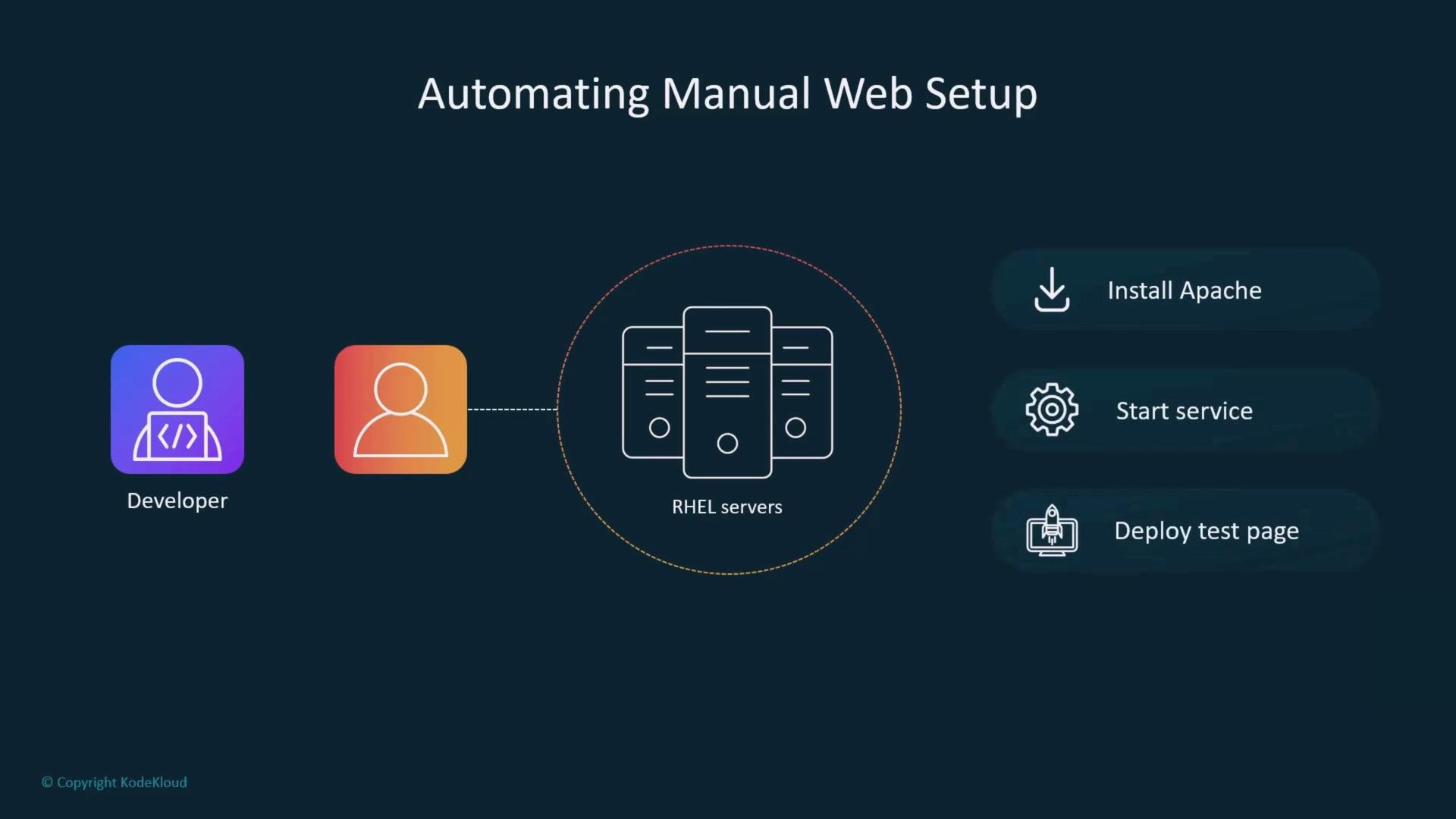
Now that you understand what an Ansible playbook is and how its structure works, let’s build one from a real-world scenario. This tutorial converts a repetitive manual process into automation so you can deploy a basic web test environment consistently across RHEL hosts. Imagine a small fleet of RHEL servers where developers often need a disposable web test site. Currently someone manually installs Apache (httpd), enables and starts the service, and drops a test page. We’ll automate those steps with a single Ansible playbook.
A slide titled "Automating Manual Web Setup" showing a developer icon connected to a group of RHEL servers. To the right are three listed steps: Install Apache, Start service, and Deploy test page.
What you’ll build
  • A small Ansible project that installs httpd, deploys a template-based index.html, ensures the service is running, and restarts httpd when content changes.
  • The playbook demonstrates inventory, ansible.cfg defaults, variables, tasks, templates, and handlers—the core building blocks of Ansible automation.
Workflow
  • Create a project folder and basic files.
  • Define an inventory that targets the managed host(s).
  • Add a minimal ansible.cfg so you don’t need extra CLI flags.
  • Write a playbook with tasks and handlers.
  • Run the playbook and verify the result on the managed host.
Environment overview
ItemDetails
Control hostWhere Ansible runs (your workstation)
Managed hostservera (RHEL)
AuthenticationSSH public-key authentication preconfigured
Remote userstudent (passwordless sudo configured)
Privilege escalationsudo via sudoers drop-in (no password)
Ensure the Ansible remote user can perform privileged tasks. In this lab the sudoers entry allows the student user to use sudo without a password:
student ALL=(ALL) NOPASSWD: ALL
Be careful granting NOPASSWD sudo in production. Use the minimum required privileges and restrict commands where possible.
Install Ansible Core (example)
  • Install Ansible on the control host. The example below uses dnf on RHEL; replace with your platform’s package manager if needed.
student@control:~$ sudo dnf install -y ansible-core
...
Installed:
    ansible-core-1:2.16.14-1.el10.noarch  ...
Complete!
student@control:~$
Create the project directory and files
  1. Create a project folder and enter it:
student@control:~$ mkdir project
student@control:~$ cd project
  1. Create an inventory file. This example defines a webservers group with servera. Adjust ansible_host if you need an explicit IP.
# inventory
[webservers]
servera ansible_host=10.0.2.4
  1. Create a minimal ansible.cfg so you don’t need to pass —inventory or —user on the command line. Save this as ansible.cfg in the project folder.
[defaults]
inventory = inventory
remote_user = student

[privilege_escalation]
become = true
become_user = root
become_method = sudo
become_ask_pass = false
Files you will create
FilePurpose
inventoryDefines target hosts (webservers group)
ansible.cfgProject-local defaults (inventory, remote_user, become settings)
playbook.ymlThe Ansible playbook with tasks and handlers
index.html.j2Jinja2 template for the web page
Write the playbook Create playbook.yml with the content below. The playbook installs the httpd package, deploys a simple index.html template, starts the httpd service, and notifies a handler to restart httpd when the template changes.
# playbook.yml
- name: install httpd on servera
  hosts: webservers
  vars:
    httpd_pkg: httpd
    httpd_svc: httpd
  tasks:
    - name: Install Apache webserver
      dnf:
        name: "{{ httpd_pkg }}"
        state: latest

    - name: Deploy content
      template:
        src: index.html.j2
        dest: /var/www/html/index.html
      notify: restart httpd

    - name: Start httpd service
      service:
        name: "{{ httpd_svc }}"
        state: started

  handlers:
    - name: restart httpd
      service:
        name: "{{ httpd_svc }}"
        state: restarted
Create the template Create the Jinja2 template index.html.j2 in the same project directory. This template uses an Ansible facts variable to include the host’s hostname in the page.
Hello from {{ ansible_hostname }}
Validate and run the playbook
  1. Perform a syntax check:
student@control:~/project$ ansible-playbook playbook.yml --syntax-check
playbook: playbook.yml
  1. Run the playbook:
student@control:~/project$ ansible-playbook playbook.yml
Example (condensed) output showing the play execution:
PLAY [install httpd on servera] ****************************************************

TASK [Gathering Facts] *************************************************************
ok: [servera]

TASK [Install Apache webserver] ****************************************************
changed: [servera]

TASK [Deploy content] **************************************************************
changed: [servera]

TASK [Start httpd service] *********************************************************
changed: [servera]

RUNNING HANDLER [restart httpd] ***************************************************
changed: [servera]

PLAY RECAP ************************************************************************
servera                   : ok=5    changed=4    unreachable=0    failed=0    skipped=0
Verify the result on the managed host SSH to the managed host (or use a remote check) and curl the local web server to confirm the template is served:
student@control:~/project$ ssh servera
student@servera:~$ curl -s http://localhost
Hello from servera
This confirms the playbook installed httpd, deployed the index.html template, started the service, and the handler restarted httpd after the template changed. Conclusion You’ve created a minimal, reusable Ansible project that automates installing and configuring an Apache-based test page on RHEL. This covers essential Ansible concepts—inventory, configuration, variables, tasks, templates, and handlers—that form the foundation for more advanced automation. Links and references

Watch Video