In this guide you’ll learn how to integrate Cursor (an AI-assisted editor) into an Ansible-driven workflow to speed up playbook creation, generate templates, and validate changes before applying them to managed hosts. This walkthrough covers:
  • creating a local workspace and basic Ansible configuration,
  • installing and authenticating Cursor Desktop,
  • using Cursor to generate and refine an Ansible playbook,
  • adding a Jinja2 template and an idempotent lineinfile change,
  • linting and executing the playbook, and
  • verifying the result on the managed host.
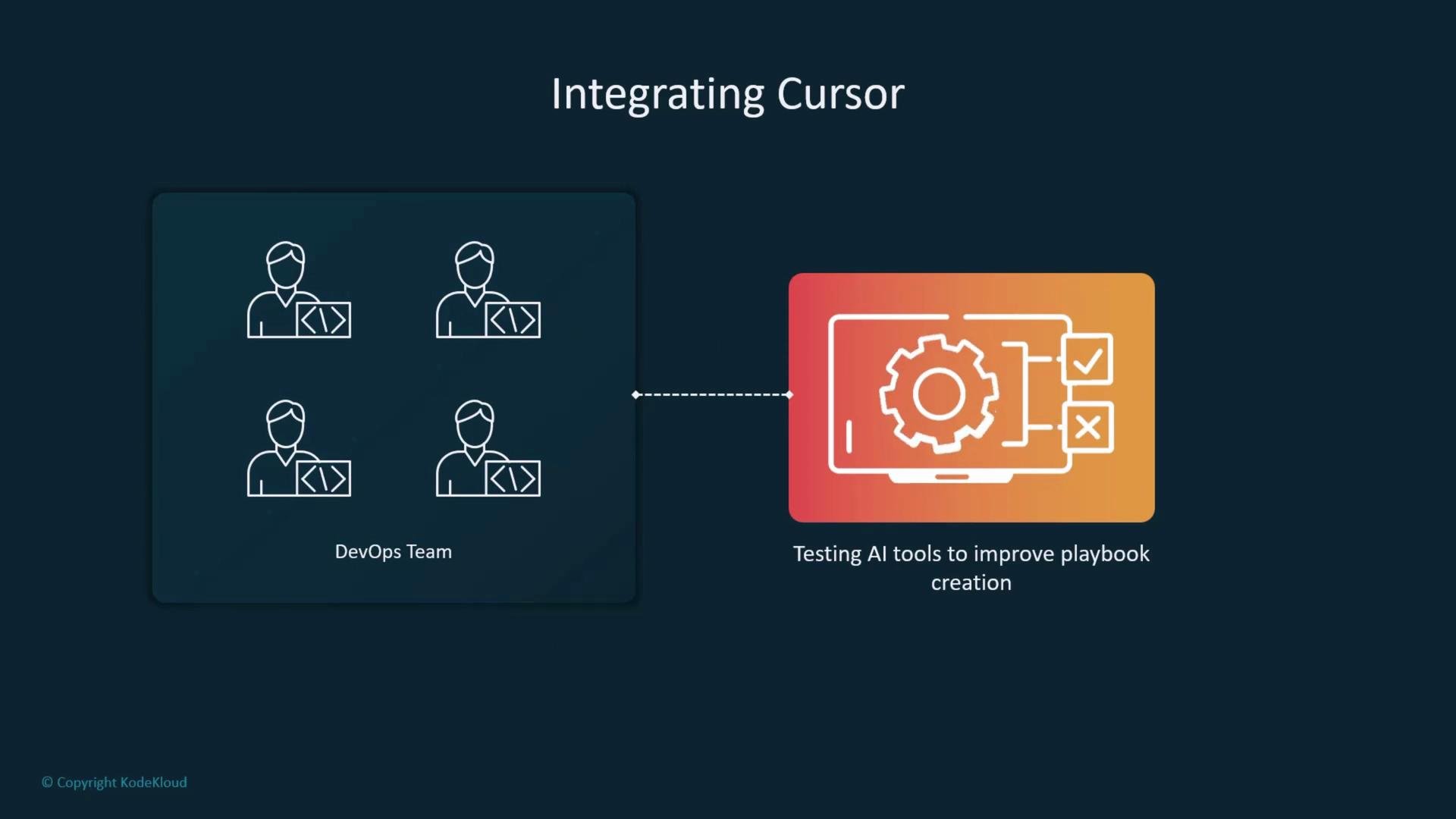
A slide titled "Integrating Cursor" showing a DevOps team icon on the left linked by a dotted line to a laptop/gear graphic on the right. The right panel is labeled "Testing AI tools to improve playbook creation."
High-level workflow
StepPurpose
1create/open a project workspace
2install and sign in to Cursor Desktop
3use Cursor to generate tasks and templates
4refine the playbook and add a handler
5validate with Ansible Lint and run the playbook
6verify the deployed content on the managed host
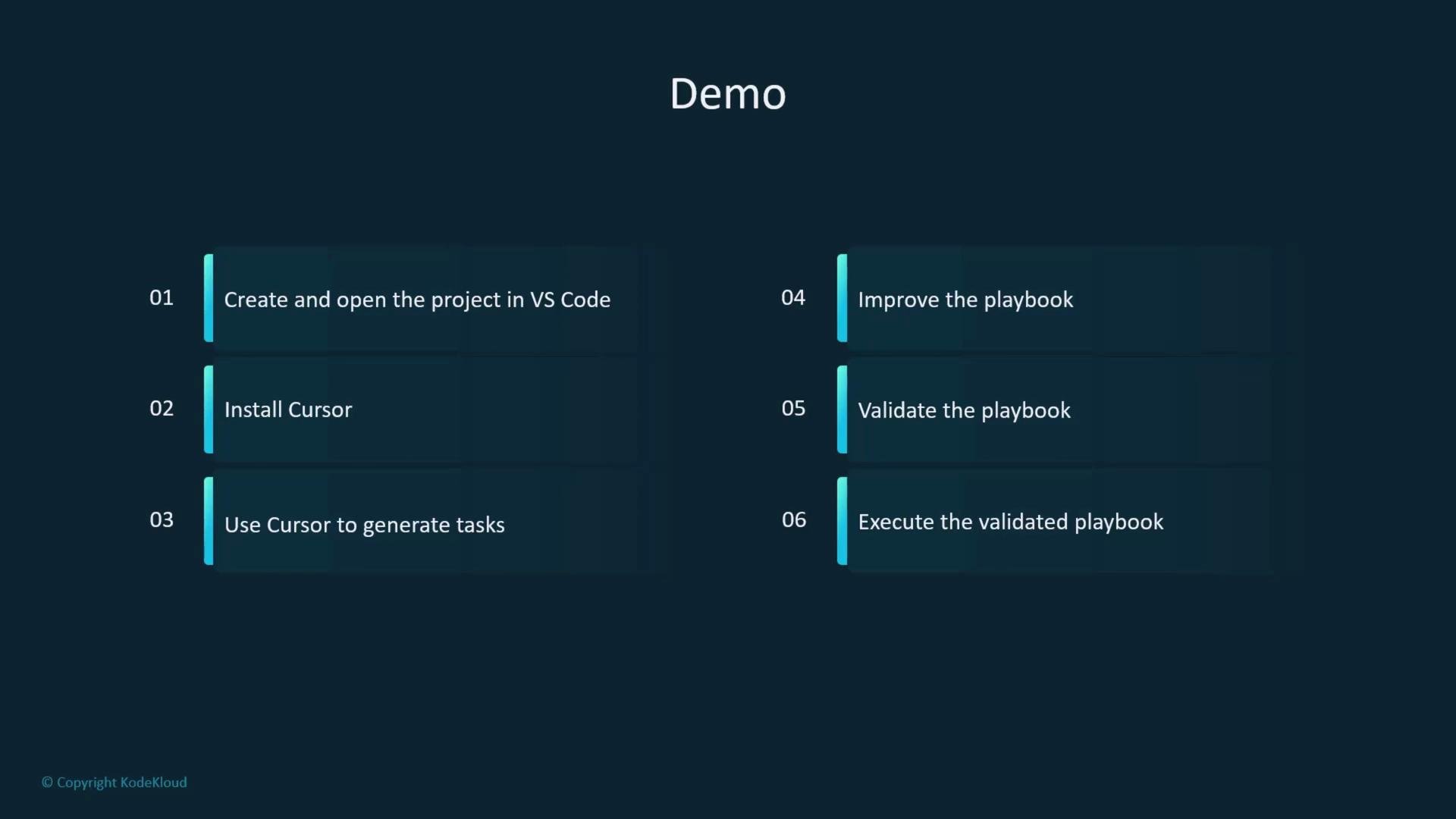
A dark-themed presentation slide titled "Demo." It lists six numbered steps for using Cursor in VS Code: create/open the project, install Cursor, generate tasks, improve and validate the playbook, and execute the validated playbook.
Before you begin: ensure passwordless SSH or configured credentials from the control host to managed hosts, and that you have privileges to install and manage services (become/sudo). If you plan to run this on remote systems, test in a safe environment.
Workspace setup (control host) Create a working directory and add a minimal inventory and ansible.cfg so Ansible targets your local inventory and uses privilege escalation. Commands:
student@control:~$ mkdir cursor
student@control:~$ cd cursor
Create a simple inventory file named inventory:
[webservers]
servera
Create an ansible.cfg file that points Ansible to the local inventory and enables privilege escalation by default:
[defaults]
inventory = inventory

[privilege_escalation]
become = True
become_method = sudo
become_user = root
become_ask_pass = False
Now your workspace prompt should look like:
student@control:~/cursor$
Install and sign in to Cursor Desktop
  1. Open a browser and download Cursor for your platform: https://www.cursor.com/download
  2. Install the Cursor Desktop app, then sign in (e.g., via Google) to your Cursor account.
  3. Configure appearance/IDE layout if desired, then open the project directory (the cursor folder you created).
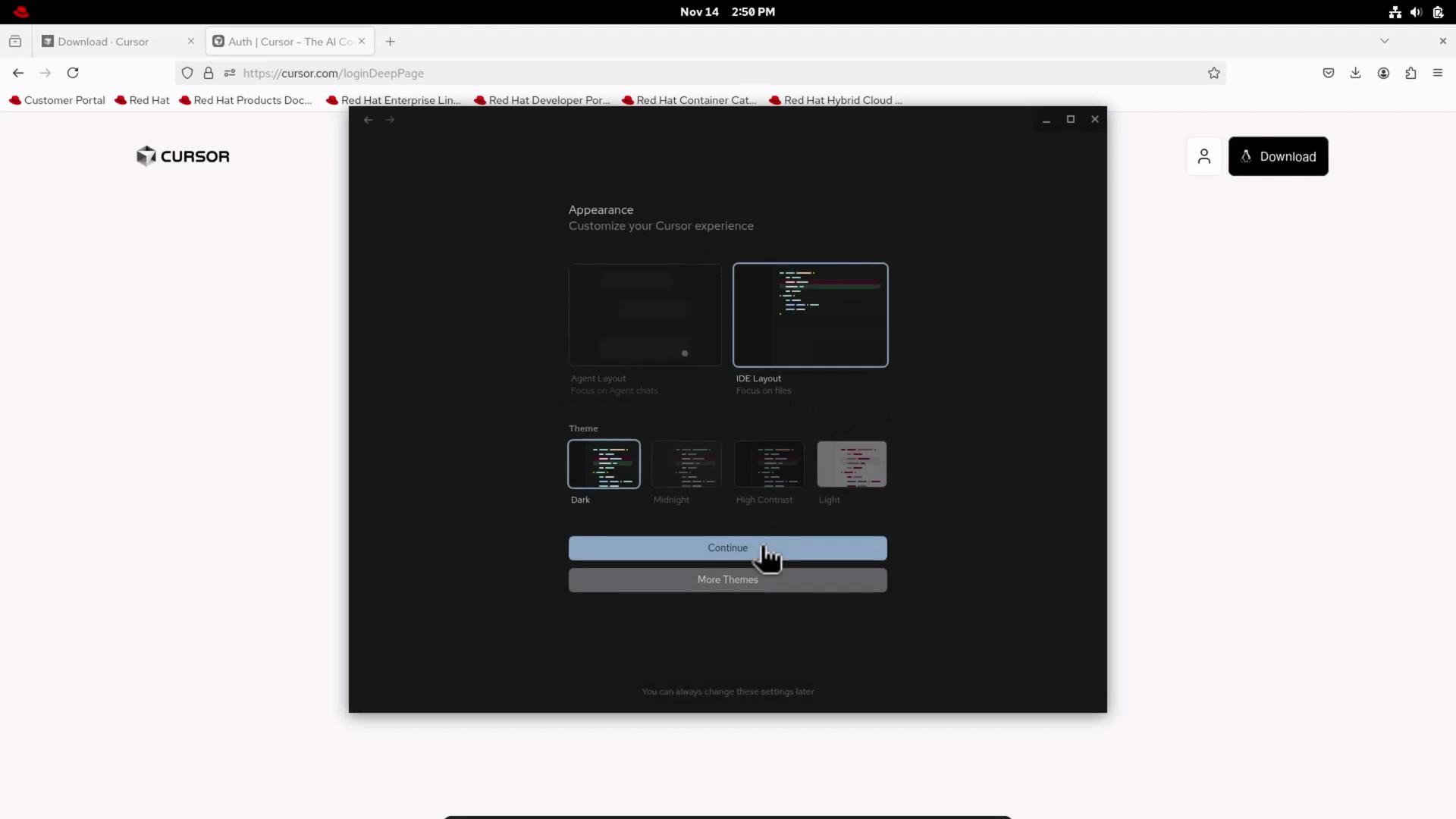
A browser screenshot of the Cursor website showing a dark "Appearance" settings panel with layout and theme options (IDE layout and Dark theme) and a highlighted "Continue" button with a hand cursor.
Create the initial playbook with Cursor Open the cursor project directory in Cursor or your IDE and create site.yaml (or site.yml). Ask Cursor to generate an Ansible playbook to deploy httpd on RHEL-based servers in the webservers group. Cursor often suggests tasks such as installing the package, enabling and starting the service, managing firewall rules, and adding templates. A concise Cursor-generated starting playbook:
---
- name: Deploy httpd on RHEL-based servers
  hosts: webservers
  become: yes
  tasks:
    - name: Install httpd package
      package:
        name: httpd
        state: present

    - name: Start and enable httpd service
      systemd:
        name: httpd
        state: started
        enabled: yes
Refine the playbook — add a Jinja2 template We want to deploy an index.html.j2 template that renders the managed host’s hostname (using ansible_hostname). Create index.html.j2 with the HTML content below. This template will be rendered on each managed host.
<!DOCTYPE html>
<html lang="en">
<head>
    <meta charset="UTF-8">
    <meta name="viewport" content="width=device-width, initial-scale=1.0">
    <title>Hostname Information</title>
    <style>
        body {
            font-family: Arial, sans-serif;
            display: flex;
            justify-content: center;
            align-items: center;
            height: 100vh;
            margin: 0;
            background: linear-gradient(135deg, #667eea 0%, #764ba2 100%);
        }
        .container {
            background: white;
            padding: 2rem;
            border-radius: 10px;
            box-shadow: 0 10px 25px rgba(0,0,0,0.2);
            text-align: center;
        }
        h1 {
            color: #333;
            margin-bottom: 1rem;
        }
        .hostname {
            font-size: 2rem;
            color: #667eea;
            font-weight: bold;
            padding: 1rem;
            background: #f0f0f0;
            border-radius: 5px;
            margin-top: 1rem;
        }
    </style>
</head>
<body>
    <div class="container">
        <h1>Managed Host Information</h1>
        <p>Hostname:</p>
        <div class="hostname">{{ ansible_hostname }}</div>
    </div>
</body>
</html>
Update the playbook to deploy the template and notify a handler that restarts httpd on changes. Add an idempotent line insertion To append a consistent line to the rendered page, add a lineinfile task that inserts the paragraph only if it does not already exist. Notify the restart httpd handler when the file changes. Final consolidated site.yaml (refined playbook):
---
- name: Deploy httpd on RHEL-based servers
  hosts: webservers
  become: yes
  tasks:
    - name: Install httpd package
      package:
        name: httpd
        state: present

    - name: Start and enable httpd service
      systemd:
        name: httpd
        state: started
        enabled: yes

    - name: Deploy index.html template
      template:
        src: index.html.j2
        dest: /var/www/html/index.html
        mode: '0644'
      notify: restart httpd

    - name: Add "Created by ansible and cursor" line to index.html
      lineinfile:
        path: /var/www/html/index.html
        line: '<p>Created by ansible and cursor</p>'
        insertafter: '</div>'
        regexp: 'Created by ansible and cursor'
      notify: restart httpd

  handlers:
    - name: restart httpd
      systemd:
        name: httpd
        state: restarted
Best practice: review Cursor suggestions and remove duplicate or unnecessary tasks (for example, multiple service tasks or firewall rules if not required). Useful Ansible modules used
ModulePurposeExample usage
packageInstall or ensure packagespackage: name=httpd state=present
systemdManage servicessystemd: name=httpd state=started enabled=yes
templateDeploy Jinja2 templatestemplate: src=index.html.j2 dest=/var/www/html/index.html
lineinfileIdempotent text insertionlineinfile: path=/var/www/html/index.html line='<p>Created...'
Open and lint the playbook in VS Code Open the cursor directory in VS Code to inspect files. Run Ansible Lint to catch style and potential issues: https://ansible-lint.readthedocs.io/ VS Code and Cursor extensions may flag warnings; these are often informational but should be reviewed.
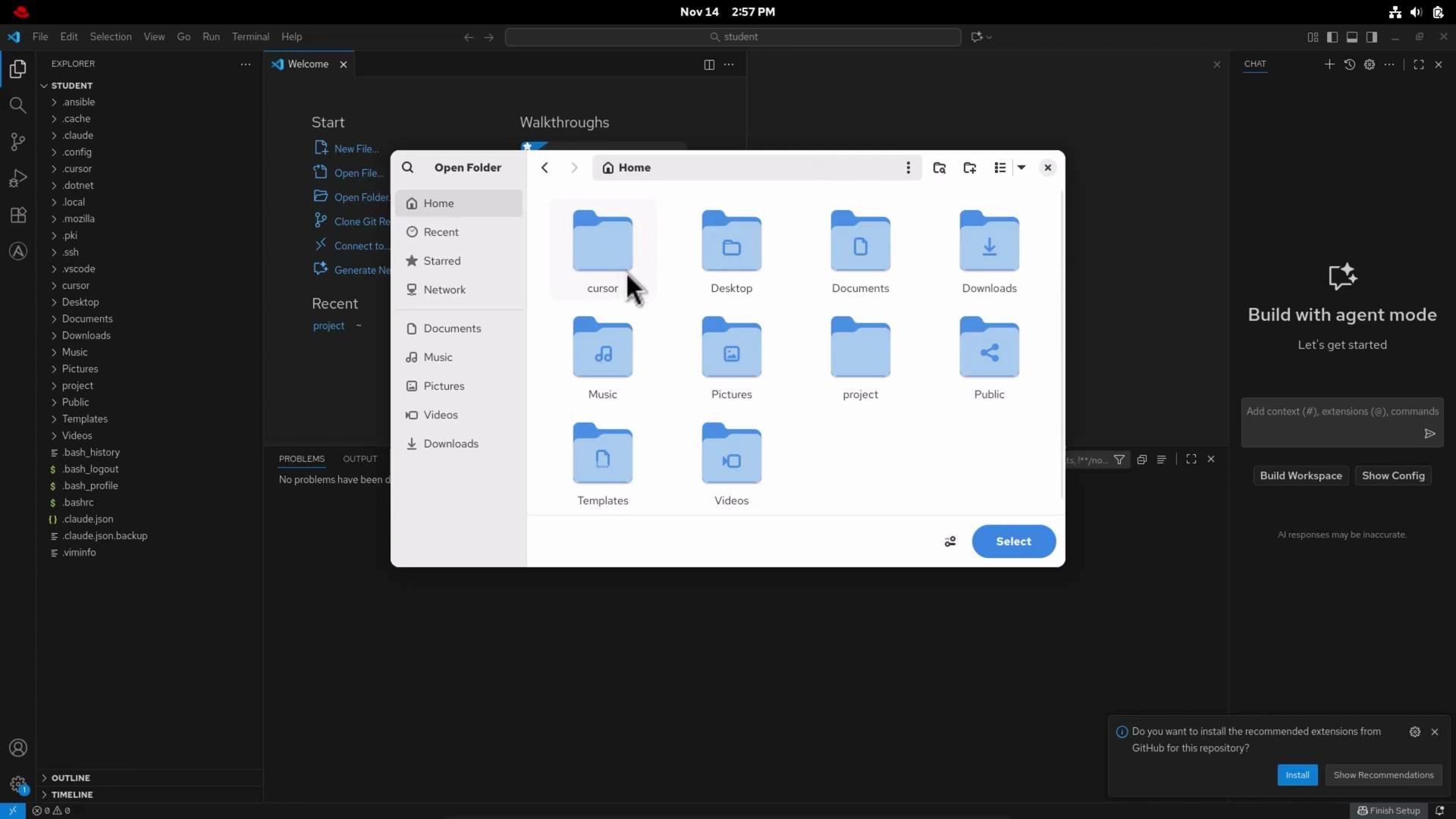
A screenshot of a dark-themed code editor (Visual Studio Code) with an open file picker window showing a Home folder and blue folder icons like Desktop, Documents, Downloads, Music, Pictures, and Videos. The code editor sidebar and a "Build with agent mode" panel are visible in the background.
Run the playbook Execute the playbook from the control host:
student@control:~/cursor$ ansible-playbook /home/student/cursor/site.yaml
Sample (trimmed) output showing successful tasks:
PLAY [Deploy httpd on RHEL-based servers] *************************************

TASK [Gathering Facts] *********************************************************
ok: [servera]

TASK [Install httpd package] ***************************************************
ok: [servera]

TASK [Start and enable httpd service] ******************************************
ok: [servera]

TASK [Deploy index.html template] **********************************************
changed: [servera]

TASK [Add "Created by ansible and cursor" line to index.html] ******************
changed: [servera]

RUNNING HANDLER [restart httpd] ************************************************
changed: [servera]

PLAY RECAP *********************************************************************
servera                   : ok=5    changed=3    unreachable=0    failed=0
Verify on the managed host SSH into the managed host and retrieve the rendered page:
student@control:~/cursor$ ssh servera
# After login, check HTTP locally:
servera$ curl -s http://localhost | sed -n '1,120p'
Expected output includes the rendered hostname and the added paragraph:
<div class="hostname">servera</div>
<p>Created by ansible and cursor</p>
When testing playbooks that install or restart services, be mindful of production impact. Run first in a staging or lab environment. Confirm proper privilege escalation and inventory targeting to avoid unintended changes.
Summary and recommendations
  • Cursor can accelerate playbook authoring by suggesting task skeletons, templates, and small refinements. Always review generated content.
  • Use handlers and idempotent modules (template, lineinfile, systemd) to produce safe, repeatable runs.
  • Validate generated playbooks with Ansible Lint and test in a controlled environment before applying to production hosts.
  • Combine Cursor suggestions with human review to maintain correct security posture and operational intent.
Links and references

Watch Video