In this lesson we’ll configure Red Hat Ansible Lightspeed — the AI assistant embedded in the Red Hat Ansible extension for Visual Studio Code. Lightspeed is purpose-built for Ansible: it understands Ansible modules, playbook syntax, and (optionally) your Automation Controller context so suggestions align with enterprise automation best practices. Unlike general-purpose assistants such as ChatGPT or GitHub Copilot, Lightspeed is tightly coupled with the Ansible ecosystem and helps reduce YAML errors, accelerate development, and enforce consistent playbook patterns. This demo will:
  • Prepare your environment and prerequisites.
  • Open the Lightspeed setup panel and authenticate to Red Hat if prompted.
  • Generate a simple playbook using Lightspeed and validate autocomplete suggestions.
Ensure you have the Red Hat Ansible extension for VS Code installed and that you’re signed in with your Red Hat account (if prompted). Some Lightspeed features may require an active subscription or access to your Automation Controller context.
Quick demo flow
StepActionExpected result
Prepare environmentInstall the Ansible extension and open VS CodeLightspeed UI available in the Ansible side panel
Generate playbookEnter a natural language prompt in the Lightspeed panelLightspeed analyzes and creates a proposed playbook
Test autocompleteType natural-language task descriptions in the editorLightspeed suggests Ansible tasks that can be accepted with Tab
Now we’ll generate a playbook. In the Lightspeed panel I type a natural-language prompt such as: Create a playbook which installs Apache on RHEL servers.
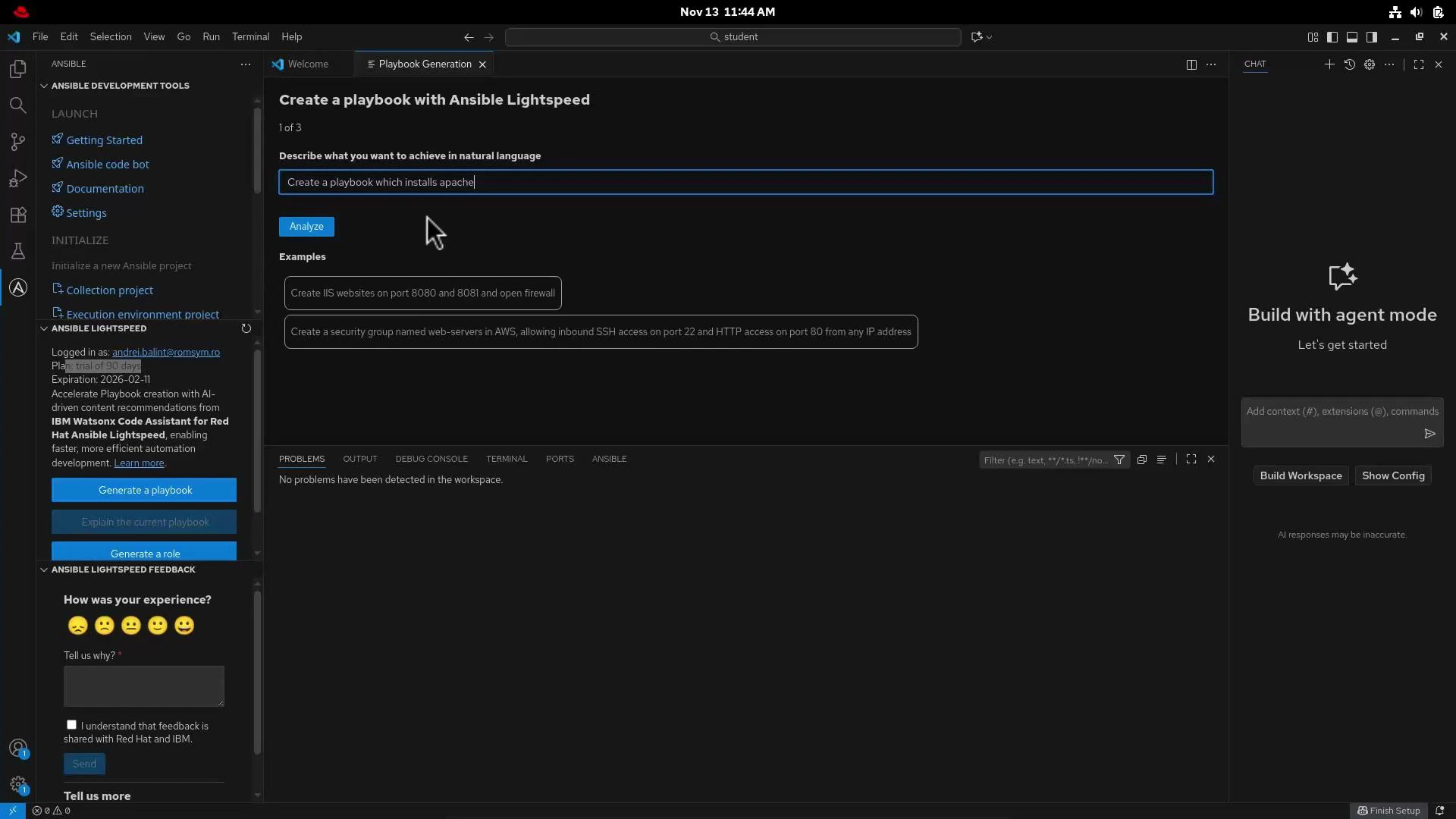
A dark-themed Visual Studio Code window displaying the Ansible Lightspeed "Create a playbook" panel, with the text "Create a playbook which installs apache" entered and an "Analyze" button. Sidebars show Ansible development tools on the left and a "Build with agent mode" pane on the right.
I click Analyze. Lightspeed parses the request and summarizes the intended tasks. For this example the analysis shows:
1. Install apache

No problems have been detected in the workspace.
Click Continue to let Lightspeed create a new playbook file. The generated YAML appears in the editor. To test Lightspeed’s autocomplete, add another task by typing a natural description in the editor (for example: “Create a user called test”) and press Enter. Lightspeed will present a suggestion for the corresponding Ansible task — accept it with Tab to insert the task into your playbook. Resulting playbook (with become set to escalate privileges where needed):
---
- name: Install apache on rhel
  hosts: rhel
  become: true
  tasks:
    - name: Install apache
      ansible.builtin.package:
        name: httpd
        state: present

    - name: Create a user called test
      ansible.builtin.user:
        name: test
        state: present
What to expect
  • Generated suggestions appear inline in the editor and can be accepted or edited.
  • You can refine prompts, add variables, or extend tasks to match your organization’s requirements.
  • If you provide Automation Controller context or inventories, Lightspeed can generate suggestions that better match your environment.
If Lightspeed does not produce suggestions, verify you are signed in to the Red Hat Ansible extension, your extension is up to date, and any required subscription or Automation Controller access is available.
Links and references Troubleshooting tips
  • Ensure VS Code and the Ansible extension are updated.
  • Restart VS Code if the Lightspeed panel does not load.
  • Check extension logs (View → Output → Ansible) for authentication or connectivity issues.

Watch Video