In this lesson you’ll add Claude Code to an Ansible workflow so you can generate ad-hoc commands and playbooks directly from the terminal. Claude Code is a lightweight CLI client for Anthropic’s Claude models that connects to the Claude API and helps developers author scripts, playbooks, and commands without leaving their shell.
A presentation slide titled "Integrating Claude Code CLI" with a central circular logo and three numbered points: "Built for developers," "Works directly from the terminal," and "Generates Ansible playbooks."
Target audience: systems engineers and DevOps practitioners managing Linux servers across multiple environments who want to pilot AI-assisted automation to speed up routine tasks.
The image is a presentation slide titled "Integrating Claude Code CLI" showing an illustration of a person working on a laptop with a chat/code window. To the right are three feature bullets: "Lightweight local CLI," "Secure API connection," and "Powered by Claude 3 models."
What you will do in this demo:
  • Verify required system packages and environment
  • Install the Claude Code CLI
  • Authenticate the CLI (interactive browser flow)
  • Validate Claude-generated Ansible ad-hoc commands and playbooks
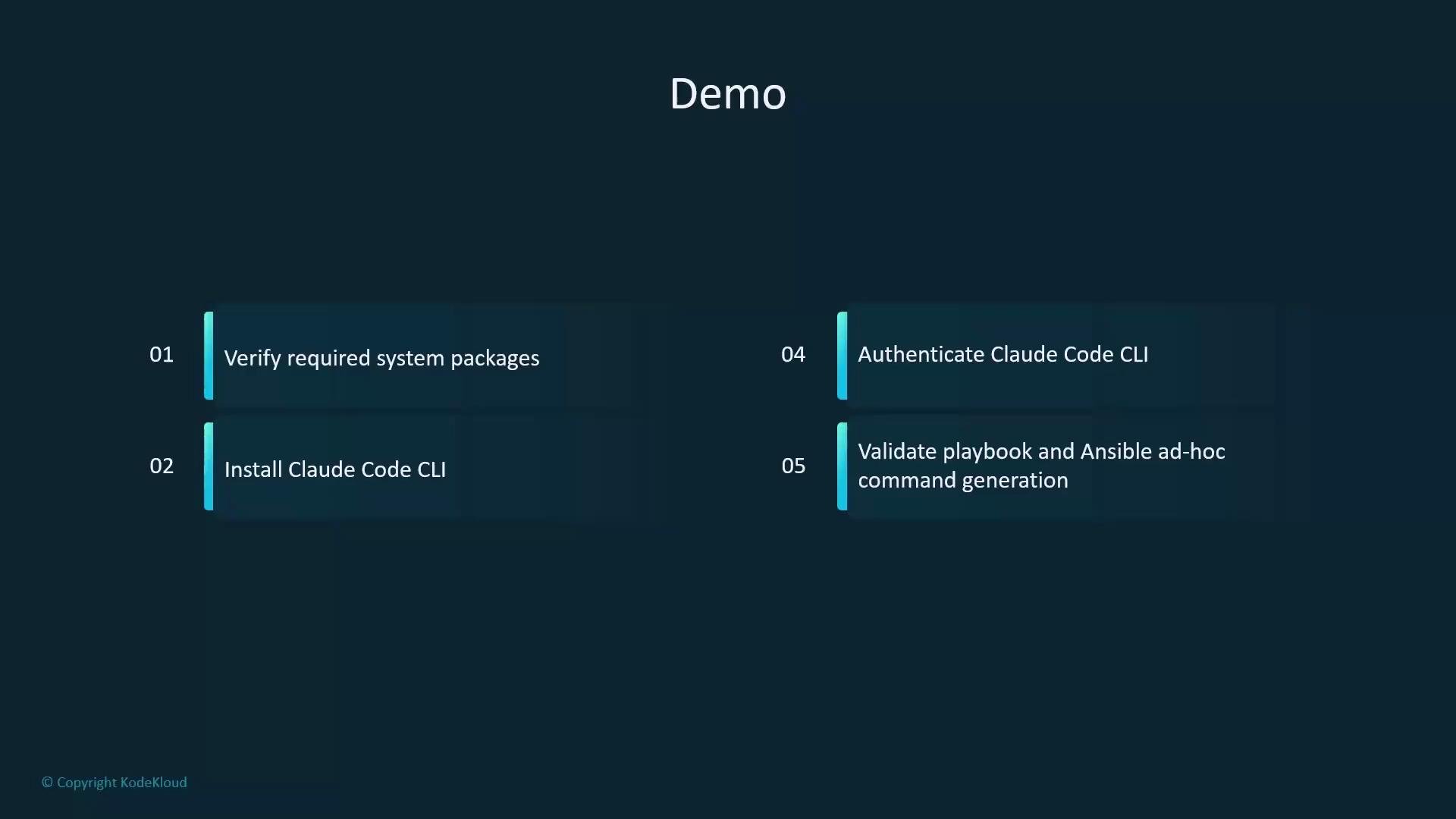
A dark-themed presentation slide titled "Demo" showing a two-column, numbered list of steps: verify required system packages, install Claude Code CLI, authenticate Claude Code CLI, and validate playbook and Ansible ad-hoc command generation.

1. Prepare the VM and shell

Switch to the student virtual machine and ensure you are in the home directory:
student@control:~/claude$ cd ~
student@control:~$ clear

2. Install Claude Code CLI

Install the CLI using the official installer script (curl piped to bash):
student@control:~$ curl -fsSL https://claude.ai/install.sh | bash
Sample installer output:
Setting up Claude Code...

✔ Claude Code successfully installed!

Version: 2.0.37
Location: ~/.local/bin/claude

Next: Run claude --help to get started

✅ Installation complete!
student@control:~$

3. Authenticate the CLI

Start the interactive login flow:
student@control:~$ claude login
The CLI presents the login options:
Claude Code can be used with your Claude subscription or billed based on API usage through your Console account.

Select login method:

› 1. Claude account with subscription · Pro, Max, Team, or Enterprise
  2. Anthropic Console account · API usage billing
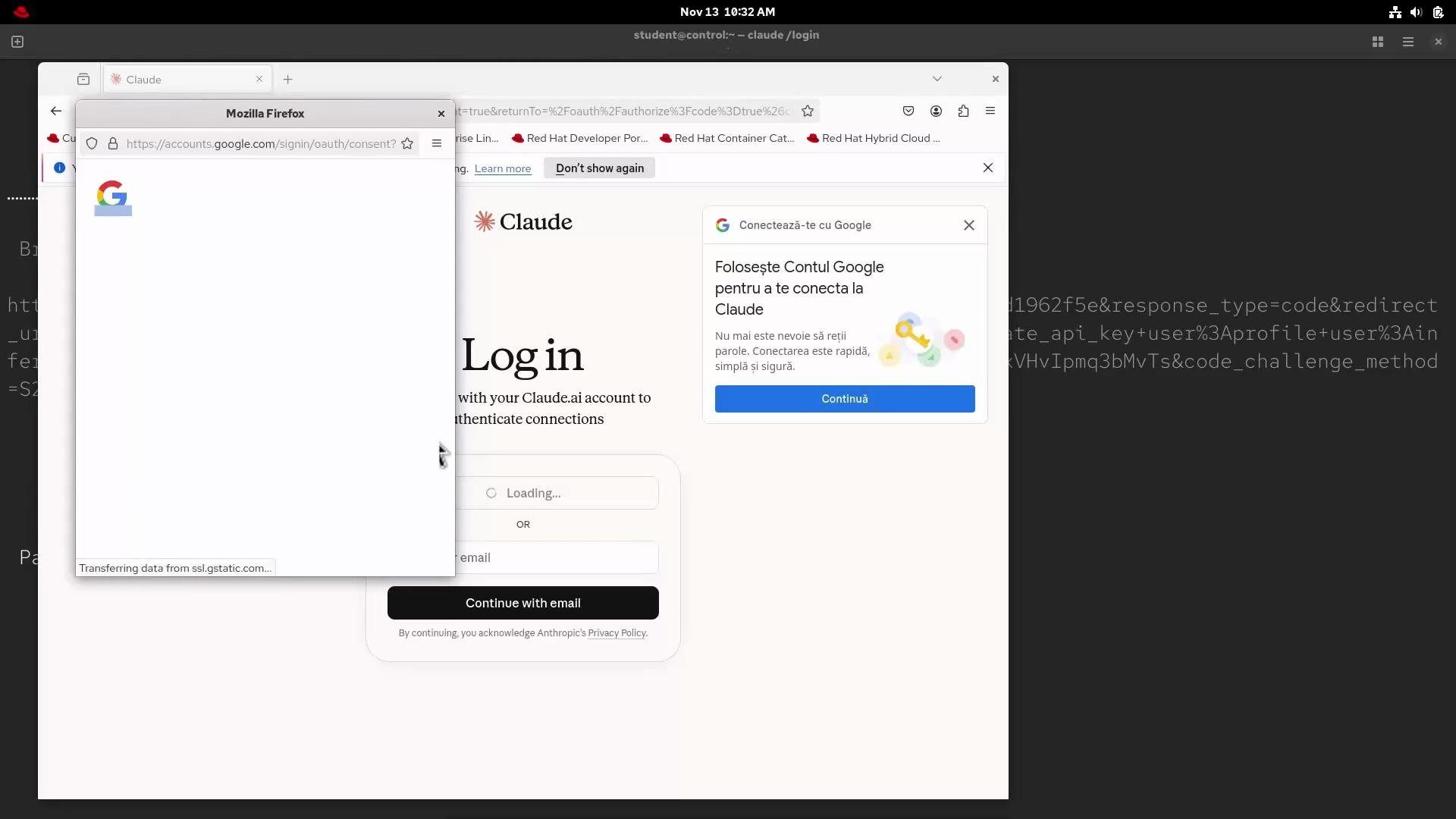
Choose the appropriate method. In this demo the user selects a Claude account and authenticates via Google; a browser window opens for the OAuth flow.
A computer desktop screenshot showing a Firefox browser open to the Claude.ai login page with a Google sign-in popup window loading. A smaller dialog on the page prompts the user to connect using a Google account (the prompt text appears in Romanian).
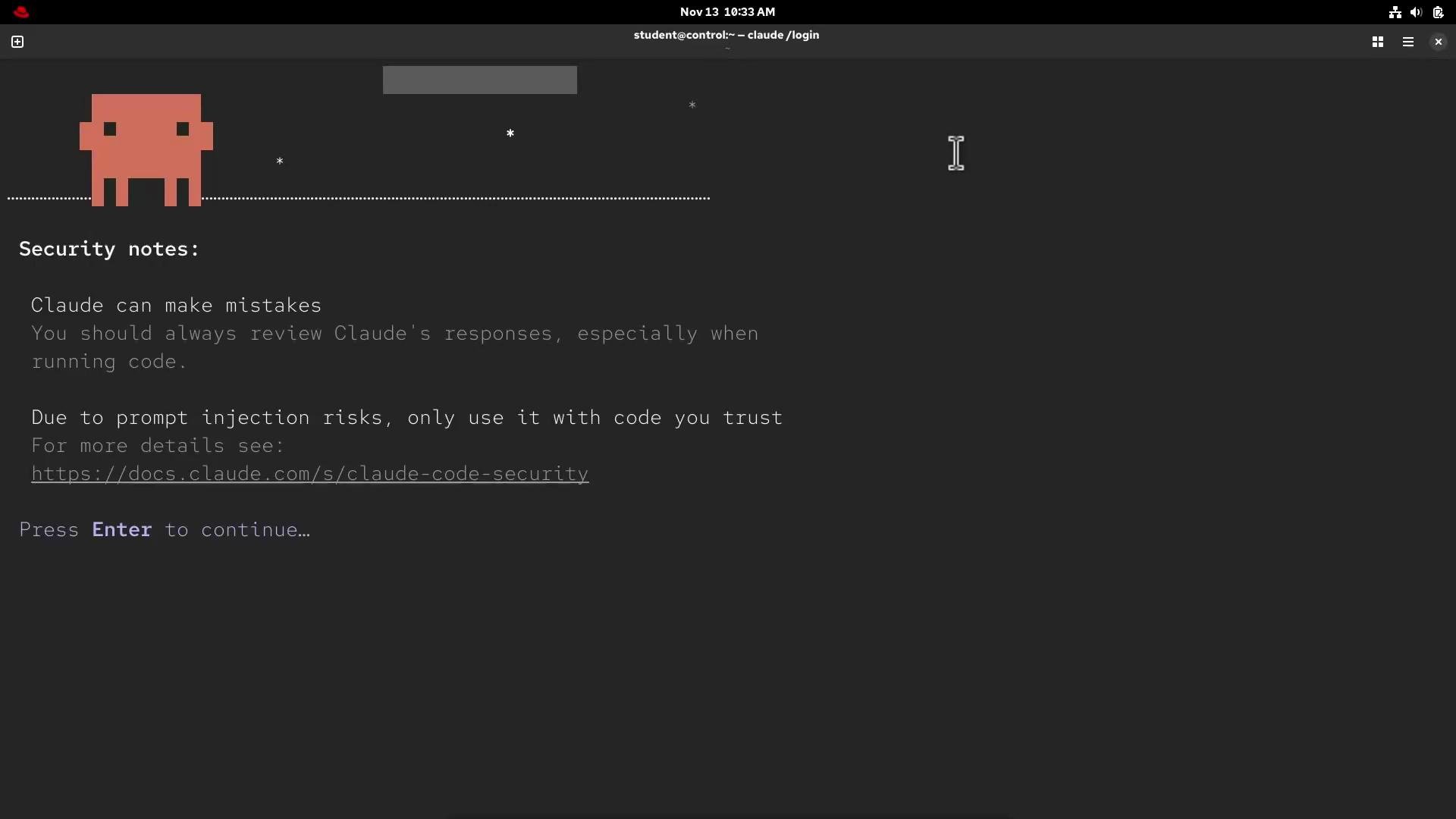
After completing the browser-based login, the CLI displays security notes describing model limitations and guidance.
A dark terminal-style screen displaying "Security notes" about Claude — warning that Claude can make mistakes and advising caution with code and prompt injection, plus a link to documentation. An orange ASCII-art character appears at the top left and a "Press Enter to continue…" prompt is shown.
Claude models can make mistakes and prompts might include unsafe instructions. Be cautious when executing generated code or granting filesystem access.
Allow the CLI the requested workspace permissions, complete the flow, and return to the shell. If the process is interrupted you may see:
> /login
└ Login interrupted

student@control:~$
Re-run claude login to retry if needed.

4. Quick verification: ask Claude for Ansible ad-hoc commands

Try a simple prompt to generate an Ansible ad-hoc ping command for your inventory:
student@control:~$ claude -p "Ansible ad-hoc command to ping all hosts within inventory"
Claude typically returns several valid variations. Common examples include:
Use caseCommand
Ping all hosts (default inventory)ansible all -m ping
Ping all hosts using become (sudo)ansible all -m ping —become
Ping a specific group (webservers)ansible webservers -m ping
Ping as a specific useransible all -m ping -u username
Ping with verbose outputansible all -m ping -v
Prompt for SSH passwordansible all -m ping —ask-pass
Prompt for become passwordansible all -m ping —become —ask-become-pass
Note on the Ansible ping module:
  • The ping module does not send ICMP packets; it executes a small Python task on the remote and returns “pong” on success. It verifies:
    • SSH connectivity
    • SSH authentication
    • Python availability on the remote host
If your inventory doesn’t match Claude’s suggested pattern, Ansible will warn that the host pattern couldn’t be matched:
student@control:~$ ansible webservers -m ping
[WARNING]: provided hosts list is empty, only localhost is available. Note that the implicit localhost does not match 'all'
[WARNING]: Could not match supplied host pattern, ignoring: webservers
Inspect your workspace inventory to confirm host groups:
student@control:~$ cd claude/
student@control:~/claude$ ls
ansible.cfg  inventory  site.yml
student@control:~/claude$ ansible webservers -m ping
# (runs against hosts defined in inventory)

5. Interactive mode: compose playbooks with natural language

Run claude without flags to enter interactive mode. Use plain language or slash commands to control behavior and persist prompts:
Claude Code v2.0.37

Welcome back andrei!

Sonnet 4.5 · Claude Pro
/home/student/claude

Tips for getting started
Run /init to create a CLAUDE.md file with instructions for Claude
Run /install-github-app to tag @claude right from your Github issues and PRs

Recent activity
No recent activity

> Try "fix lint errors"

? for shortcuts                                      Thinking on (tab to toggle)
Ask Claude to generate a small Ansible playbook. Example prompt:
> As a DevOps engineer, generate a small Ansible playbook which creates the user test within the group webservers
Claude may produce a draft like this:
- name: Create test user in webservers group
  hosts: all
  become: yes
  tasks:
    - name: Ensure webservers group exists
      ansible.builtin.group:
        name: webservers
        state: present

    - name: Create test user and add to webservers group
      ansible.builtin.user:
        name: test
        group: webservers
        state: present
        create_home: yes
        shell: /bin/bash
If you intended to target the webservers host group (not create a system group), update the playbook to set hosts: webservers and remove the group-creation task. Corrected example:
- name: Create test user on webservers
  hosts: webservers
  become: yes
  tasks:
    - name: Create test user and add to webservers group
      ansible.builtin.user:
        name: test
        group: webservers
        state: present
        create_home: yes
        shell: /bin/bash
Save the playbook (for example, create_user.yml) and run it against your inventory:
student@control:~$ ansible-playbook -i inventory create_user.yml
This demonstrates how Claude Code can draft useful Ansible content that you then review and refine before applying to your environment.

Troubleshooting tips

  • If claude is not found after installation, ensure ~/.local/bin is in your PATH:
    echo $PATH
    export PATH=$HOME/.local/bin:$PATH
    
  • If browser login fails, try the alternate login method (Anthropic Console) or re-run claude login.
  • Always review generated code for security, prompt injection, and correctness before executing.

Helpful commands summary

ActionCommand
Install Claude Codecurl -fsSL https://claude.ai/install.sh | bash
Authenticate CLIclaude login
Quick prompt from shellclaude -p “your prompt here”
Interactive modeclaude
Run playbookansible-playbook -i inventory create_user.yml
This concludes the demo. You have installed and authenticated the Claude Code CLI, used it to generate Ansible ad-hoc commands and a playbook, and learned how to refine and run the output in your environment. Congratulations!

Watch Video