

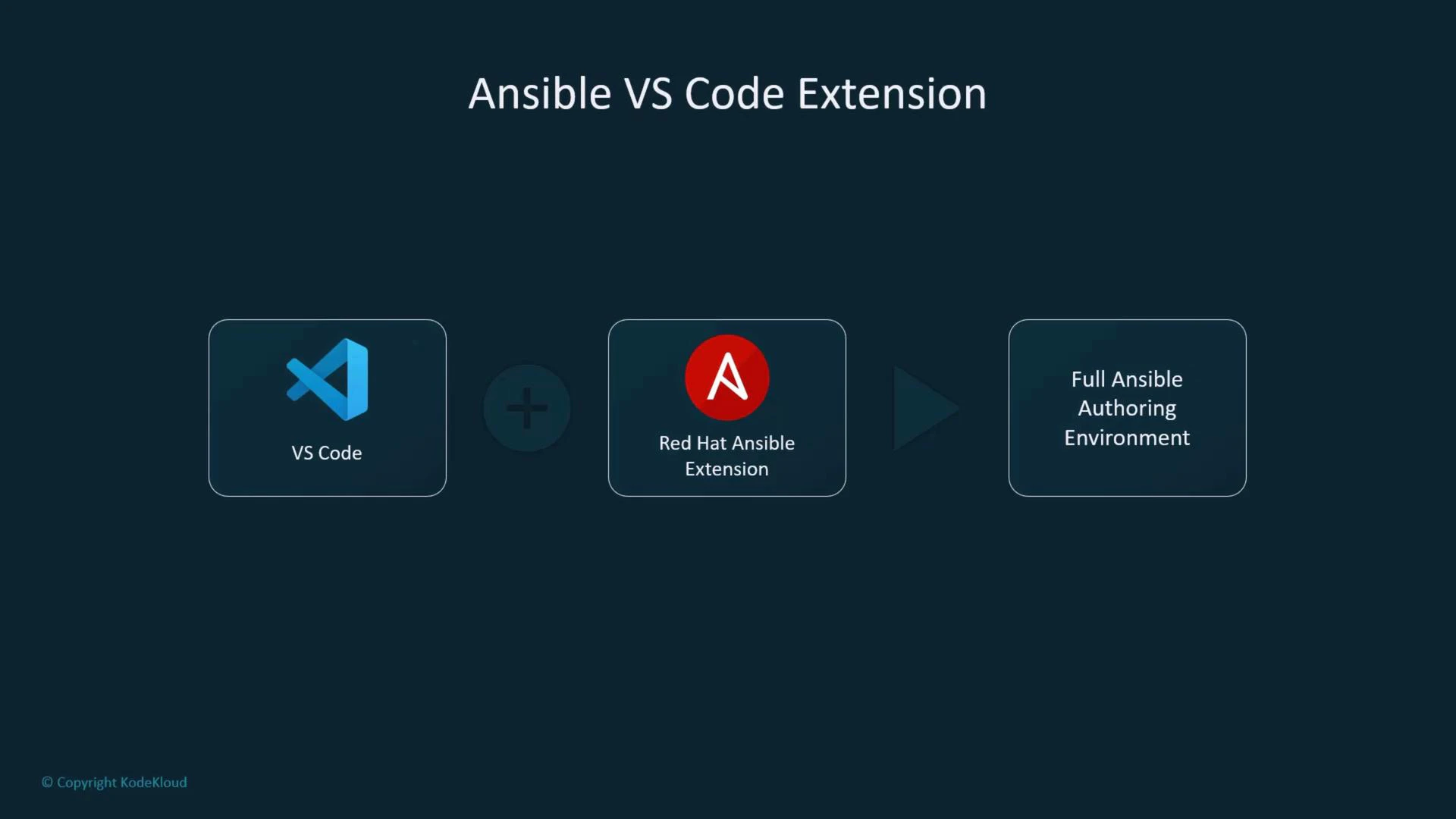
What the extension provides
The Red Hat Ansible extension transforms VS Code into an integrated Ansible authoring environment. Core features include IntelliSense, live validation, hover documentation, linting integration, and commands to run Playbooks without leaving the editor. Key capabilities:- Syntax highlighting and autocompletion (IntelliSense).
- Real-time validation and linting with ansible-lint.
- Run Playbooks from VS Code (output in the integrated terminal).
- Inline documentation and hover help for modules and parameters.
Syntax highlighting and autocompletion
The extension recognizes YAML and Ansible constructs immediately. As you edit, indentation, modules, and parameters are formatted and color-coded. The language server provides module and parameter suggestions in-line, lowering typos and speeding up development.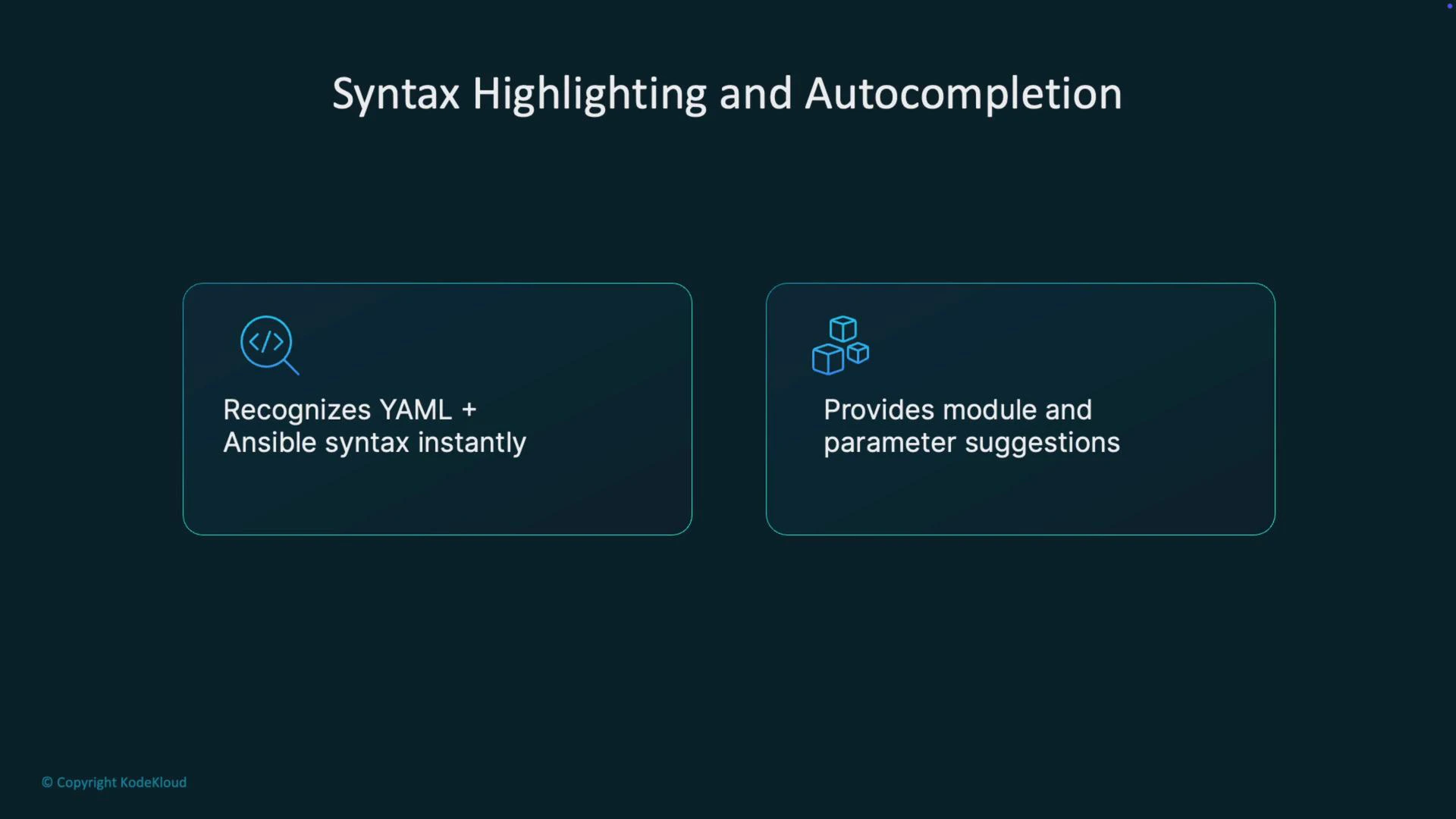
Real-time validation and linting
You get immediate feedback while editing. The extension detects YAML indentation problems, unknown or misspelled modules, and common syntax mistakes as you type. It integrates with ansible-lint to flag best-practice issues and deprecated patterns so you can fix problems early in the development cycle.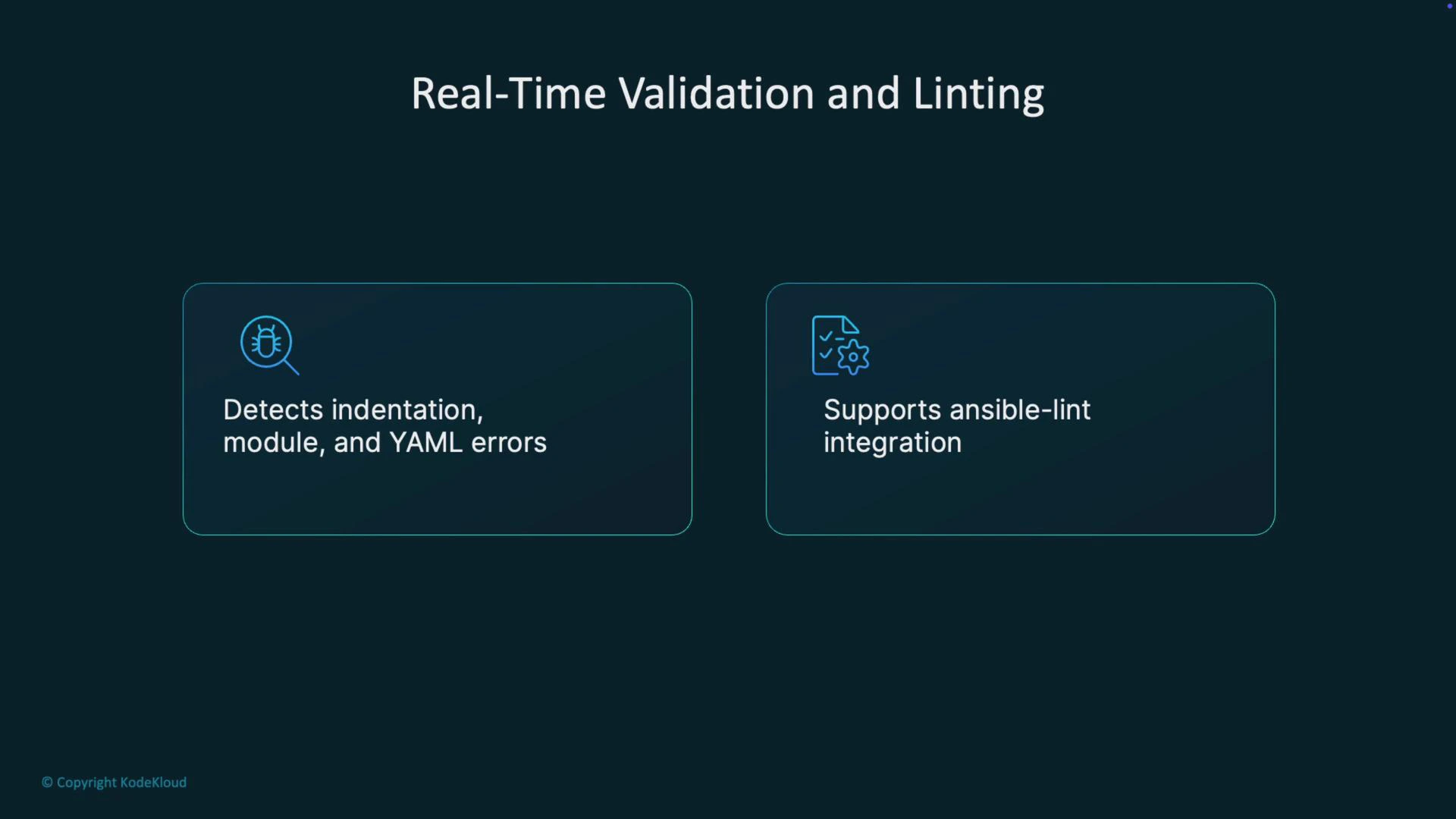
Run Playbooks inside VS Code
A practical convenience is executing Playbooks directly from the editor. Use the command palette (for example, “Ansible: Run Playbook”) or the editor context menu. The extension runs the playbook and streams output to the integrated terminal—showing tasks, changed states, and results just like the CLI—so writing, running, and reviewing remain in one place.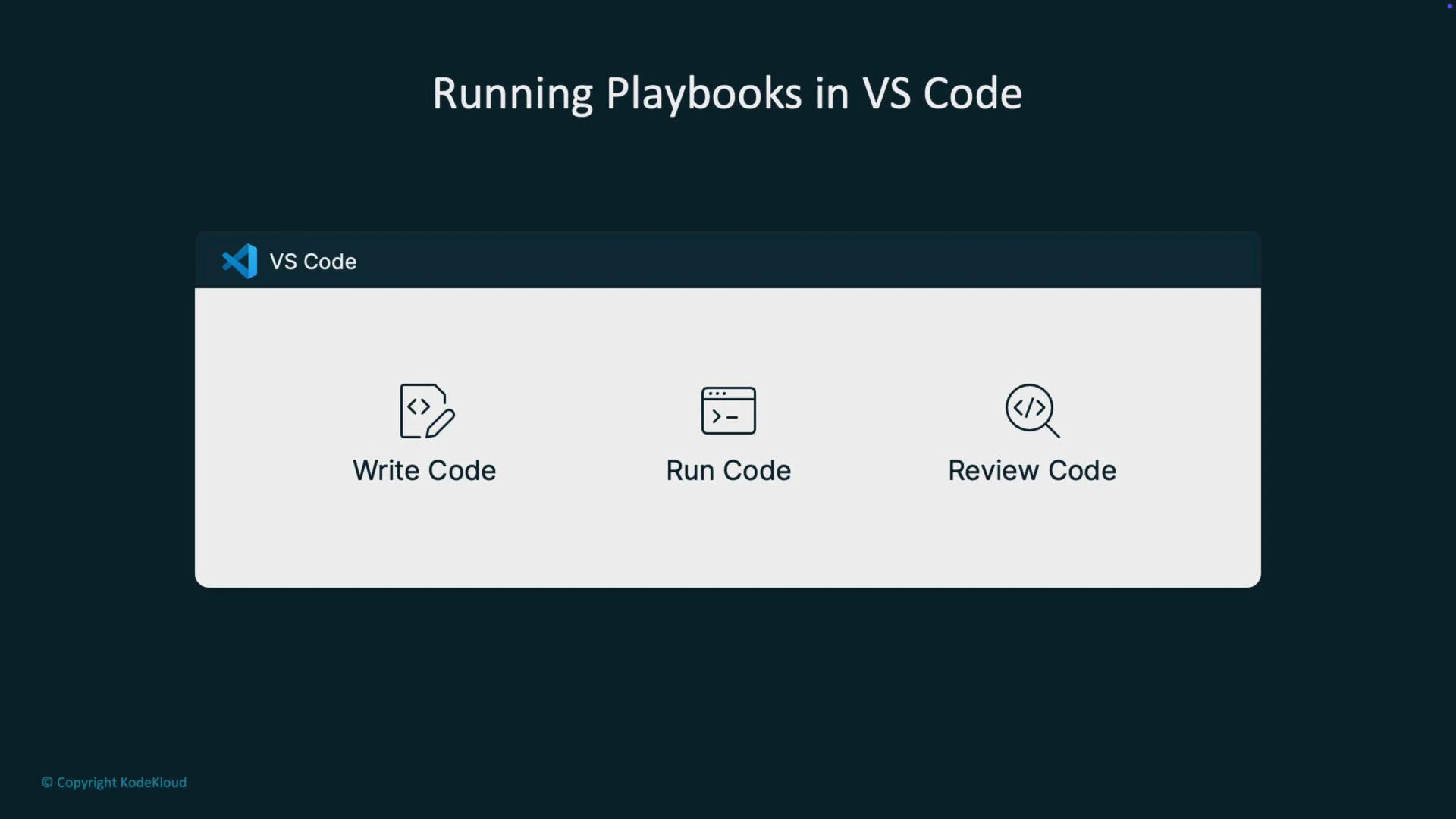
Inline documentation and hover help
Hover over modules or parameters to view inline documentation sourced from Ansible docs: accepted argument types, default values, and short descriptions. This reduces context switching to a browser and helps you make informed choices while typing.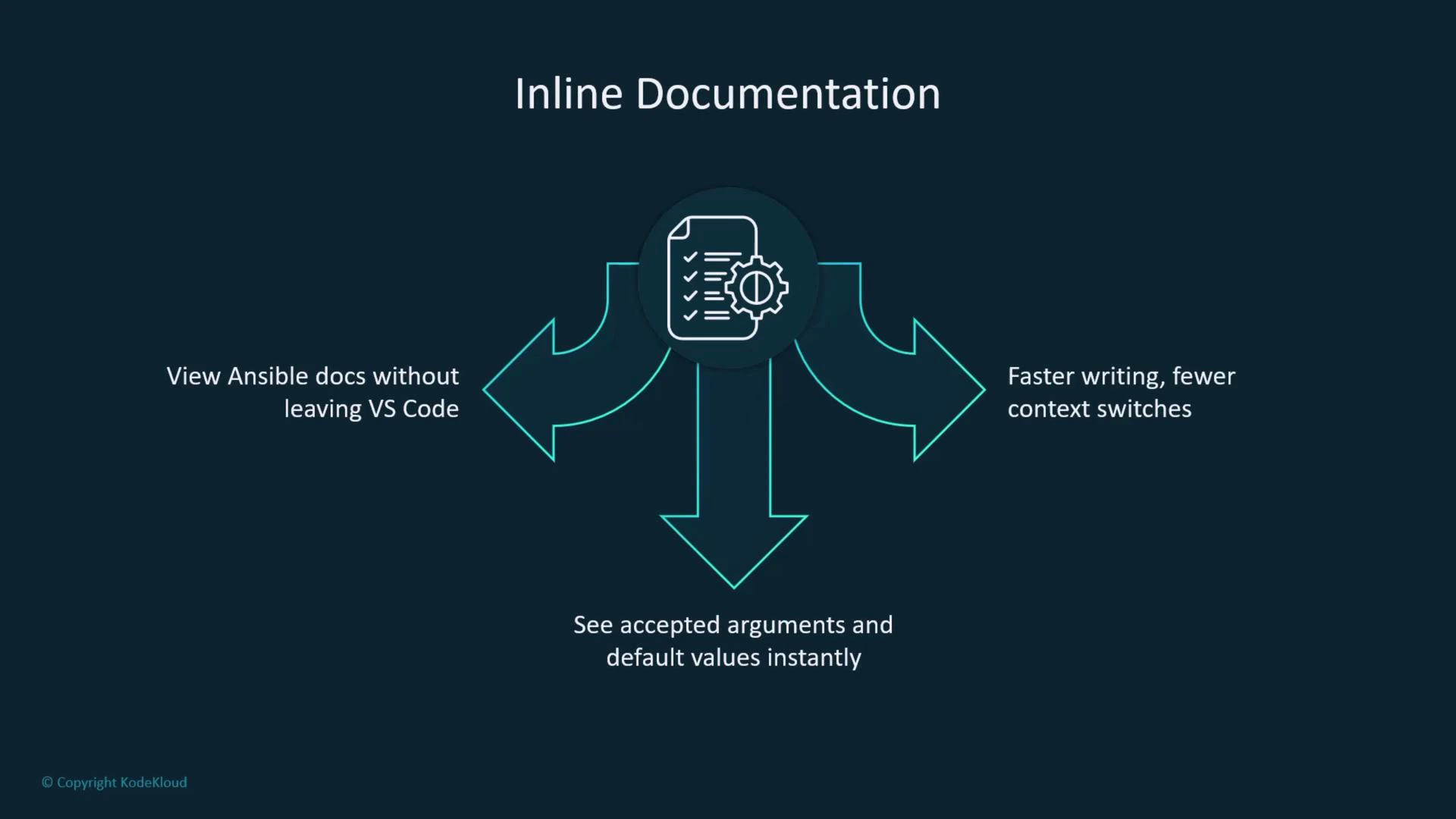
To use ansible-lint integration or the language server features, ensure you have the appropriate Python environment and tools installed (e.g., ansible, ansible-lint, and any language-server dependencies). The extension will use tools available in your PATH or configured Python interpreter.
Quick reference
Why use the Red Hat Ansible extension?
- It reduces YAML and module-usage errors through validation and IntelliSense.
- It accelerates Playbook development with autocompletion, inline docs, and immediate lint feedback.
- It consolidates edit → run → review workflows inside VS Code for faster iteration.
- It’s free and officially supported by Red Hat—suitable for learning and production authoring.
Further reading and resources
- Ansible Documentation
- ansible-lint Documentation
- Red Hat Ansible extension on the VS Code Marketplace