This article provides a guide on essential Docker commands for running, managing, and removing containers and images.
Welcome to this comprehensive guide on essential Docker commands. In this article, you’ll learn how to run containers, list and remove them, manage images, and pull images from Docker Hub. If you are new to Docker, check out the official Docker documentation for further reading.
The Docker run command is used to start a container from a specified image. Below is an example of starting a container:
root@Docker:/root # docker run
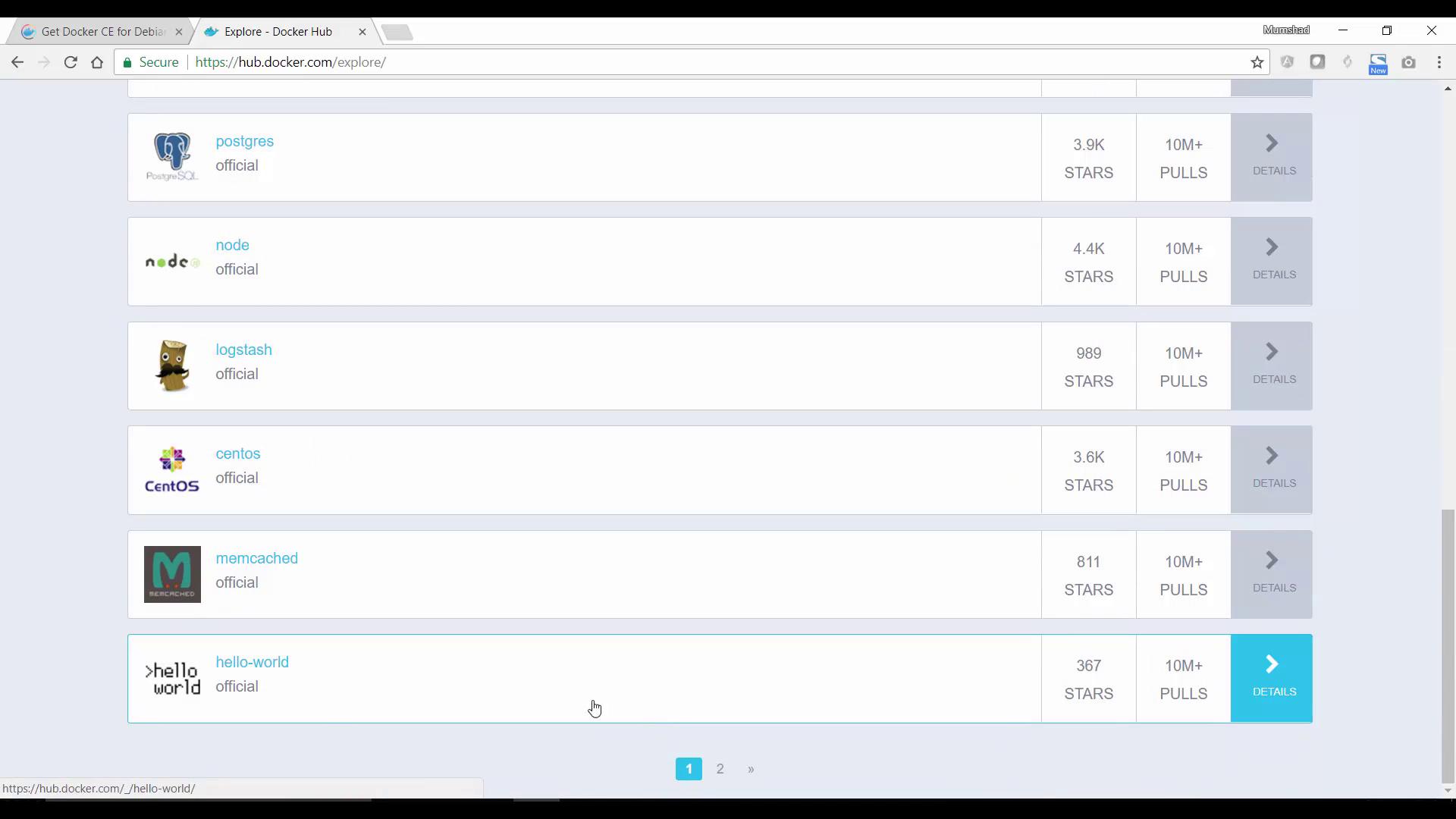
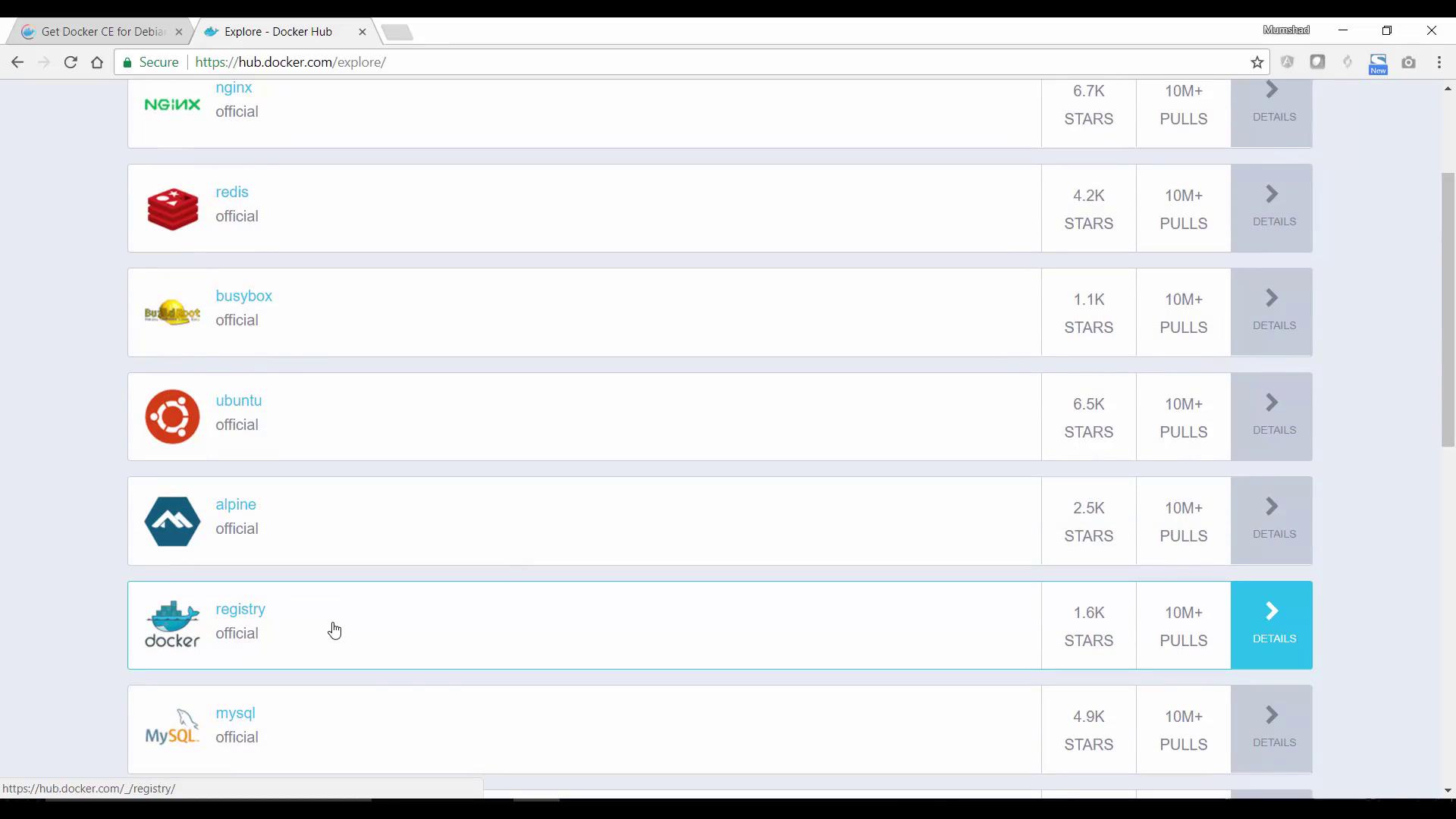
To explore a variety of available images, visit the Docker Hub website and click on “Explore”. Here, you’ll find many official images such as “hello-world”, CentOS, Ubuntu, and more.For instance, to run a CentOS container, use:
root@Docker:/root # docker run centosUnable to find image 'centos:latest' locallylatest: Pulling from library/centos74f0853ba93b: Downloading [===============> ] 13.52MB/72.25MB
If you have custom images, use the format “username/repository”. For example, if your Docker Hub ID is “Mumshad” and you have an image named “ansible-playbook”, reference it as “Mumshad/ansible-playbook”.Below is another simulated output showing Docker downloading the image:
root@Docker:/root # docker run centosUnable to find image 'centos:latest' locallylatest: Pulling from library/centos74f0853ba93b: Downloading [==================> ] 49.2MB/72.25MB
You can explicitly download an image using:
docker pull centos
When using a base image like CentOS without specifying a command, the container will exit immediately since there is no process running. To keep the container active, launch it with an interactive shell:
root@Docker:/root # docker run -it centos bash
Once inside the container, you can verify the OS by checking the release information:
root@0aelec7e1d3 /# cat /etc/*release*CentOS Linux release 7.3.1611 (Core)Derived from Red Hat Enterprise Linux 7.3 (Source)NAME="CentOS Linux"VERSION="7 (Core)"ID="centos"ID_LIKE="rhel fedora"VERSION_ID="7"PRETTY_NAME="CentOS Linux 7 (Core)"ANSI_COLOR="0;31"CPE_NAME="cpe:/o:centos:centos:7"HOME_URL="https://www.centos.org/"BUG_REPORT_URL="https://bugs.centos.org/"
If your interactive CentOS container exited after the session ended, it will not appear in the above list. To view all containers, including those that have exited, use the -a flag:
docker ps -a
For example, after starting a CentOS container with a sleep command:
root@Docker:/root # docker run centos sleep 20
You can run this command in the background using the -d flag:
root@Docker:/root # docker run -d centos sleep 20
Now, view the list of running containers:
root@Docker:/root # docker psCONTAINER ID IMAGE COMMAND CREATED STATUS PORTS NAMES62bbd3c98f08 centos "sleep 20" 7 seconds ago Up 6 seconds flamboyant_noyce
Since the container will exit after the sleep duration, re-checking with docker ps later will show that it has stopped. To confirm the status of all containers, including exited ones, run:
docker ps -a
Containers will display exit codes indicating their termination status (e.g., 0 for normal exit, 137 for forceful termination).
Cleanup unused containers using the docker rm command. You can remove a container by its specific ID or name.To remove a container with a specific ID:
docker rm 1619625d7f5a
You can also remove multiple containers by providing parts of their IDs or names:
docker rm 345 e0a 773
Below is a sample session demonstrating container removal:
root@Docker:/root # docker rm nervous_teslaroot@Docker:/root # docker ps -aCONTAINER ID IMAGE COMMAND CREATED STATUS PORTS NAMES5d5b09577c30 centos "sleep 2000" 2 minutes ago Exited (137) About a minute ago sere62bbd3c98f08 centos "sleep 20" 5 minutes ago Exited (0) 5 minutes ago flamroot@Docker:/root # docker rm 345 e0a 773345e0a773root@Docker:/root # docker ps -aCONTAINER ID IMAGE COMMAND CREATED STATUS PORTS NAMES5d5b09577c30 centos "sleep 2000" 2 minutes ago Exited (137) About a minute ago sere62bbd3c98f08 centos "sleep 20" 5 minutes ago Exited (0) 5 minutes ago flam
Throughout your Docker sessions, you might have pulled several images such as hello-world, ubuntu, and centos. To list all locally available images, run:
root@Docker:/root # docker imagesREPOSITORY TAG IMAGE ID CREATED SIZEbusybox latest d20ae45477cb Less than a second ago 1.13MBubuntu latest ccc7a11d65b1 9 days ago 120MBcentos latest 328edc84f1b 2 weeks ago 193MBhello-world latest 1815c82652c0 2 months ago 1.84kB
To remove an image, use the docker rmi command. For example, remove the busybox image with:
If an image is being used by an existing container (even if stopped), Docker will not remove it. In such cases, remove the dependent containers using docker rm -f before attempting to delete the image.
To remove a CentOS image used by a container, first delete all associated containers and then run:
While the Docker run command pulls missing images automatically, you can download an image without starting a container using the docker pull command. For example, to pull the Ubuntu image, run:
Running Containers in Detached Mode and Executing Commands
To run containers in the background, use the -d (detached) flag. For instance, to run an Ubuntu container that sleeps for 100 seconds:
root@Docker:/root # docker run -d ubuntu sleep 100
Then, check the container’s status with:
root@Docker:/root # docker psCONTAINER ID IMAGE COMMAND CREATED STATUS PORTS NAMEScla19d3a7ca70 ubuntu "sleep 100" 7 seconds ago Up 6 seconds suspicious_neumann
To execute commands on a running container, use docker exec. For example, viewing the OS release information inside the Ubuntu container:
In this guide, we explored basic Docker commands that help you run containers both interactively and in detached mode, list running and stopped containers, remove containers and images, and pull images from Docker Hub. Experiment with these commands to enhance your Docker skills and master container management.For more detailed technical resources, consider these references: