

Welcome to this comprehensive guide on Docker Compose. In this article, you’ll learn how to configure and run multi-container Docker applications using YAML configuration files. A solid understanding of YAML is essential since Compose files are entirely written in this format.Documentation Index
Fetch the complete documentation index at: https://notes.kodekloud.com/llms.txt
Use this file to discover all available pages before exploring further.
Running Individual Containers with Docker Run
Before diving into Docker Compose, let’s review how to run individual Docker containers using thedocker run command. For simple containers, you may execute commands like the following:
docker-compose.yml). You can then launch the complete stack with the docker-compose up command.
Example: Basic Docker Compose Configuration
Below is an example Docker Compose file that defines multiple services:These instructions assume that you are running containers on a single Docker host. We’ll explore more details about YAML file structures further in this guide.
Sample Application: Voting App Architecture
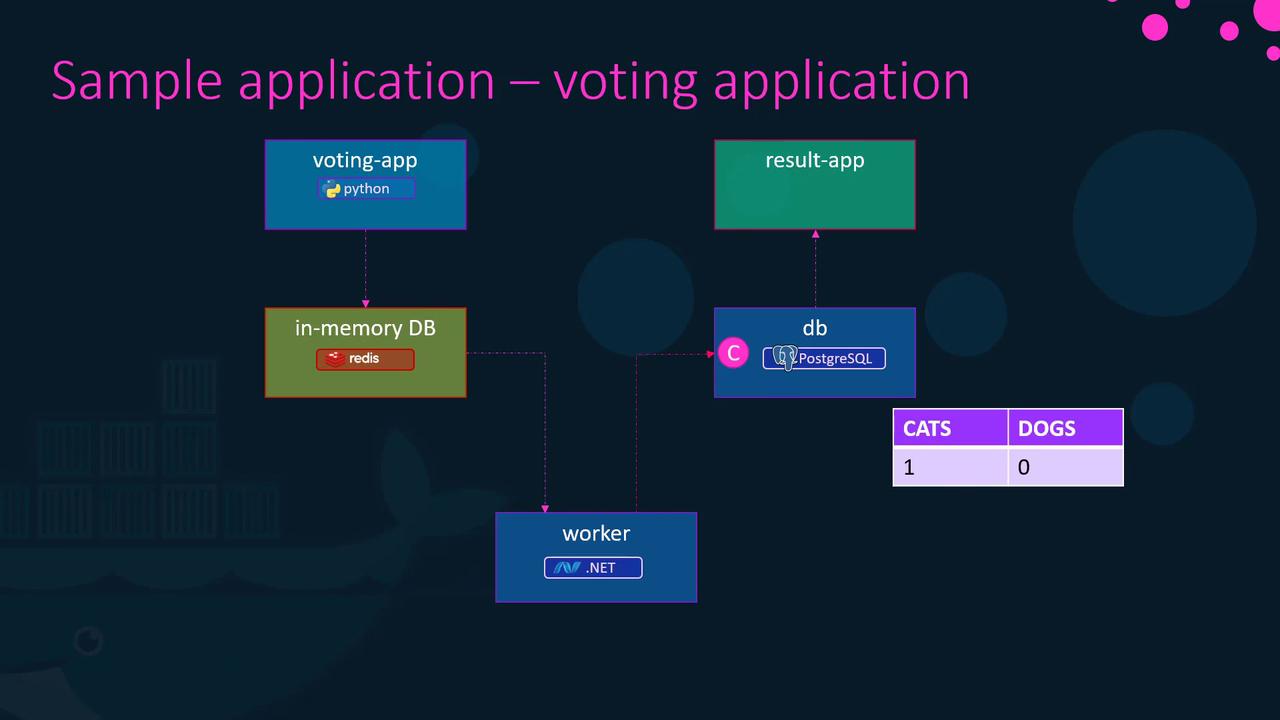
To illustrate Docker Compose in practice, consider a sample voting application. This application demonstrates how Docker can integrate services built with different programming languages and frameworks.Voting Application Components
- Python Front-End: A web interface that lets users vote between options (e.g., cat or dog). Votes are stored in a Redis instance, serving as an in-memory database.
- .NET Worker: A background service that processes votes and updates a PostgreSQL database with the vote counts.
- Node.js Back-End: A web application that displays voting results by reading data from PostgreSQL.
Deploying the Application Using Docker Run
To get started, let’s deploy each layer of the voting application using individual Docker run commands. This example assumes that all necessary images are available in your Docker repository.-
Start a Redis Container:
-
Deploy the PostgreSQL Database:
-
Deploy the Voting Application (Front-End):
Map the container’s port 80 to host port 5000.
-
Deploy the Results Web Application (Back-End):
Map the container’s port 80 to host port 5001.
-
Deploy the Worker Container:
Linking Containers
To enable communication between containers, use the--link option. This option creates an entry in the container’s /etc/hosts file for resolving the linked service by name.
For example, link the voting app container to Redis as follows:
Accessing Linked Containers in Code
Below is an example of how the voting application might access Redis:Linking containers using the
--link option is deprecated. Modern Docker networking features, like those in Docker Swarm, provide more robust solutions.Transitioning to Docker Compose
After verifying the Docker run commands, it’s straightforward to transition to a Docker Compose configuration. By combining all container definitions into a single YAML file, you can simplify multi-container deployments.Docker Run Commands Recap
Equivalent Docker Compose File
build option. For example, if the voting app source code resides in a folder named vote, update your Compose file like this:
Understanding Docker Compose File Versions
Docker Compose file formats have evolved from version 1 to version 3, each introducing new features and improvements.Version 1
Version 1 files define services at the root level and rely on links for networking:Version 2
Version 2 introduces aservices section and improvements such as depends_on for defining container dependencies:
Version 3
Version 3 retains a similar structure to version 2 but adds support for Docker Swarm along with enhanced networking capabilities:Configuring Networks in Docker Compose
Docker Compose lets you define custom networks to control traffic between services. For instance, you might separate external (user-facing) traffic from internal (service-to-service) communication.Example: Defining Separate Networks
This example configuration connects the voting and results applications to both thefront-end (user traffic) and back-end (internal services) networks, while Redis and PostgreSQL are only accessible on the back-end network.