Before diving in, note that Docker Compose is not installed by default when you install Docker. You must install it separately. For detailed installation steps for macOS, Windows, and Linux, please refer to the Docker documentation.
Installing Docker Compose on Linux
Since this demonstration is executed on a Linux environment, follow these steps to install Docker Compose:-
Download the Docker Compose binary using curl:
-
Set the executable permissions:
-
Verify the installation by checking the version:
Creating the Docker Compose File
The next step is to set up your Docker Compose file for our application. This example deploys the following services:- redis: the caching database
- db: the PostgreSQL database
- vote: the voting application
- worker: the background worker process
- result: the results viewer
Step 1: Create the File
Start by creating and writing to the Docker Compose file:Step 2: Define the Service Configuration
Open the file for editing using your preferred text editor:- The redis service uses the official Redis image.
- The db service uses PostgreSQL version 9.4.
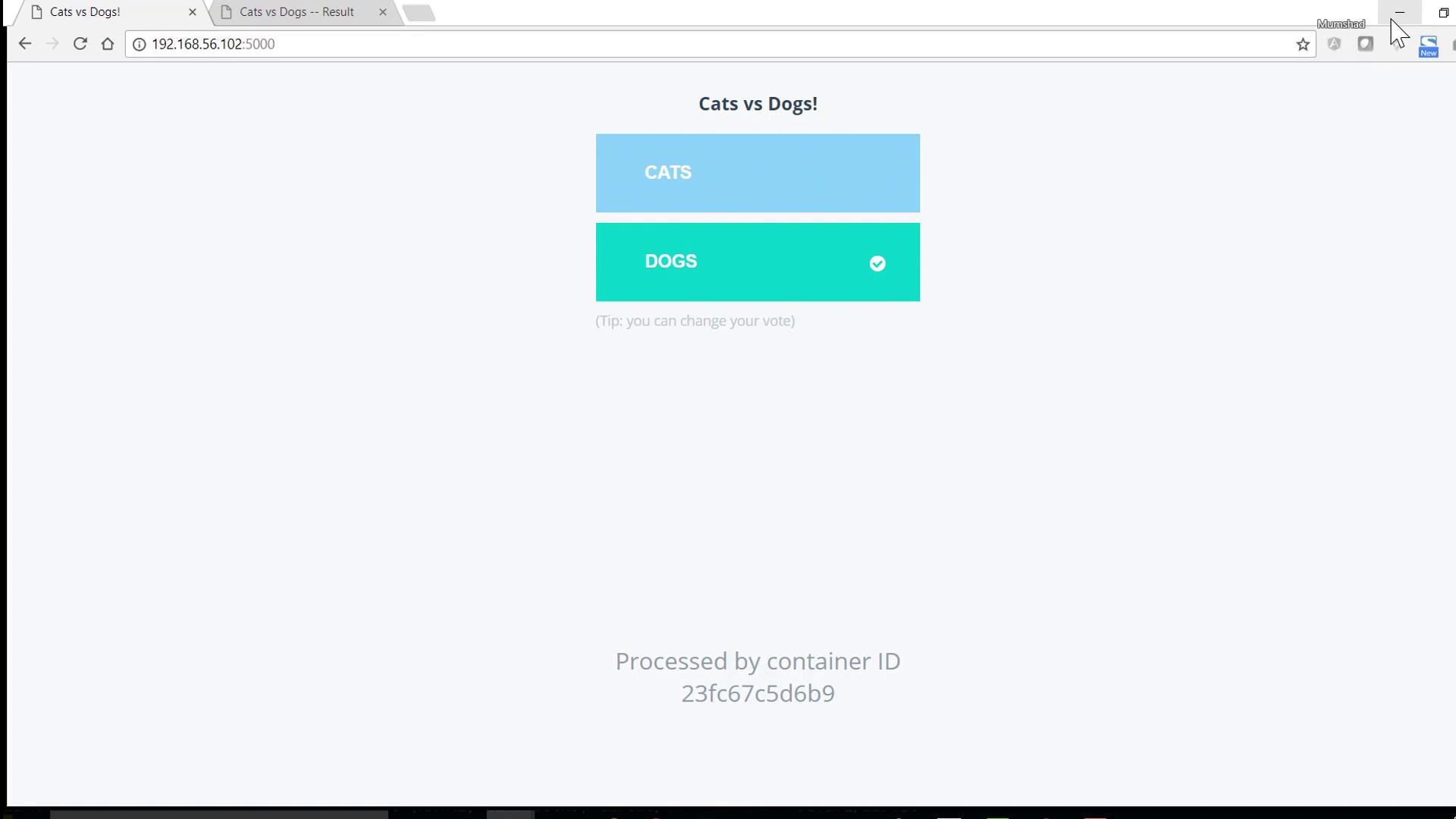
- The vote service deploys the voting application, mapping port 5000 on the host to port 80 in the container.
- The worker service processes background tasks.
- The result service displays the outcome, mapping port 5001 on the host to port 80 in the container.
For seamless service communication, ensure you configure links (if necessary) to associate the voting app with Redis and the PostgreSQL database.
Step 3: Check Running Containers
After saving your changes, you can inspect the running containers with:apt-get:
Deploying the Application Stack
With your Docker Compose file configured, start the application stack by executing:Viewing Log Output
The log output will display the initialization process for each service. For instance, during the setup of the PostgreSQL database, you might see:Before deploying a new stack, always ensure that no unnecessary containers are running by stopping them. You can verify this by running:
Conclusion
Thank you for following along with this Docker Compose tutorial. You now have a solid understanding of how to use Docker Compose to deploy a multi-container application stack. For more information on Docker Compose and container orchestration, be sure to explore more resources in the Docker documentation.