This lesson introduces Docker and walks through installing and verifying Docker on a Linux system. We’ll focus on Docker’s Community Edition (Docker Engine and Docker Desktop for development), which is the free, open-source distribution used by most developers and learners. Enterprise-grade, paid offerings (historically called Enterprise Edition) are available from vendors and include additional management and security features. Why this matters: Docker containers let you package applications and their dependencies consistently across environments, which simplifies development, testing, and deployment.

Docker Editions: Community vs Enterprise

EditionTypical use caseKey differences
Community EditionLocal development, CI pipelines, learningFree and open-source, available for Linux, macOS, Windows
Enterprise (historical/commercial)Production environments needing vendor support, policy, and image governancePaid support, advanced image management, enterprise controls (offered via vendor products)
For this course we’ll use the Community Edition and demonstrate installation and basic commands on Linux.
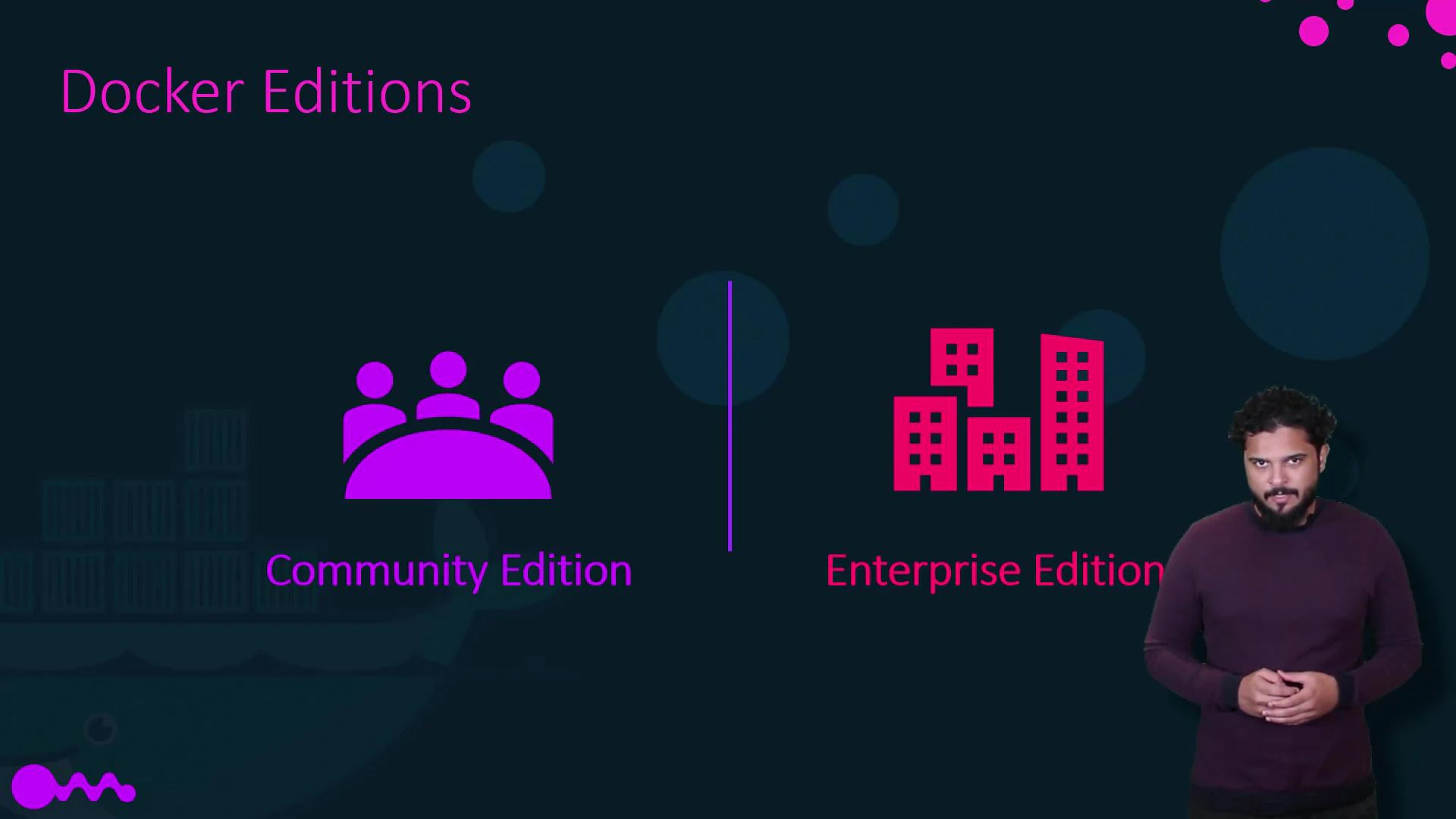
A presentation slide titled "Docker Editions" showing two options: a purple "Community Edition" icon with three people on the left and a pink "Enterprise Edition" icon of buildings on the right. A presenter stands at the bottom-right of the slide.

Platforms and how to follow along

Docker Community Edition runs on Linux, macOS, and Windows and is also available on cloud platforms (AWS, Azure, GCP). In this course demo we install Docker on a Linux distribution and run basic containers. If you use macOS or Windows, two common ways to follow along are:
  1. Create and use a Linux virtual machine (for example with VirtualBox) and install Docker inside that VM — this matches the Linux environment used in the demo.
  2. Install Docker Desktop for macOS or Docker Desktop for Windows for a native, integrated Docker experience on those platforms.
If you choose Docker Desktop on Windows, modern setups typically use WSL2 (Windows Subsystem for Linux 2) to provide a lightweight integrated Linux kernel. Review the Docker Desktop documentation and Microsoft WSL docs for prerequisites and recommended configuration.
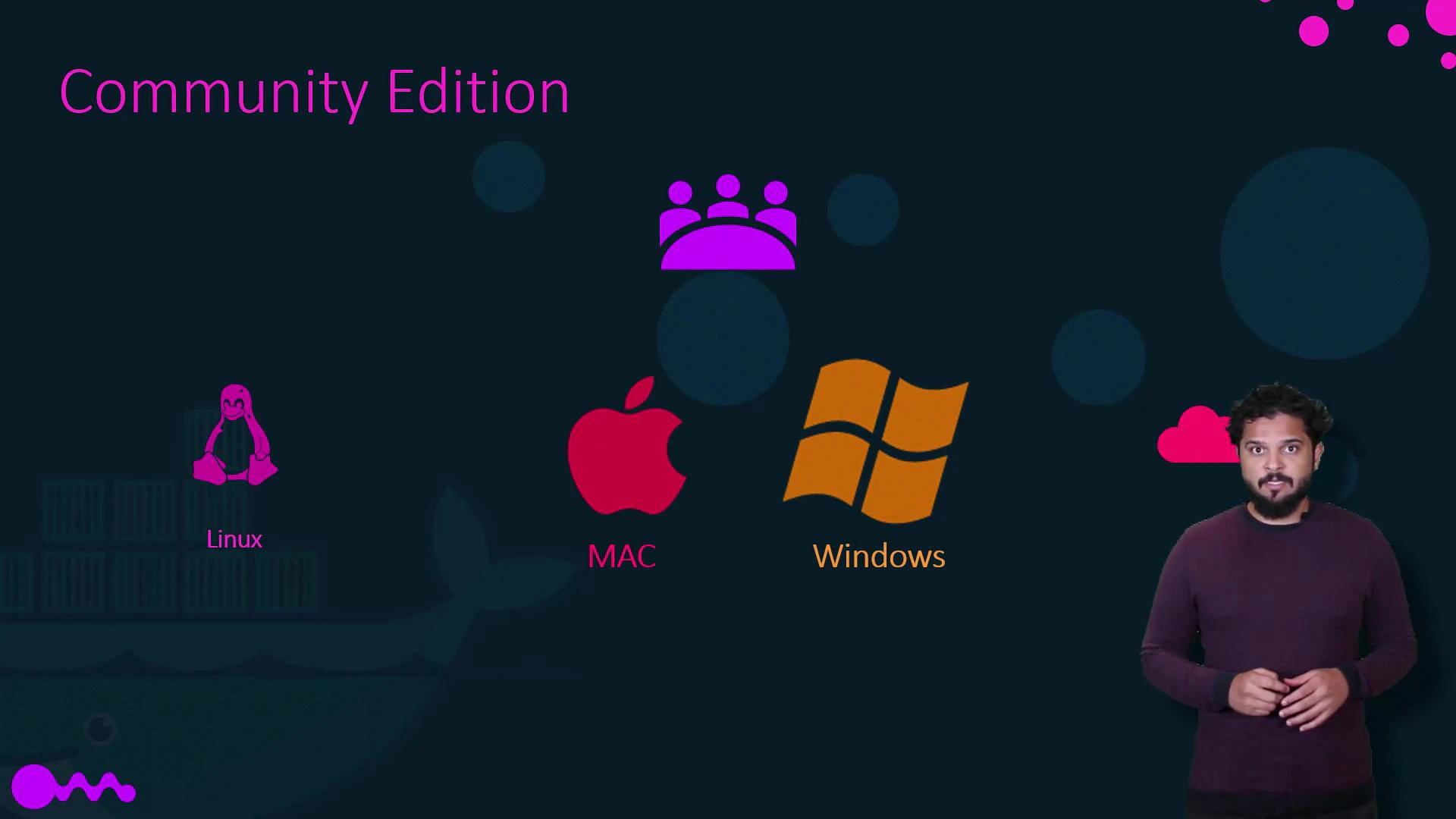
A slide titled "Community Edition" showing icons for Linux, Mac, and Windows with a small group icon above them. A presenter stands on the right against a dark background.

Linux installation (demo)

Below is a concise, commonly used approach to install Docker Engine on Debian/Ubuntu-based systems. Adjust package manager commands for other distributions (yum/dnf for RHEL/CentOS/Fedora, zypper for SUSE, etc.). Always consult the official Docker docs for the latest, OS-specific instructions: https://docs.docker.com/engine/install/
  1. Update package lists and install packages to allow apt to use a repository over HTTPS:
sudo apt-get update
sudo apt-get install -y ca-certificates curl gnupg lsb-release
  1. Add Docker’s official GPG key and set up the stable repository:
curl -fsSL https://download.docker.com/linux/ubuntu/gpg | sudo gpg --dearmour -o /usr/share/keyrings/docker-archive-keyring.gpg

echo \
  "deb [arch=$(dpkg --print-architecture) signed-by=/usr/share/keyrings/docker-archive-keyring.gpg] \
  https://download.docker.com/linux/ubuntu \
  $(lsb_release -cs) stable" | sudo tee /etc/apt/sources.list.d/docker.list > /dev/null
  1. Install Docker Engine:
sudo apt-get update
sudo apt-get install -y docker-ce docker-ce-cli containerd.io
  1. Optionally, add your user to the docker group so you can run docker without sudo (log out and back in after this):
sudo usermod -aG docker $USER
Note: If you prefer not to add your user to the docker group, prefix Docker commands with sudo.

Verify the installation

Run these commands to confirm Docker is installed and running:
  • Check Docker version and server/client info:
docker version
docker info
  • Run the official hello-world image to validate runtime:
docker run hello-world
Expected: The hello-world container will run, print a confirmation message, and exit.
  • List running containers (none after hello-world finishes) and all containers:
docker ps
docker ps -a

Basic Docker commands cheat sheet

TaskCommand
Run a containerdocker run --rm -it imagename
List running containersdocker ps
List all containersdocker ps -a
List imagesdocker images
Stop a containerdocker stop <container-id>
Remove a containerdocker rm <container-id>
Remove an imagedocker rmi <image-id>
Example: Run an interactive Ubuntu container
docker run --rm -it ubuntu bash
# inside container now; exit to stop and remove

Next steps

After installation and verification, try:
  • Building a simple Dockerfile and image:
# Example Dockerfile
FROM alpine:latest
CMD ["echo", "Hello from my image"]
Build and run:
docker build -t my-hello .
docker run --rm my-hello
  • Exploring networking with docker run -p to expose ports.
  • Learning image layering and how to optimize Dockerfiles.
This completes the basic getting-started flow. In the next lesson we’ll build a Dockerfile, create an image, and run a multi-container example.

Watch Video