Welcome to this detailed guide on the example voting application from the Docker Samples GitHub repository (located under the “example-voting-app” directory). In this article, we will review the application’s architecture, explore the source code, and deploy the application using Docker. We will also extend the deployment using Docker Compose and Docker Swarm stacks for a more robust, multi-container environment.

Application Overview and Architecture

The voting application is composed of several distinct components:
  • Voting App: A Python-based web application built with Flask, where users cast their votes.
  • Redis: A messaging system that collects the submitted votes.
  • Worker: A .NET application (with a Java-like code sample preserved) that processes votes and updates a PostgreSQL database.
  • Result App: A Node.js and Express application that retrieves and displays voting results from the database.
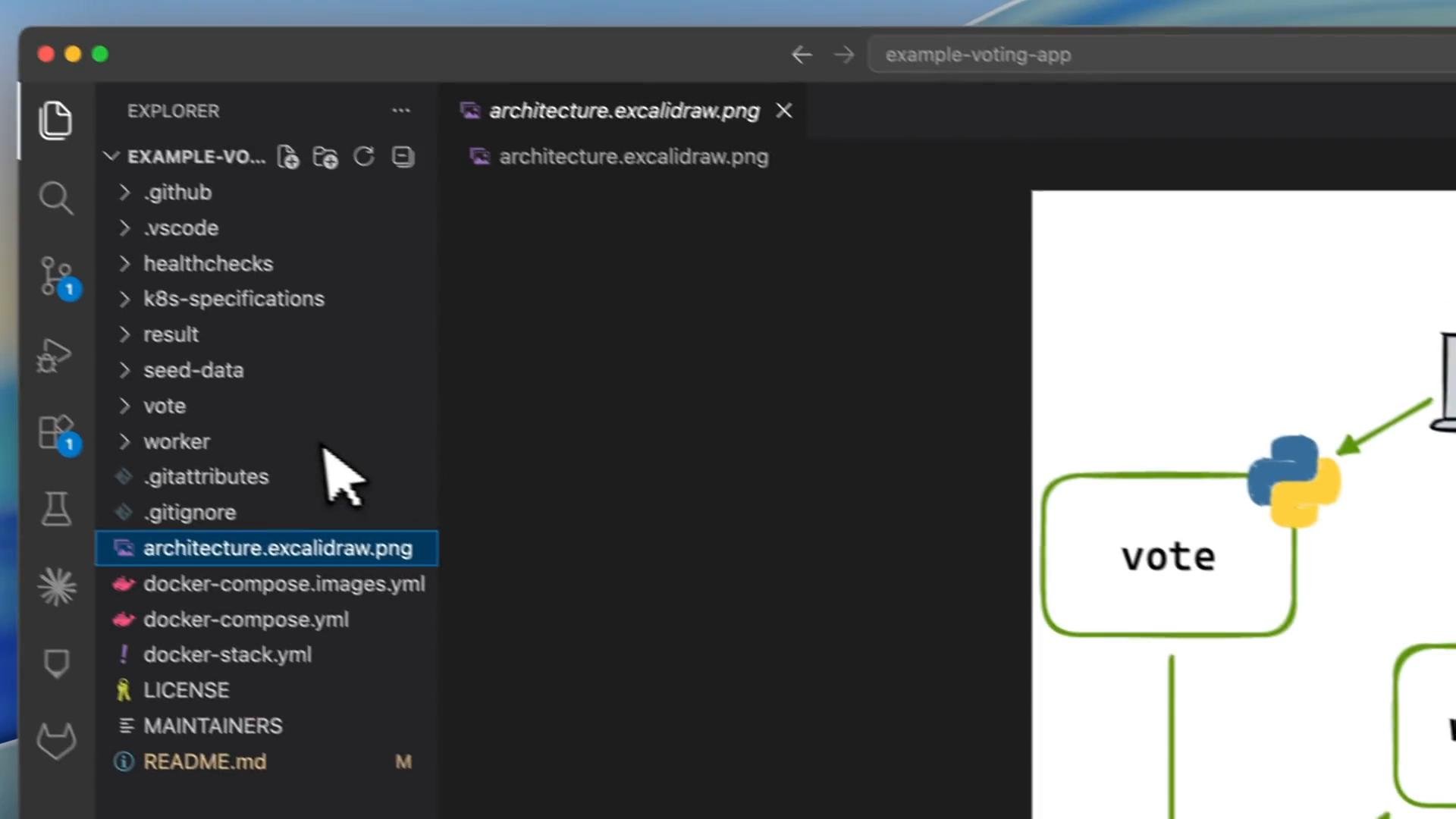
Note that Redis and PostgreSQL are provided as prebuilt images from Docker Hub, while the Python, .NET, and Node.js applications are custom-developed and organized in separate folders within the repository. Below is the architecture diagram featured in the lesson:
The image shows a system architecture diagram for a voting app using Python, Node.js, Redis, PostgreSQL, and .NET components.

The Voting Application

The voting app is a Flask-based Python application found in the vote directory. Its main file, app.py, defines GET and POST routes. The GET route renders the index page for voting, while the POST route captures the vote, connects to Redis, and stores the vote data. Below is an enhanced excerpt of the Python code with clear descriptions:
When a user submits a vote, the application connects to the Redis container (accessed via the hostname “redis”) and pushes the vote data into the votes list.

Dockerfile for the Voting App

The Flask application is containerized using a Dockerfile based on the Python 2.7 Alpine image:
If you inspect the repository on GitHub, you’ll notice the source code along with the Dockerfile:
The image shows a GitHub repository page for "example-voting-app" with files like Dockerfile, app.py, and requirements.txt listed.

The .NET Worker

The worker component, located in the worker folder, is responsible for processing votes. It retrieves votes from Redis, updates the PostgreSQL database, and logs its activities. Below is an excerpt of the worker code (presented in Java-like syntax for historical reasons):

Dockerfile for the Worker

The Dockerfile for this component uses the Microsoft .NET SDK image. It adds the worker’s source code and publishes the application:
Review the GitHub repository view for the worker below:
The image shows a GitHub repository page for "example-voting-app" with files like Dockerfile and pom.xml, last updated several months ago.

The Result Web Application

The result web application is built using Node.js and Express. It connects to the PostgreSQL database to query and display real-time voting results. The server.js file configures the Express server, sets up Socket.IO for live updates, and implements a retry mechanism for establishing a connection to PostgreSQL. Below is an excerpt from the Node.js application:

Dockerfile for the Result App

The Dockerfile for the result application is based on a slim version of Node.js. It installs required dependencies and starts the Node server:
The overall architecture for the result app is illustrated below:
The image shows a system architecture diagram with Redis, PostgreSQL, and a .NET worker, alongside a description of a voting app's components.

Deploying the Application

This section outlines how to deploy the system components using Docker.

Cloning the Repository

To begin, clone the repository to your local machine:
This command clones the entire example voting application into the example-voting-app directory.

Building and Running the Voting App

  1. Navigate to the vote directory and inspect the Dockerfile by running:
  2. Build the Docker image for the voting app:
  3. Verify the image build by listing available Docker images:
  4. Launch the voting app container by mapping container port 80 to host port 5000:
Open your browser at port 5000 to access the voting interface. If you cast a vote without an active Redis container, an internal server error will occur with log messages pointing to issues at the redis.rpush('votes', data) call.
Ensure Redis is running and linked correctly before casting votes to avoid connectivity issues.

Deploying Redis

Since the voting app relies on Redis for vote submission, follow these steps:
  1. Start a Redis container:
  2. Re-run the voting app container with a link to the Redis container:
Now, the voting app can successfully connect to Redis when a vote is cast.

Deploying PostgreSQL and the Worker

The worker component processes votes by interacting with a PostgreSQL database. To deploy these components:
  1. Remove any existing PostgreSQL container named db (if present):
  2. Run a PostgreSQL container (version 9.4):
  3. Verify that PostgreSQL is running:

Building and Running the Worker App

  1. Change to the worker directory and inspect the Dockerfile:
  2. Build the worker image:
  3. Start the worker container by linking it to both Redis and PostgreSQL:
You should see log messages in the worker output indicating that it is actively processing votes.

Deploying the Result App

To deploy the Node.js-based result application and view live voting updates:
  1. Navigate to the result directory and review its Dockerfile:
  2. Build the result app image:
  3. Launch the result app container by mapping container port 80 to host port 5001 and linking to PostgreSQL:
Open your browser at port 5001 to view the voting results. Any changes in votes (for example, a vote for “cats”) will be reflected in real time.

Conclusion

In this guide, we examined the architecture and source code for the example voting application while discussing step-by-step deployment of each component using Docker commands and container linking. The guide also offers insight into deploying multi-container applications using Docker Compose for coordinated deployments. Thank you for following along. For further details and advanced deployment techniques, consider exploring additional Docker documentation and community resources.

Additional Resources

Happy deploying!

Watch Video