

How Docker Desktop works on macOS
- Docker Desktop creates and manages a minimal Linux VM (using Apple’s Virtualization.framework) and runs Docker Engine inside it.
- There are no macOS container images; Docker provides a Linux environment so you can run Linux containers on macOS hosts.
- The exact virtualization backend depends on your Mac’s CPU architecture.
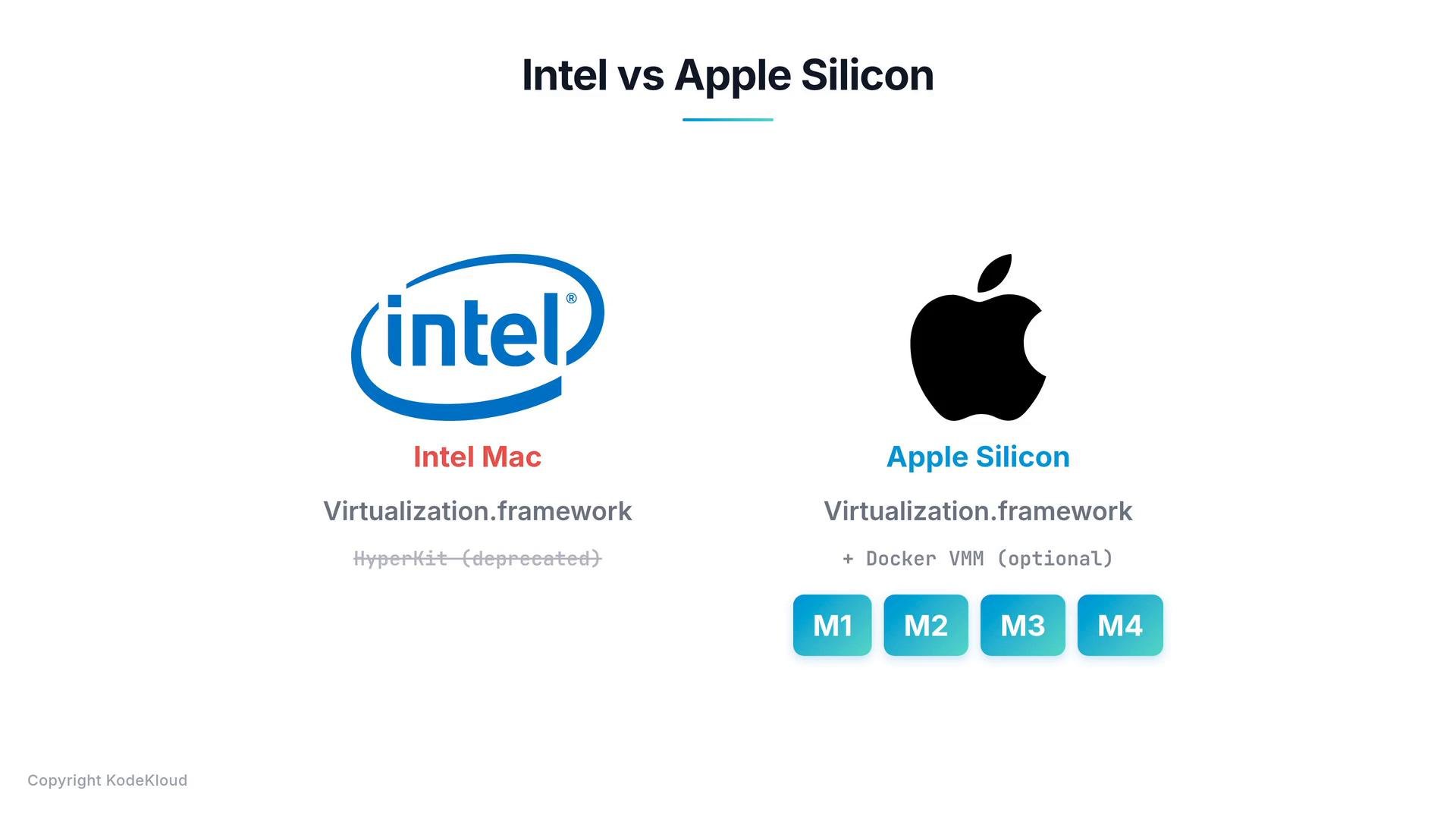
- Intel-based Macs
- Historically used HyperKit (xhyve-based). That approach is now deprecated in favor of Apple’s Virtualization.framework.
- Apple Silicon (M1, M2, M3, M4, etc.)
- Uses Apple’s Virtualization.framework and may use an optimized backend (Docker VMM) tuned for these chips.
- Adds native ARM64 (aarch64) support, so ARM-native container images run without emulation.
--platform linux/amd64 on Apple Silicon, Docker Desktop will pull the AMD64 image and run it with CPU-level emulation (binfmt/qemu) inside the managed Linux VM. Emulated images work for many cases but are generally slower than native ARM64 images — prefer multi-arch or ARM64 images whenever possible.
Rosetta 2 translates macOS x86_64 applications to run on Apple Silicon; it does not translate Linux binaries inside containers. Cross‑architecture container support is provided by Docker Desktop’s VM plus binfmt/qemu emulation when required.System requirements and recommended resources
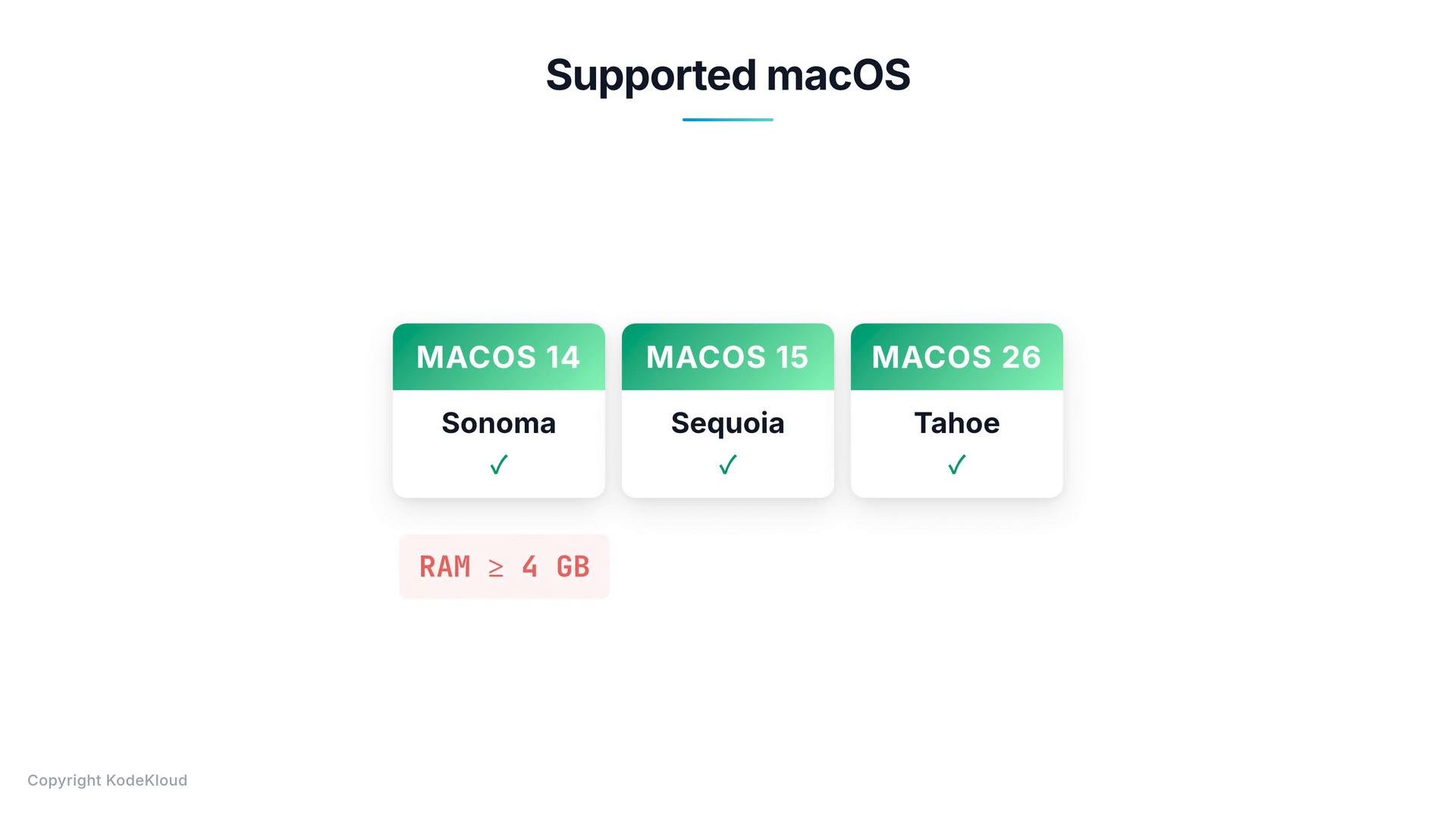
Docker Desktop follows a policy of supporting the current macOS release plus the two most recent major releases. For exact supported versions, check the Docker Desktop release notes. Minimum and recommended requirements:
Refer to the Docker Desktop release notes for the definitive list of supported macOS versions and any special hardware notes.
Licensing and commercial use
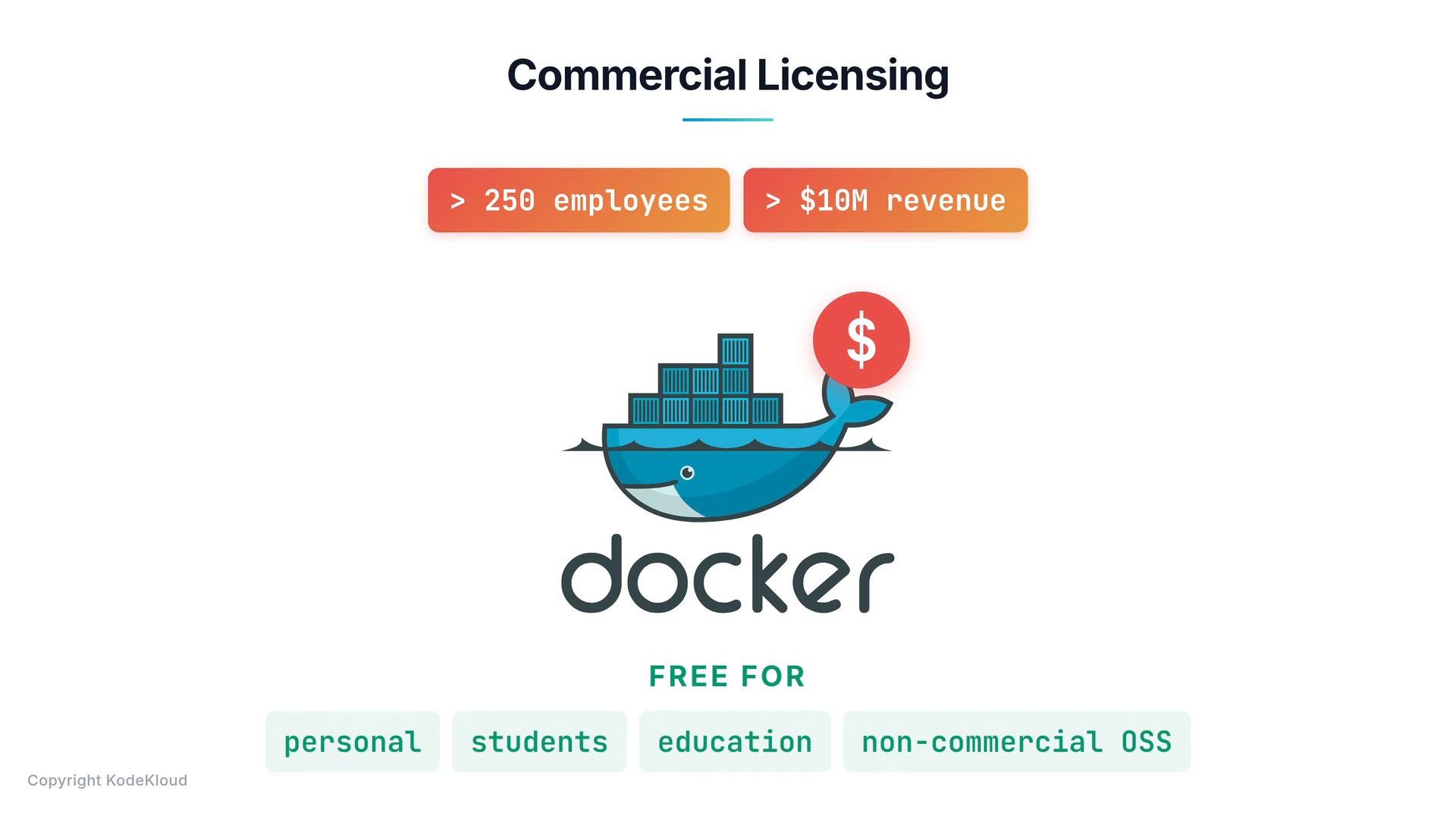
Docker Desktop is free for personal use, students, education, and many non‑commercial open-source projects. However, Docker Desktop requires a paid subscription for commercial use by organizations that meet certain size or revenue thresholds (for example, organizations with more than 250 employees or more than $10M in annual revenue).If you use Docker Desktop in a commercial organization, verify your licensing requirements against Docker’s current subscription policy before deploying it widely. See Docker’s pricing pages for up-to-date details.
Visual summary
The high-level architecture is: macOS host → Docker Desktop hypervisor/Virtualization.framework → lightweight Linux VM → Docker Engine → Linux containers.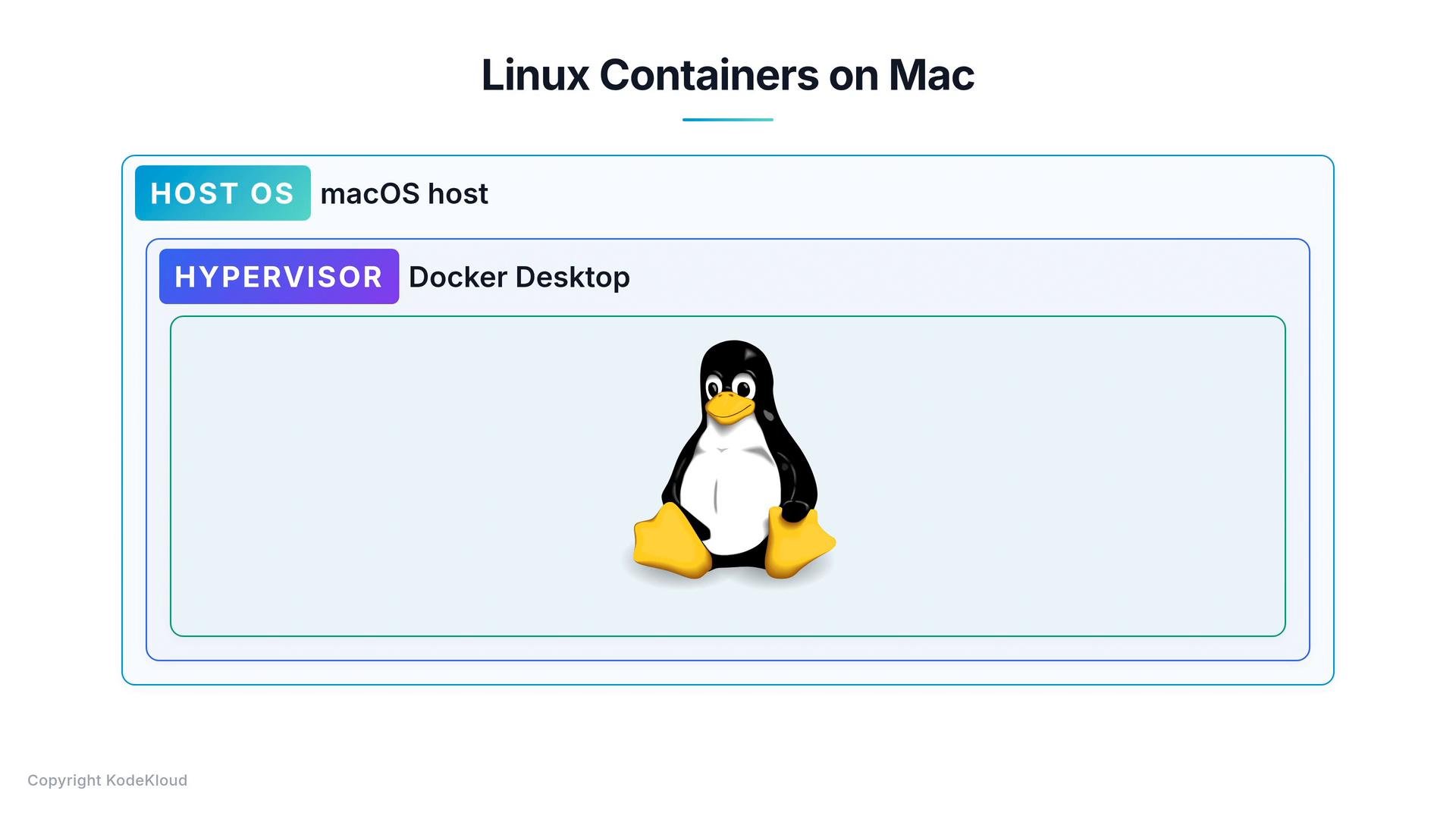
Practical tips
- Prefer multi-architecture images or ARM64 variants when on Apple Silicon for best performance.
- Use
--platformto force a specific architecture only when necessary:docker run --platform linux/amd64 some-image(forces AMD64, uses emulation on Apple Silicon)
- Monitor Docker Desktop resource settings (CPU, memory, disk) to tune performance for your development workloads.
- Keep Docker Desktop updated; release notes document supported macOS versions and important fixes.
Links and references
- Docker Desktop: https://docs.docker.com/desktop/
- Docker Engine: https://docs.docker.com/engine/
- Docker Hub: https://hub.docker.com/
- Docker Desktop release notes: https://docs.docker.com/desktop/release-notes/
- Docker pricing and subscription information: https://www.docker.com/pricing
- Apple Virtualization.framework: https://developer.apple.com/documentation/virtualization
- Rosetta 2: https://support.apple.com/HT211861
- QEMU: https://www.qemu.org/