

Application Overview
Our web application comprises a single file,app.py, which defines two routes:
- The default route (
/) displays a welcome message. - The
/how are youroute returns the response “I am good, how about you?”.
app.py:
Deploying the Application Manually
Before containerizing the application, you can deploy it manually on an Ubuntu host. Follow these steps:Installing Dependencies
Update your package lists and install Python along with required packages:http://<IP>:5000– should display “Welcome!”http://<IP>:5000/how%20are%20you– should display “I am good, how about you?”
Running the Application Inside a Docker Container
Containerizing your application isolates the environment and simplifies dependency management.Starting an Ubuntu Container
Launch an interactive Ubuntu container with a bash shell:If you encounter errors while installing Python due to an outdated package index, make sure to run
apt-get update before attempting the installation.Installing pip and Flask
If you receive a “pip: command not found” error, install pip:Running the Application
After copying your application code into the container (for example, place it in/opt/app.py), run the application with:
/how%20are%20you route should trigger a GET request and display the correct response.
Recording the Steps
It’s a good practice to record the commands executed for troubleshooting or later use. Below is an example command history:Dockerizing the Application
After verifying your web application inside a Docker container, you can now create a Docker image.Creating a Dockerfile
Create a project directory (e.g.,my-simple-webapp) and add a file named Dockerfile with the following content:
app.py file is in the same directory as your Dockerfile.
Building the Image
Build your Docker image by running:my-simple-webapp should appear in the list.
Running the Docker Image
To run your containerized application, execute:http://<HOST_IP>:5000 in your web browser.
Pushing the Image to Docker Hub
Sharing your application on Docker Hub is simple. Follow these steps:-
Tag your image using your Docker Hub username (e.g., if your username is
mmumshad): -
Log in to Docker Hub:
Enter your username and password when prompted.
-
Push the image to Docker Hub:
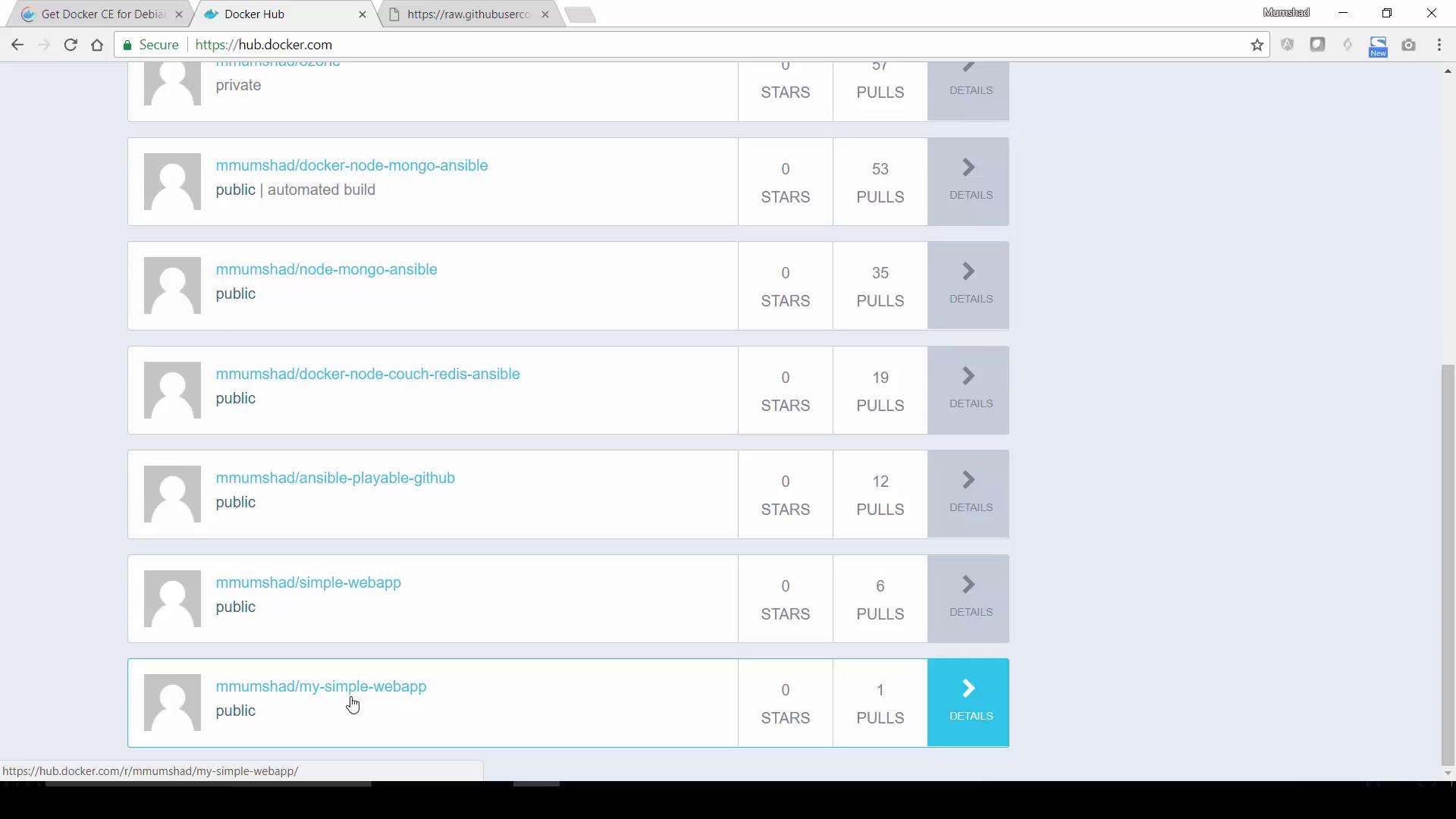
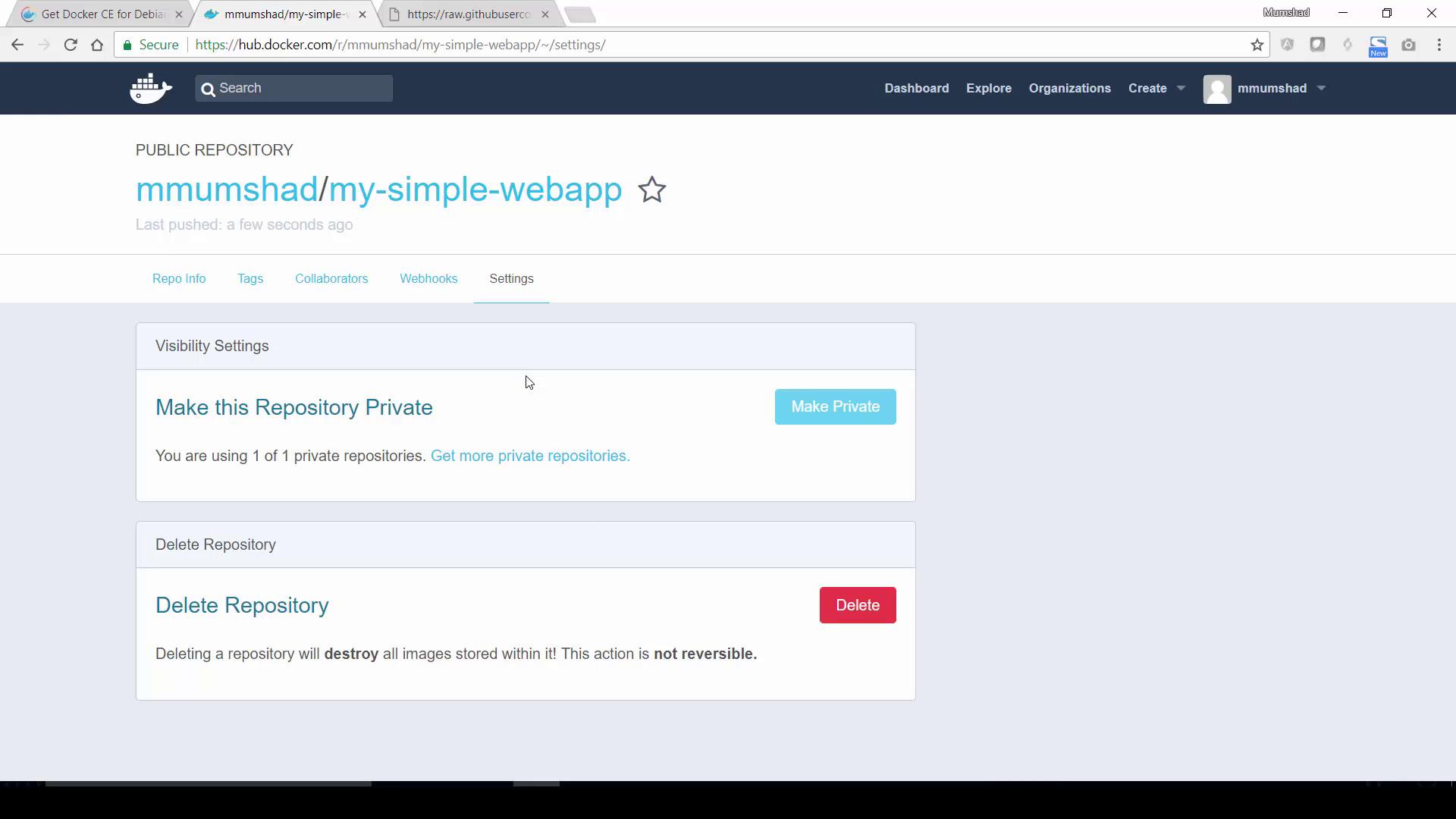
For private images, note that free Docker Hub accounts are limited to one private repository.
Summary
In this guide, we covered:- Setting up a basic Flask web application.
- Manually installing dependencies and running the application on an Ubuntu host.
- Containerizing the application inside an Ubuntu Docker container.
- Recording the installation and execution steps.
- Creating a Dockerfile to build a custom image.
- Building, running, and verifying the Docker image.
- Tagging and pushing the image to Docker Hub for public distribution.