

Original Docker Compose Configuration
Below is the initial Docker Compose setup:Upgrading to Docker Compose Version 3
Below is an updated Compose file reflecting the changes to version 3 and a modification to the port for the result service: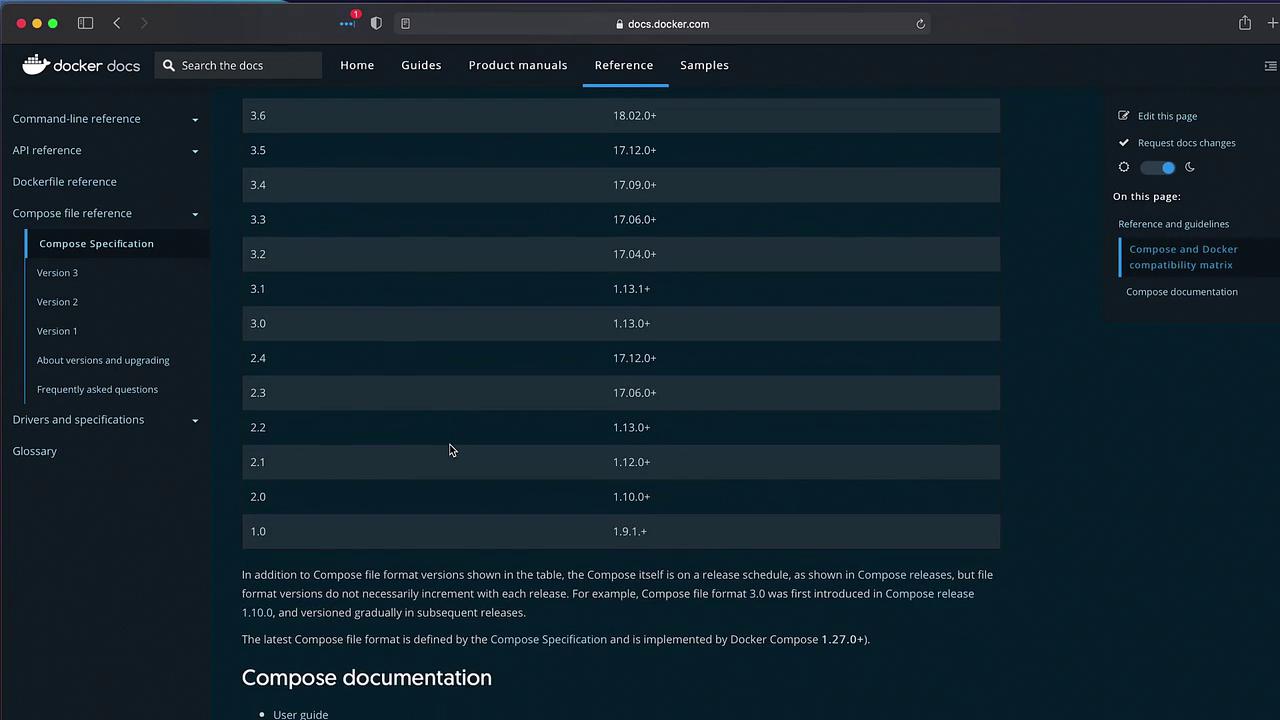
Organizing Configuration with the Services Section
In version 3, migrate all configuration settings under a top-levelservices section. For example, when using version 3.9, your Docker Compose file might look like this:
Updated Docker Compose File with Services Section
The following updated Docker Compose file demonstrates these changes by specifying the version and nesting all service definitions under the services key. In Visual Studio Code, simply indent your existing service definitions underservices:.
With Docker Compose version 3, a default network is automatically created for all services. This allows containers to communicate using service names (e.g., the vote service can reach redis or db simply by their names). Consequently, the explicit
links section is no longer necessary.Deploying the Application
Once you’ve updated your Compose file, deploy your application using thedocker-compose up command. If your Docker Compose file resides in a directory named “code”, the directory name is used as the project name:
Handling Database Connection Issues
At deployment, you might encounter errors such as “no such device or address” or “waiting for DB” in the logs. These indicate that the worker and result services are having trouble connecting to the PostgreSQL database. This issue occurs because the PostgreSQL image now requires a default superuser password via the POSTGRES_PASSWORD environment variable. To address this, update the DB service by adding the necessary environment variables. The configuration below setsPOSTGRES_USER and POSTGRES_PASSWORD to “postgres” for consistency:
docker-compose up command again. With the corrected configuration, all services should start without issue.