

Checking for Running Containers
Start by checking if any containers are currently running:Running an Ubuntu Container with a Command
In previous exercises, you may have launched an Ubuntu container using a simple command:Specifying Image Tags
To run a specific version of Ubuntu, such as 17.10, you can explicitly specify the image tag. Docker pulls the latest image only when no tag is provided. Follow these steps:- Visit the Ubuntu repository on Docker Hub to check for all supported tags.
- Run the desired version by appending the tag to the image name:
Appending a colon and a tag (e.g.,
:17.10) is a simple way to run the exact version you need.Attaching and Detaching from Containers
When you run a container in the foreground, you are attached to its output. For instance, running:-d flag:
Running in detached mode is especially useful for applications that require continuous operation without tying up your terminal.
Running the Timer Image Example
Imagine a Docker image named “timer” that displays the current time every second. Running it in the foreground produces continuous output:Running Jenkins with Docker
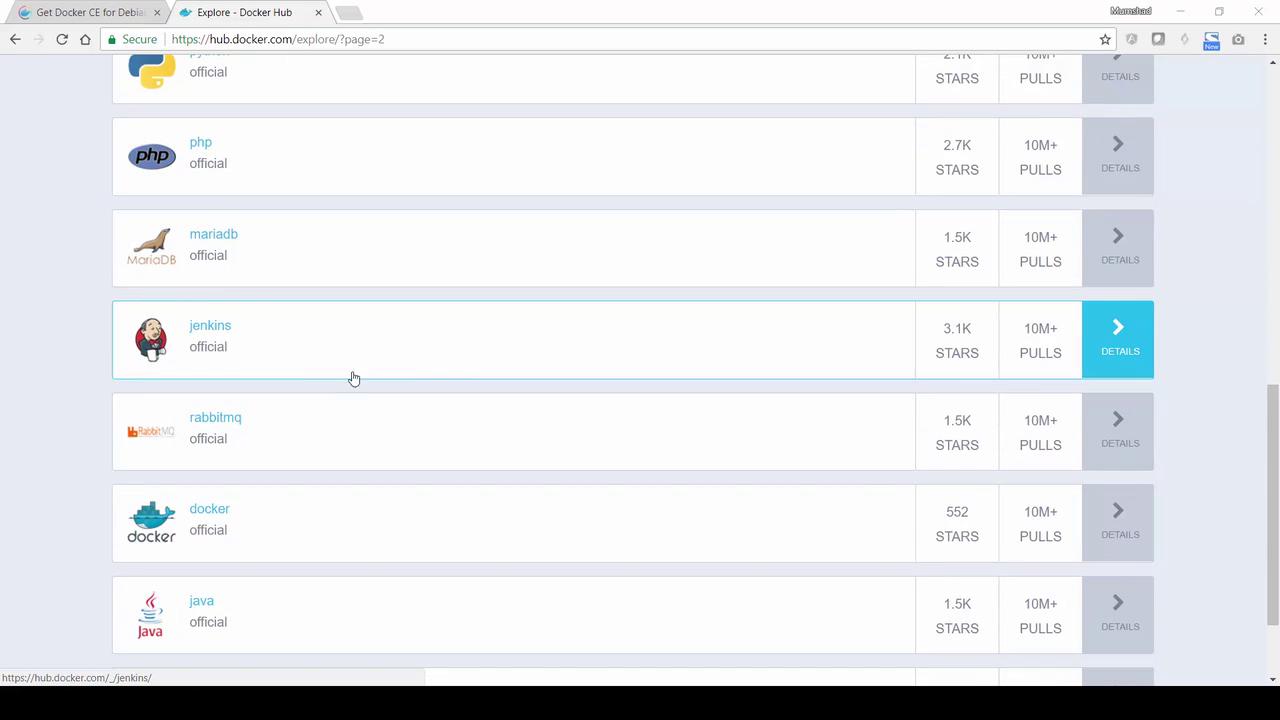
Jenkins is a powerful Continuous Integration and Delivery server. Running Jenkins inside a container lets you experiment without extensive host installations.Pulling and Running Jenkins
First, pull the Jenkins image:Accessing Jenkins
You have two options for accessing Jenkins:-
Internal Access:
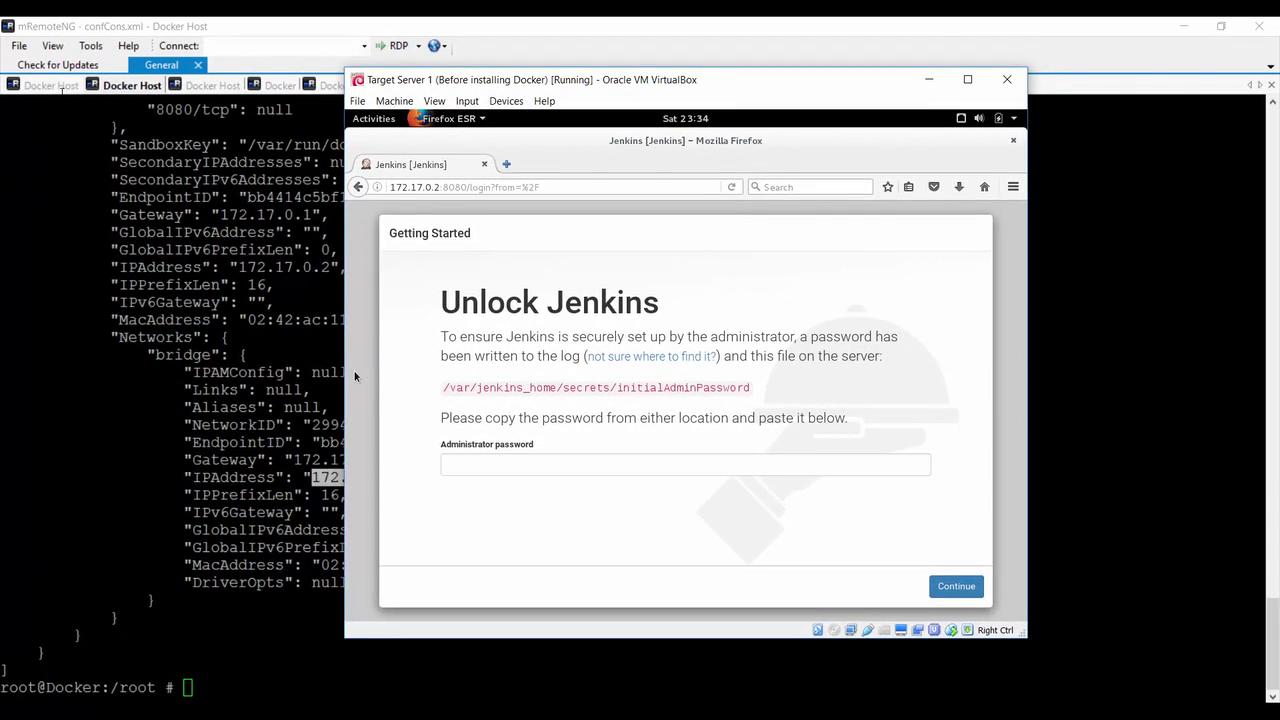
Retrieve the container’s internal IP by:Then inspect the container:Look under the “Networks” section for an IP like172.17.0.2. Navigate to: -
External Access via Port Mapping:
By mapping container port 8080 to your host, access Jenkins externally using the host’s IP address (e.g.,http://192.168.1.14:8080).
Ensure no other Jenkins containers are running without proper port mappings before starting Jenkins externally.
Persisting Jenkins Data Using a Volume
By default, stopping a Jenkins container causes all configuration and job data to be lost. To persist data across container restarts, map a host directory to the Jenkins home directory.Step-by-Step Process
-
Create a directory on your host:
-
Run Jenkins with the volume mapped. Run as root if needed to avoid permission issues:
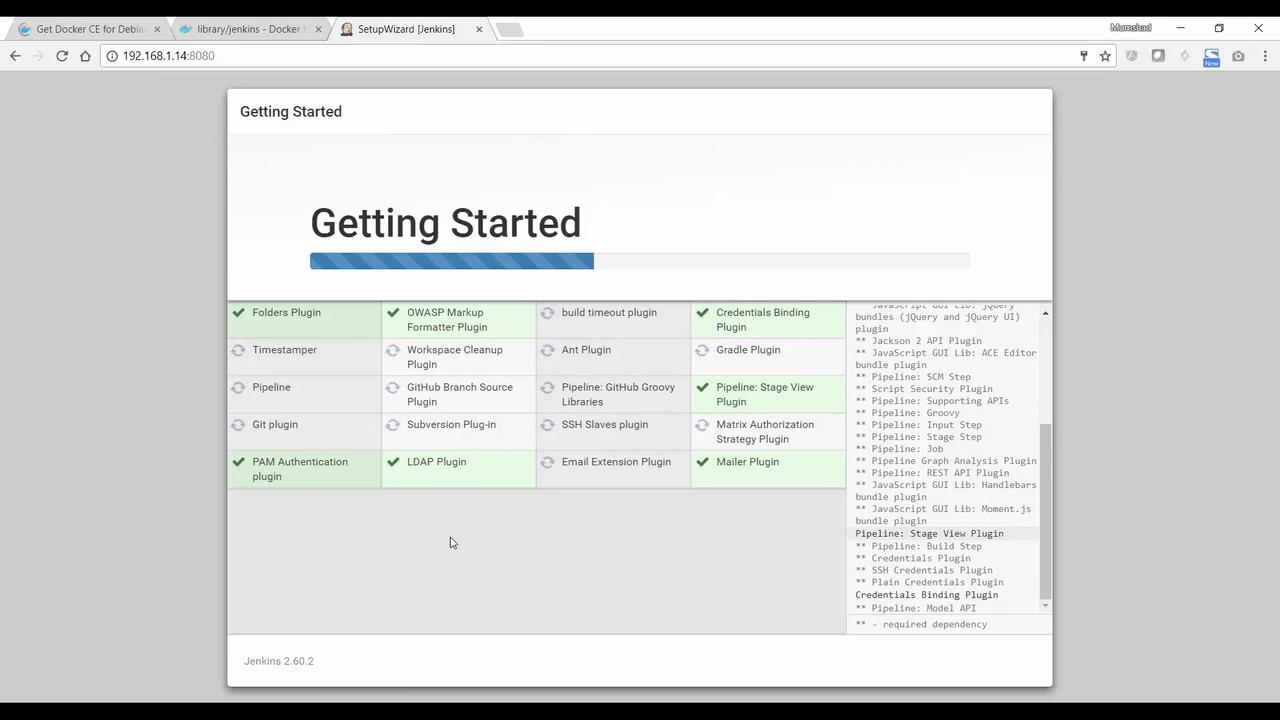
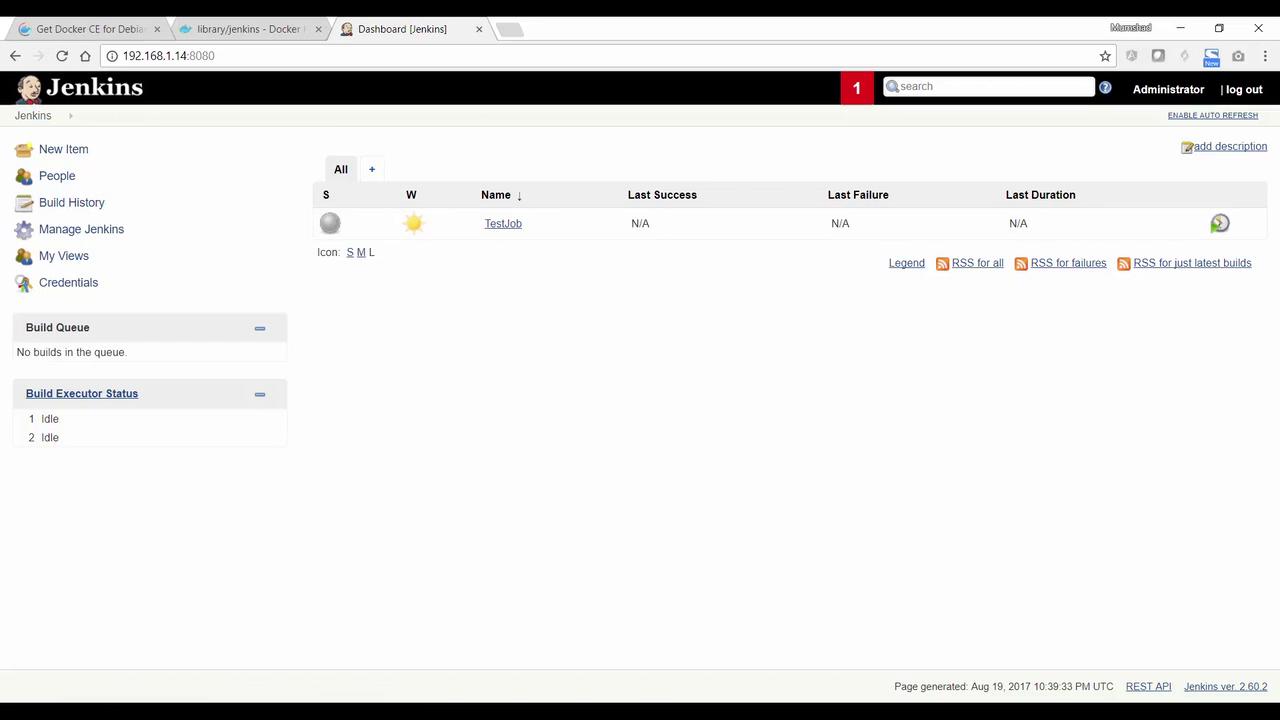
- Complete the Jenkins setup by configuring the admin user, installing plugins, and creating a test job.
Summary
In this lesson, you learned how to:- Run Docker containers with appended commands (e.g., displaying OS release information).
- Specify image tags (e.g.,
ubuntu:17.10) to control which version is run. - Operate containers in both attached and detached modes, including attaching to or stopping a container.
- Execute applications like the “timer” image in either foreground or background modes.
- Deploy Jenkins in a Docker container, access its web UI via internal and external IP addresses, and persist configuration data using volume mapping.