

Where Docker keeps data on Linux
On a Linux host, Docker stores most runtime data under:/var/lib/docker/:
These folders contain the images, container metadata, and volume files Docker uses at runtime.
Docker image layers and image build cache
Docker images are built as a stack of immutable layers. Each Dockerfile instruction that modifies the filesystem typically creates a new image layer that records only the differences from the previous layer. Because layers are reused across images, builds can be faster and images can share storage. Example build steps and how they map to layers:- Base OS (e.g., Ubuntu) — bottom layer
- System packages (apt) — next layer
- Language/runtime packages (pip/npm) — next layer
- Application source copied into the image — next layer
- Entrypoint/CMD — stored as image metadata (or top metadata layer)
COPY and ENTRYPOINT steps. This reduces build time and disk usage.
Container writable layer and copy-on-write
When you run a container from an image, Docker creates a new writable layer on top of that image’s read-only layers. Runtime changes—created logs, temp files, or files modified inside the container—are stored in this writable layer. The writable layer exists only for the lifetime of the container; removing the container removes the writable layer and its changes. Example:temp.txt is saved in the container’s writable layer; the original image layers remain unchanged.
If you modify a file that came from a read-only image layer (for example, an app file copied into the image), Docker uses copy-on-write: it copies the file into the container’s writable layer, applies the change there, and leaves the original image layer untouched. These modifications are lost when the container is removed unless you persist them outside the writable layer.
Changes made in a container’s writable layer are ephemeral. To persist important data beyond a container’s lifetime, use Docker volumes or bind mounts (examples below).
Persisting data: Volumes vs Bind mounts
There are two common ways to persist data beyond the life of a container:- Named volumes — managed by Docker
- Bind mounts — map an existing host directory into the container
/var/lib/docker/volumes/datavolume. Mount it into a container:
datavolume) is the Docker volume name; right side (/var/lib/mysql) is the path inside the container where MySQL stores its data. Removing the container does not delete the volume unless you explicitly remove it.
Bind mount an existing host directory:
/data/mysql into the container at /var/lib/mysql. Bind mounts are useful when you want direct access to host files from the container.
Two common mount syntaxes:
Commands and paths shown assume a Linux host. Paths such as
/var/lib/docker and /var/lib/mysql use Linux-style notation.Storage drivers and how they affect layer management
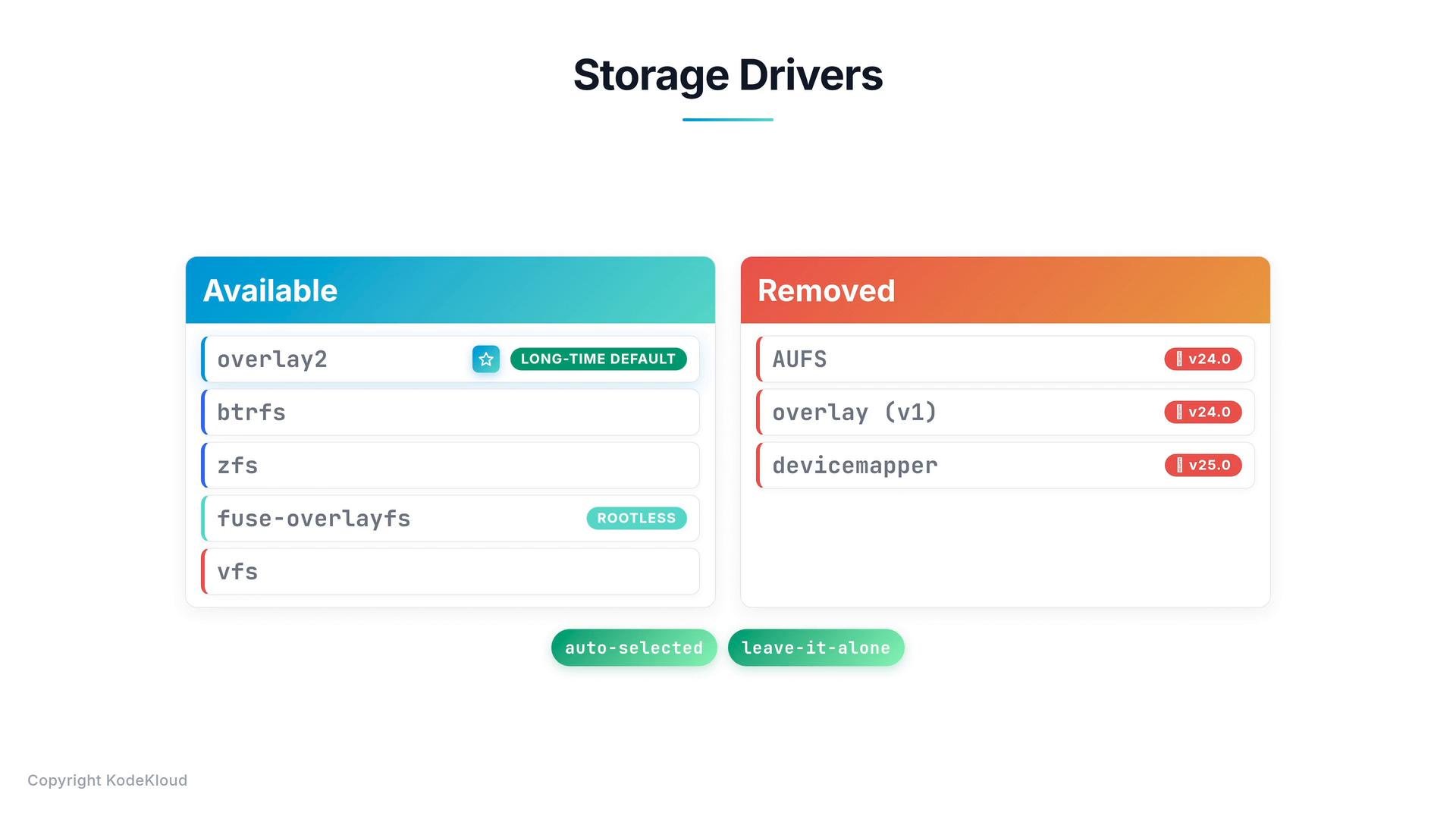
The storage driver implements layer stacking, the writable layer, and copy-on-write semantics. Common storage drivers on modern Linux hosts include:
Legacy or removed drivers you might see referenced in older materials include AUFS, overlay (v1), and devicemapper. Docker generally picks a suitable storage driver automatically based on OS and filesystem.
Recent change: containerd-managed image store (Engine v29+)
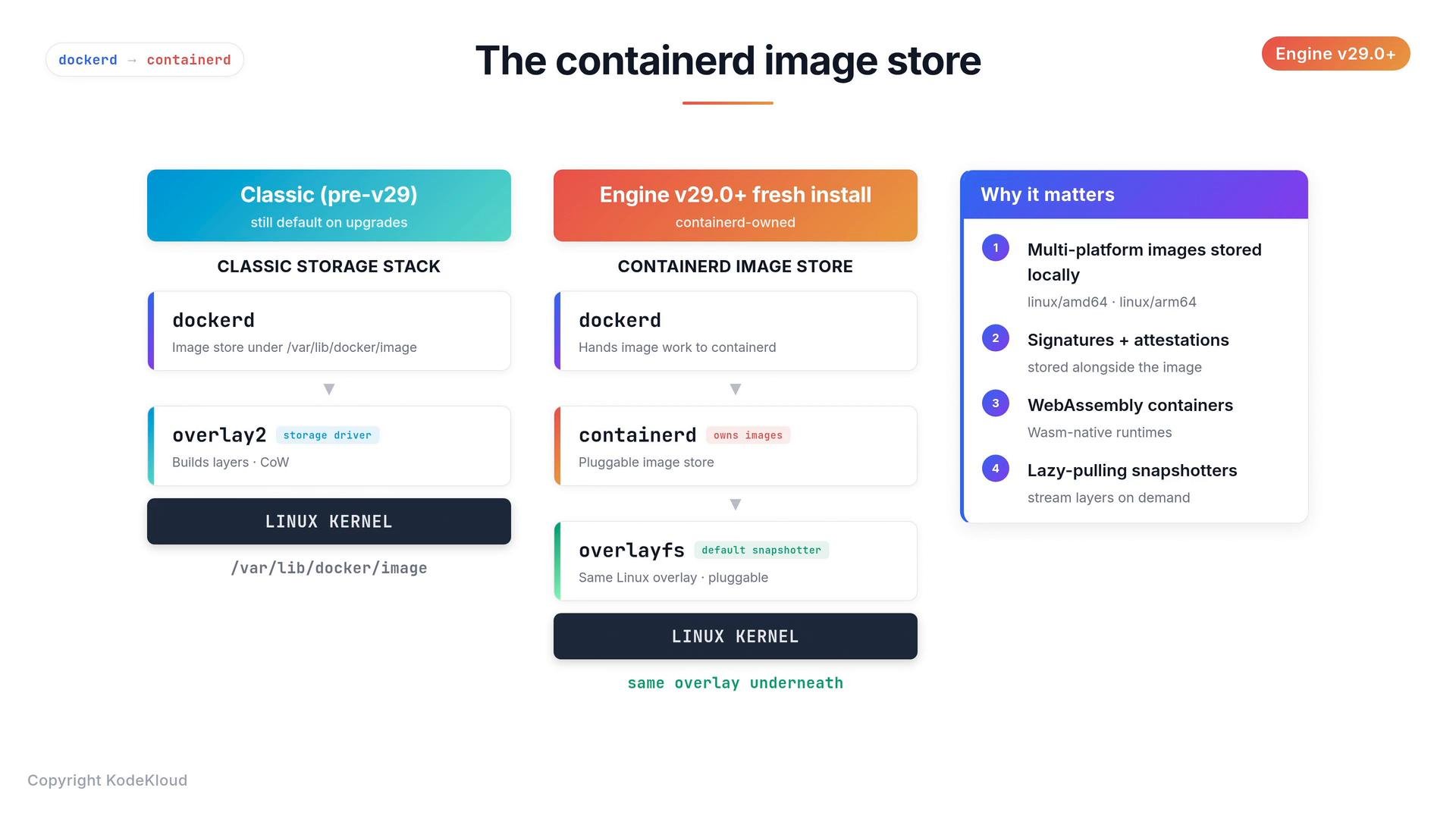
A notable change in recent Docker Engine releases (starting around v29) is that Docker delegates most image storage management to containerd. On fresh installs of recent Docker versions, image storage is handled by containerd’s image store and pluggable snapshotters (overlayfs remains the common snapshotter). Benefits of the containerd-managed image store:- Better support for multi-architecture images
- Image signatures and attestations
- Support for WebAssembly containers
- Lazy-pulling snapshotters that stream layers on demand
docker pull and docker run behave the same; the underlying image store and snapshotter implementation differ.
Quick reference commands
- Create a named volume:
- Run a container with a named volume:
- Run a container with a bind mount:
- Same bind mount using
--mount:
Links and references
- Docker documentation: https://docs.docker.com/
- containerd project: https://containerd.io/
- Linux overlayfs documentation: https://www.kernel.org/doc/html/latest/filesystems/overlayfs.html