

- TLS modes (Terminate vs Passthrough)
- Creating and storing TLS materials in a Kubernetes Secret
- Referencing Secrets from a Gateway listener
- Using ReferenceGrant to allow cross-namespace Secret references
TLS modes in Gateway API
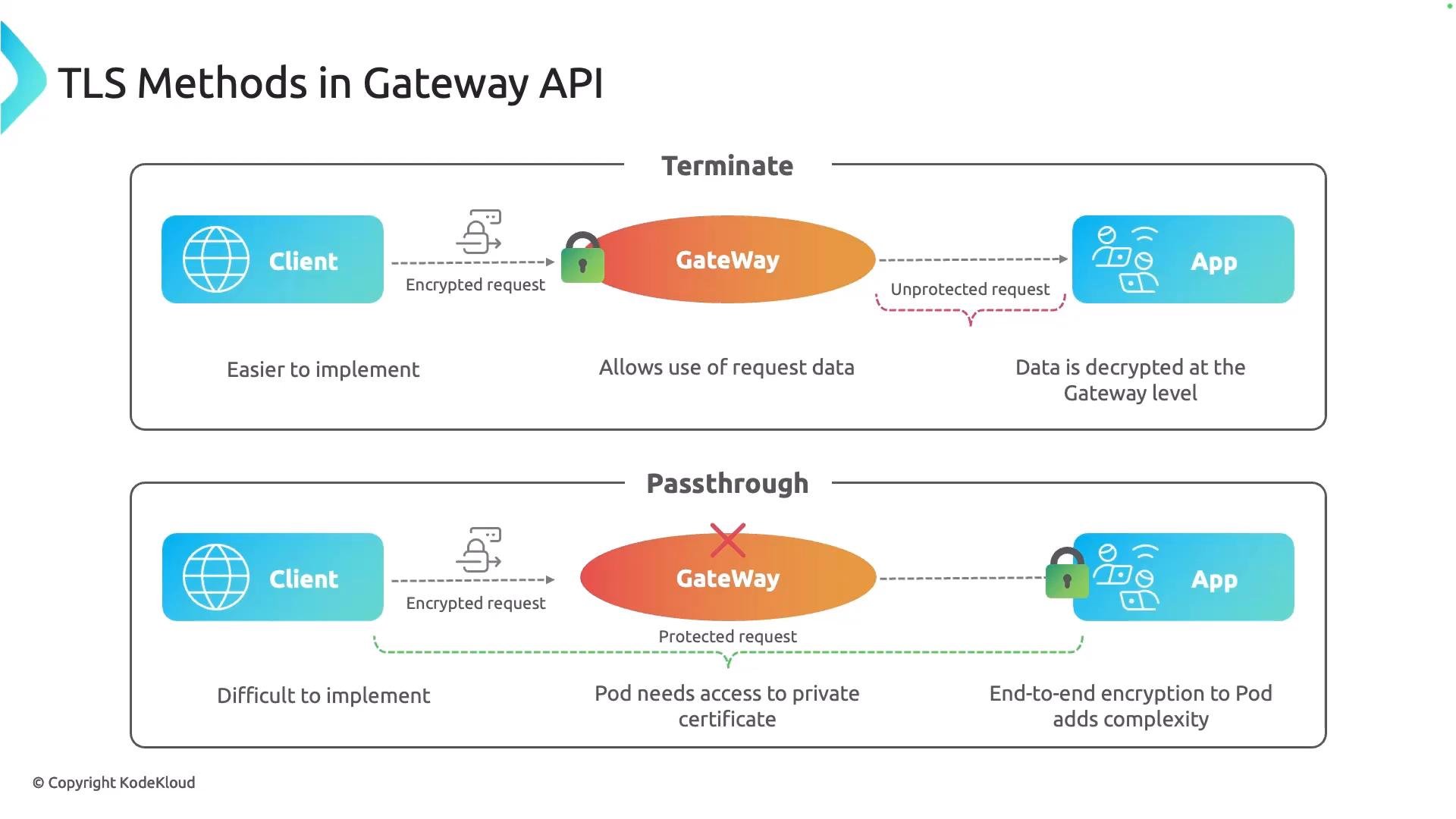
The Gateway API supports two TLS handling modes:-
Terminate
The Gateway terminates TLS. It validates the certificate and decrypts the request. Traffic between the Gateway and backend is plain HTTP (or otherwise unencrypted). This is the simplest setup and lets the Gateway inspect request headers, paths, and bodies for routing or modification. -
Passthrough
The Gateway forwards the encrypted client connection without terminating TLS. The backend (the application pod or a sidecar/proxy in front of it) must validate and terminate TLS. This preserves end-to-end encryption but requires the backend to have access to the certificate and private key and to perform TLS termination.
If you plan to terminate TLS at the pod (passthrough), use an automated certificate solution like cert-manager to simplify issuance, renewal, and rotation of TLS materials inside your cluster.
Obtaining a signed certificate
A certificate is required in both modes. Typical enterprise setups use an internal Certificate Authority (CA). The high-level flow to obtain a signed certificate:- Generate a private key.
- Create a Certificate Signing Request (CSR) using the private key.
- Submit the CSR to your CA.
- Receive a signed certificate from the CA.
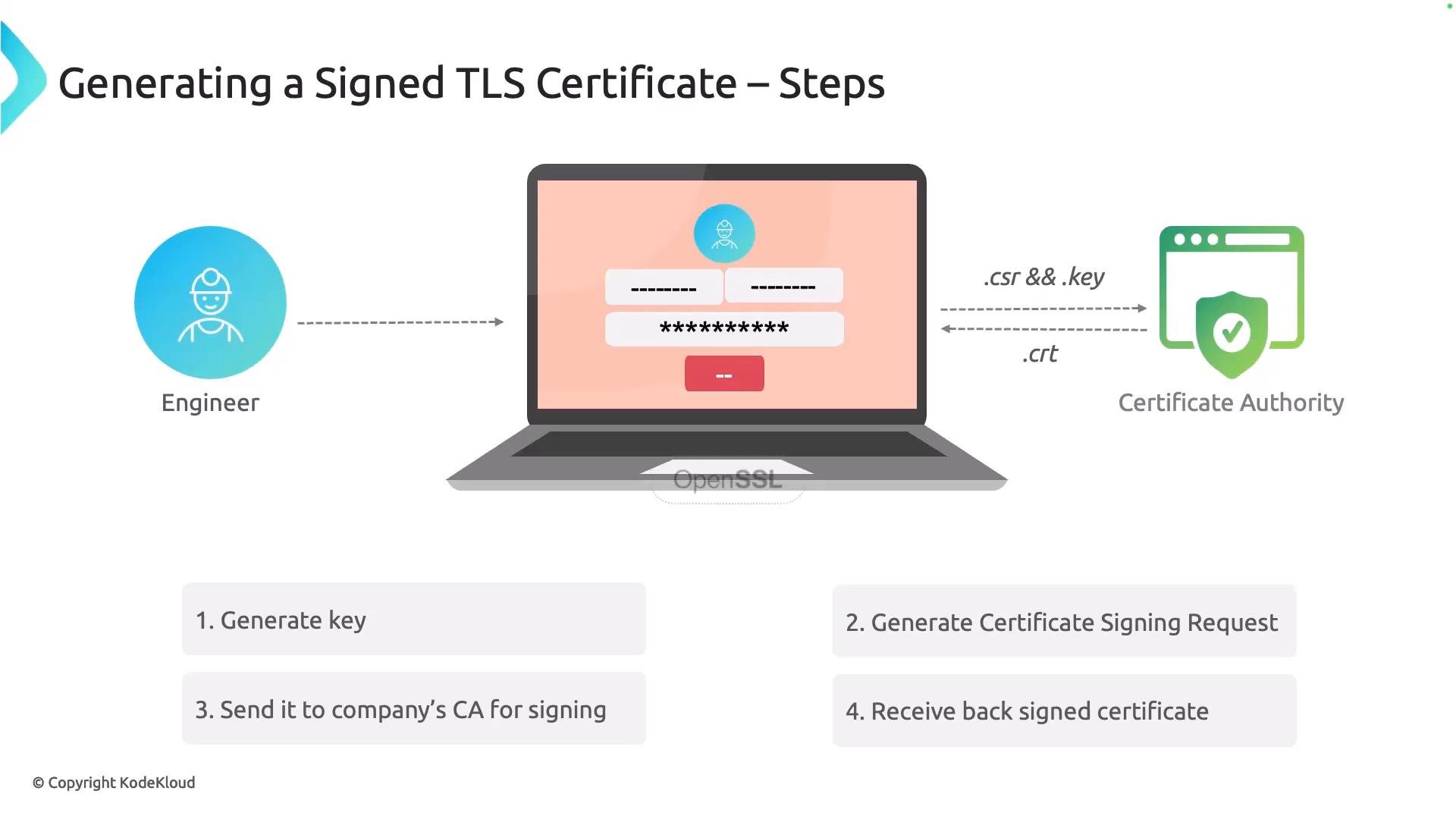
tls.crt and have the private key tls.key, store them in Kubernetes as a TLS Secret so your Gateway can access them.
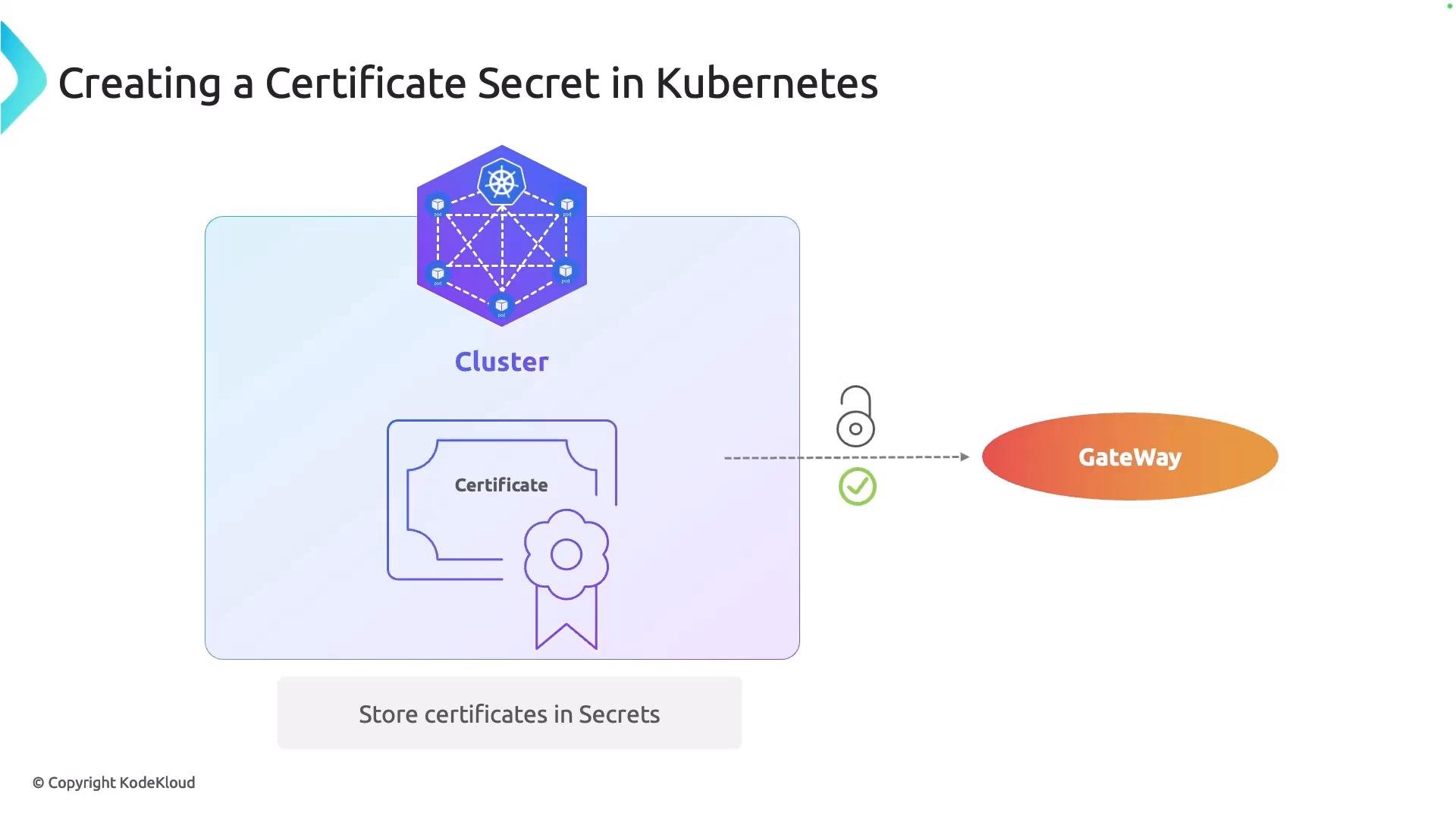
Create a TLS Secret
Create a TLS Secret with kubectl (kubectl handles base64 encoding for you). Replace the placeholders (examples shown in a code block so angle brackets are safe):kubernetes.io/tls and contains tls.crt and tls.key fields (base64-encoded):
Treat private keys with care. Keep Secrets in restricted namespaces and limit RBAC access. If you must store private keys in the cluster, ensure appropriate RBAC, audit, and rotation policies are in place.
Reference the Secret from a Gateway listener
To terminate TLS at the Gateway, add an HTTPS listener and reference the Secret viacertificateRefs. Example Gateway manifest:
cafe-secret resides in the certificate namespace, and the Gateway itself is in gateway-namespace. When the Secret is in a different namespace, the Gateway must be allowed to reference it.
Allow cross-namespace references with ReferenceGrant
Use a Gateway APIReferenceGrant to permit a resource in one namespace to reference a resource (Secret) in another namespace. Create the ReferenceGrant in the namespace that owns the Secret. Example:
- Create the ReferenceGrant in the namespace owning the target resource (the Secret’s namespace).
- In
to, list the exact resources allowed to be referenced (for Secrets usegroup: ""andkind: Secret). - In
from, specify the referencing resource (Gateway API group, kind, and name). You can widen the scope if needed (for example, use selectors or omitnameto allow multiple Gateways).
Quick reference: commands and manifests
Links and references
- Gateway API — Gateway API project documentation
- cert-manager — Automate issuance and rotation of TLS certs in Kubernetes
- OpenSSL — Generate keys and CSRs locally