

- Local graphical login.
- Remote graphical login (using RDP from Windows).
- Remote text mode login via SSH.
Local Graphical Login
Start by logging into a local Ubuntu system equipped with a graphical desktop. Since you have physical access to the machine, simply select your username (or the only available option), enter your password, and log in. Once authenticated, you will have access to a full desktop environment, complete with a terminal emulator for command-line operations.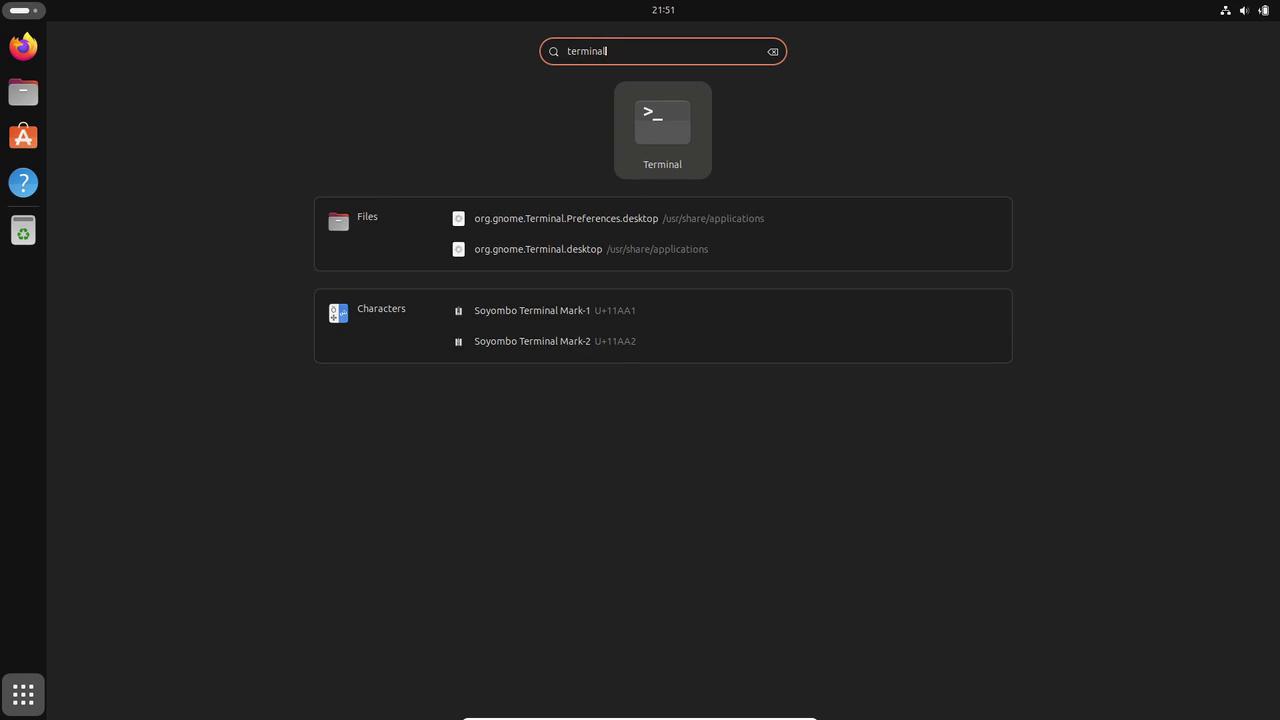
Remote Graphical Login from Windows
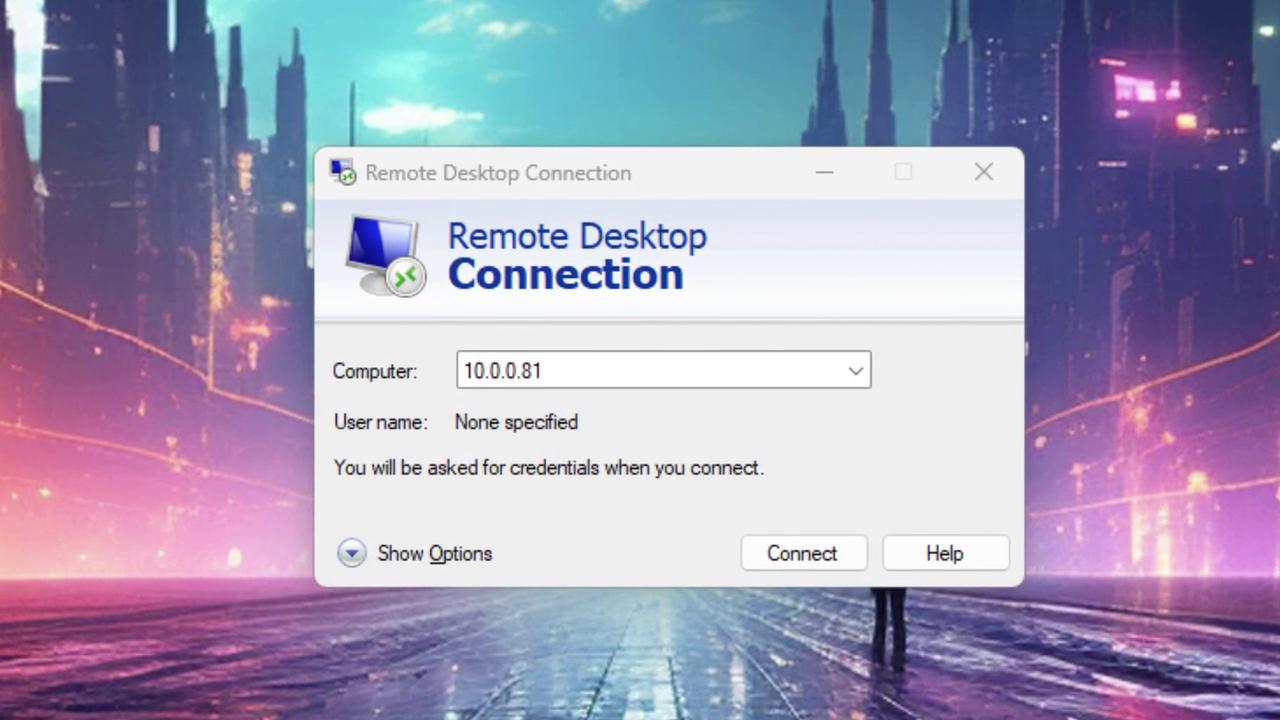
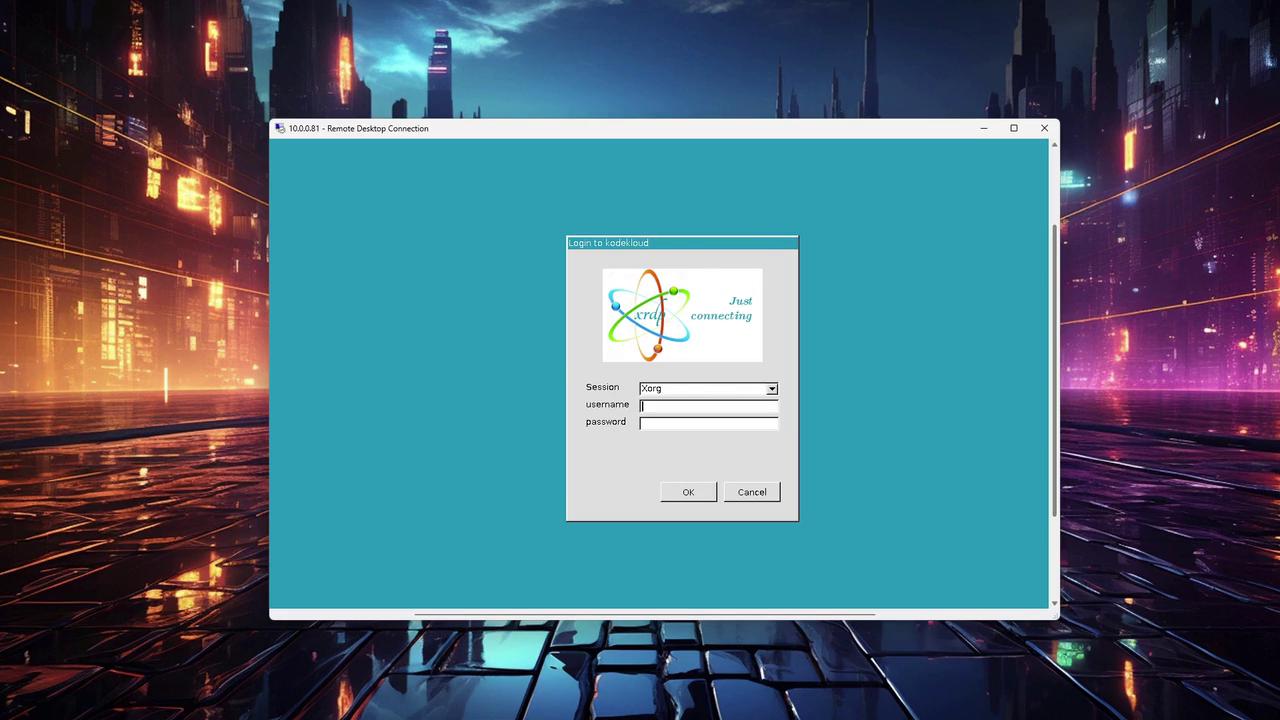
Next, we illustrate how to remotely access a Linux desktop from a Windows machine using XRDP. Follow these steps:- Open the “Remote Desktop Connection” application by searching for it in the Windows Start menu.
- Enter the IP address of your remote Ubuntu machine (for example, 10.0.0.81).
Remote Text Mode Login via SSH
Most Linux servers operate without a graphical desktop environment, making SSH the preferred method for remote login. This method works seamlessly from Windows, Mac, or Linux systems. Open a terminal and execute the SSH command using the following syntax:When connecting to a new host via SSH, you will be prompted to confirm its authenticity by typing “yes.” Always ensure that the fingerprint matches your expected configuration.