Installing an Operating System on a Virtual Machine
This guide explains how to set up a virtual machine and install an operating system using the virt-install tool.
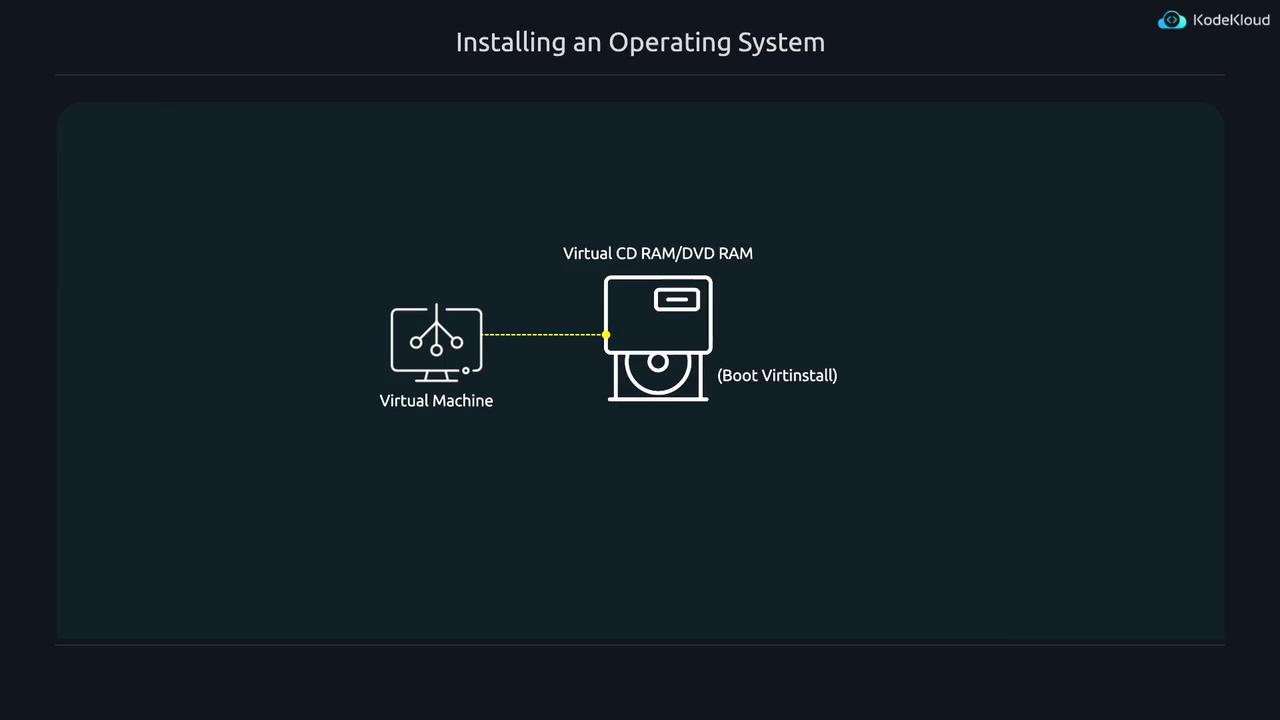
Cloud images with pre-installed operating systems can simplify deployments by eliminating the OS installation step. However, in some cases, you may want to perform a fresh operating system installation on a virtual machine. This guide explains how to set up a virtual machine using a virtual CD-ROM/DVD-ROM and an empty disk image, then install an operating system using the virt-install tool.
The installation process involves the following key differences compared to importing a pre-built disk image:
The --import option is omitted because no pre-installed operating system exists.
The --disk option uses the syntax size=10 (or another size) to create a new disk image with a specified capacity.
The --location option points to an ISO file or a URL serving as a virtual installation medium.
The --graphics none option enforces a text-mode installation.
The --extra-args "console=ttyS0" option configures the Linux kernel to expose a serial console, enabling text-based interactions without a graphical interface.
The virt-install command begins by downloading necessary installation files and proceeds with the configured setup. An extended version of the command is shown below:
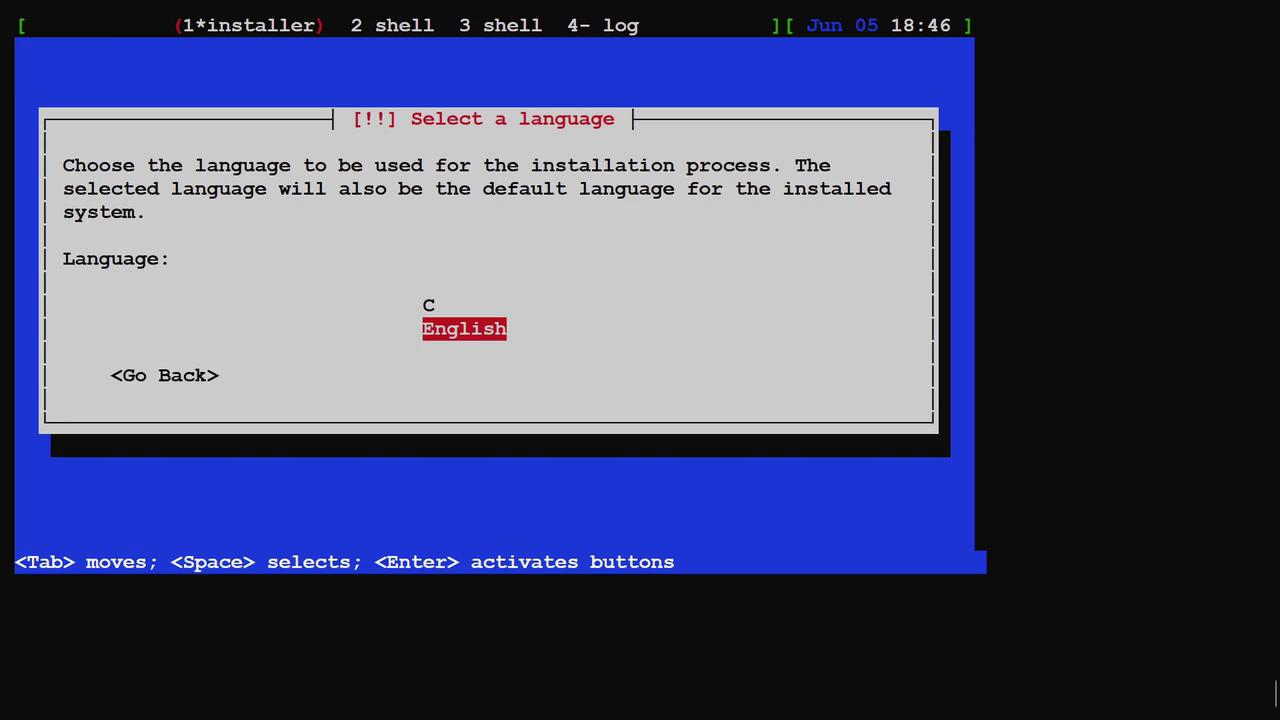
After the kernel completes its startup messages, the system boots directly into the Debian installer. In text-based terminal environments, the display might sometimes seem misaligned. Since the installation interface is minimal, not all languages or options may be available. You can simply press Enter to accept the default options during the initial setup.
For demonstration purposes, this guide stops at the installer boot stage. Continuing the process would trigger additional downloads and extended waiting times. If you wish to cancel the installation, press Ctrl+] to exit the terminal session.
Please note that terminal outputs may sometimes appear distorted. In such situations, using the clear command might not fully resolve display issues.
This guide demonstrated how to create a virtual machine and perform a complete operating system installation from scratch using the virt-install tool. While pre-built cloud images are generally more efficient, understanding this process is valuable for instances that require a fresh installation setup.This concludes the demonstration.