

Understanding Swap Space Through a Scenario
Imagine a computer with 4 GB of RAM. You open a video editor that uses 2 GB of RAM and an audio editor that uses the remaining 2 GB. With no free memory left, you may wonder how you can still run additional applications like Chrome. This is where swap space becomes essential:- Linux monitors memory usage and identifies inactive applications (e.g., a video editor that hasn’t been used for a while).
- It moves data from RAM to a designated swap area, for example, a 2 GB swap partition. This process frees up RAM, allowing new applications like Chrome to run.
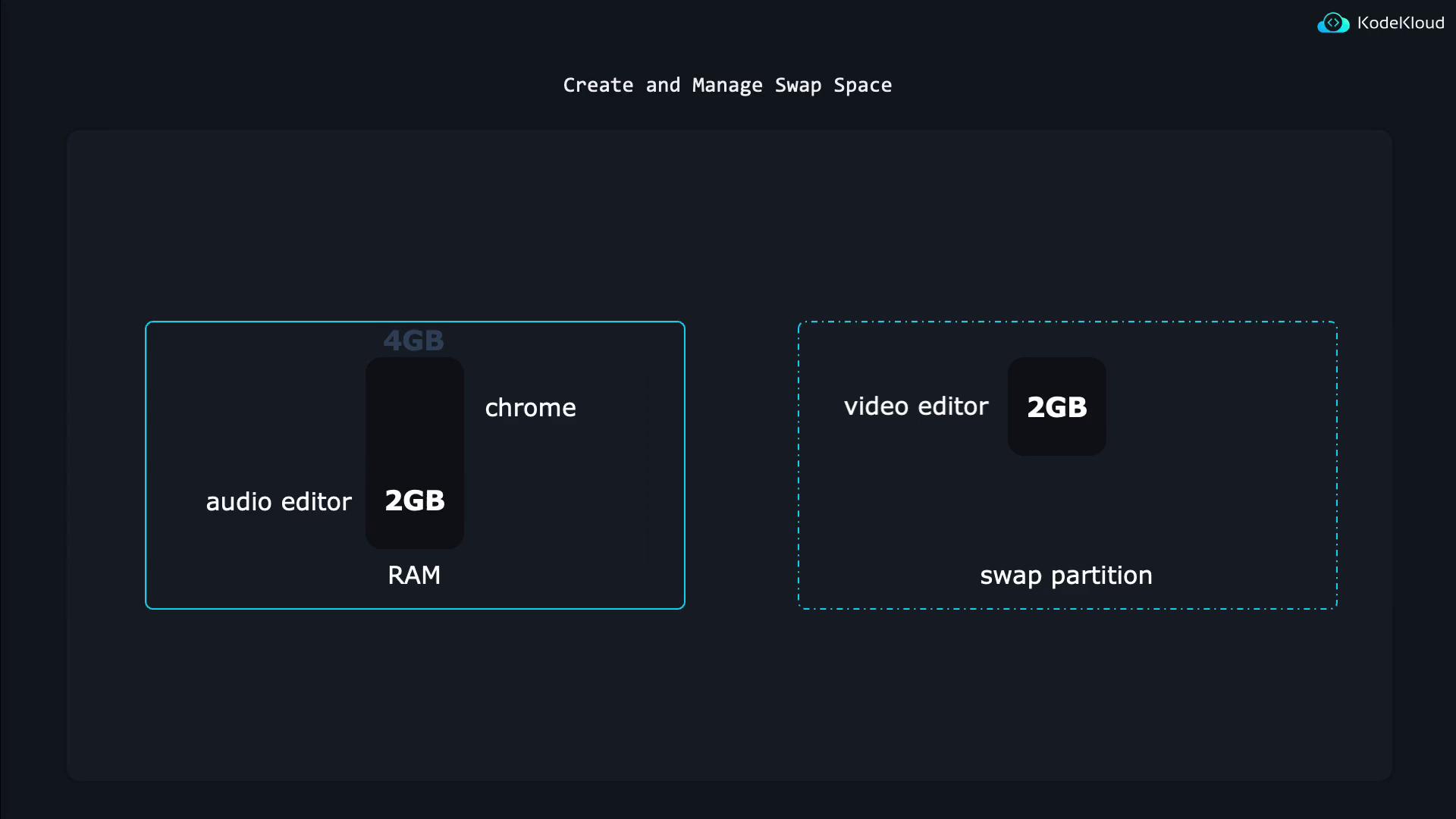
The scenario above is a simplified illustration that demonstrates why and how swap space is used in Linux systems.
Setting Up a Swap Partition
Before using a swap partition, check if your system is already using swap areas:/dev/vdb3 was created earlier. The following command displays your system’s block devices:
The swap configuration made above is temporary. After a reboot, the swap partition will not activate automatically unless it is added to the system’s fstab file.
Creating and Using a Swap File
Linux also supports swap files, which can be an alternative to swap partitions. Many modern Ubuntu systems, for instance, use a swap file by default. Follow these steps to create and use a swap file:-
Create a Swap File:
Use theddcommand to create a file filled with binary zeros. The following command creates a 128 MB swap file: -
Increase the Swap File Size:
To create a larger swap file (e.g., 2 GB), run:Example output: -
Set Correct Permissions:
For security, restrict access so that only the root user can read and write to the swap file: -
Initialize the Swap File:
Format the file as swap space: -
Enable the Swap File:
Activate the swap file with: -
Verify Active Swap Areas:
Check to ensure both the swap partition and swap file are active: