

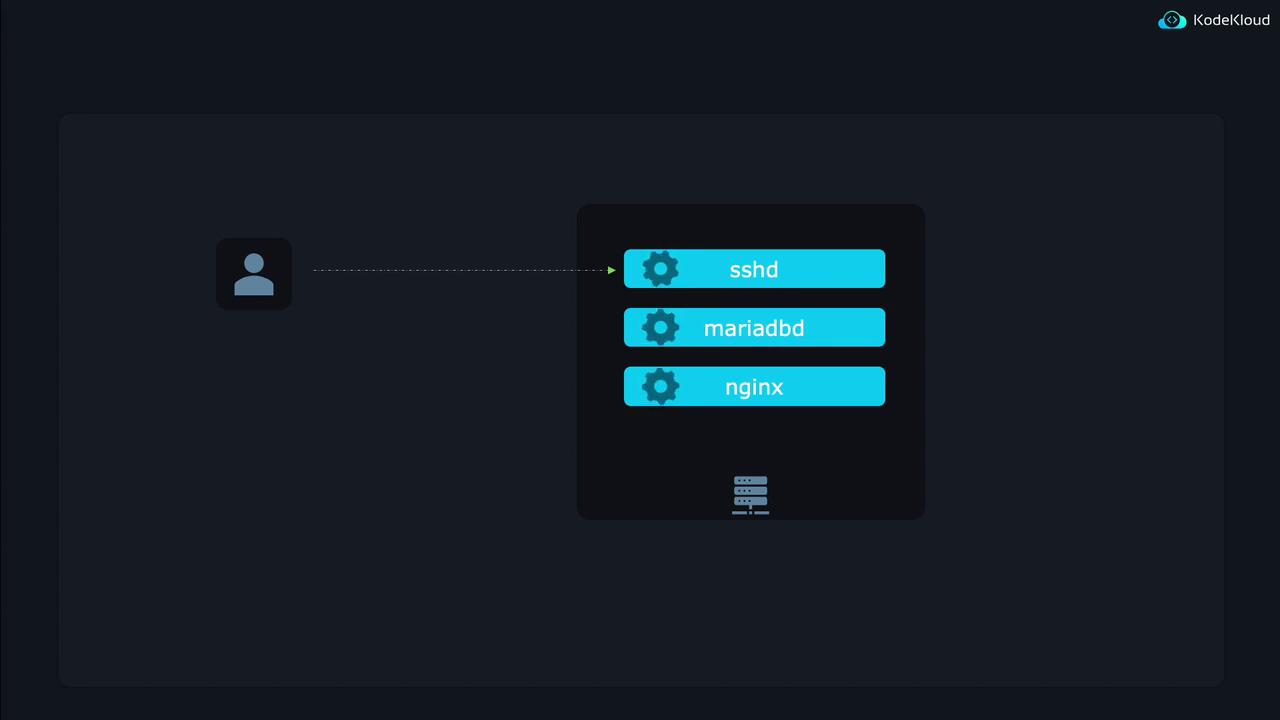
Viewing Active Network Connections
Two commonly used utilities for viewing active network connections are SS and Netstat. While SS is the modern alternative, Netstat is older and may eventually be deprecated in future Linux releases.
Using the SS Utility
To list all programs that are ready to accept incoming connections, issue the following command:- -l: Only display sockets currently listening for connections.
- -t: Filter to show only TCP connections.
- -u: Include UDP connections.
- -n: Show numeric values (such as port numbers) instead of resolving service names.
- -p: Display the process using each socket (root privileges are required to view processes owned by root).
Using the
-n option ensures that you see exact port numbers. For example, port 22 in the output confirms the SSH daemon’s listening port.Detailed Analysis of SS Output
Let’s inspect the output in detail, focusing on the local address and port columns:- MariaDB listens on
127.0.0.1:3306, limiting its access to the localhost. - SSHD listens on both IPv4 (
0.0.0.0:22) and IPv6 ([::]:22), allowing both local and external connections.
Checking Service Status with systemctl
To verify the status of these network services, you can use thesystemctl command as follows:
On Ubuntu, the SSH service is often listed as
ssh (without a trailing “d”). In contrast, other distributions like Red Hat may refer to it as sshd.Stopping and Disabling Services
To stop the MariaDB service, use the following command. After you stop it, re-run the SS command to verify that port 3306 no longer appears.Inspecting Process Details
After confirming the SSH daemon’s process ID from the SS output (e.g., PID 679), you can use theps command to inspect it further:
lsof:
Using the Netstat Utility
Although SS offers modern functionality, you can also use the Netstat utility to produce a similar output:Conclusion
This article detailed the processes involved in starting, stopping, and checking the status of network services on Linux using both SS and Netstat tools, as well assystemctl for service management. Understanding these fundamentals will help you effectively monitor your system’s network services and troubleshoot connectivity issues when they arise.
For further reading, consider exploring:
Happy troubleshooting!