

SSH Server Configuration
The primary configuration file for the SSH daemon is located at/etc/ssh/sshd_config (note the “d” indicating the daemon). To modify its settings, use your preferred text editor. For example:
/etc/ssh/ssh_config (without the “d”). Be sure not to confuse these two files when adjusting settings:
Key Settings in /etc/ssh/sshd_config
When you open/etc/ssh/sshd_config, you might see content similar to the following:
AddressFamily any option allows both IPv4 and IPv6 connections. If you wish to restrict connections, you can set AddressFamily inet (IPv4) or AddressFamily inet6 (IPv6).
For example, if your server has two IP addresses—203.0.113.1 (public) and 10.11.12.9 (internal)—and you want SSH access only through the internal network, configure it like below:
PermitRootLogin. By default, this is often set to prohibit-password, meaning root login is allowed only via key-based authentication. To entirely disable root login, change the value to no. See this example configuration block that disables root login and defines authentication protocols:
PasswordAuthentication and KbdInteractiveAuthentication ensures that only key-based authentication is allowed for heightened security. Consider this snippet:
Per-User Overrides
Global settings apply to all users, but you can create exceptions for specific users. For instance, if password authentication is globally disabled and you want to allow it for a specific user such as “anoncvs” (or even a user like “aaron”), add a per-user configuration block at the end of the file:After modifying the configuration file, reload the SSH daemon for changes to take effect:sudo systemctl reload ssh.service
/etc/ssh/sshd_config.d/ directory can override settings from the main file. For example, a file like /etc/ssh/sshd_config.d/50-cloud-init.conf may contain PasswordAuthentication yes, which re-enables password authentication even if disabled in the main configuration file. List and inspect these files with:
SSH Client Configuration
The SSH client is used to connect to remote servers and is available on Windows 10, macOS, and Linux. When you execute thessh command, it opens a text-based application to establish a connection.
User-specific SSH client files are stored in the .ssh directory in each user’s home folder. For example, for user “jeremy” on a Unix-like system:
/etc/ssh/ssh_config, where default values are commented out. Here’s an example snippet from that file:
/etc/ssh/ssh_config.d/. For example, to set the default port globally, create or edit the file with:
config in the ~/.ssh directory. This file allows you to define host aliases and custom connection parameters. For example:
-
Create and edit the user-specific configuration file:
-
Add an entry similar to the one below (replace the IP address and username as needed):
-
Secure the file by setting its permissions:
Using SSH Keys Instead of Passwords
SSH keys provide stronger security compared to password-based authentication. To generate an SSH key pair on your local machine, run:id_ed25519) and a public key (id_ed25519.pub). To use SSH key-based authentication, copy the public key to your server using the ssh-copy-id command:
ssh-copy-id is unavailable, you can manually append the contents of id_ed25519.pub to the server’s ~/.ssh/authorized_keys file and secure it:
Managing Known Hosts
The first time you connect to a new server, SSH prompts you to confirm the server’s fingerprint and stores this information in~/.ssh/known_hosts. On subsequent connections, SSH verifies the fingerprint to ensure that you are connecting to the trusted server. If the server’s fingerprint changes—perhaps because of a server reinstall—you may encounter a warning message.
To remove a specific fingerprint (e.g., for IP 10.0.0.251), use:
known_hosts file to clear all stored fingerprints.
Diagrams and Further Details
The following diagrams provide a visual representation of SSH configuration and authentication settings: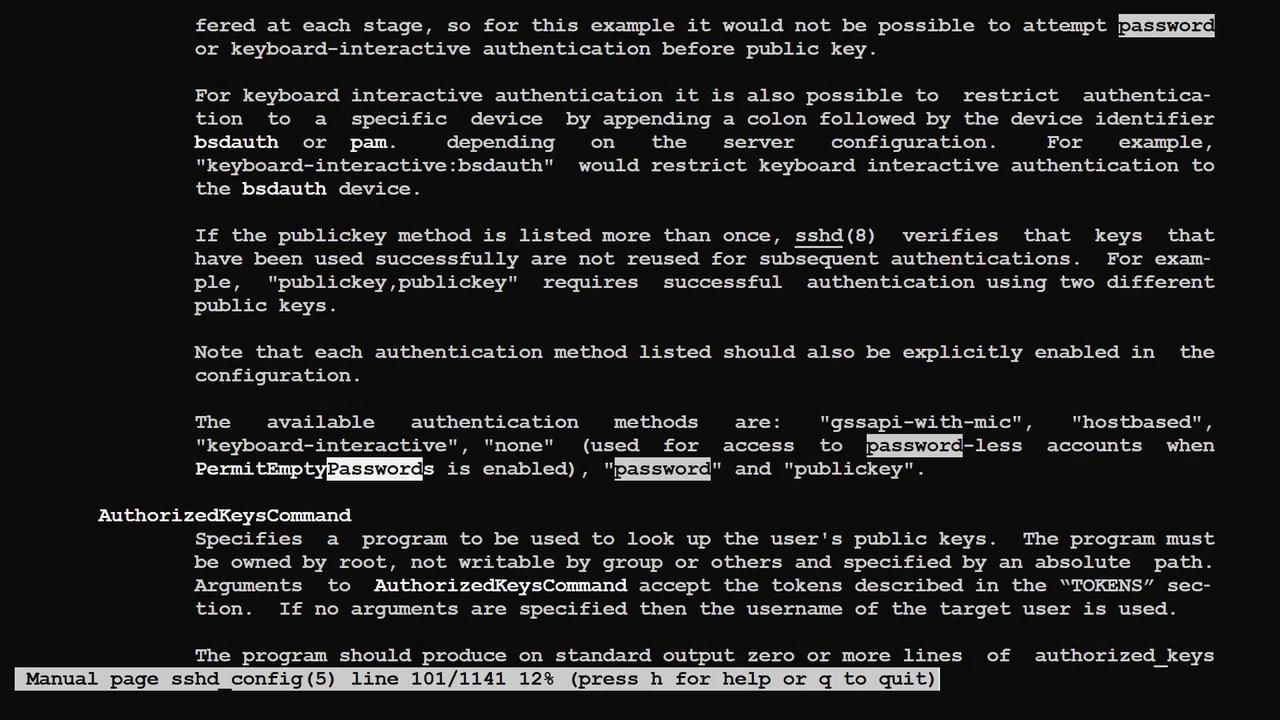
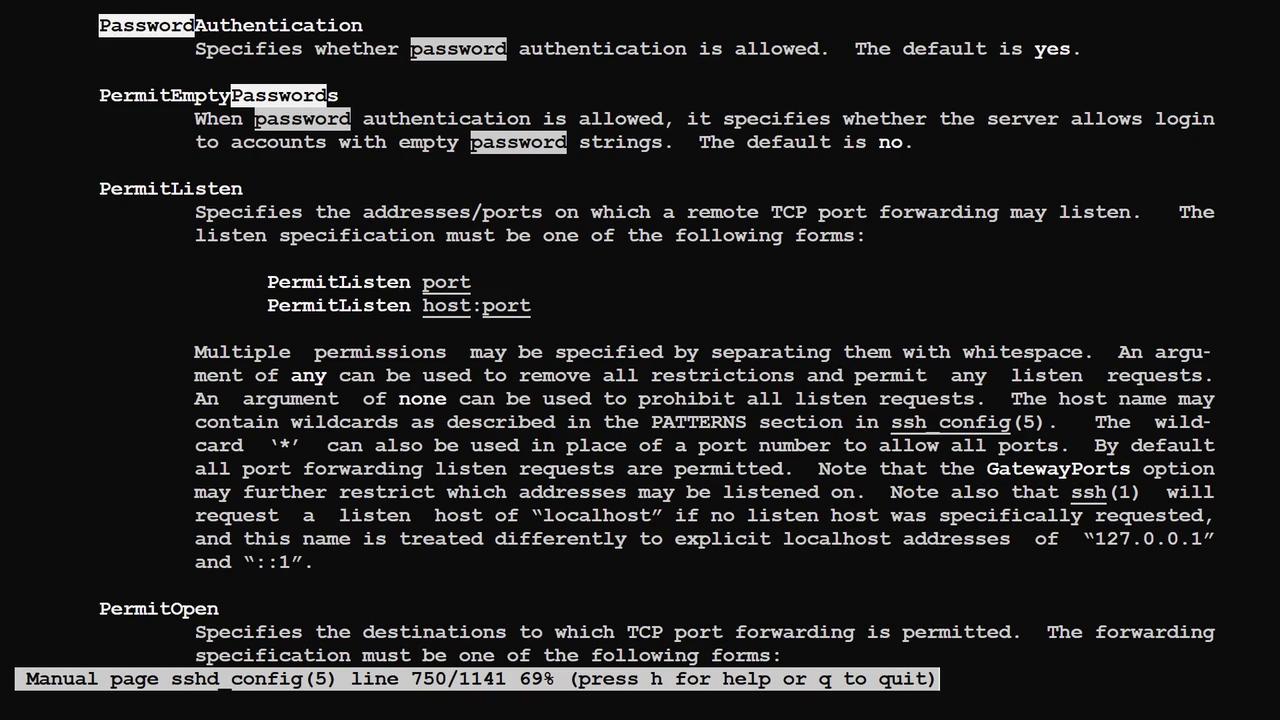
This concludes the article on configuring SSH servers and clients. By understanding and applying these settings, you can securely manage and maintain remote systems using either password or, preferably, SSH key-based authentication. For more comprehensive guides on SSH and Linux server management, consider visiting Kubernetes Documentation or browsing Docker Hub.