

Understanding these permissions ensures that applications can safely operate with elevated privileges without compromising system integrity.
SUID (Set User ID)
SUID is a permission that, when applied to an executable file, enables the process to run with the file owner’s privileges instead of those of the user who launched it. This feature is particularly useful when an application requires access to restricted resources. For example, if Emily develops a reports application that needs to access files under/usr/local/reports, she can allow John to run the application without granting him unfettered access to her directory.
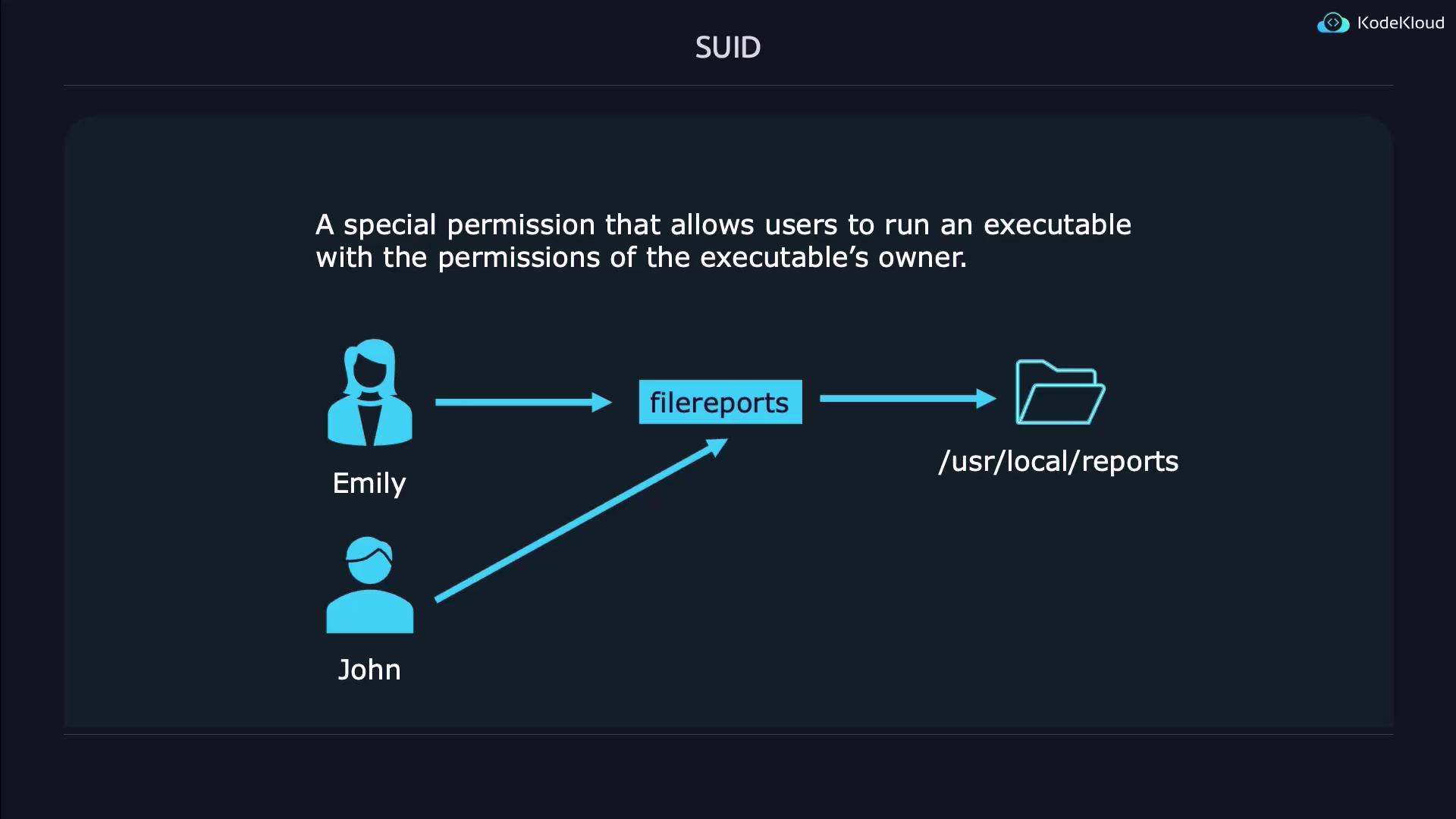
Demonstration of SUID
Below is a step-by-step demonstration of setting and verifying the SUID bit:4764) will show a lowercase “s” instead.
SGID (Set Group ID)
SGID works similarly to SUID but applies to the group ownership of an executable or directory. For executables, SGID allows any user running the file to do so with the file’s group privileges. When applied to a directory, any new file or directory created inherits the group’s ownership, which is invaluable for collaborative work environments. For instance, if a reports application is associated with the reports group, both Emily and John can access executable files, and newly created files inside the directory will automatically inherit the reports group.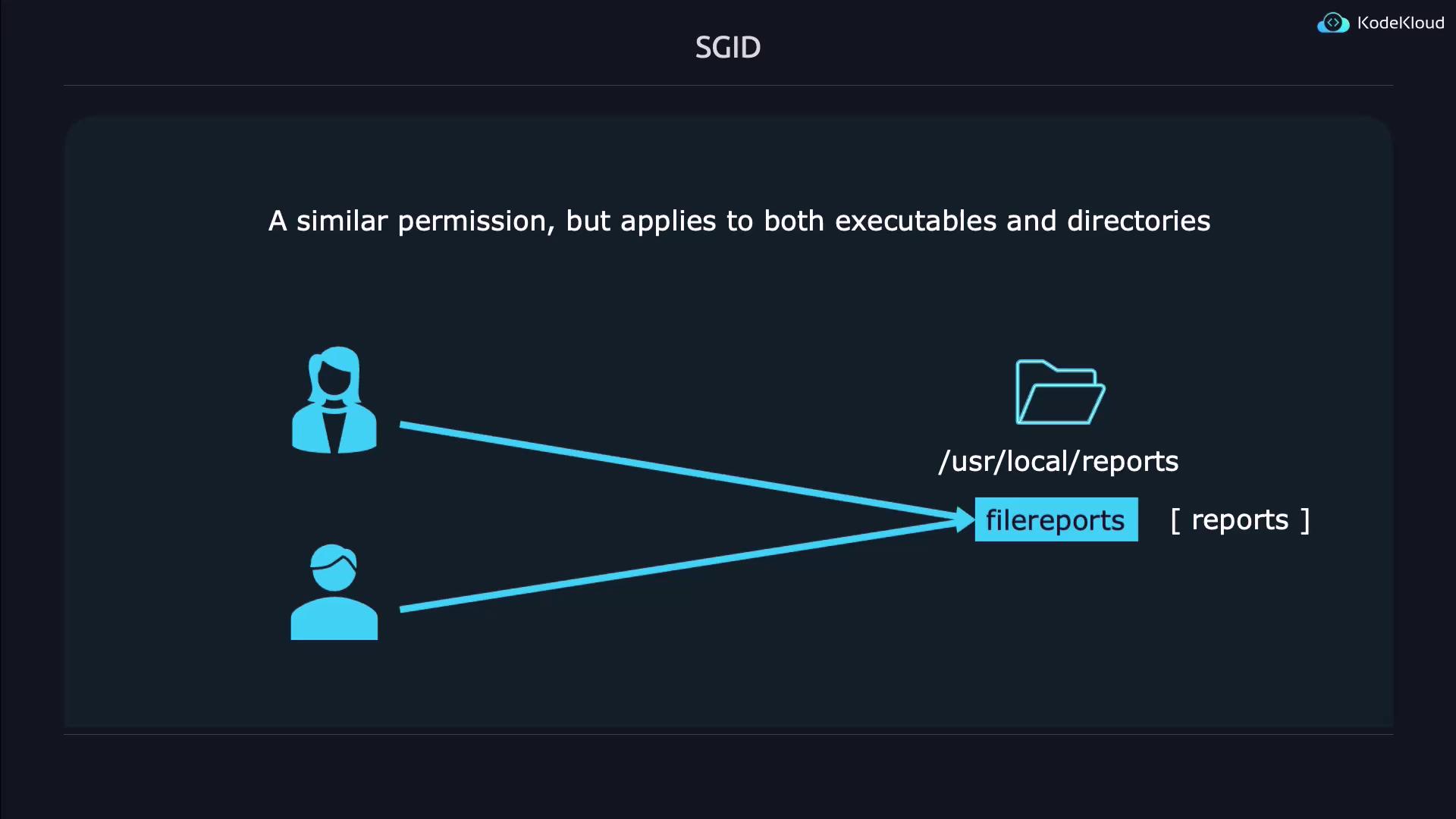
Demonstration of SGID
Follow these simple steps to set the SGID bit on a file:Combining SUID and SGID
Combining SUID and SGID on a single file is straightforward. Since SUID is represented by 4 and SGID by 2, the combined digit is 6. For example, to apply both on a file calledboth:
find command:
Sticky Bit
The Sticky Bit is a special permission applied primarily to directories to control file deletion. When set, it restricts file deletion within the directory so that only the file owner, the directory owner, or the superuser can delete or rename files. This is especially beneficial for shared directories where multiple users have write access but should not be able to remove files created by others.Demonstration of the Sticky Bit
Creating a directory with a Sticky Bit is illustrated below:1666), the indicator changes to an uppercase “T”:
A lowercase “t” denotes that the Sticky Bit is set and execute permission is enabled, while an uppercase “T” indicates that only the Sticky Bit is set.