

File System Basics
Imagine a Linux system used by two distinct users, Aaron and Jane. Each user logs in with their own credentials, which provide personalized desktops, settings, and file directories. Suppose Aaron takes a picture of the family dog and saves it as: /home/aaron/pictures/family_dog.jpg To simulate the file creation, we use the following command, which writes a description (acting as the file’s content) into the file:stat command, it shows details that include the inode number:
Creating and Using Hard Links
Hard links allow you to reference the same data from different locations without duplicating file content. This is especially useful if you want to share data without unnecessarily consuming additional disk space. Consider Jane, who has her own pictures directory at /home/jane/pictures. Instead of copying family_dog.jpg from Aaron’s directory, which duplicates the file data, you can create a hard link. This avoids the overhead of duplicating thousands of high-resolution images. While the typical copy command might be:stat command now will show the file has two hard links:
If one user deletes their reference (hard link) to the file, the data remains accessible through the other link. The file data is only removed when the last hard link is deleted.
Deleting Hard Links
For example, if Aaron removes his file:Managing Permissions with Hard Links
Since hard links share the same inode, any permission changes on one link are reflected on all links. To ensure both Aaron and Jane have correct access to the file, you might add them to the same group (for example, “family”) and adjust the file’s permissions accordingly:Limitations of Hard Links
There are a few limitations to be aware of when working with hard links:- Hard links can only be created for files, not directories.
- Hard links must reside on the same file system; you cannot create a hard link from one file system to another.
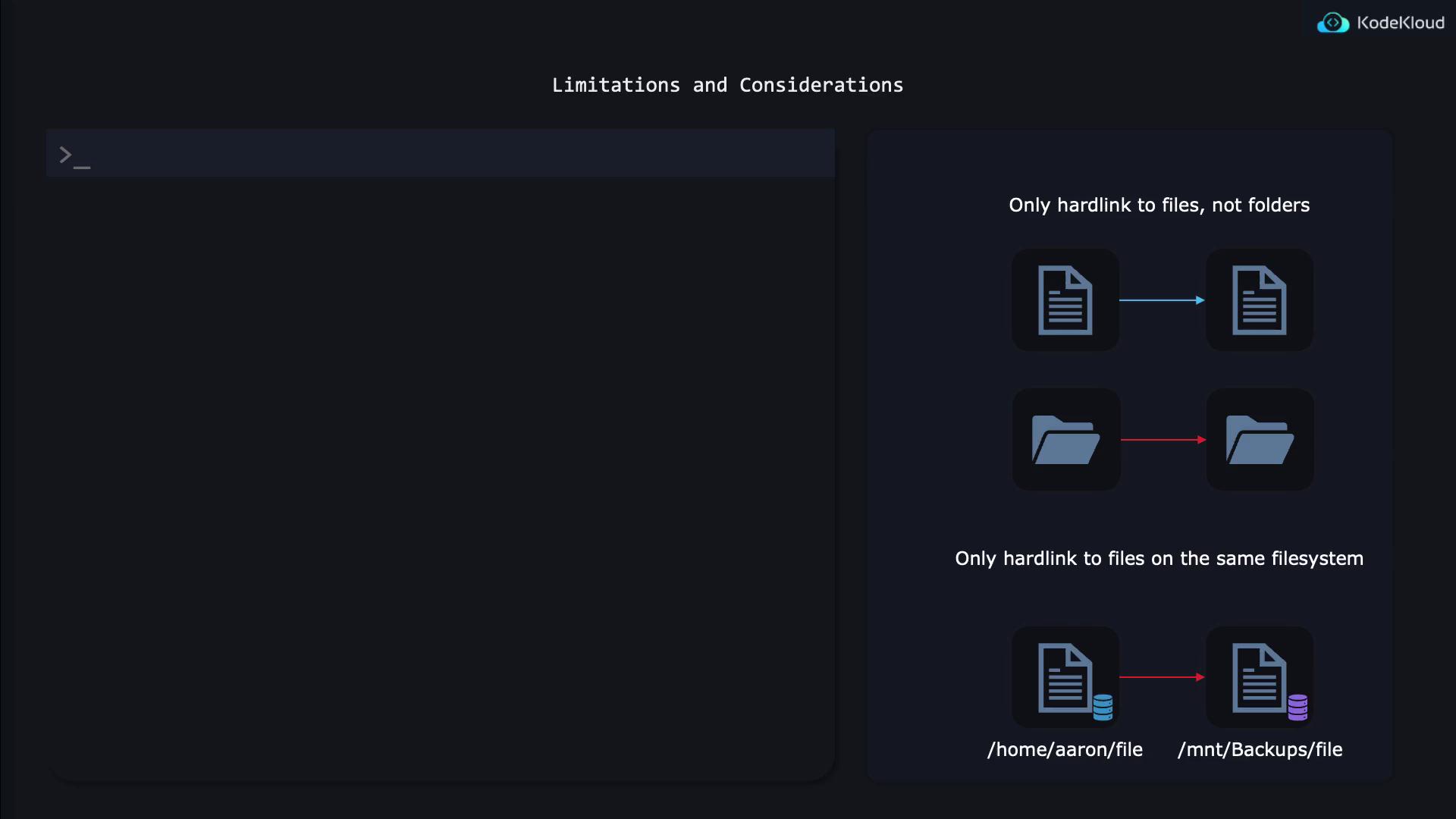
Remember, attempting to create a hard link across different file systems or for directories will result in an error.