

Changing the Group Owner with chgrp
To change the group of a file or directory, use thechgrp command. The syntax is as follows:
ls -l, you will see the group updated to “sudo”. Note that you can only change the group to one that you are a member of. To display your current groups, run:
Only the root user can change the file group to any group available on the system.
Changing the User Owner with chown
To change the user owner of a file or directory, use thechown command with the syntax below:
ls -l, you will observe that the file’s owner is now “jane”. Only the root user has the privileges to change the file owner.
You can also modify both the owner and group simultaneously using:
Understanding ls -l Output and Permissions
Thels -l command output provides detailed file information, including permissions:
-
The first character indicates the entry type:
- A dash (-) represents a regular file.
- A “d” signifies a directory.
- An “l” denotes a symbolic link.
-
The next nine characters are divided into three groups of three:
- The first trio pertains to the user (owner).
- The second trio is for the group.
- The third trio applies to others.
- “rwx” for the owner means the owner can read, write, and execute.
- “rwx” for the group grants identical permissions.
- “rwx” for others provides full access to all users.
Permissions for Files vs. Directories
For files:- “r” (read) allows the content to be viewed.
- “w” (write) permits modifications.
- “x” (execute) enables running the file as a program or script.
- “r” allows listing the directory’s contents.
- “w” permits creating or deleting files within.
- “x” allows entering the directory using the
cdcommand.
How Permissions Are Evaluated
When accessing a file, Linux evaluates permissions in the following order:- If the user is the file owner, user permissions apply.
- If not, and the user is a member of the file’s group, group permissions apply.
- Otherwise, the “others” permissions are enforced.
Changing File Permissions with chmod
To modify file or directory permissions, use thechmod command:
Using the Plus (+) and Minus (–) Signs
You can add permissions with+ and remove them with -.
-
To add write permission for the owner:
Suppose the file initially shows:After applying the command:
-
To remove permissions, for example, to remove read permission for others:
This command ensures that only the owner and group have read access to the file.
Using the Equal (=) Operator
You can set permissions to exact values using the equal sign. For instance, to set group permissions to read-only:Combining Permission Changes
You can combine changes for the user (u), group (g), and others (o) in a single command. For example, to grant the owner read and write permissions, set the group to read-only, and remove all permissions for others:Setting Permissions with Octal Notation
Thechmod command also accepts octal values for specifying permissions. First, view the file’s current permissions with the stat command:
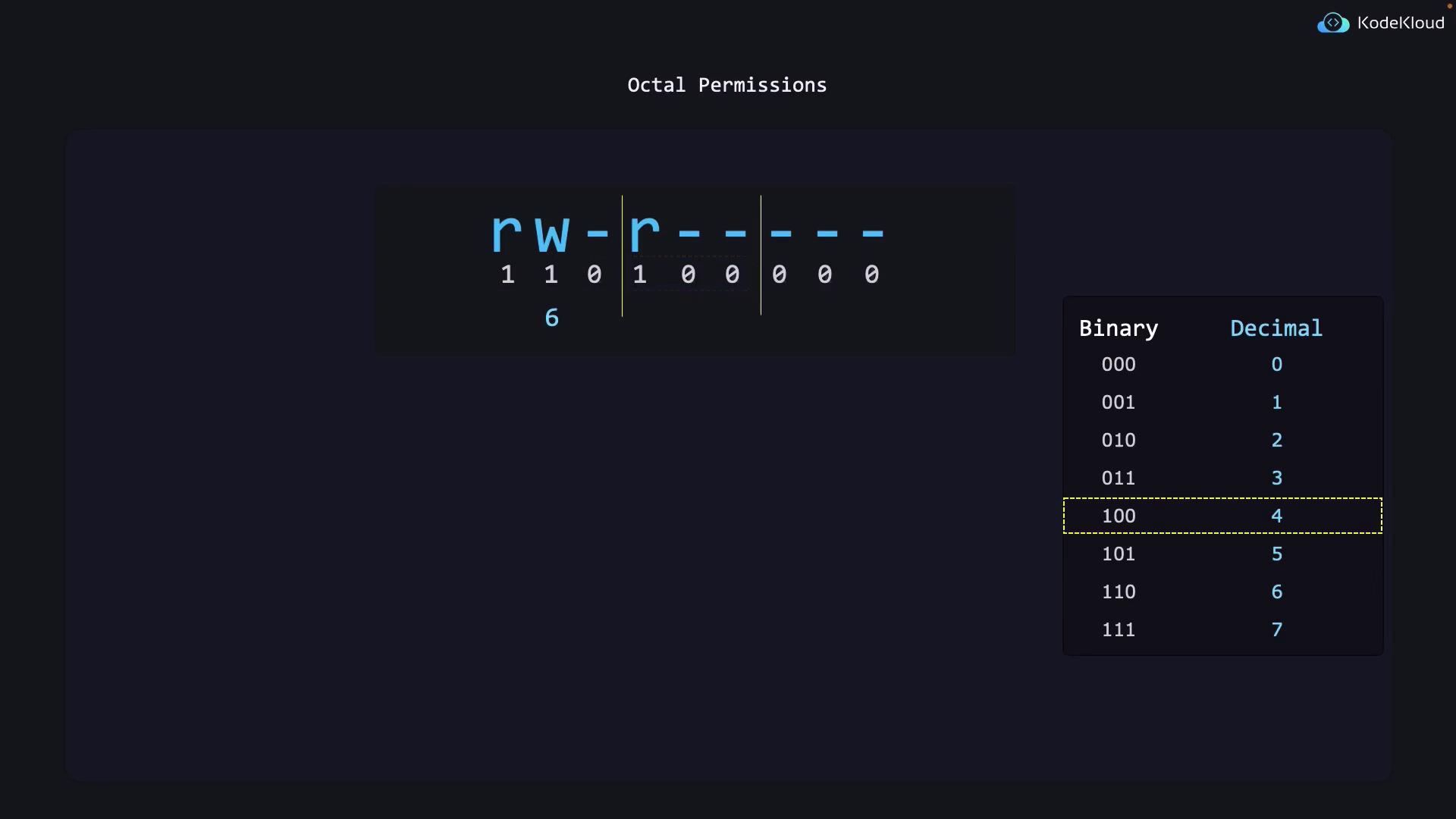
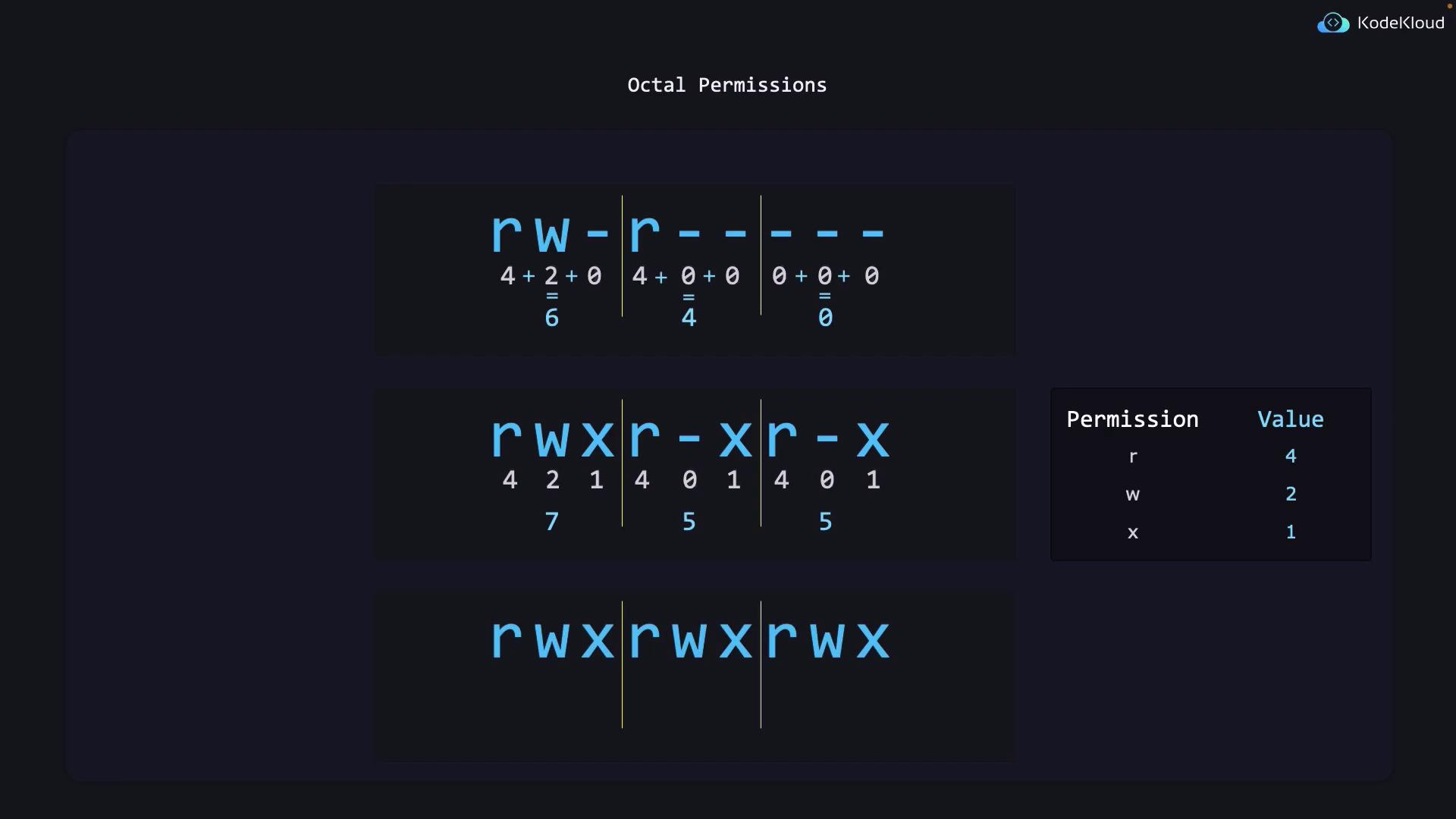
- Owner (6): read (4) + write (2)
- Group (4): read (4)
- Others (0): no permissions
Understanding the Octal Calculation
Permissions can be visualized in binary:- For the owner, “rw-” translates to 110 in binary (6 in octal).
- For the group, “r—” translates to 100 in binary (4 in octal).
- For others, ”---” translates to 000 in binary (0 in octal).
- Owner: 7 (rwx, or 111 in binary)
- Group: 5 (r-x, or 101 in binary)
- Others: 5 (r-x, or 101 in binary)
Summary
In this article, we covered the following key topics:- Viewing file ownership and permissions using
ls -l - Changing file group ownership with
chgrp - Modifying file user ownership with
chown - Understanding the structure and significance of file and directory permissions
- Using
chmodto modify permissions both with symbolic operators and octal notation