This guide explains a common issue when installing Claude Code on typical Ubuntu virtual machines (EC2, Lightsail, etc.) and provides a safe, recommended workaround using the native installer. It preserves the original troubleshooting steps and shows how to avoid permission problems that occur with global npm installs.

1 — Update and upgrade the system

Always start by updating package lists and upgrading installed packages:
sudo apt update
sudo apt upgrade -y
If a kernel was upgraded, apt may report a pending kernel upgrade and suggest a reboot. Example output:
Pending kernel upgrade!
Running kernel version:
 6.14.0-1010-aws
Diagnostics:
 The currently running kernel version is not the expected kernel version 6.14.0-1012-aws.

Restarting the system to load the new kernel will not be handled automatically, so you should consider rebooting.
If the system indicates a pending kernel upgrade, plan a reboot. Some kernel upgrades require a restart before the VM behaves as expected — especially on cloud images that use kernel packages from the provider (e.g., *-aws kernels).

2 — Node.js / npm and a common permissions error

Many older guides instruct installing Claude Code via a global npm package:
sudo apt install -y nodejs npm
Then attempting:
npm install -g @anthropic-ai/claude-code
may fail with permission errors when npm tries to write to /usr/local/lib/node_modules. Example failure:
npm ERR! code EACCES
npm ERR! syscall mkdir
npm ERR! path /usr/local/lib/node_modules
npm ERR! errno -13
npm ERR! Error: EACCES: permission denied, mkdir '/usr/local/lib/node_modules'
...
The operation was rejected by your operating system.
It is likely you do not have the permissions to access this file as the current user

A complete log of this run can be found in:
 /home/ubuntu/.npm/_logs/<timestamp>-debug-0.log
Anthropic explicitly recommends not using sudo with npm install -g because it can create permission and ownership issues. Prefer user-local installations (see npm ‘prefix’: https://docs.npmjs.com/cli/v9/using-npm/config#prefix), nvm, or the native installer instead.

3 — Options to resolve npm permission issues

Choose one of these approaches to avoid global permission errors and maintain a safe system configuration:
Resource / ApproachUse CaseLinks / Notes
nvm (Node Version Manager)Install Node for your user and use per-user global packageshttps://github.com/nvm-sh/nvm
npm prefix (user-local global)Reconfigure npm global install directory under your home directoryhttps://docs.npmjs.com/cli/v9/using-npm/config#prefix
Native installer (recommended)Quick, VM-friendly install without npm permission issuesSee installer steps below
On a freshly provisioned VM, install curl and git (if not already installed), then run Anthropic’s installer script:
sudo apt install -y curl git
curl -fsSL https://claude.ai/install.sh | bash
The installer typically places the claude binary under ~/.local/bin and may prompt that this directory is not in your PATH. Example installer output:
Setting up Claude Code...

⚠ Setup notes:
• ~/.local/bin is not in your PATH
• Add it by running: export PATH="$HOME/.local/bin:$PATH"

✓ Claude Code successfully installed!

Version: 1.0.98
Location: ~/.local/bin/claude

Next: Run claude --help to get started

✅ Installation complete!
If ~/.local/bin is not in your PATH, add it permanently to your shell startup file or re-login:
echo 'export PATH="$HOME/.local/bin:$PATH"' >> ~/.profile
source ~/.profile
Now verify the installation:
claude --help
You should see the command help and available subcommands, confirming a successful installation.

5 — Instance sizing and system requirements

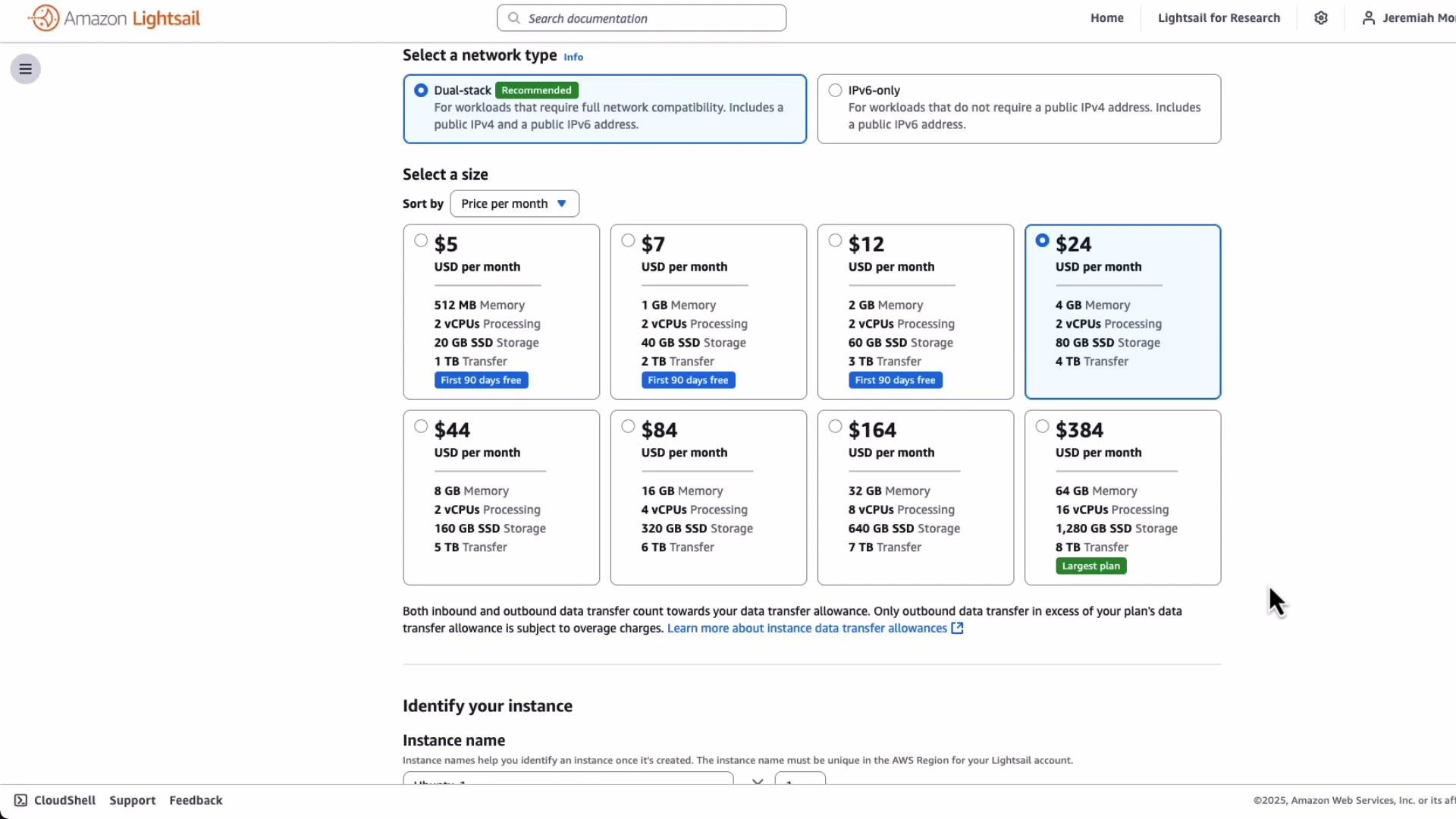
When provisioning a VM for Claude Code, ensure the instance meets Anthropic’s recommended system requirements — in particular, at least 4 GB RAM. Choose an instance size with adequate memory and CPU.
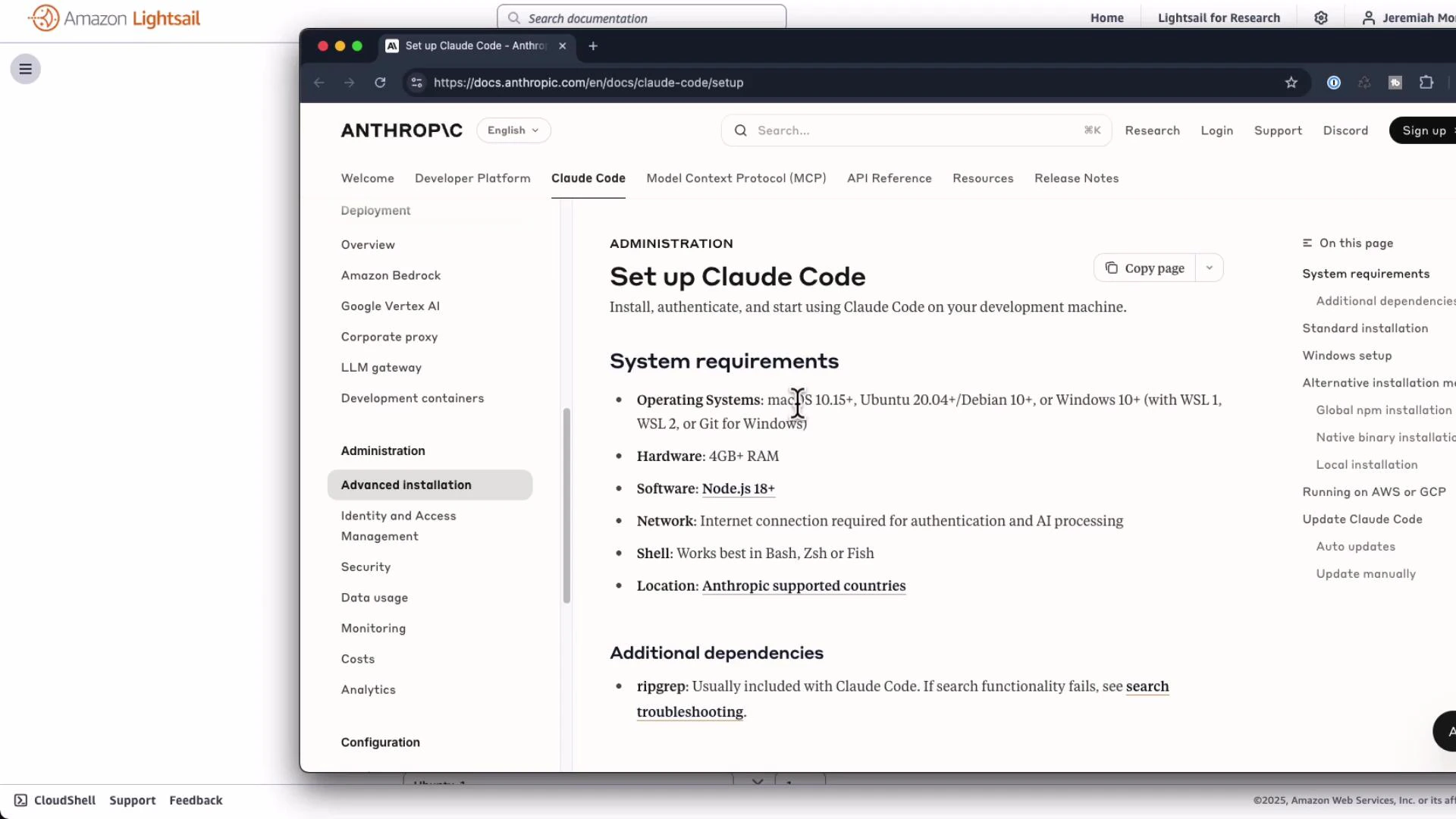
A screenshot of a browser displaying Anthropic's "Set up Claude Code" documentation page listing system requirements and additional dependencies. The window is shown over an Amazon Lightsail interface, with a left navigation menu and a right-side table of contents visible.
For example, Lightsail and many cloud providers expose a grid of plans. Pick an instance with 4 GB RAM or more:
A screenshot of the Amazon Lightsail instance selection page showing network type options and a grid of pricing cards. Each card lists monthly plans and specs (memory, vCPUs, SSD storage, transfer) with prices from 5 to 384.

6 — Summary and best practices

  • Prefer the native installer to avoid global npm permission issues on VMs.
  • If you must use Node/npm, use nvm or configure npm’s prefix so global packages install under your home directory.
  • Reboot the VM after kernel upgrades if apt reports a pending kernel; this avoids inconsistent behavior.
  • Pick an instance size with at least 4 GB RAM for reliable performance.
Useful links and references: Example small diff shown in the original notes:
1 function greet() {
2 -  console.log("Hello, World!");
3 +  console.log("Hello, Claude!");
4 }

Watch Video

Practice Lab