This guide covers the prerequisites and first-run setup for Claude Code (the Anthropic CLI and developer experience). It explains what you need, how to install the CLI, authenticate, run a quick example that reads a CSV file, and how Claude Code integrates with Visual Studio Code. Claude Code is distributed via NPM. If you’re familiar with NPM, installation is straightforward; otherwise the main requirement is Node.js 18 or newer.
Make sure Node.js 18+ is installed. On macOS use Homebrew (brew install node); on Linux use your distro package manager or the official installer; on Windows use the installer from nodejs.org.

Minimum requirements

ResourcePurpose
Node.js 18+Run the Claude Code CLI and NPM packages
npm (comes with Node.js)Install the @anthropic-ai/claude-code package
Python 3 (optional)Execute Python scripts Claude Code may generate
Visual Studio Code (optional)Recommended for the VS Code integration and in-IDE workflow

Install the Claude Code CLI

Install the CLI globally so you can run the cloud command from any folder:
npm install -g @anthropic-ai/claude-code
Example local output on macOS:
jeremy@MACSTUDIO demos % npm install -g @anthropic-ai/claude-code

added 12 packages in 1s

11 packages are looking for funding
    run `npm fund` for details
jeremy@MACSTUDIO demos %
Why use -g? The global flag installs a system-wide executable so you can run cloud from any working directory. Without -g, the package installs into the current project’s node_modules folder and is not globally available. If you prefer to install Node.js with Homebrew on macOS:
brew install node
Sample Homebrew output:
jeremy@MACSTUDIO Demos % brew install node
Warning: node 24.4.1 is already installed and up-to-date.
To reinstall 24.4.1, run:
  brew reinstall node
jeremy@MACSTUDIO Demos %

First run: start and authenticate

Run the CLI:
cloud
On first run the CLI walks you through a small interactive setup—theme selection (terminal color scheme) and authentication method. You will be offered two authentication/billing choices:
OptionUse case
Claude subscription (Pro/Max)Predictable subscription billing (Pro starts at 20/mo,Maxat20/mo, Max at 100/mo)
Anthropic Console accountAPI usage billed via your Console account
Example CLI prompt:
Claude Code can now be used with your Claude subscription or billed based on API usage through your Console account.

Select login method:

> 1. Claude account with subscription
   Starting at $20/mo for Pro, $100/mo for Max – Best value, predictable pricing

  2. Anthropic Console account
     API usage billing
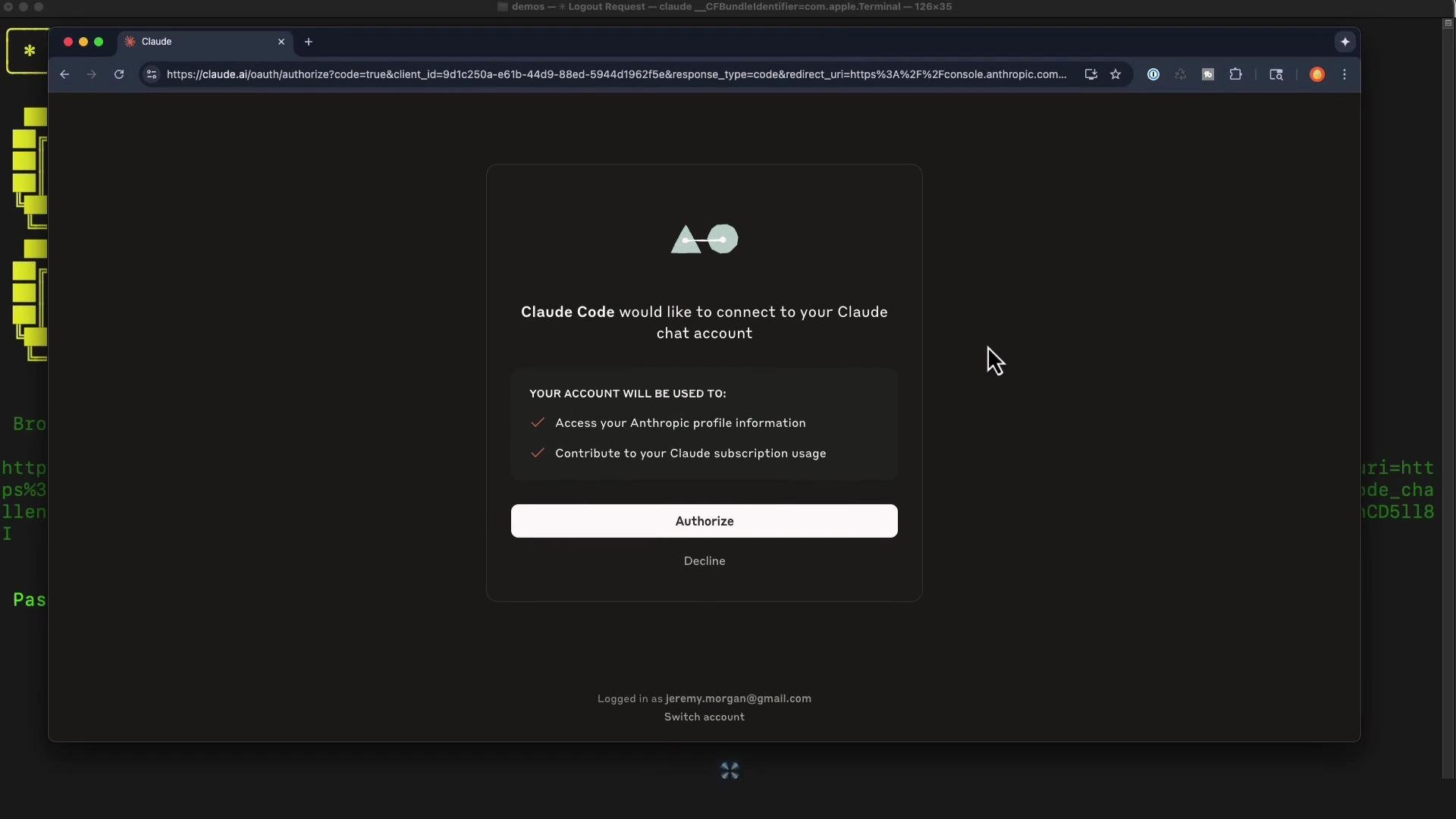
If the CLI cannot open a browser (common on WSL or SSH-only servers), it prints a URL you can open manually. Copy that URL into a browser to sign in and authorize the CLI; you will be given a short code to paste back into the terminal.
Browser didn't open? Use the url below to sign in:

https://claude.ai/oauth/authorize?... (truncated for brevity)

Paste code here if prompted >
A browser window showing a dark-themed authorization dialog where "Claude Code" is requesting permission to connect to a Claude chat account, listing uses like accessing profile information and contributing to subscription usage. The modal shows Authorize and Decline buttons.

Security reminder (review generated code)

When you sign in, the CLI prints a short security reminder. Always review any generated code before running it.
Security notes:

1. Claude can make mistakes
  You should always review Claude's responses, especially when
  running code.

2. Due to prompt injection risks, only use it with code you trust
  For more details see:
  https://docs.anthropic.com/s/claude-code-security

Press Enter to continue…
Important: Never run code you don’t trust. Prompt injection and code-generation mistakes are real risks—review outputs and use version control for auditing changes.

Quick example: generate test data and ask Claude Code to create a script

As a quick real-world test, generate fake data using Mockaroo (CSV export) and save it as members.csv. For example, include fields such as id, first_name, last_name, email, gender, ip_address.
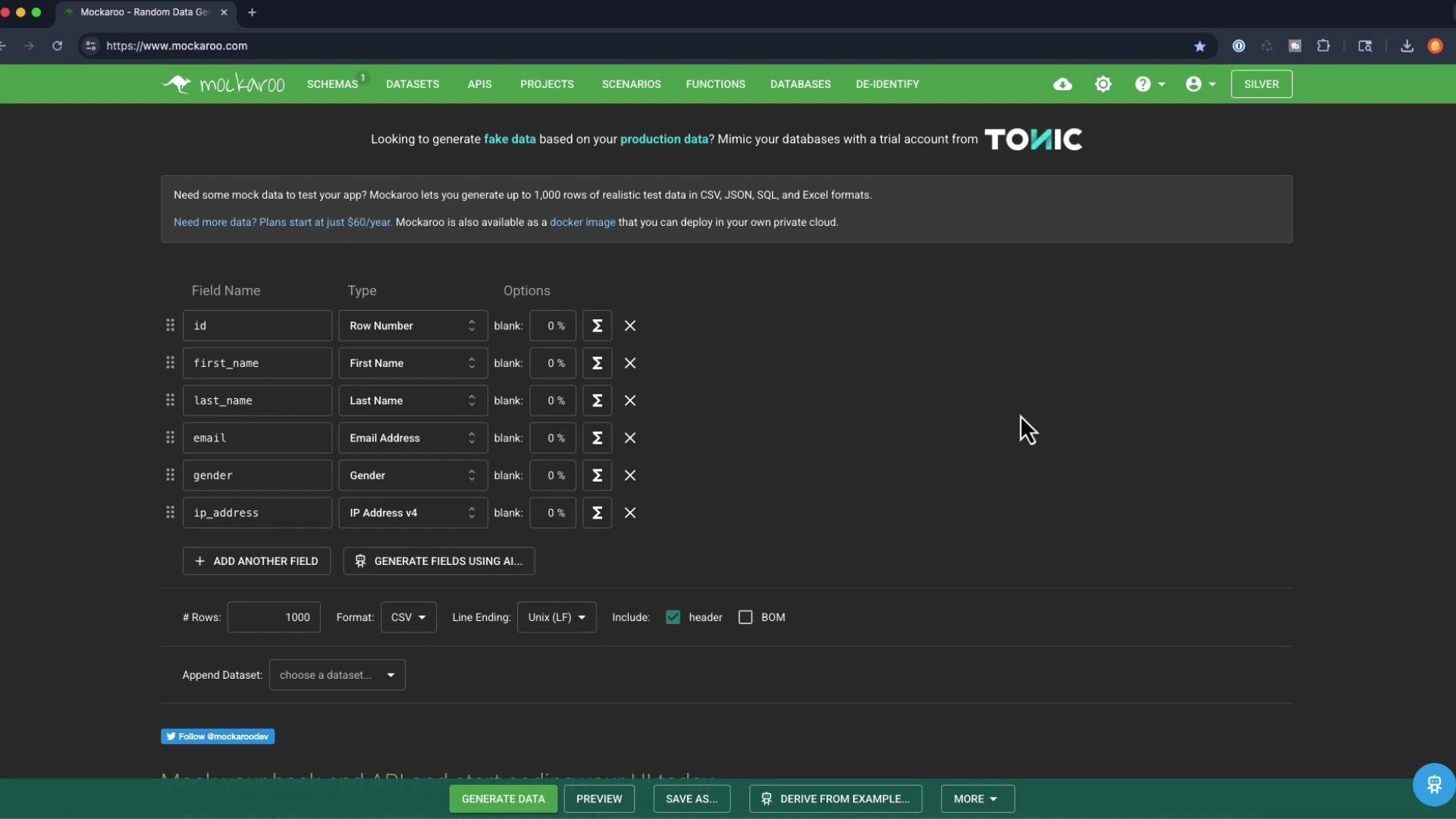
A screenshot of the Mockaroo web UI for generating fake data, showing field definitions like id, first_name, last_name, email, gender, and ip_address with options for each. The page also shows settings for row count and format (CSV) and buttons such as Generate Data, Preview, and Save As.
Back in the Claude Code CLI you can ask it to generate a Python file that reads members.csv and prints first and last names. The CLI inspects your current working directory and can propose or create files. Example interactive session:
* Welcome to Claude Code!

/help for help, /status for your current setup

cwd: /Users/jeremy/demos

※ Tip: Use /theme to change the color theme

> create a python file that reads members.csv and displays first and last names.

● I'll create a Python file to read members.csv and display first and last names.

● Update Todos

+ Ideating… (3s · ✖ 57 tokens · esc to interrupt)
Claude Code generated a file named read_members.py. Here is the final generated code (robust to common CSV header variants):
import csv

def read_members():
    try:
        with open('members.csv', 'r', newline='') as file:
            reader = csv.DictReader(file)
            for row in reader:
                first_name = row.get('first_name', row.get('First Name', ''))
                last_name = row.get('last_name', row.get('Last Name', ''))
                print(f"{first_name} {last_name}")
    except FileNotFoundError:
        print("Error: members.csv file not found")
    except Exception as e:
        print(f"Error reading file: {e}")

if __name__ == "__main__":
    read_members()
This example uses Python’s built-in csv module for a lightweight solution. For heavier data processing, consider pandas, but csv is fine for quick tasks.

Editor integration: Visual Studio Code

Open your project in Visual Studio Code (or another editor). Claude Code integrates with VS Code and provides in-IDE shortcuts and context-awareness.
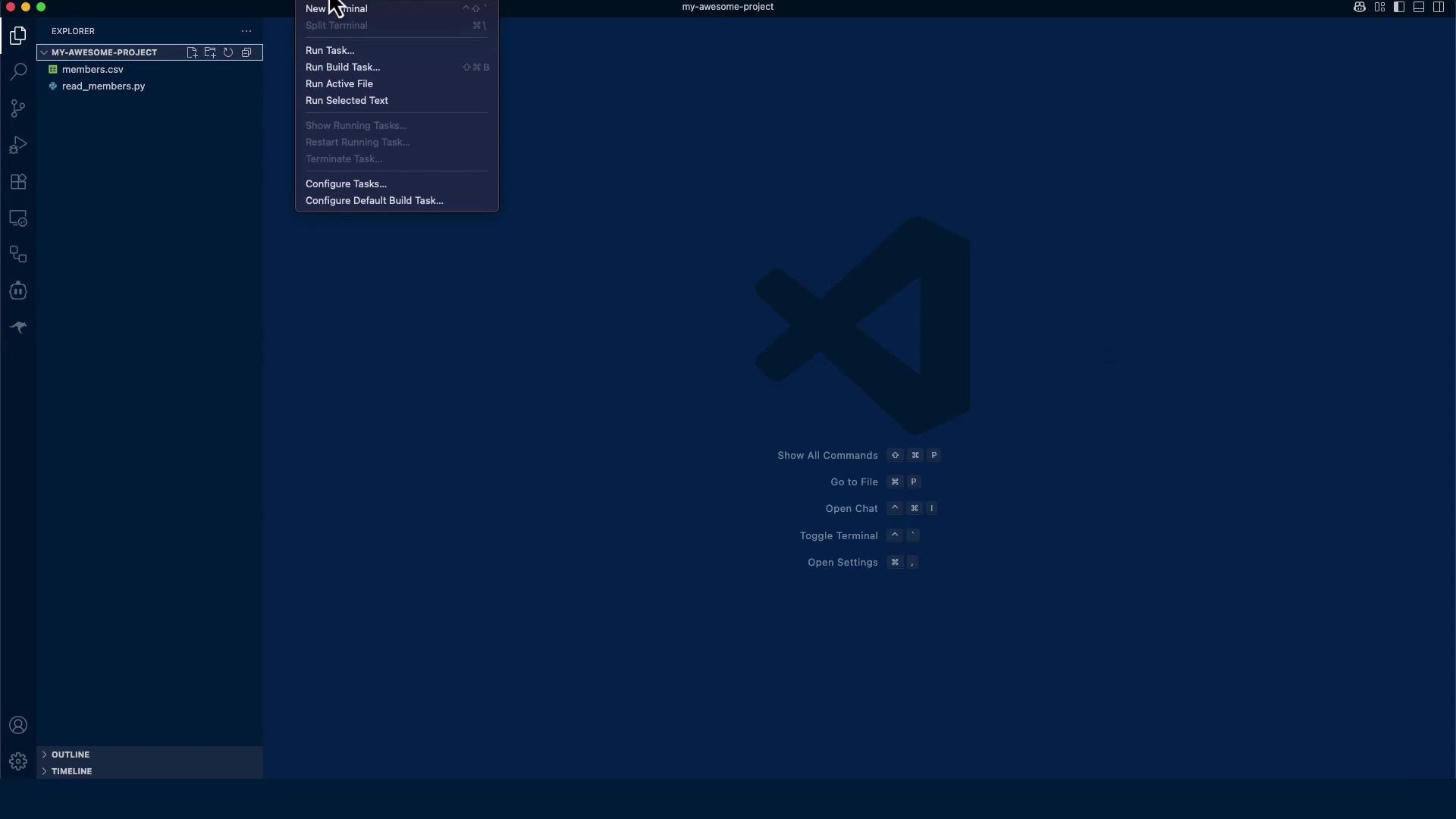
A dark-themed Visual Studio Code window showing the Explorer for a project named "my-awesome-project" with files members.csv and read_members.py. A Run/Terminal menu is open and the main editor area displays the VS Code logo with command shortcuts.
When the VS Code extension is present, the CLI displays integration details and available keybindings:
* Welcome to Claude Code for VS Code
installed extension v1.0.65

• Claude has context of ⧉ open files and ⧉ selected lines
• Review Claude Code's changes +11 -22 in the comfort of your IDE
• Cmd+Esc for Quick Launch
• Cmd+Option+K to reference files or lines in your input

Press Enter to continue
Useful commands and actions:
  • Run /terminal-setup to enable helpful terminal keybindings (e.g., Shift+Enter for a new line).
  • Use the cloud CLI inside the project terminal to ask Claude Code to inspect files, generate code, suggest edits, or craft bash/git commands.
  • Use Quick Launch (Cmd+Esc on macOS) to jump into Claude Code workflows inside the editor.

Run the generated script

Run the Python script locally (optionally inside a virtual environment):
python3 read_members.py
# or, if `python` points to Python 3:
# python read_members.py
This prints the first and last names from members.csv.

Summary — Checklist

  • Install Node.js 18+ (npm included)
  • Install the Claude Code CLI globally:
    • npm install -g @anthropic-ai/claude-code
  • Run the CLI: cloud
  • Authenticate via Claude subscription or Anthropic Console (browser or copy-paste URL)
  • Review generated code before running it
  • Optionally integrate with Visual Studio Code for an in-IDE experience
Now that your environment is set up, try asking Claude Code to inspect files, refactor code, generate tests, or create shell commands to streamline your workflow.

Watch Video