In this lesson, we’ll walk through cloning your GitHub repository locally, configuring your editor, creating a simple README.md, and pushing changes back to GitHub. By the end, you’ll have a live repository ready for your GCP DevOps workflow.

Prerequisites

Ensure you have the following tools installed:
ToolPurposeInstallation Guide
GitVersion control and repository cloningInstall Git
Visual Studio CodeCode editor with integrated terminal & extensionsDownload VS Code
You can use any code editor of your choice, but this guide uses VS Code for its built-in terminal and Markdown preview features.

1. Clone the GitHub Repository

  1. Open your terminal and navigate to your workspace directory, for example:
    cd ~/Desktop
    mkdir gcp-project
    cd gcp-project
    
  2. On your GitHub repository page, click Code, copy the HTTPS URL, then run:
    git clone https://github.com/learnwithraghu/gcp-devops-project.git
    
  3. If the repo is empty, you’ll see:
    warning: You appear to have cloned an empty repository.
    
An empty repo warning simply means no files are in the remote yet.
  1. List the contents and enter the repository folder:
    ls -lrt
    cd gcp-devops-project
    

2. Open the Project in VS Code

Launch VS Code in the current directory:
code .
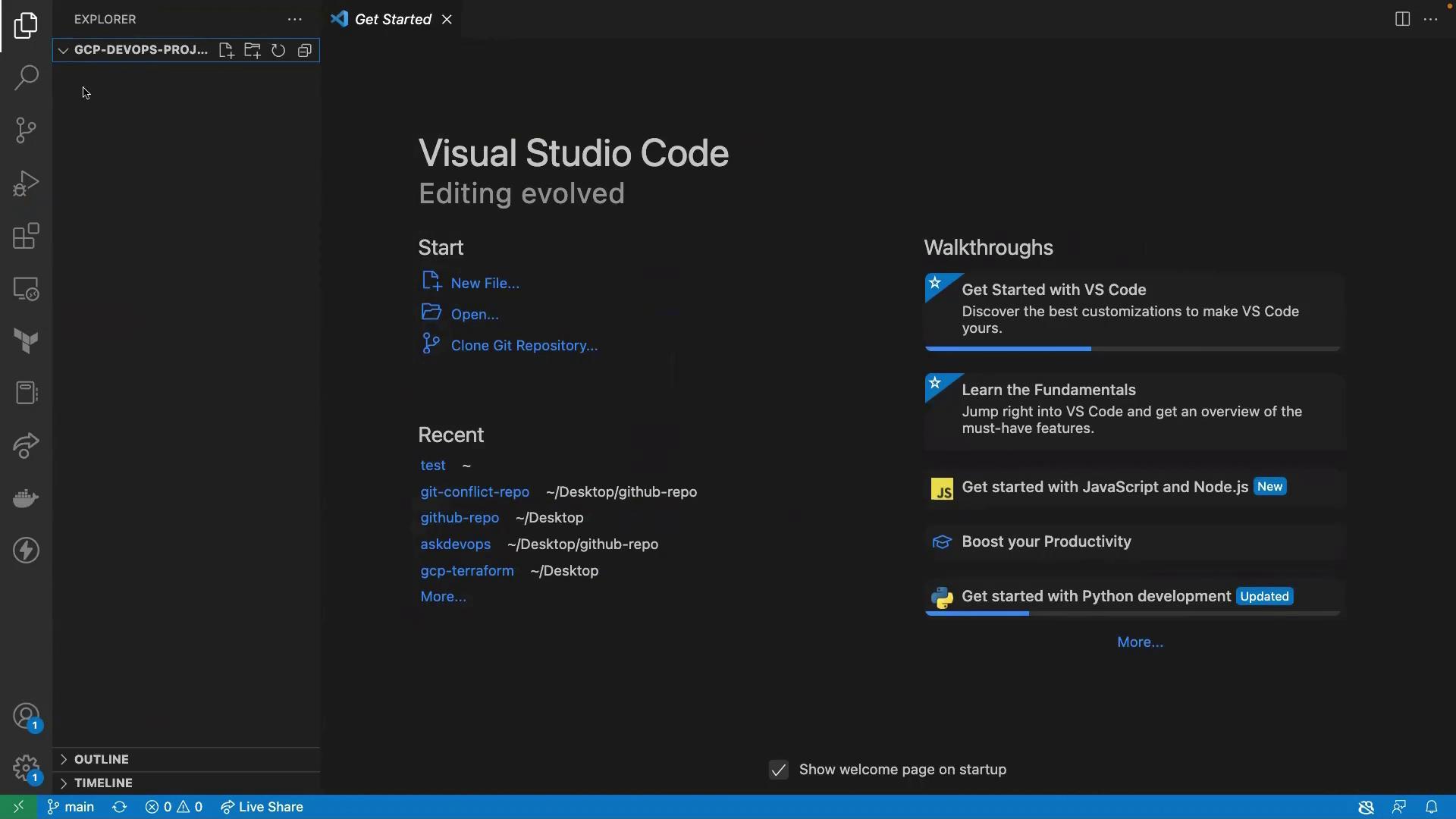
You should see the VS Code welcome screen:
The image shows the welcome screen of Visual Studio Code, displaying options to start a new file, open a file, or clone a Git repository, along with recent projects and walkthrough tutorials.
Since the project folder is empty, open an integrated terminal (Terminal → New Terminal) and create a new README.md file:
touch README.md
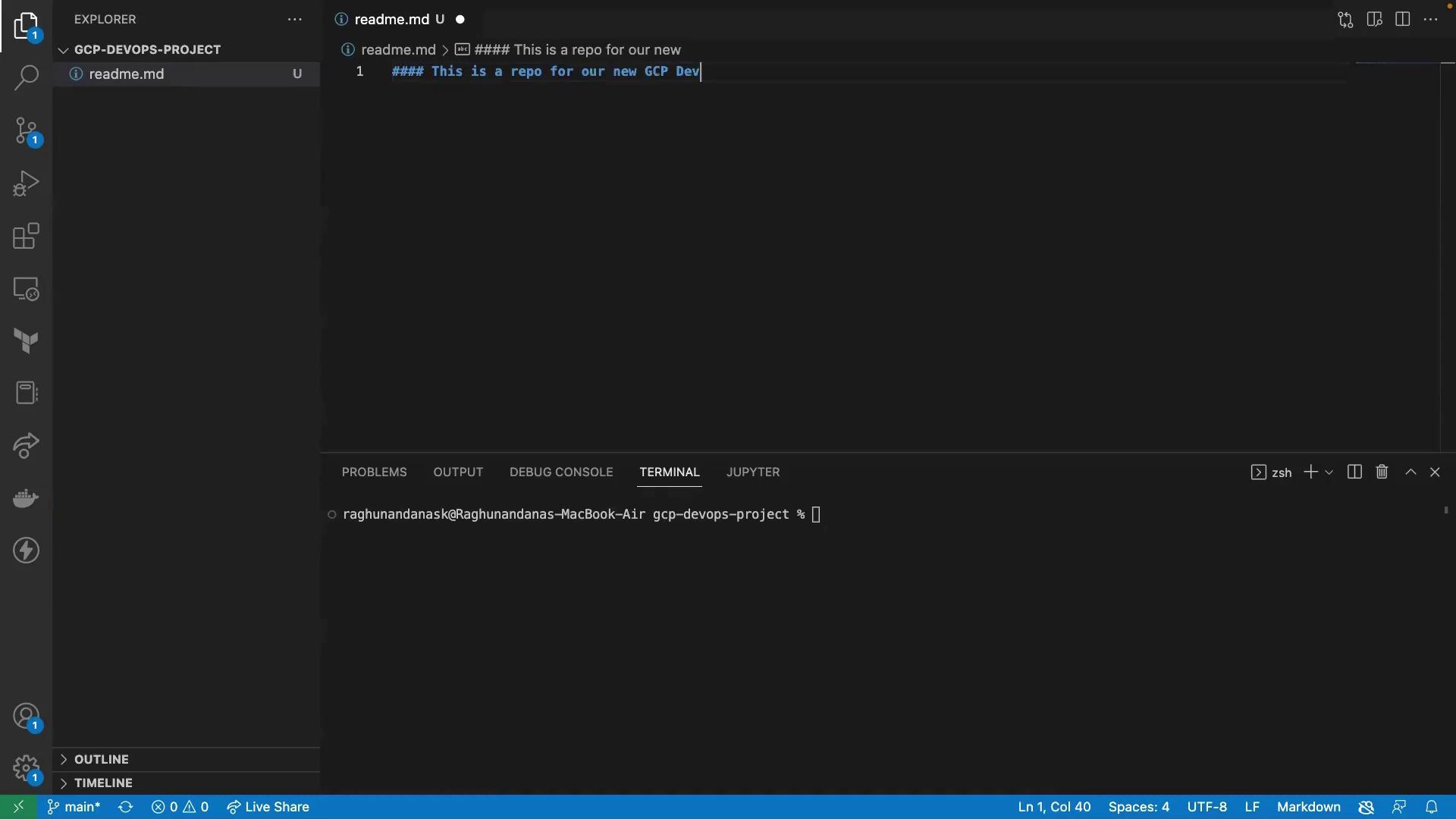
In the Explorer panel, open README.md and add:
### This is a repo for our new GCP DevOps project
The image shows a Visual Studio Code interface with a markdown file open, containing a heading for a GCP DevOps project. The terminal at the bottom displays a command prompt.
To preview the Markdown, click the Open Preview icon in the top-right of the editor.

3. Stage, Commit, and Push Changes

In the integrated terminal, run:
git add README.md
git commit -m "Add README for GCP DevOps project"
Confirm you’re on the main branch:
git branch
Push your commit to GitHub:
git push origin main
You should see:
Everything up-to-date

4. Verify on GitHub

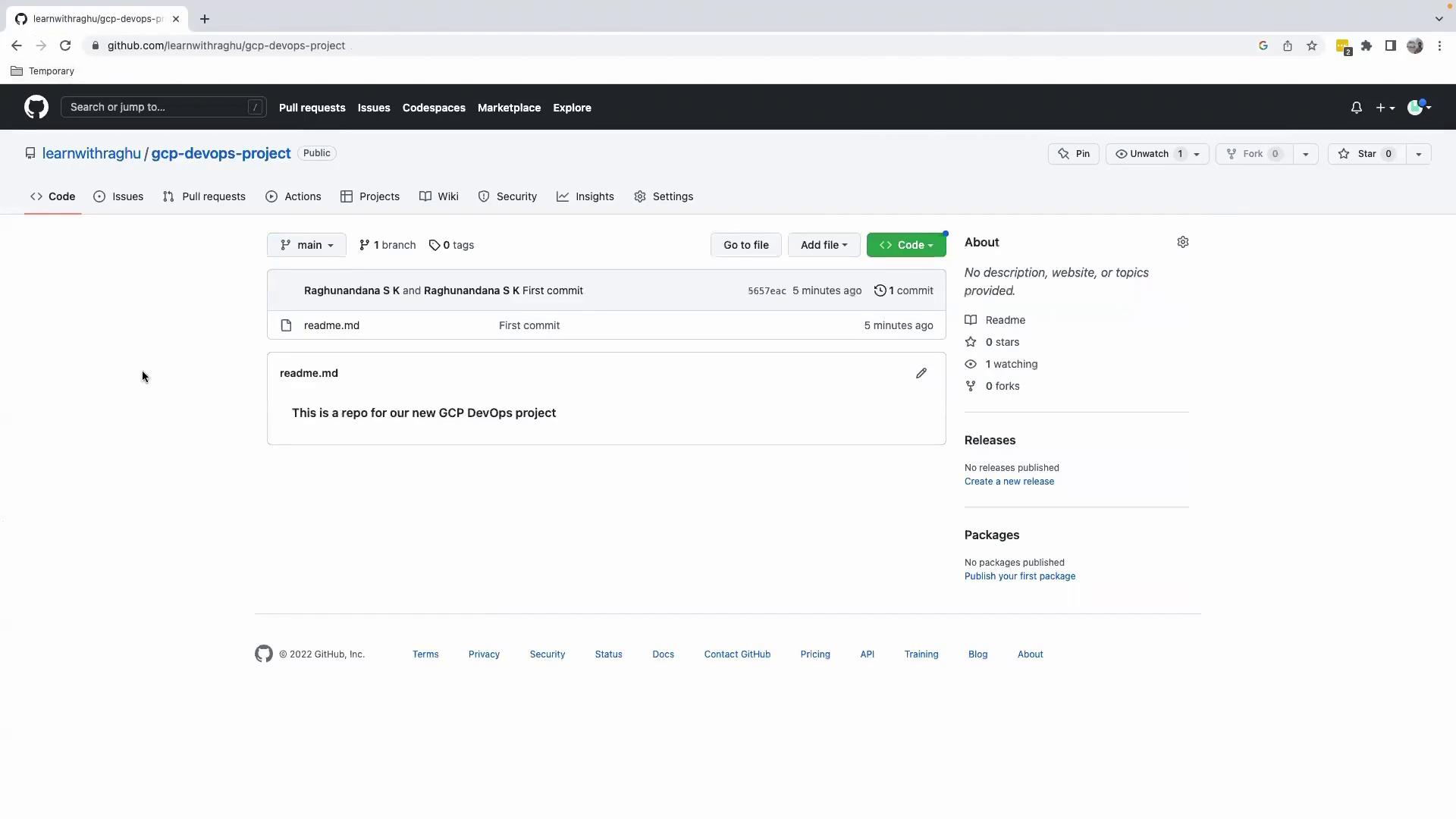
Refresh your repository page on GitHub. You’ll now see the README.md with your heading:
The image shows a GitHub repository page titled "gcp-devops-project" with a README file indicating it's for a new GCP DevOps project.

Summary

  1. Cloned the empty GitHub repository to your local machine.
  2. Opened and initialized the project in VS Code.
  3. Created and previewed a Markdown file.
  4. Committed and pushed changes back to GitHub.

References