

kubectl, and explore workloads directly in the Google Cloud Console.
1. Retrieve Cluster Credentials
- Open the GKE Clusters page in the Google Cloud Console.
- Click your cluster name.
- Select Connect, then choose Run in Cloud Shell.
kubectl can interact with your GKE cluster.
You need to run this
gcloud container clusters get-credentials command each time you start a new Cloud Shell session, as kubeconfig configurations aren’t persisted across sessions.2. Verify Connection with kubectl
After retrieving credentials, confirm your connection and inspect system components:
Run:
3. View Workloads in Google Cloud Console
Inspect workloads and system metrics without leaving the Console:- Close the Cloud Shell terminal window.
- In the left-hand navigation, click Workloads.
- Toggle Show system workloads.
- Filter by kube-system to view system pods.
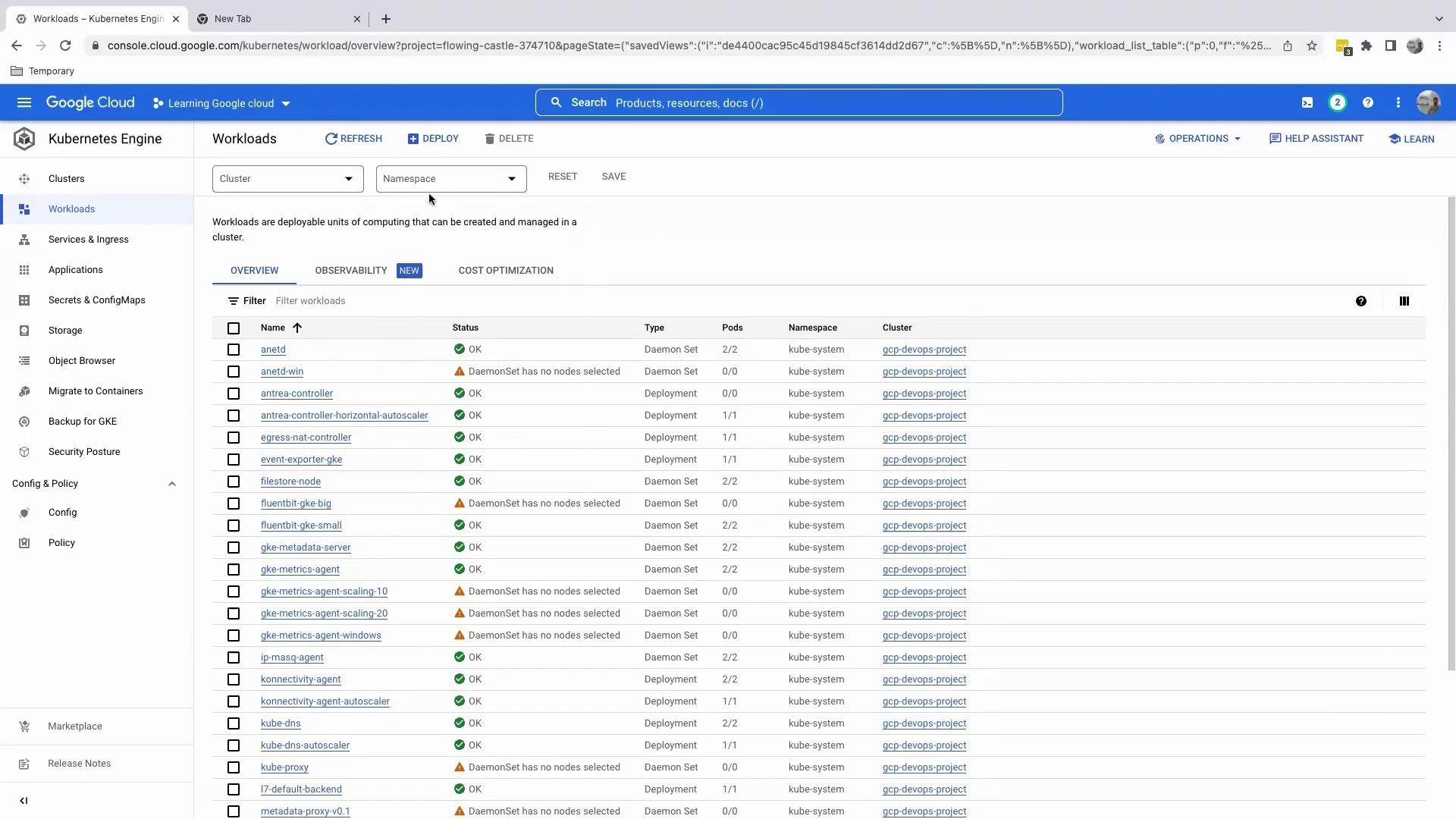
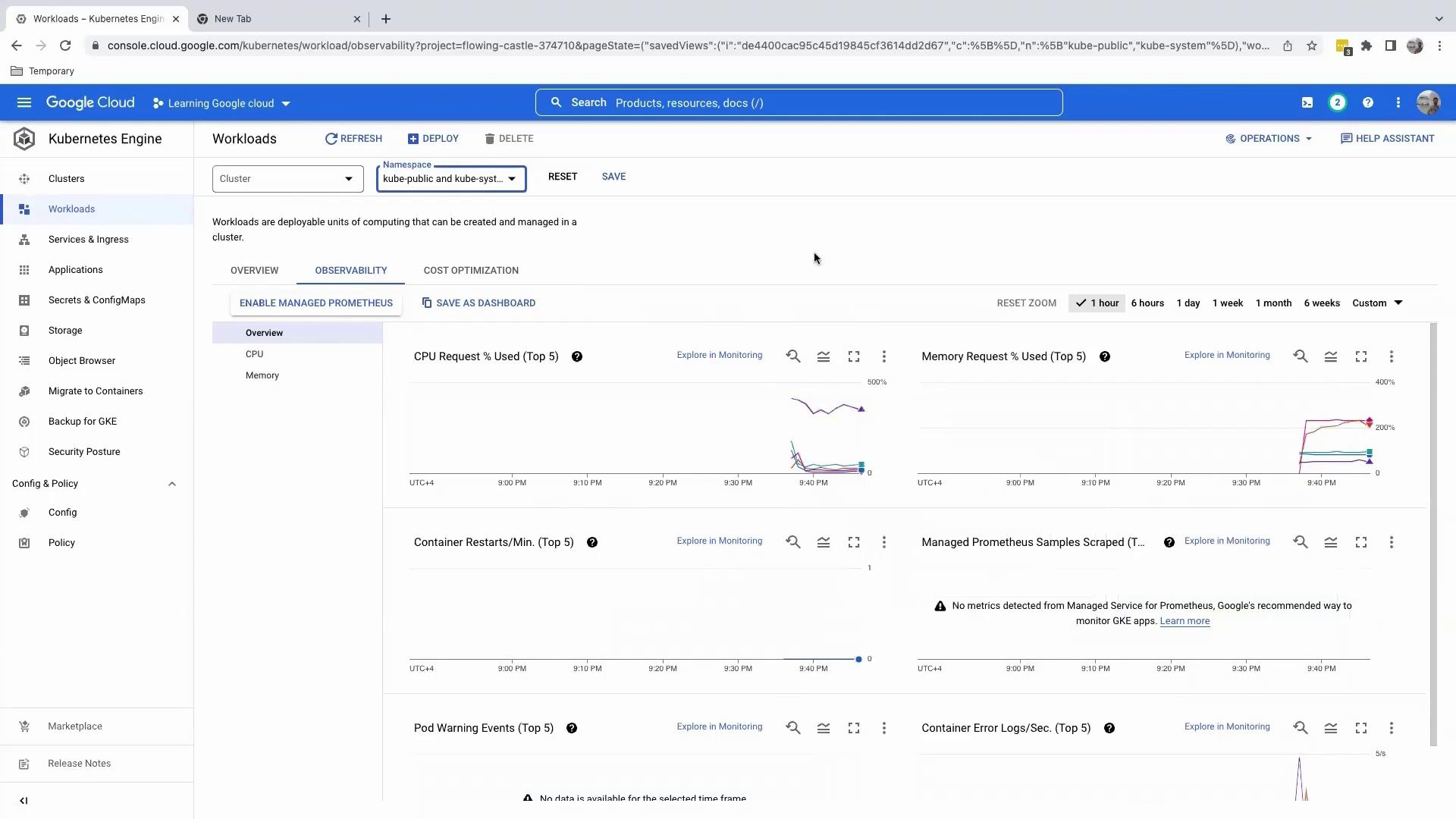
- Use the namespace filter to select one or more namespaces.
- Examine CPU and memory usage, restarts, and error logs in the metrics panel.
You’ve successfully connected to your GKE cluster via Cloud Shell, executed essential
kubectl commands, and explored workloads in the GCP Console. Next, we’ll guide you through deploying applications to your cluster.