

Overview
We encountered a Cloud Build failure due to an incorrect GKE cluster name. In this guide, we will:- Identify the root cause
- Correct the
cloudbuild.yamlconfiguration - Commit and merge the fix
- Monitor the updated build
1. Original cloudbuild.yaml
The pipeline failed because the cluster name in the gke-deploy step didn’t match the actual cluster in the console:
Always verify resource names in the Google Cloud Console. A mismatch will cause your build to fail.
2. Verify the Cluster Name
Navigate to the Kubernetes clusters section in the console. You’ll see the actual name: GCP DevOps Project.3. Updated cloudbuild.yaml
Replace the incorrect cluster reference (gke-gcp-devops) with the correct one (gcp-devops-project) and adjust the location flag:
4. Commit and Push the Fix
minor/deployment-file branch and merge it. This triggers the Cloud Build pipeline on main.
5. Monitor the Build
After merging, you’ll see a green dot next to your repository. Click Details → View more details on Google Cloud Build.
Cloud Build will:
- Build the Docker image
- Push it to Container Registry
- Deploy to the GKE cluster with the corrected name
If the specified namespace (
gcp-devops-prod) doesn’t exist, the deployment will fail at the gke-deploy step. Ensure namespaces are created in advance.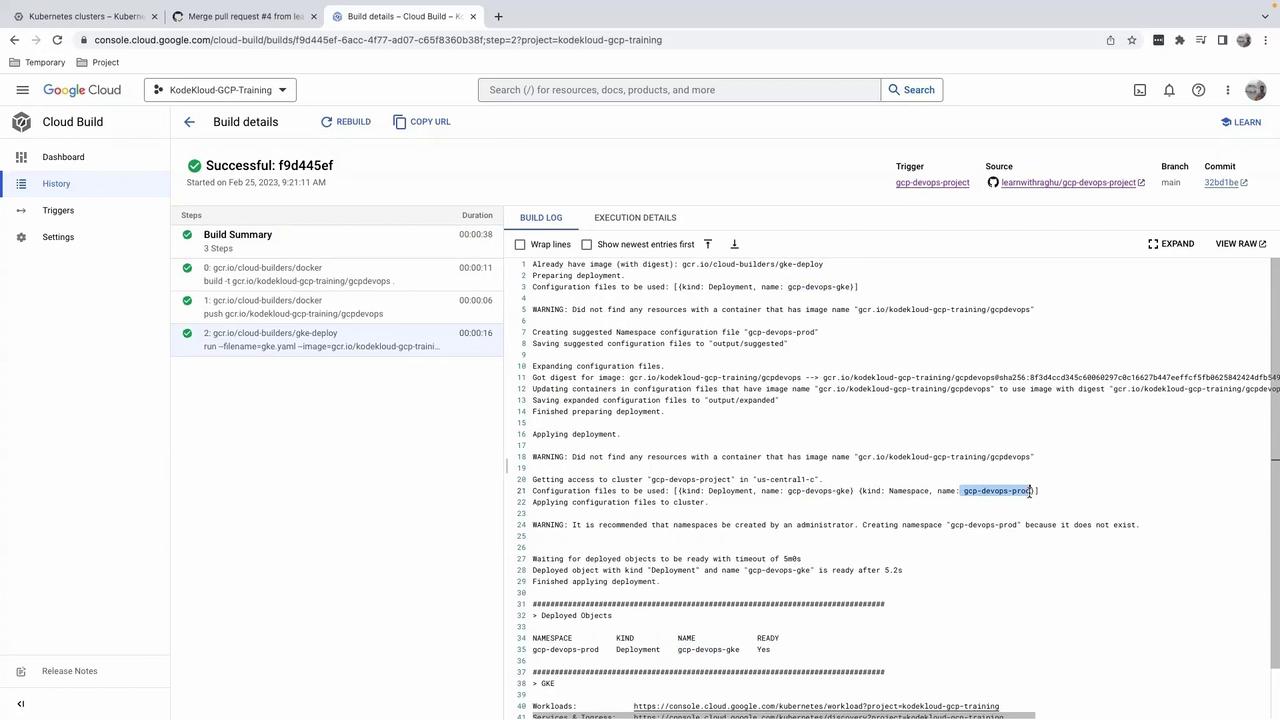
6. Next Steps
The pipeline completes successfully, and your container is now running in thegcp-devops-prod namespace. In the next lesson, we’ll explore how to verify running pods from the GCP console.