

LoadBalancer to expose your application on Google Kubernetes Engine (GKE). You’ll learn how to update your manifest, trigger a Cloud Build, and verify the Service in the GKE console.
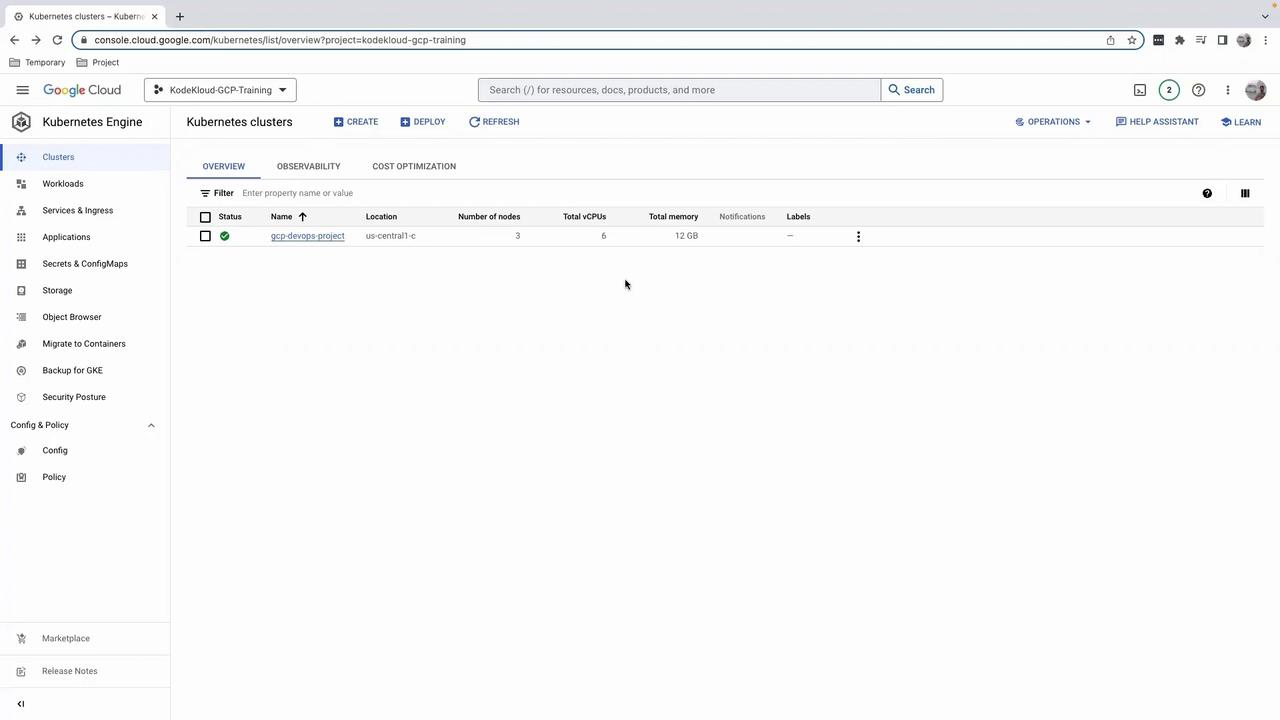
1. Create a New Git Branch
First, sync yourmain branch and create a feature branch for the Service manifest:
2. Add the Service to gke.yaml
Open yourgke.yaml and append the following Service definition beneath the existing Deployment:
If you’re targeting a production namespace, replace
namespace: default with your environment (e.g., gcp-devops-prod).Using
LoadBalancer provisions a cloud load balancer and may incur additional costs.Kubernetes Resources Overview
Save your changes, then commit and push:
3. Open a Pull Request & Trigger Cloud Build
- Go to your GitHub repository.
- Create a PR from
feature/add-loadbalancer-serviceintomain. - Merge the PR to kick off the Cloud Build trigger configured on
main.
4. Verify the Build in Cloud Build
In the Google Cloud Console – Cloud Build, you’ll see logs for:- Building the Docker image
- Pushing to Container Registry
- Deploying to GKE
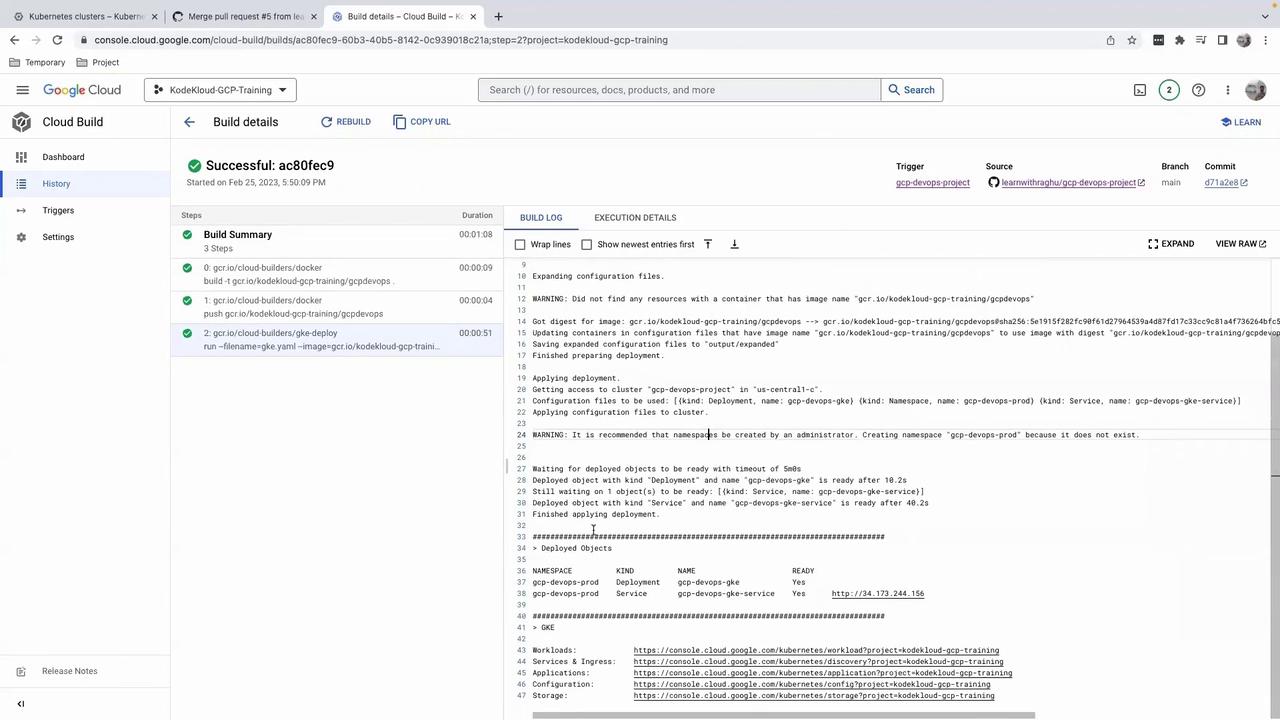
5. Inspect the Service in GKE
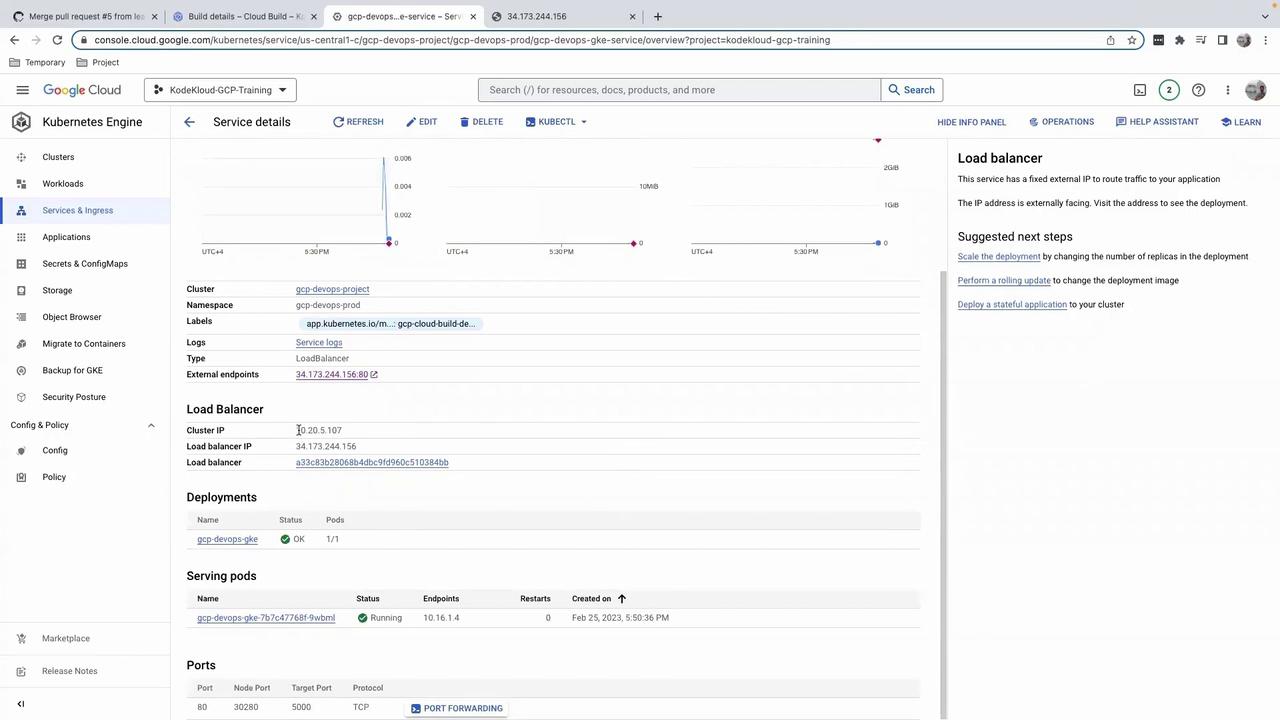
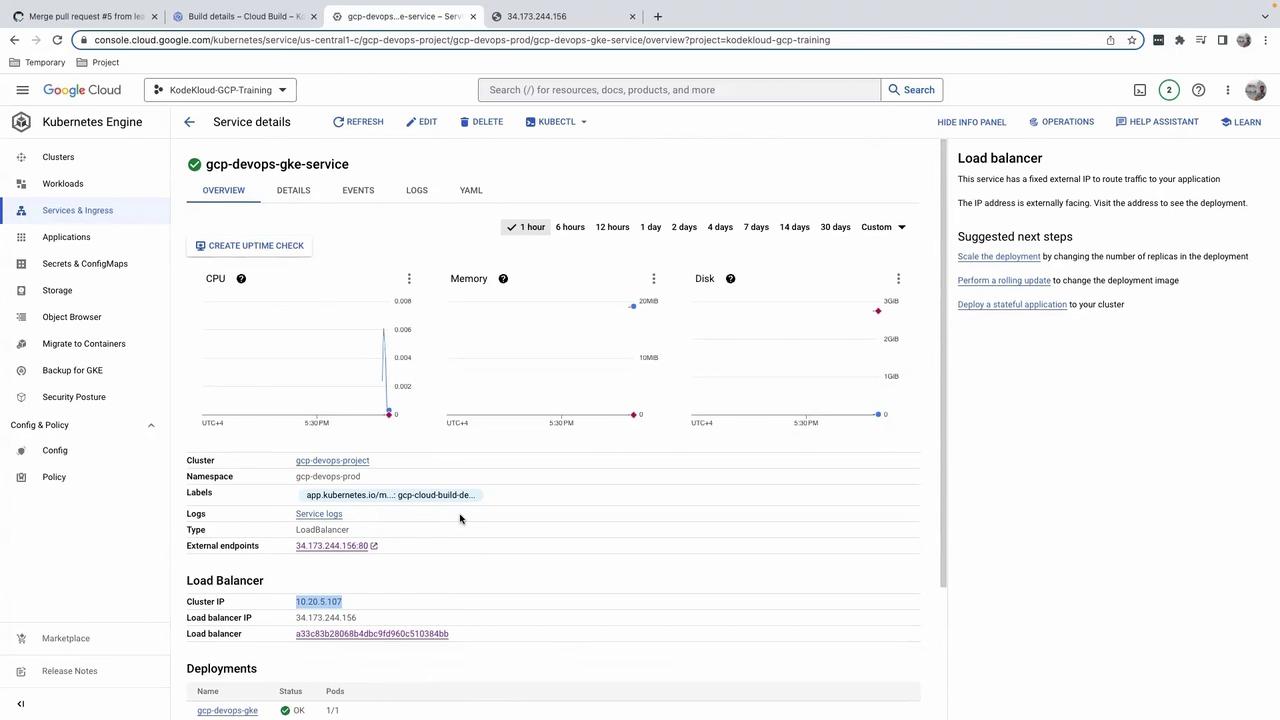
Navigate to Kubernetes Engine > Services & Ingress in the Cloud Console. You should see yourgcp-devops-gke-service with an external IP:
cloudbuild.yaml. Stay tuned for the next lesson.
Links and References
- Google Kubernetes Engine (GKE) Overview
- Kubernetes Service Types
- Cloud Build Triggers
- Kubernetes Official Documentation