

Prerequisites
- A GCP project with a running GKE cluster
gcloudCLI andkubectlinstalled and configured- A GitHub repository connected to Cloud Build triggers
1. Connect to the Cluster and Create a Namespace
1.1 Launch Cloud Shell
- Navigate to Google Cloud Console > Kubernetes Engine > Clusters.
- Select your cluster and click Connect to open Cloud Shell.
- Press Enter to run the pre-populated
kubectlauthentication command.
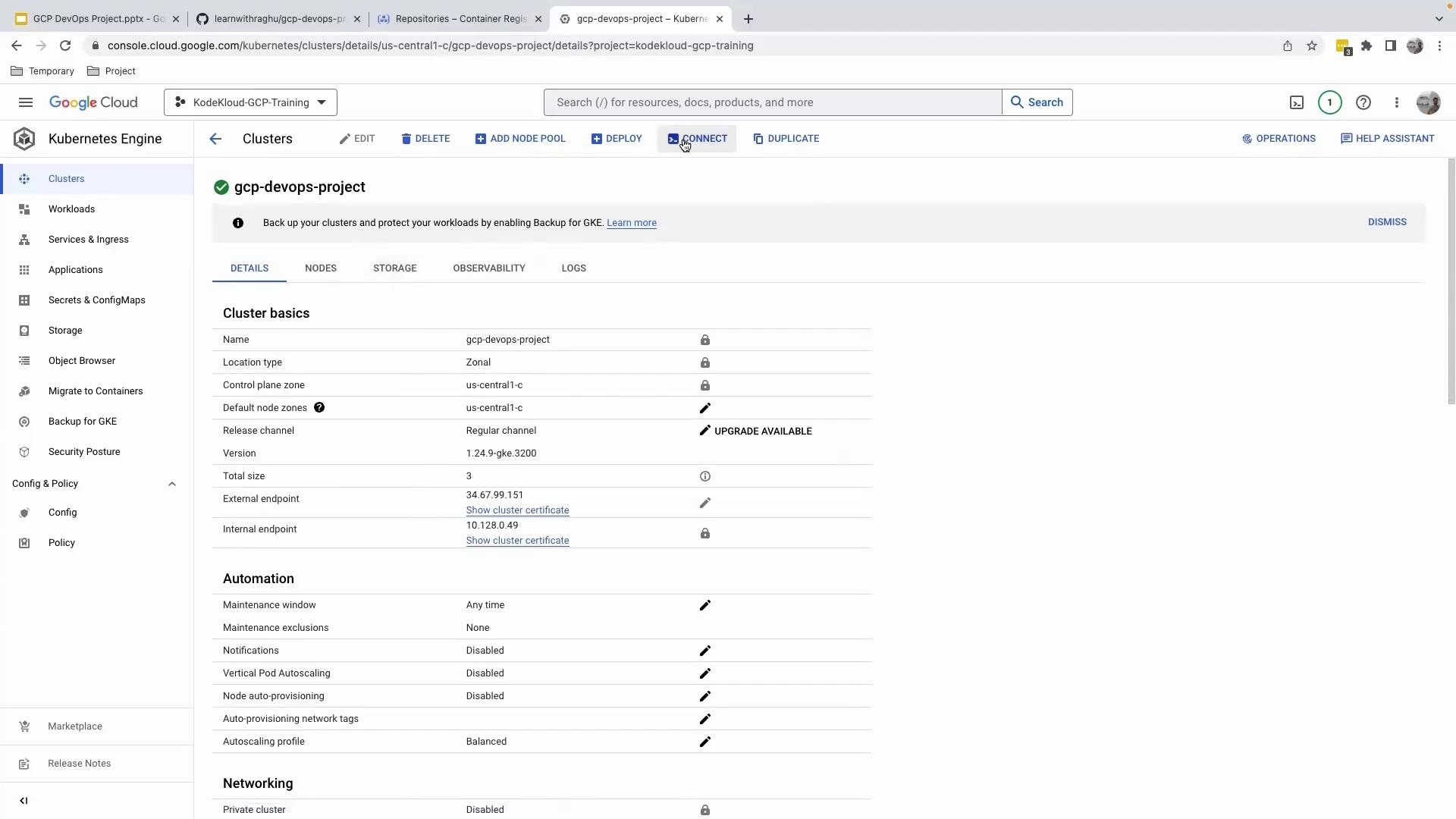
Make sure your Google Cloud SDK is up to date to avoid authentication issues:
1.2 Create and Verify the Development Namespace
2. Update the gke.yaml Manifest
Open yourgke.yaml file. This manifest defines both the Service and Deployment for your application. Modify it to point at the development namespace and use your development Docker image.
2.1 Resource Overview
2.2 Updated Manifest Snippet
development branch:
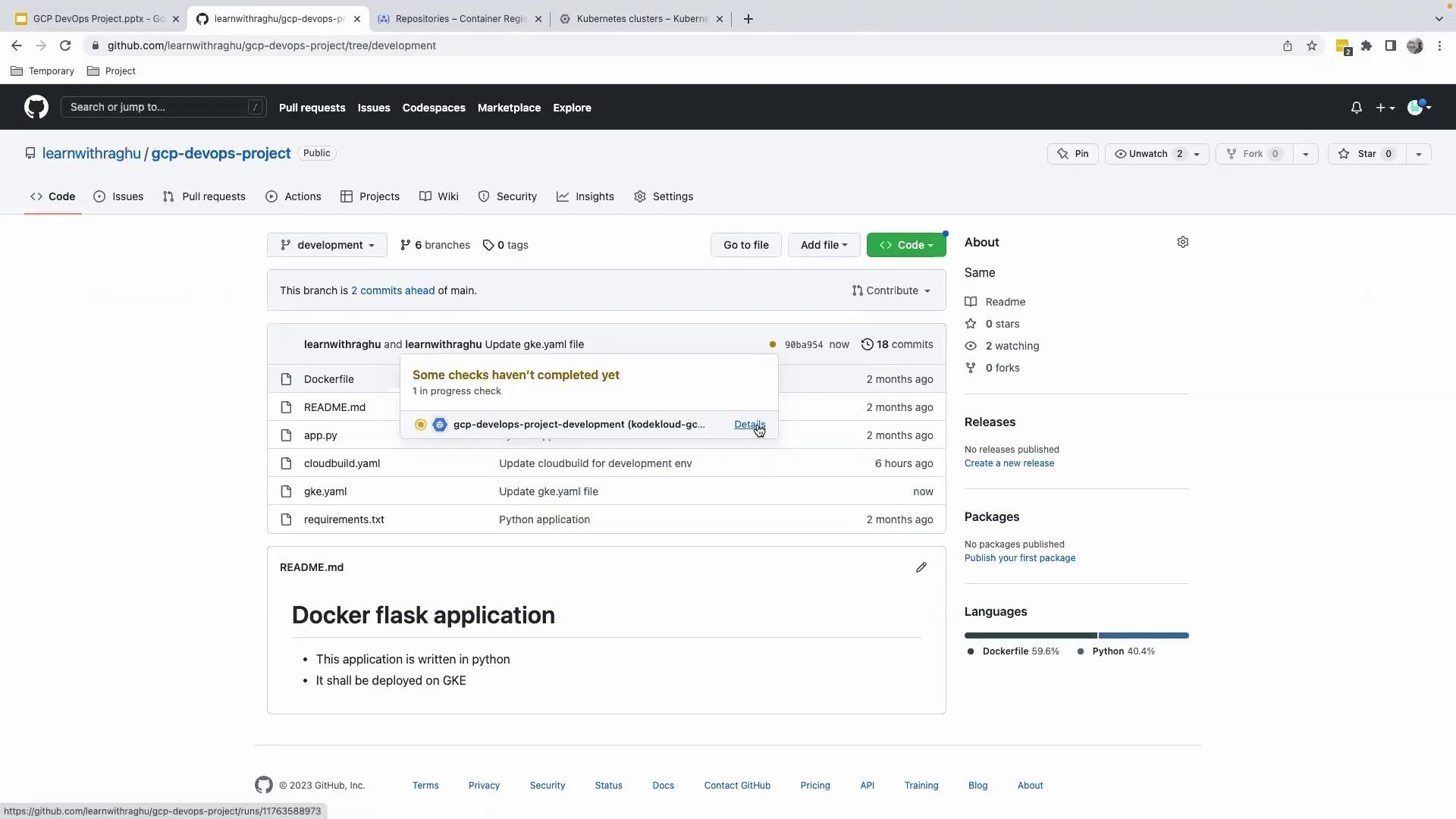
3. Verify the Cloud Build Trigger
After pushing, open your GitHub repository to confirm that a Cloud Build trigger has started on thedevelopment branch.
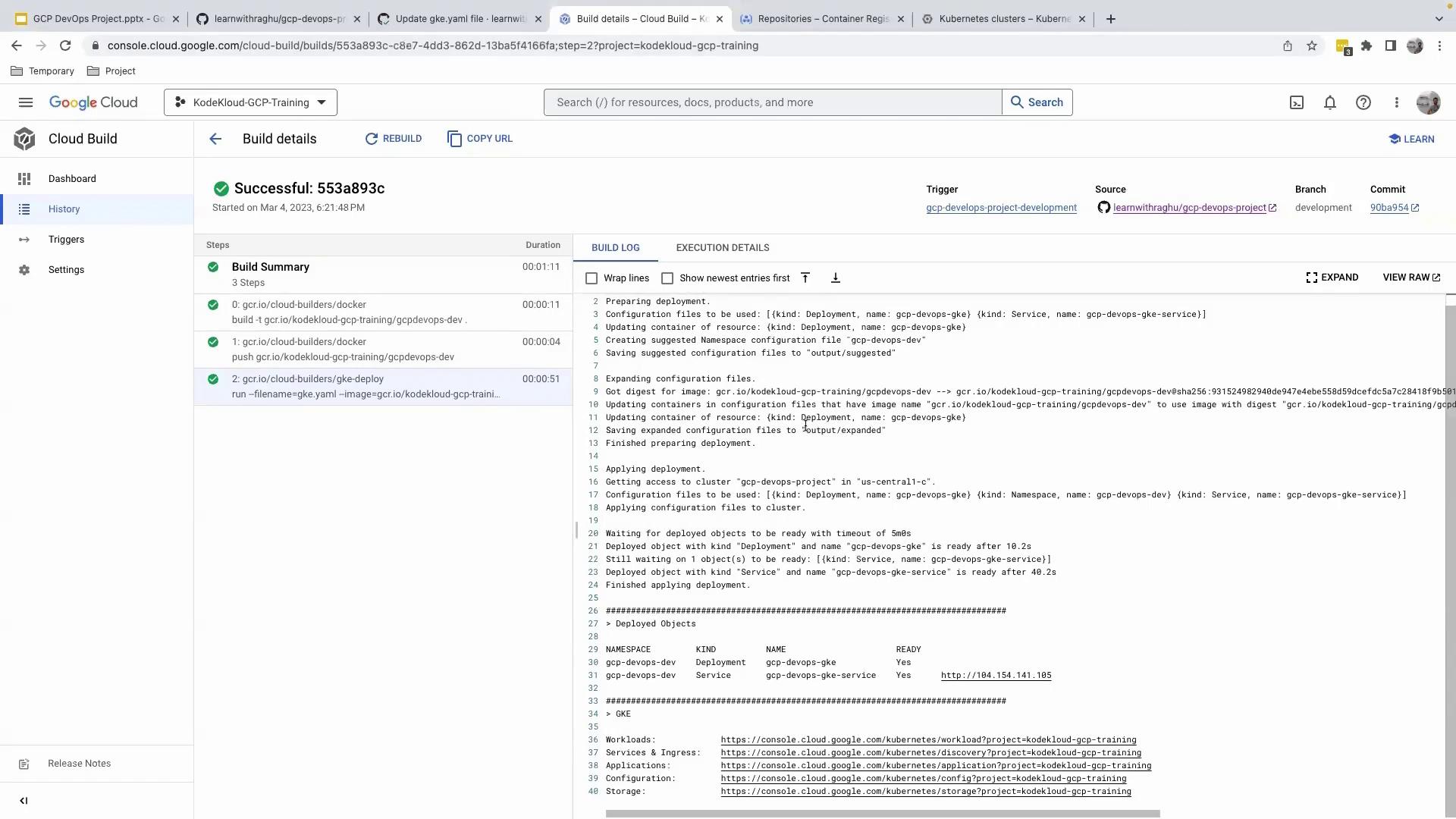
4. Review Build and Deployment Logs
Go back to the GCP Console and navigate to Cloud Build. You’ll see logs for steps including:- Building the Docker image
- Pushing to Container Registry
- Deploying to GKE
5. Inspect the Deployment in GKE
- In the GCP Console, go to Kubernetes Engine > Workloads and filter by the
developmentnamespace.- Workload:
gcp-devops-gke
- Workload:
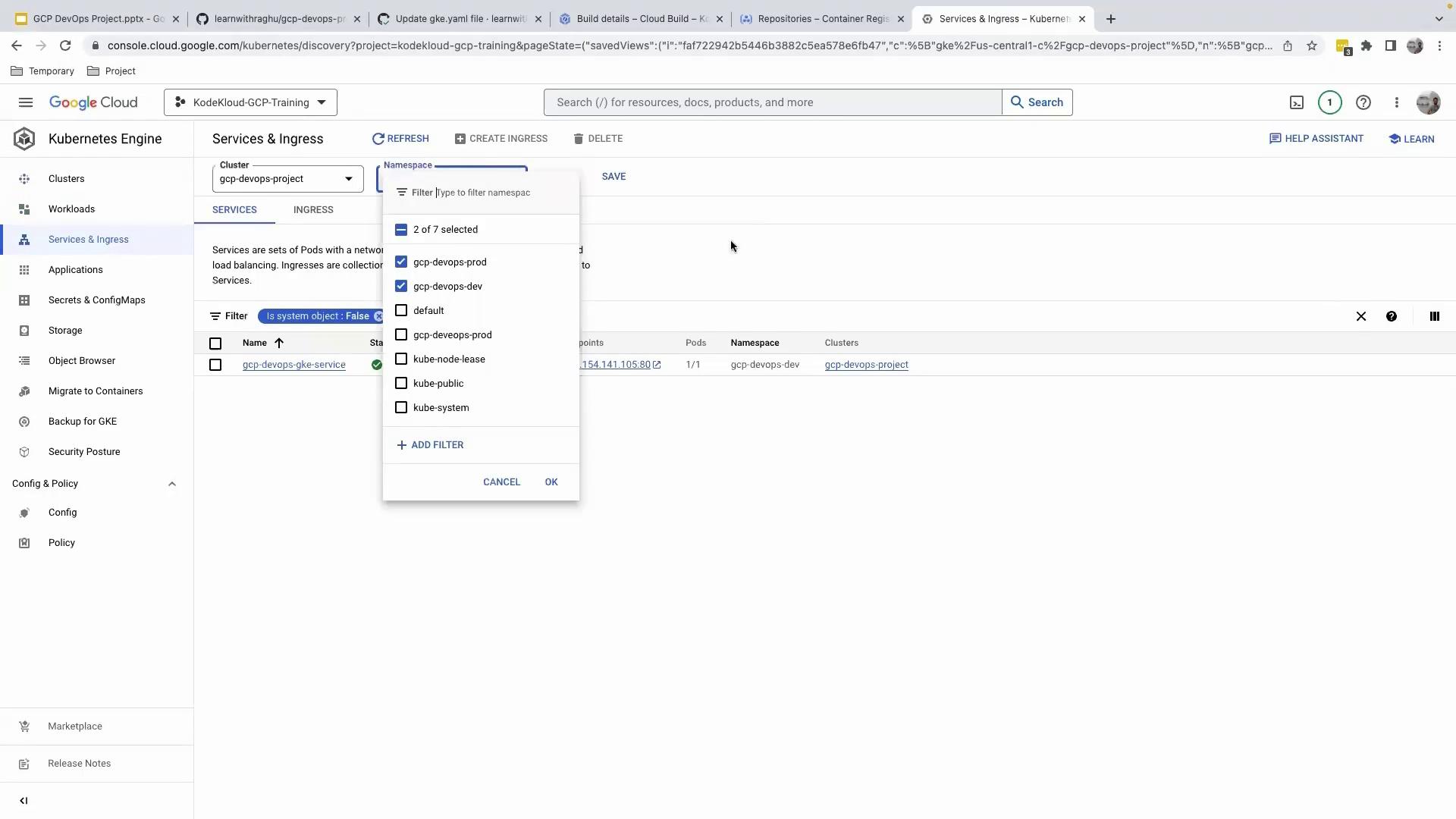
- Then select Services & Ingress, keeping the
developmentfilter applied. - Copy the external LoadBalancer IP and open it in your browser to verify your app is running.
You’ve successfully set up a dedicated development namespace, updated your Kubernetes manifests for development artifacts, and confirmed an automated CI/CD pipeline. Future commits to the
development branch will automatically build and deploy your application to GKE.
Links and References
- Kubernetes Namespaces
- Google Kubernetes Engine Documentation
- Cloud Build Triggers
- kubectl CLI Reference