

Overview of the Pipeline Dashboard
When you click on Build, the dashboard displays an overview of your pipeline. Here, you have multiple options at your disposal:- View activity logs
- Switch between branches (especially useful for multibranch pipeline jobs)
- Review pull requests
- Rerun the pipeline
- Disable the pipeline if required
Inspecting Pipeline Stages and Steps
Upon selecting a specific pipeline run, you can inspect the individual stages and steps executed within it. For example, the initial step involves pulling the Go web app sample from GitHub:Make sure that your Git configuration is set correctly to avoid warnings related to missing credentials or executables.
Pipeline Execution Details
Another crucial step is verifying that the correct Go environment is set up for your build. Within the pipeline, the Go version is explicitly executed to ensure that the appropriate Go environment is available:Troubleshooting and Logs
If you need to troubleshoot or analyze pipeline execution further, the BlueOcean dashboard provides two key features:- Restart the Pipeline: Quickly re-run the pipeline to test fixes or updates.
- Download the Log File: Access a comprehensive log file that includes detailed insights into the pipeline’s performance and any issues encountered.
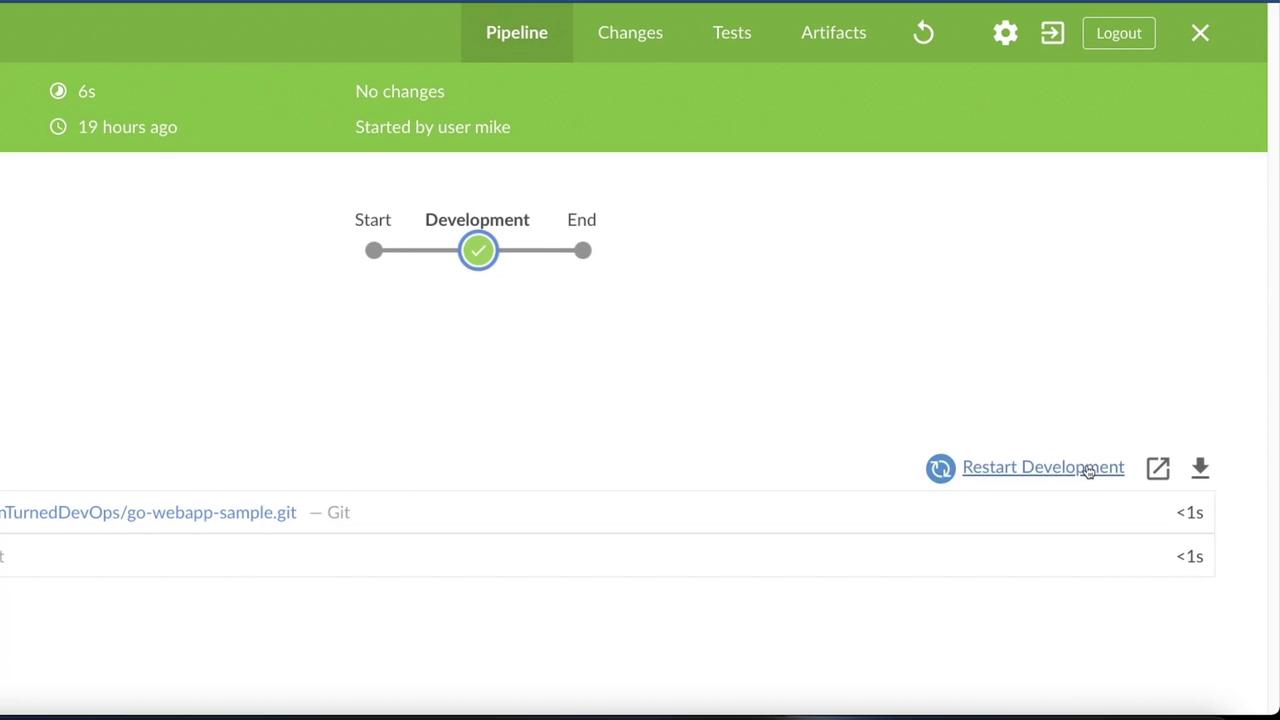
The BlueOcean interface is designed primarily to enhance visualization and provide an intuitive user experience for monitoring and interacting with your pipelines. It leverages familiar patterns to make managing complex builds straightforward.