

Creating a New Pipeline Project
To start, log in to Jenkins and click on New Item. Provide a project name (for example, “Ubuntu Test Pipeline”) and then select the Freestyle project option.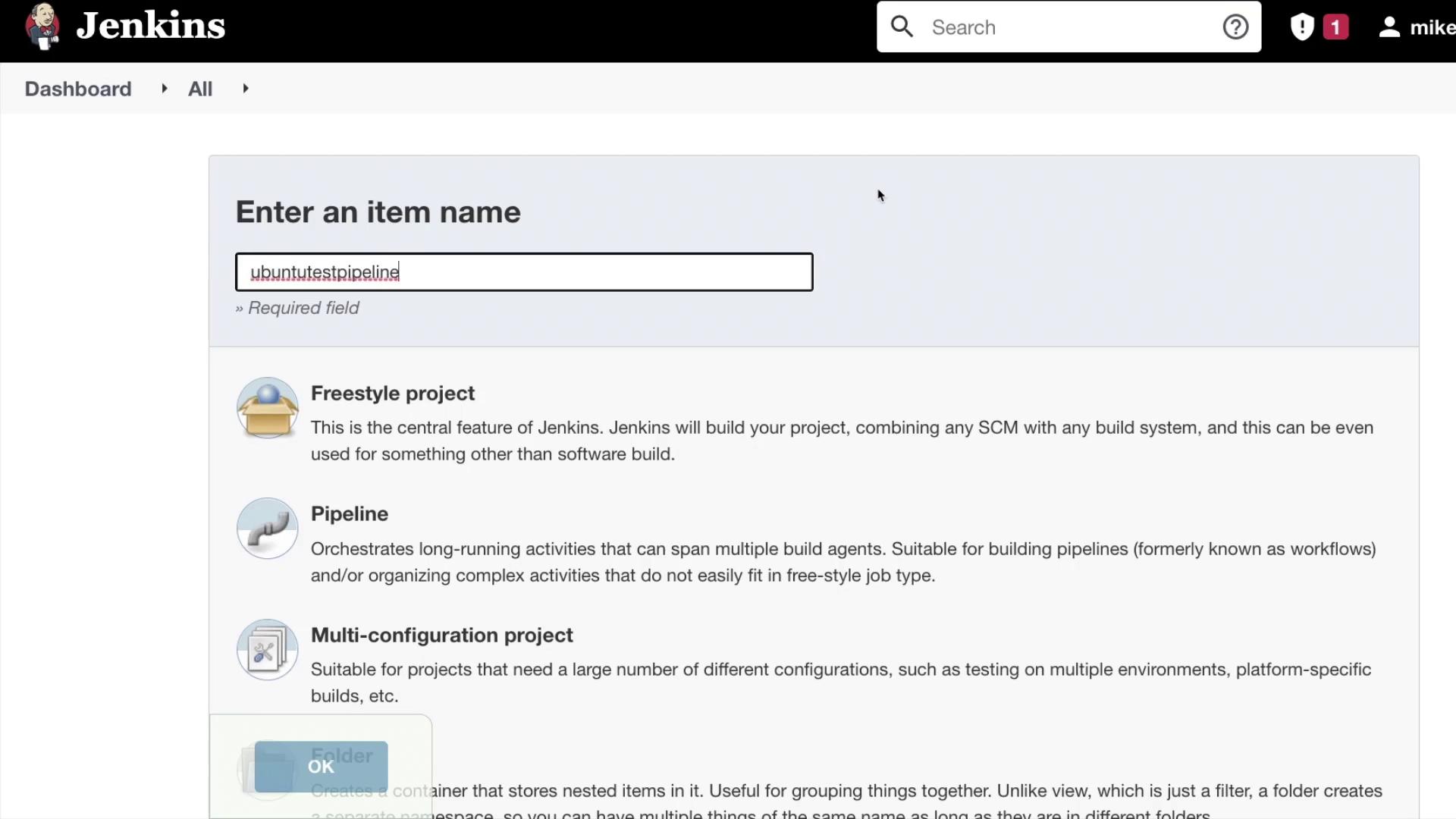
Restricting the Project to a Specific Build Agent
In the project configuration page, enable the option Restrict where this project can be run. Enter the build agent name on which you want to execute the project. Jenkins will help by indicating if it finds a matching agent as you type.
Ensure you enter the exact agent identifier. If an unrecognized name is entered, Jenkins will display a message such as “no agent matches.”
Configuring a Build Step
Next, test the build agent by adding a build step:- Scroll down to the Build section.
- Select Execute shell as the build step.
- Insert the following simple command to verify the functionality:
Verifying the Build Outcome
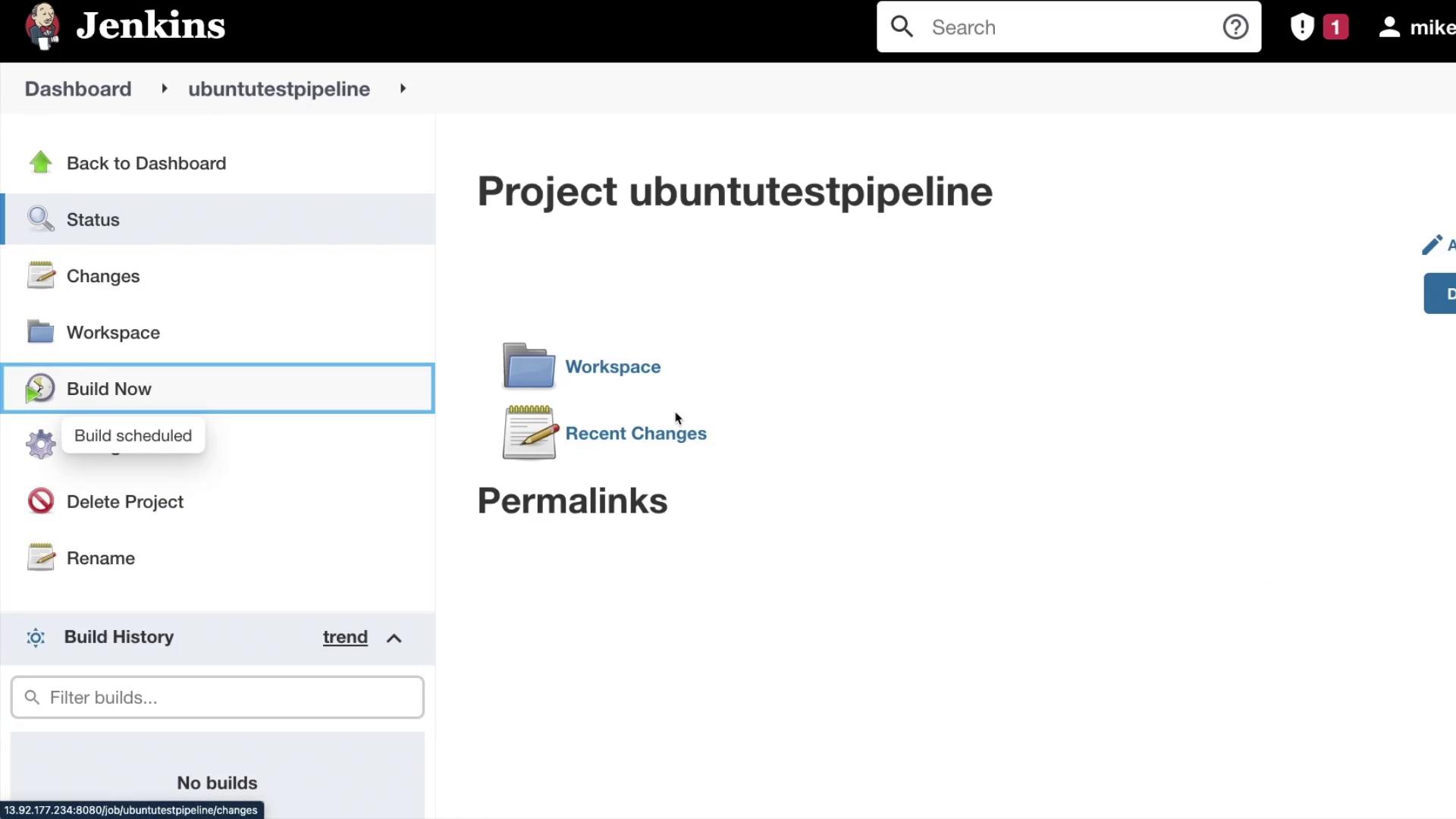
After the build is initiated, inspect the console output to verify that the build executed on your designated “Ubuntu Agent.” The console output should resemble the following:Continue exploring the power of build agents in CICD pipelines by experimenting with additional configurations and practical exercises.