

Creating a New User
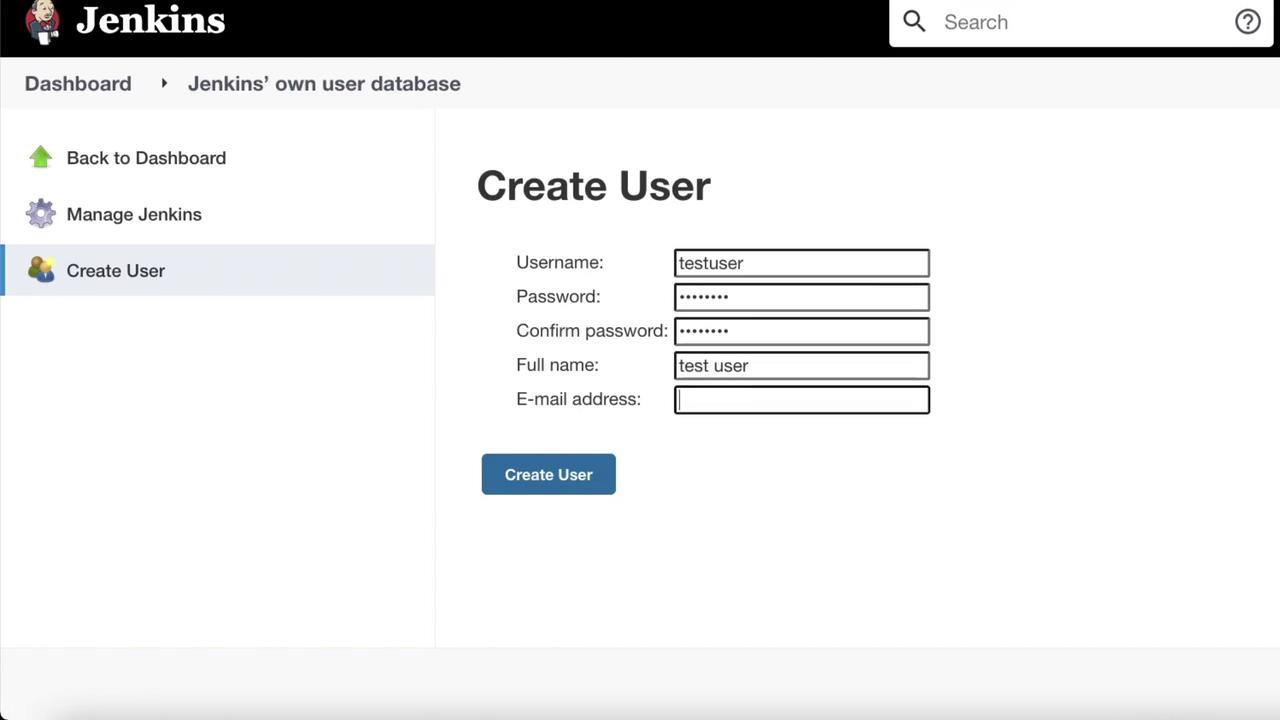
To add a new user:- Navigate to Manage Jenkins and scroll down to the security section.
- Click on Global Security to view options for managing user access, configuring credentials providers, and handling user accounts.
- Select Manage Users, then enter the user details. For example, use a username like
testuseralong with a password, full name, and email address. - Once all required fields are complete, click Create User.
Installing a Role-Based Authorization Plugin
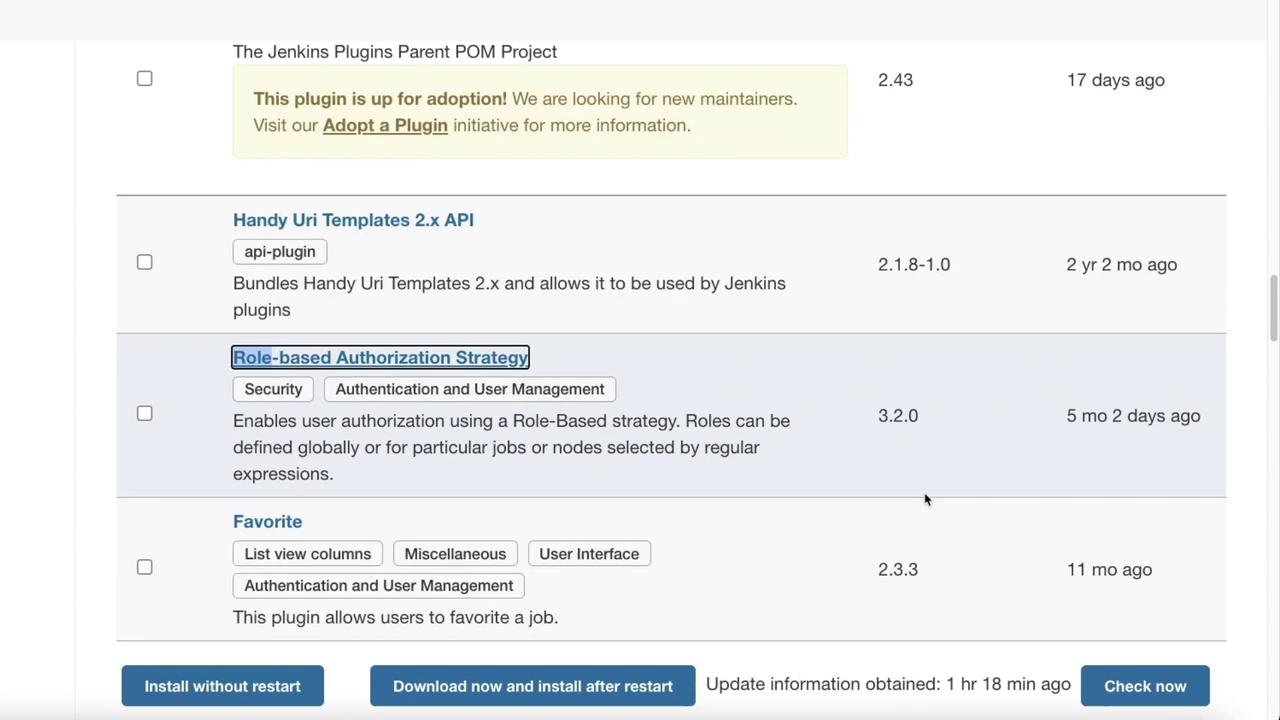
Jenkins does not include role-based access control by default. To implement role-based strategies:- Go to Manage Plugins and click on the Available tab.
- Use the search field to locate the plugin by entering “role.” This plugin facilitates user authorization based on a role-based strategy.
- Click on the desired plugin and select Install without restart to complete the installation process.
Managing and Assigning Roles
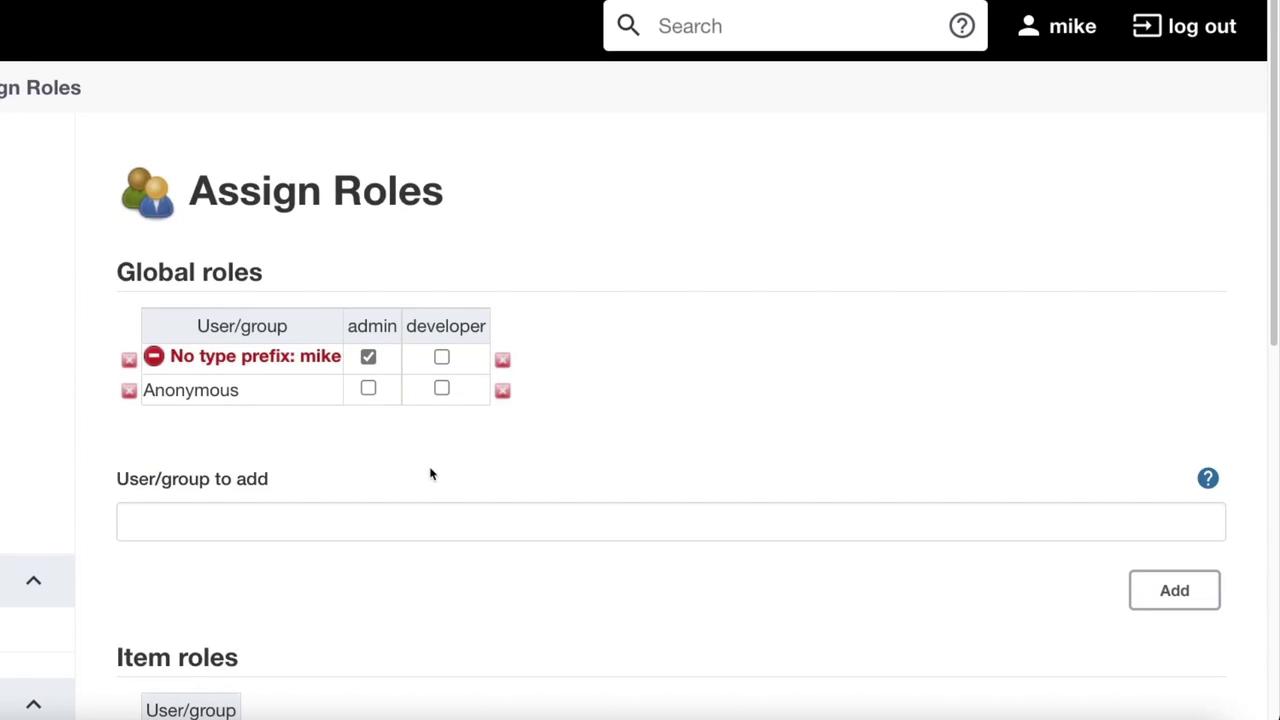
With the plugin installed, you can now manage and assign user roles.- Return to Manage Jenkins and scroll down to Manage and Assign Roles.
- First, click on Assign Roles to view the available role assignment options.
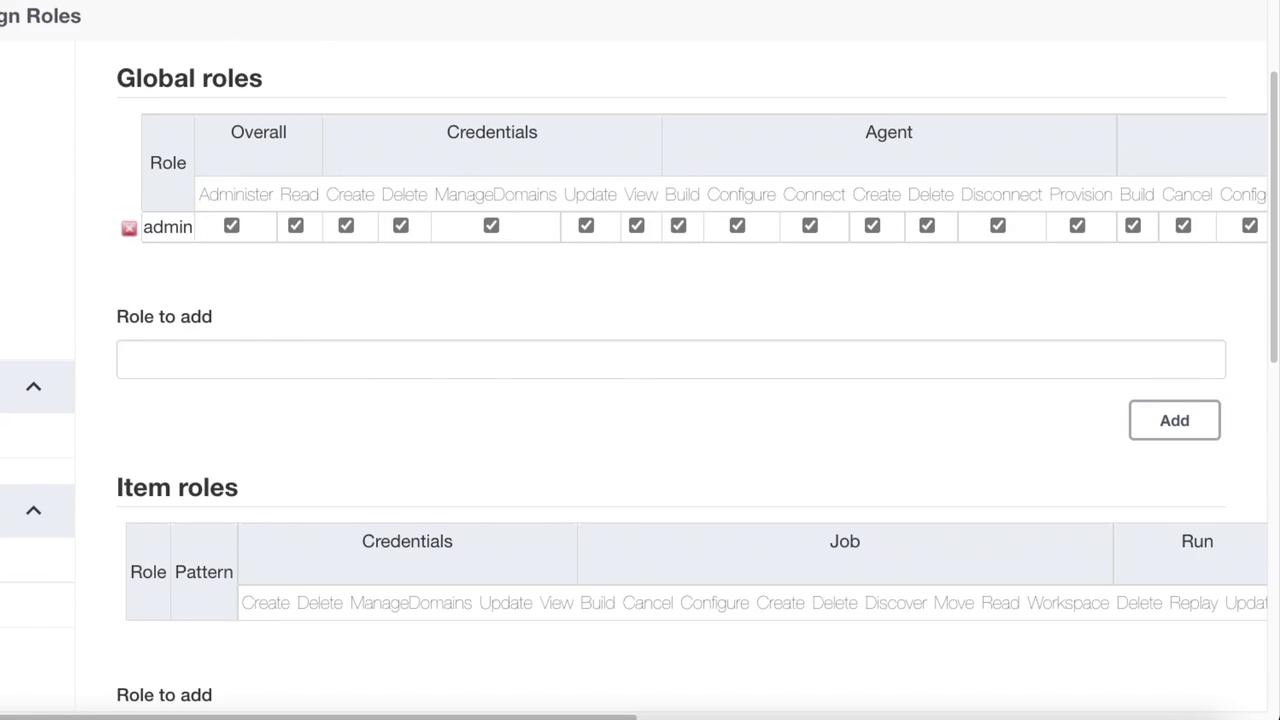
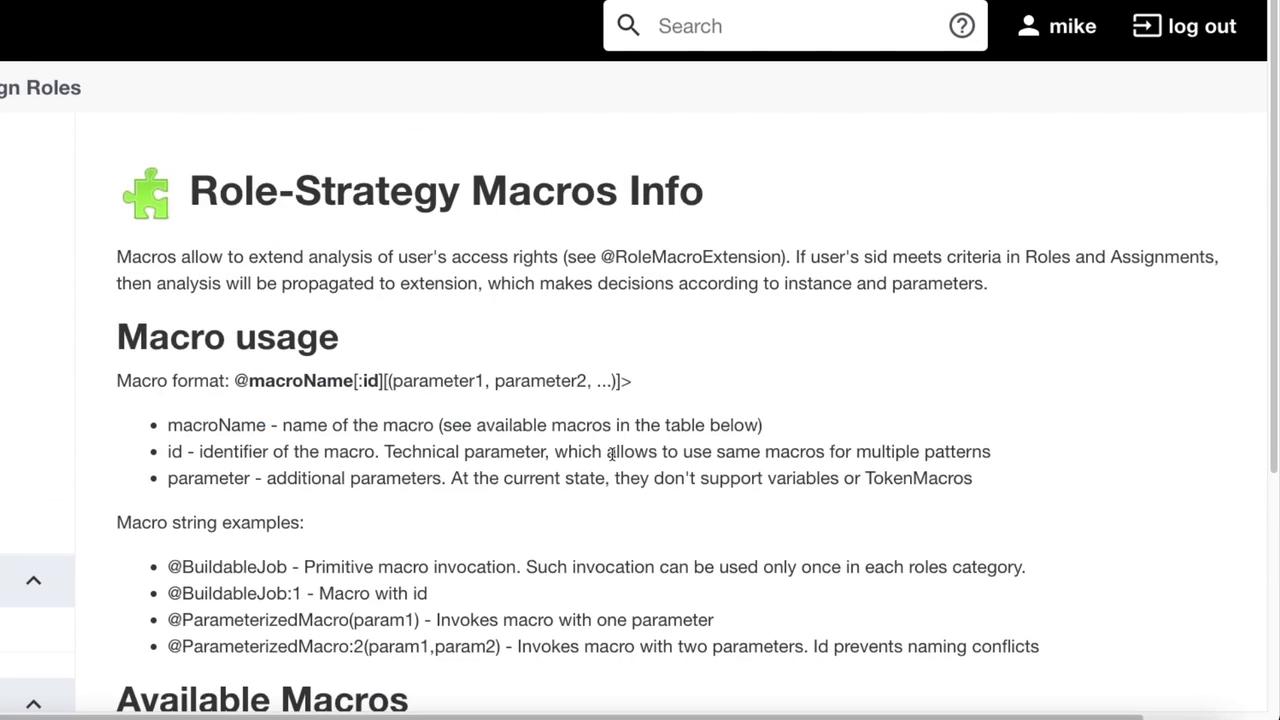
- Navigate to Manage Roles.
- Define a new role, such as developer, and customize its permissions as needed.
- Click Save to preserve the new role configuration.
Remember, keeping your role assignments up-to-date is vital for maintaining a secure Jenkins environment.