This guide explains setting up a Jenkins pipeline to automate building, testing, and running a Go web application.
In this guide, we will walk you through setting up a complete Jenkins pipeline to build, test, and run a Go web application. In previous lessons, you learned how to test your code, pull it from GitHub, and build it. Now, we’ll execute an entire code pipeline end-to-end, ensuring that every stage of your Go application’s lifecycle is automated.
The final configuration provided below defines a Jenkins pipeline with three key stages:
Test: Runs the Go test suite.
Build: Compiles the Go application.
Run: Executes the compiled binary.
Each stage checks out the source code from GitHub and executes the corresponding commands to progress your application through the pipeline.
Copy
Ask AI
pipeline { agent any tools { go 'go-1.17' } environment { GO111MODULE = 'on' } stages { stage('Test') { steps { git 'https://github.com/AdminTurnedDevOps/go-webapp-sample.git' sh 'go test ./...' } } stage('Build') { steps { git 'https://github.com/AdminTurnedDevOps/go-webapp-sample.git' sh 'go build .' } } stage('Run') { steps { sh 'cd /var/lib/jenkins/workspace/go-full-pipeline && go-webapp-sample &' } } }}
Ensure that the “Run” stage uses the Jenkins workspace directory to locate and execute the binary built in the earlier stage. Without running the build commands, the go-webapp-sample binary would not be available, leading to execution errors.
When you run the pipeline, you will see output in the Jenkins console similar to the following:
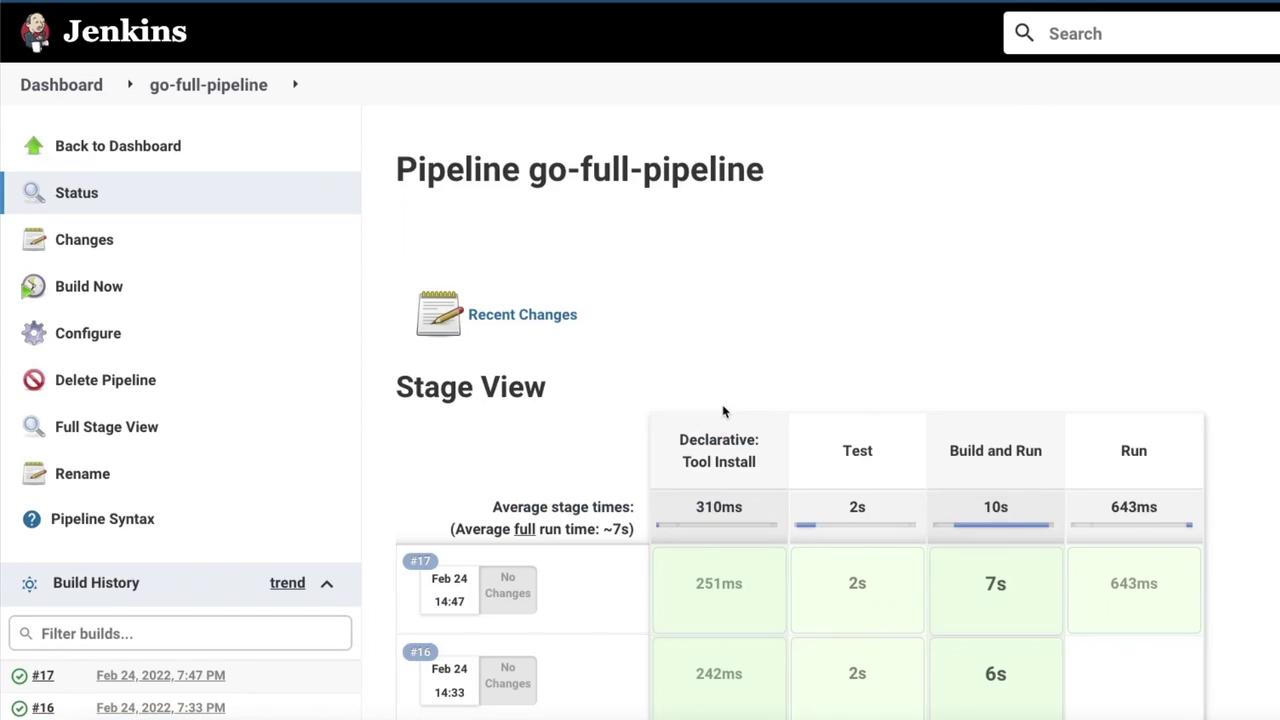
Copy
Ask AI
> git rev-parse refs/remotes/origin/master^{commit} # timeout=10> git config core.sparsecheckout # timeout=10> git checkout -f 09b607224df9bb27580dafc7ec249fe2e805cbfbb # timeout=10...+ go test ./...? github.com/ybkuroki/go-webapp-sample [no test files]? github.com/ybkuroki/go-webapp-sample/config [no test files]? github.com/ybkuroki/go-webapp-sample/controller (cached)...
The test stage confirms that the tests run successfully, even if some directories do not contain test files. After testing, the build stage compiles the binary, and the run stage then navigates to the workspace directory to start the Go application.
After a successful build, open your browser and navigate to the Jenkins host IP address on the default port (8000) to see your application running.
Sometimes, you might see a message similar to this in the console output:
Copy
Ask AI
+ cd /var/lib/jenkins/workspace/go-full-pipeline+ go-webapp-sample/var/lib/jenkins/workspace/go-full-pipeline@tmp/durable-c32dd620/script.sh: 1: go-webapp-sample: not foundFinished: SUCCESS
Although the error message appears due to the shell’s execution reporting, this does not prevent your application from running successfully. This behavior has been observed consistently in previous builds.
Now that you have seen the complete Jenkins pipeline in action, it’s time for you to experiment with the configuration. Tweak the settings as needed and verify that each stage—testing, building, and running—executes as expected.For more detailed guidance on Jenkins and Go application deployment, refer to the following resources: