

Verifying Your Jenkins Backup
Before you begin the restoration, ensure that your Jenkins backup exists. For example, run the following command to list the backups:Initiating the Restore Process
- Open the Thin Backup plugin interface in your Jenkins dashboard.
- Click on the Restore button.
- You should see an option labeled Restore from this backup.
Before proceeding with the restoration process, it is recommended that you create an additional backup.
Creating an Additional Backup
- Navigate to the Settings menu.
- Scroll down to the backup options.
- Ensure that all necessary components are selected for backup.
- Click Save.
- Click Backup to create a new backup.
Selecting the Backup to Restore
- Click on the Restore button again.
- The interface will display all three backups along with their respective timestamps.
- For this demonstration, select the latest backup.
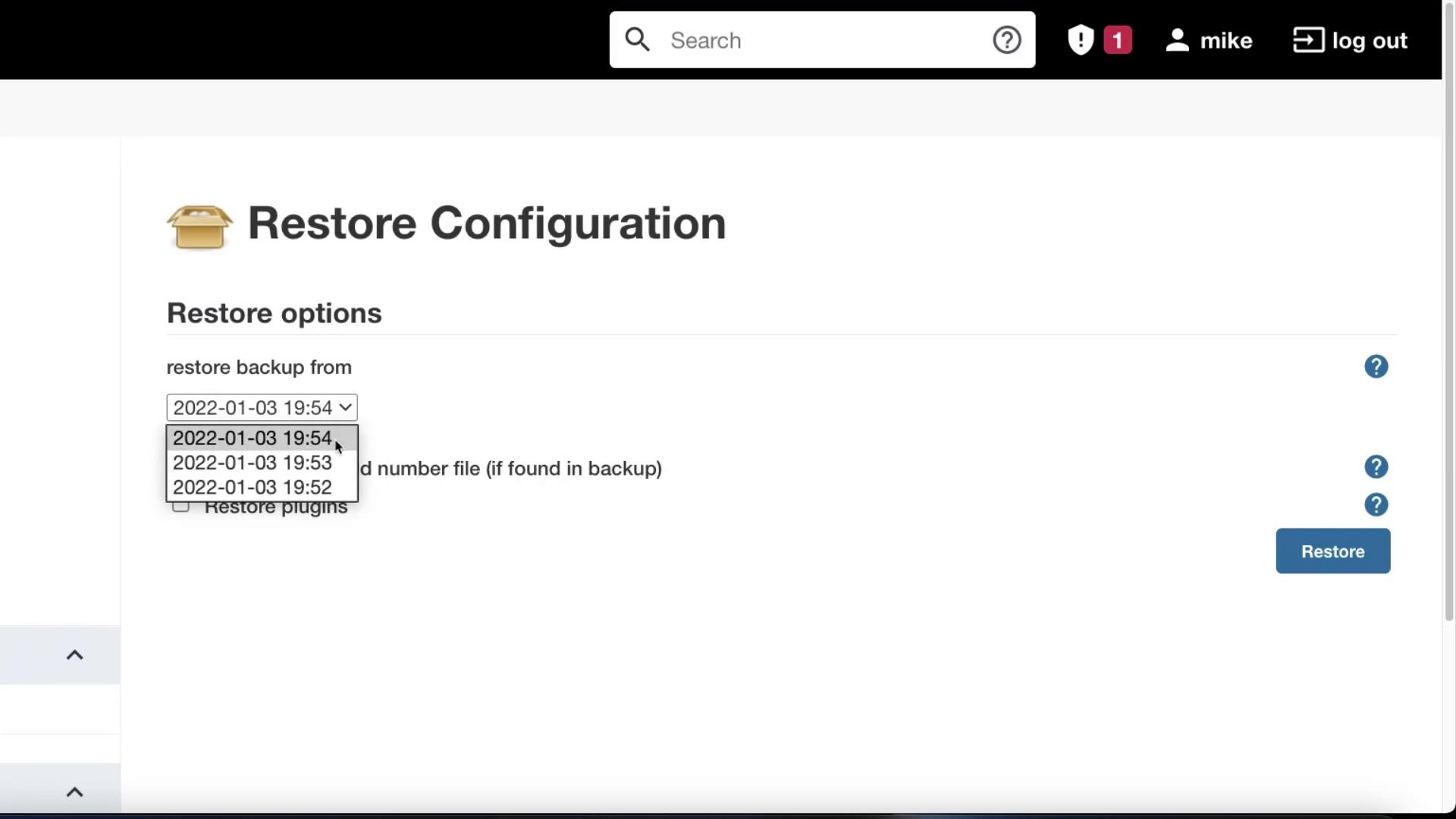
- Click Restore to initiate the restoration process.