

Jenkinsfile Pipeline Configuration
Below is the Jenkinsfile used to create the pipeline:- Development Stage: Checks out the code from the Git repository.
- Building our image Stage: Builds a Docker image using the Docker plugin.
Configuring Jenkins
Follow these steps to configure your Jenkins instance for running the pipeline:-
Install Docker-Related Plugins:
- Open Jenkins and navigate to Manage Jenkins > Manage Plugins.
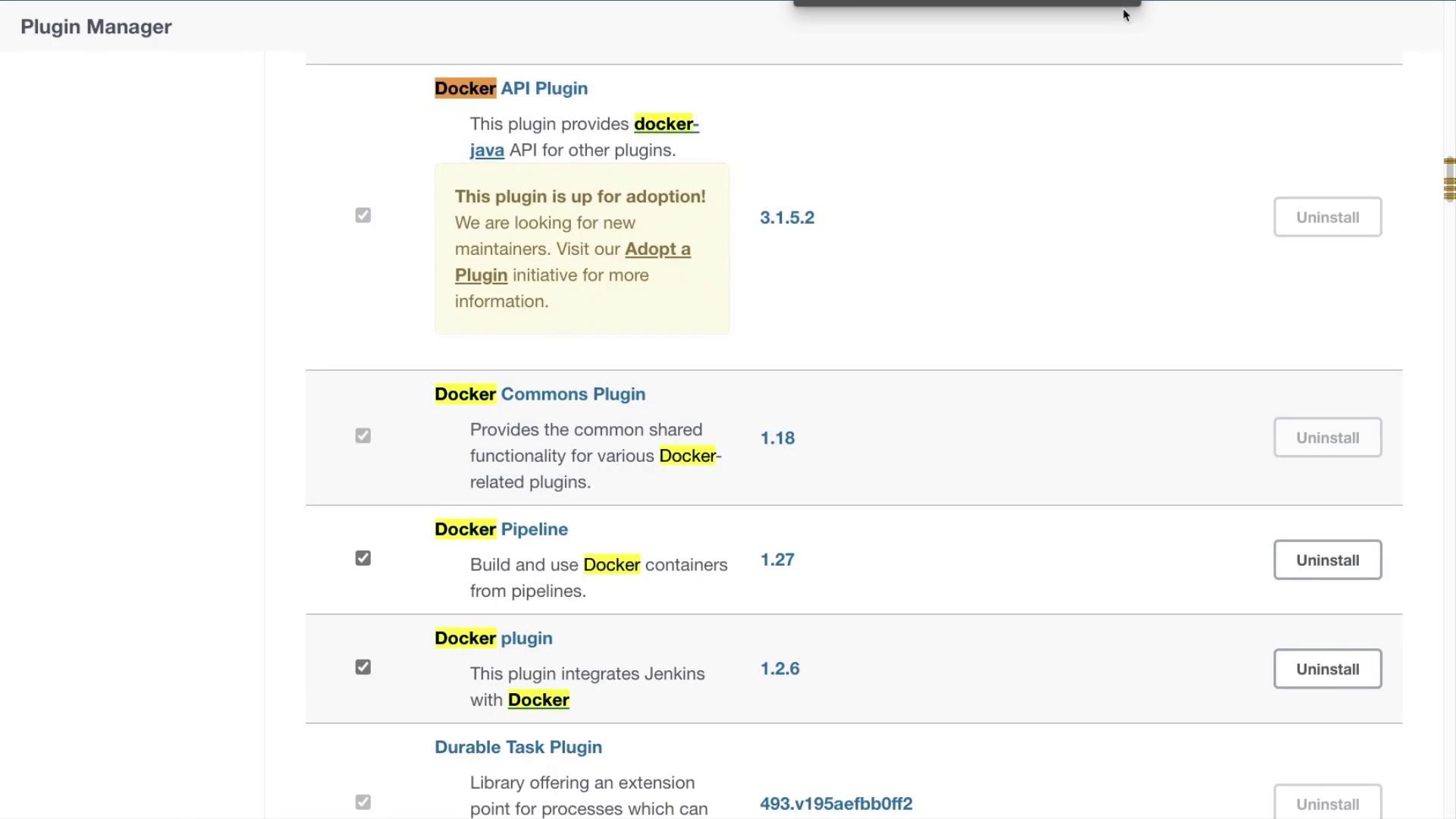
- Under the Installed tab, search for Docker-related plugins and ensure you have installed:
- Docker API Plugin
- Docker Commons Plugin
- Docker Pipeline Plugin
- Docker Plugin
- Create a New Pipeline Job:
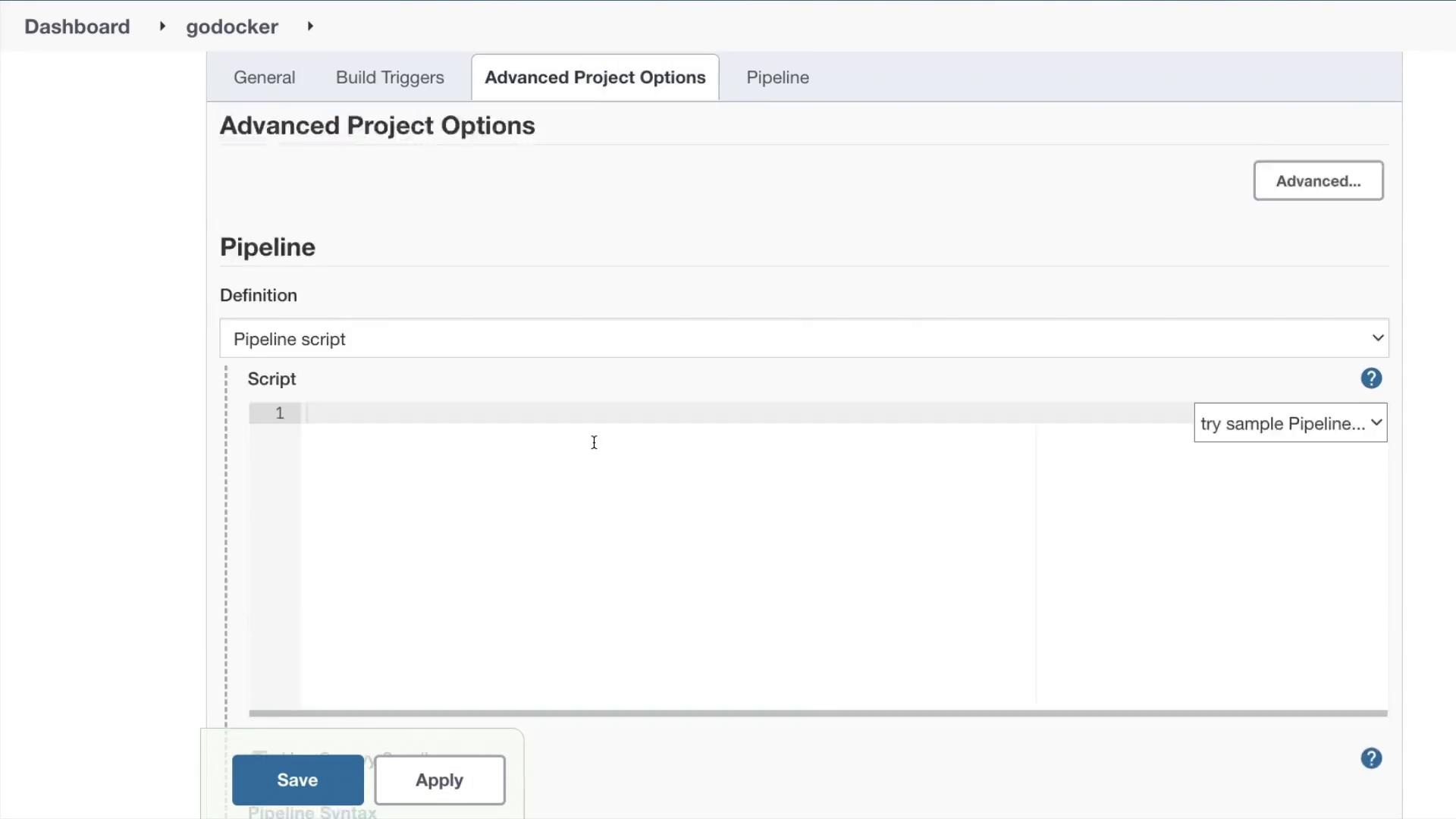
- Return to the Jenkins dashboard and select New Item.
- Enter a name for your pipeline job, choose Pipeline, and click OK.
- In the Pipeline section, paste the Jenkinsfile script provided above into the Pipeline script area.
- Initiate the Pipeline:
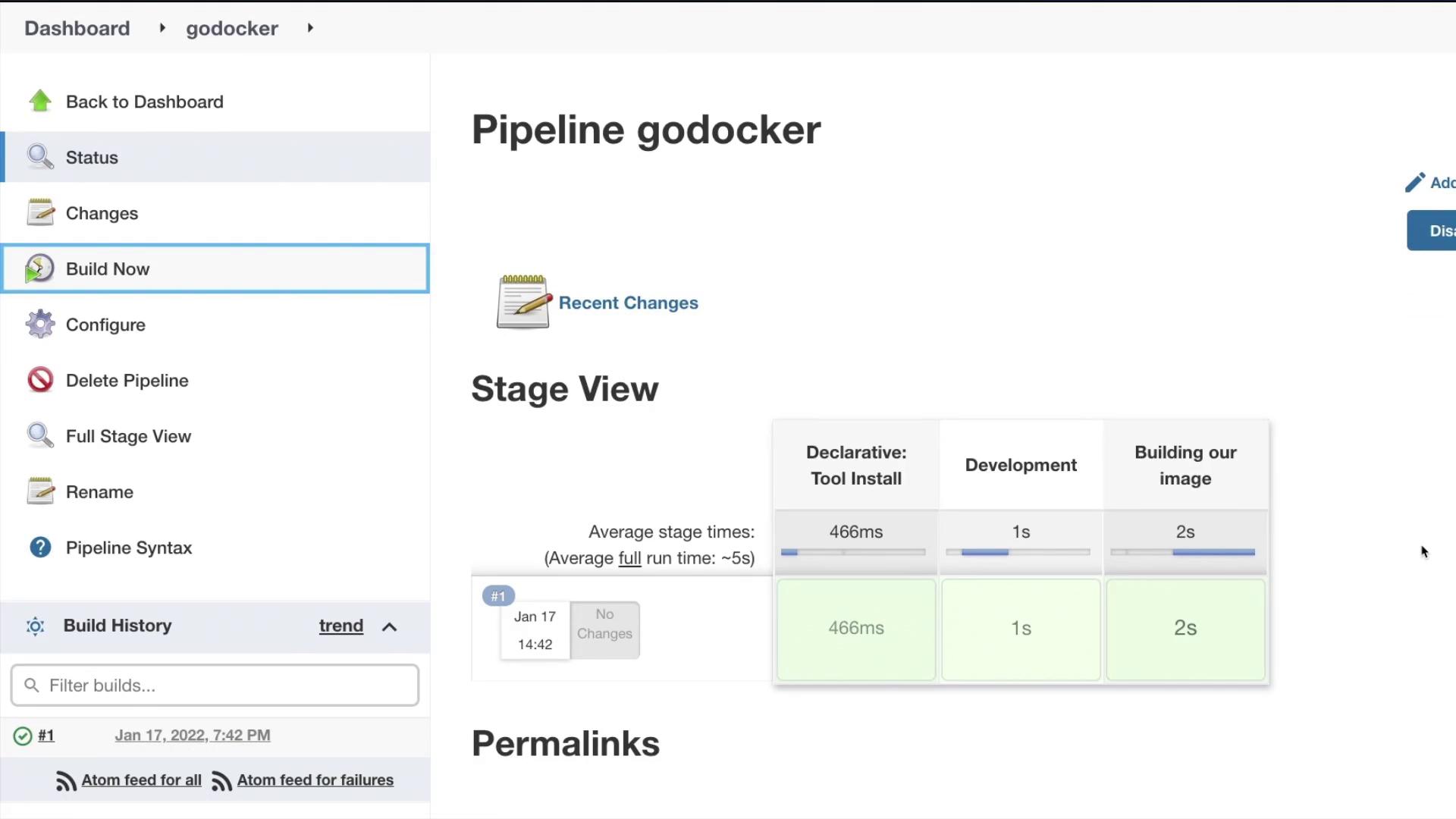
- Save the configuration and click Build Now to start the pipeline.
- The pipeline will display both the “Development” and “Building our image” stages. You can monitor its progress from the Jenkins dashboard.
Monitoring and Verifying the Build
If the Docker image is not already present locally, the pipeline may take a little longer, as Jenkins will pull and build the image. Once the pipeline completes, review the console output to verify the successful checkout, build, and creation of the Docker image. Example console output:Ensure that your build server has sufficient resources and proper Docker configuration to execute the pipeline successfully.