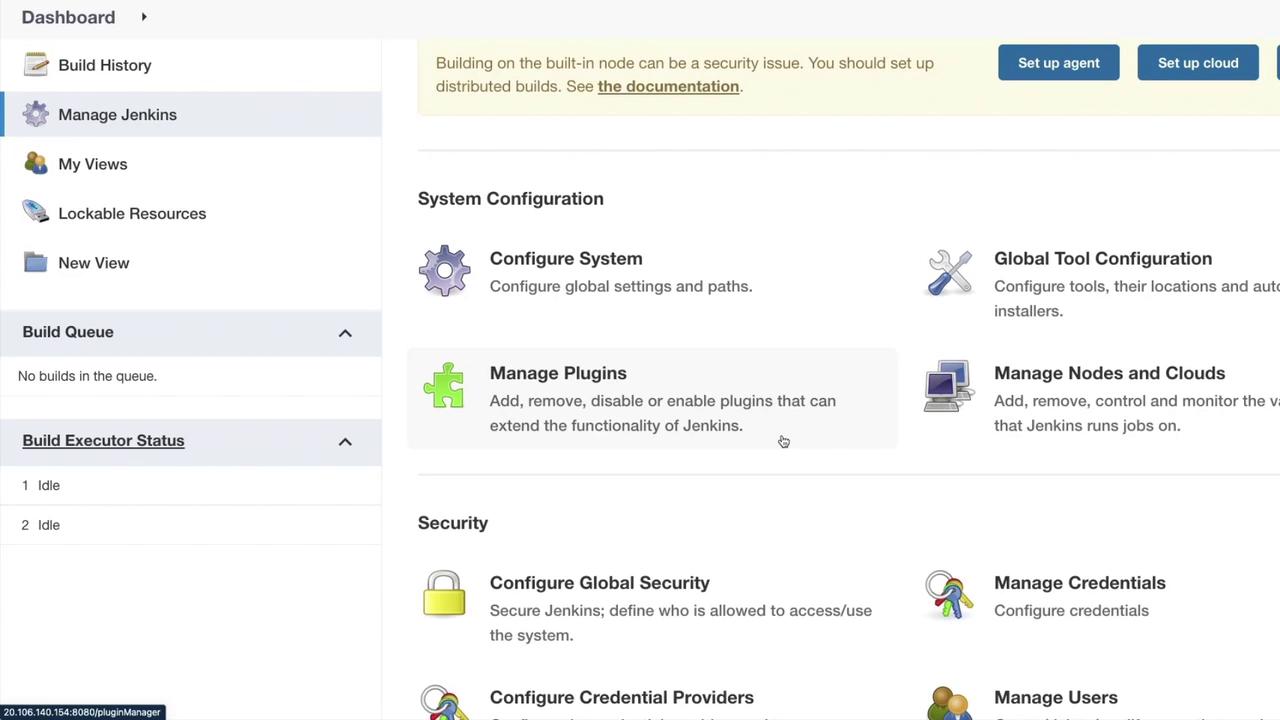
Begin by navigating to your Jenkins dashboard. Once there, click on Manage Jenkins. This will display various administrative options including Manage Plugins. The plugin manager allows you to add, remove, disable, or enable plugins that extend Jenkins’ functionality.
Click on Manage Plugins to view the following tabs:
Updates: Lists plugins with available updates.
Available: Displays plugins available for installation.
Installed: Shows plugins already installed.
Advanced: Provides settings such as HTTP proxy configuration and custom plugin uploads.
For instance, to integrate the Azure CLI with Jenkins, you might install the Azure CLI Plugin. Navigate to the Available tab and search for Azure Credentials. The search results indicate that the plugin was last updated two months and 17 days ago and is used for managing Azure credentials via the Jenkins Credentials API.
When you click on a plugin, detailed usage instructions are provided to help integrate it within your Jenkinsfile.
Step 3: Using the Azure Credentials Plugin in Your Jenkinsfile
The following example demonstrates how to securely use credentials within your pipeline using the Azure Credentials plugin.
echo "My client id is \$AZURE_CLIENT_ID"echo "My client secret is \$AZURE_CLIENT_SECRET"echo "My tenant id is \$AZURE_TENANT_ID"echo "My subscription id is \$AZURE_SUBSCRIPTION_ID"withCredentials({azureServicePrincipal('credentials_id')}) { sh 'az login --service-principal -u \$AZURE_CLIENT_ID -p \$AZURE_CLIENT_SECRET -t \$AZURE_TENANT_ID'}withCredentials({azureServicePrincipal(credentialsId: 'credentials_id', subscriptionIdVariable: 'SUBS_ID', clientIdVariable: 'CLIENT_ID', clientSecretVariable: 'CLIENT_SECRET', tenantIdVariable: 'TENANT_ID')}) { sh 'az login --service-principal -u \$CLIENT_ID -p \$CLIENT_SECRET -t \$TENANT_ID'}
The snippet illustrates the secure incorporation of Azure credentials using environment variables. Although it may look similar to YAML, remember that it is specifically implemented inside your Jenkinsfile.Another simplified version using the Azure service principal is:
Step 4: Integrating Azure Credentials in Jenkins Plugins
Besides pipelines, you can also integrate these credentials directly into Jenkins plugins. For example, include the following Maven dependency in your plugin project:
After configuring your plugins, install them by selecting the desired plugin and choosing install without restart if prompted. Verify the installation by returning to Manage Jenkins > Manage Plugins to ensure that the plugin is now available.
You have now learned how to search through Jenkins plugins, manage them through different tabs, configure Azure credentials in your pipelines, and integrate these credentials directly into your Jenkins plugins. This comprehensive guide equips you with the necessary skills to extend Jenkins functionality securely and efficiently.For more information on Jenkins and its plugins, check out the following resources: