

Initializing the React Application
Begin by setting up your React application. The code below imports the required modules and renders the root component:Setting Up Global Styles
Your application’s base styles are defined in theindex.css file. These styles provide a foundational design for fonts, links, and backgrounds:
App.jsx.
Building the Image Optimizer Component
Start by creating a basic component inApp.jsx that displays a heading and a file input field:
App.jsx is correctly integrated into your project.
Handling Image Uploads and Form Submission
Next, enhance the component by adding image upload handling and form submission. This version introduces state management for the selected image and builds a form that submits the image to your API endpoint. A callout alerts users if no image is selected:Make sure to replace
'YOUR_API_ENDPOINT' with your actual endpoint before deploying the application.Adding a Quality Slider
To further enhance the user experience, add a slider to control the quality parameter for image compression. The slider ranges from 0 to 100. The following code updates the form to include the quality slider and passes the slider value to the API:Improving Layout with a Grid System
A clean, responsive layout enhances usability. Use a grid layout to neatly arrange your components. First, update your component structure inApp.jsx:
App.css) to implement the grid layout:

Refining the Page Background
To further improve the overall look, set a background color for the page. The CSS below ensures that both the body and the root container have a clean and consistent background: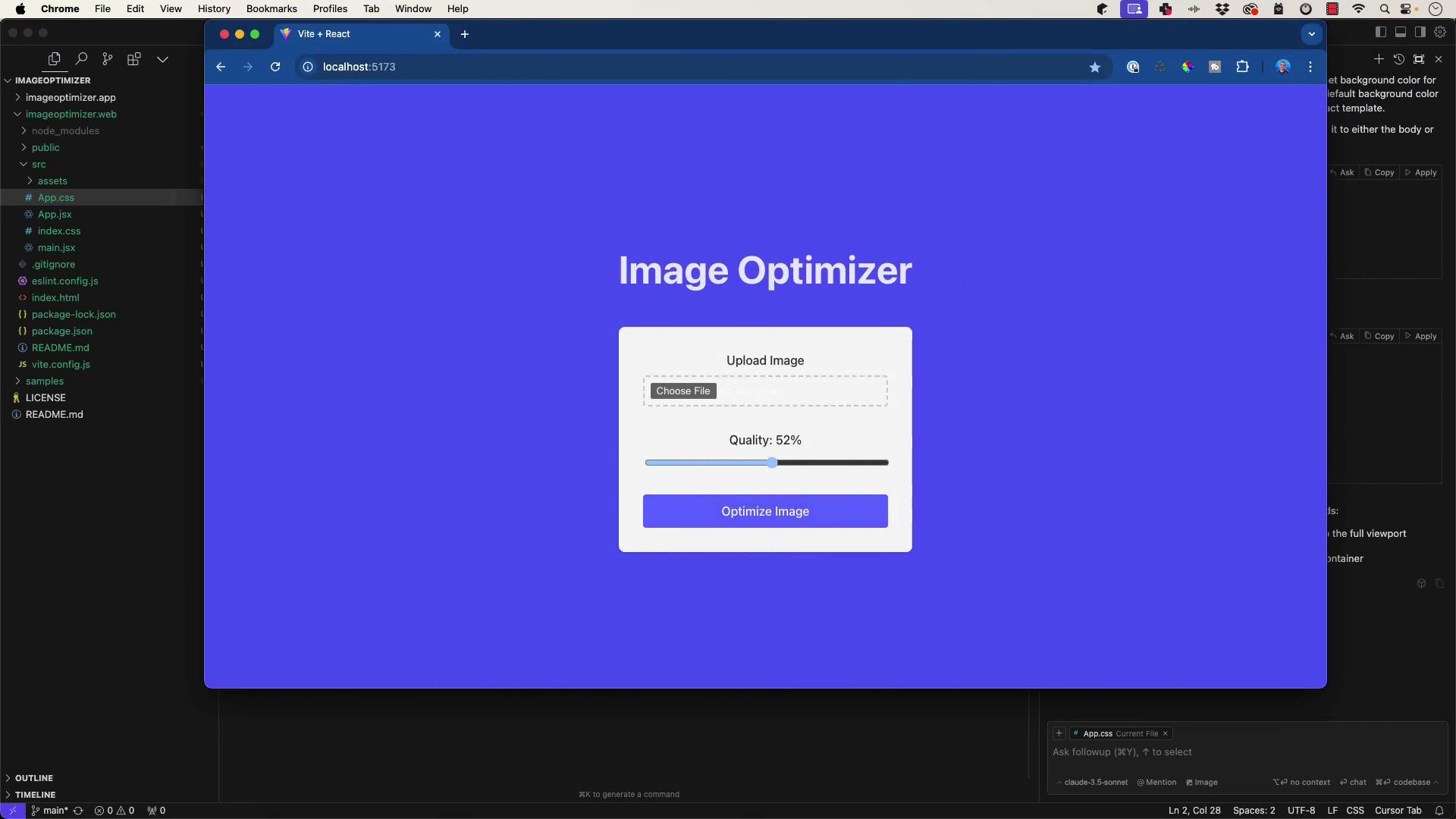
In the next article, we will cover how to integrate the backend and process the image through the API endpoint.