This article explores Cursor, a standalone application for immersive coding and chat integration, highlighting its features and Python application setup.
Use this file to discover all available pages before exploring further.
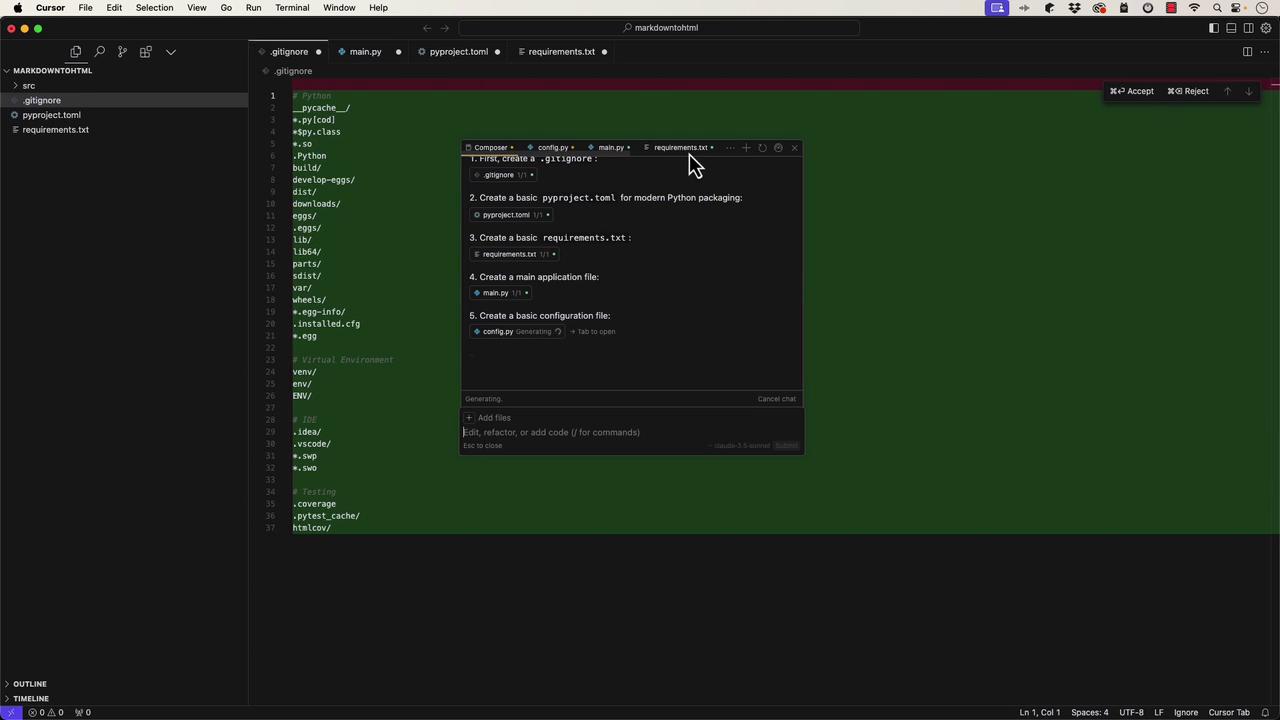
In this article, we explore Cursor—a standalone application built as a fork of Visual Studio Code. Unlike extensions for Visual Studio Code or JetBrains products, Cursor offers an immersive environment where both chat and code reside within a single window.When you launch Cursor and press Ctrl+I, you’ll see options such as Add Files, Edit Refactor, and Add Code. The tool also allows you to switch between models like Cloud 3.5 Sonnet, GPT-4, 40 Mini, 01 Mini, 01 Preview, and Cursor Small. For illustration, we scaffold a typical Python application, with Cursor automatically generating the necessary files—much like what GitHub Copilot might do.
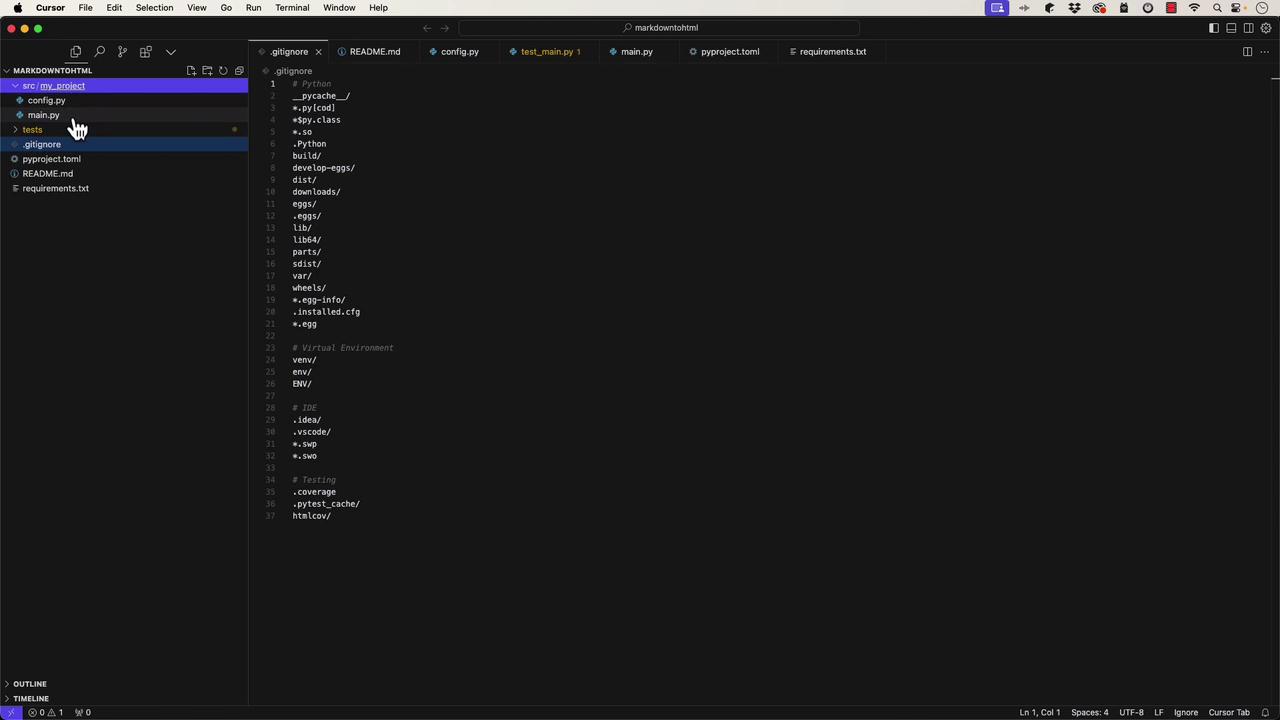
After accepting the generated files, you can inspect the project structure. The folder includes a source directory (src) with your project files, such as main.py.
The generated main.py file contains a standard Python entry point, featuring a def main function along with an if __name__ == '__main__': check. It also sets up logging automatically:
A simple test file is generated to serve as a placeholder for your test cases:
import pytestfrom my_project.main import maindef test_main(): """Test main function execution.""" # Add your test cases here assert True
Additionally, the project includes a .gitignore file for ignoring file patterns (like virtual environments), a pyproject.toml with metadata and dependency details, and a basic requirements.txt listing both core and development dependencies.The pyproject.toml file looks like this:
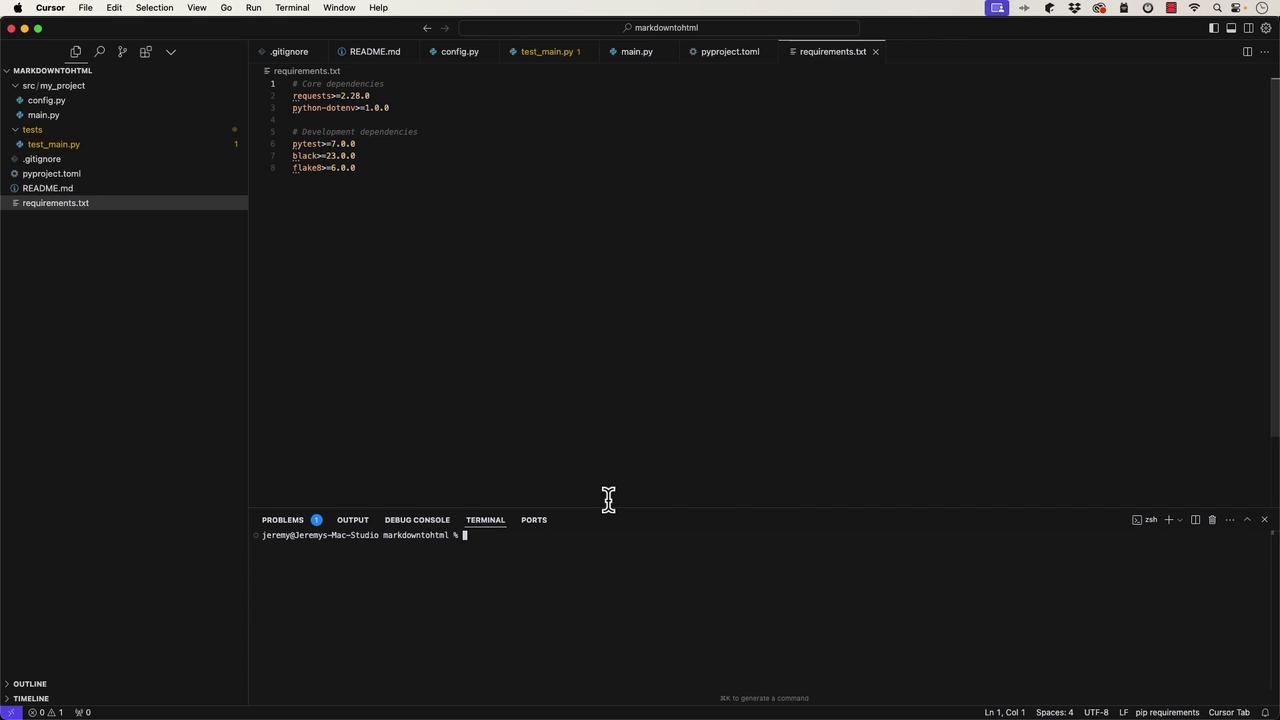
[build-system]requires = ["hatchling"]build-backend = "hatchling.build"[project]name = "my_project"authors = [ { name = "Your Name", email = "your.email@example.com" }]description = "A short description of your project"readme = "README.md"requires-python = ">=3.8"dependencies = [][project.optional-dependencies]dev = [ "pytest>=7.0", "pytest-cov>=4.0", "black>=23.0", "isort>=5.0", "flake8>=6.0",][tool.pytest.ini_options]testpaths = ["tests"]python_files = ["test_*.py"]
To set up your Python environment, open the terminal and create a virtual environment:
python -m venv venv# If "python" is not recognized, try:python3 -m venv venvsource venv/bin/activate
Once the virtual environment is activated, install the dependencies:
pip install -r requirements.txt
You can then run your application:
python src/main.py
If you encounter an error like “can’t open file ‘src/main.py’”, verify your directory structure. For instance, if your main file resides at src/my_project/main.py, run:
python src/my_project/main.py
Upon execution, you should see log output indicating the application has started and finished, similar to:
2022-11-19 14:59:16,537 __main__ INFO - Application starting...Hello, World!2022-11-19 14:59:16,537 __main__ INFO - Application finished.
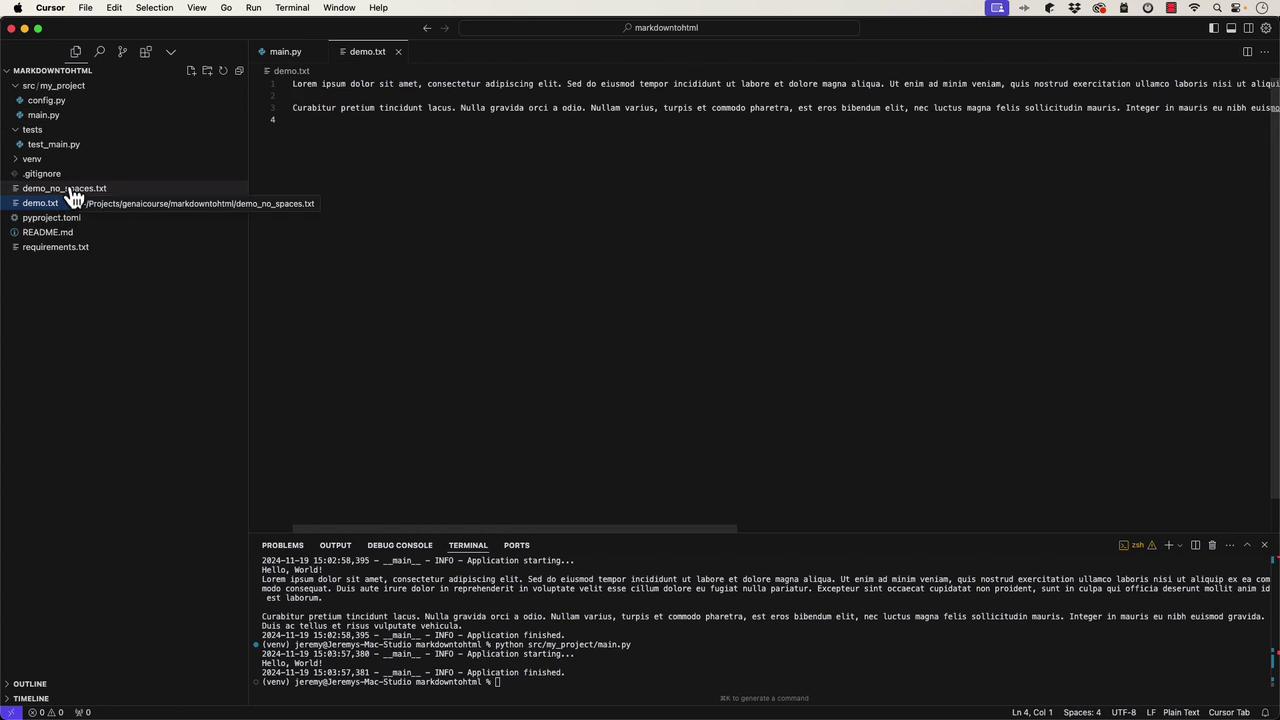
Cursor supports interactive code generation. For example, you can modify your code so that it reads from a text file (demo.txt) and prints its contents line by line. An updated version of main.py might look like this:
import logginglogging.basicConfig( level=logging.INFO, format='%(asctime)s - %(name)s - %(levelname)s - %(message)s')logger = logging.getLogger(__name__)def main(): """Main application entry point.""" logger.info('Application starting...') print("Hello, World!") try: with open("demo.txt") as file: for line in file: print(line.rstrip()) except FileNotFoundError: logger.error("demo.txt file not found") except Exception as e: logger.error(f"Error reading demo.txt: {e}") logger.info('Application finished.')if __name__ == "__main__": main()
Later, you might further modify the code to process the file by removing all spaces and writing the cleaned output to demo_no_spaces.txt:
import logginglogging.basicConfig( level=logging.INFO, format='%(asctime)s - %(name)s - %(levelname)s - %(message)s')logger = logging.getLogger(__name__)def main(): """Main application entry point.""" logger.info("Application starting...") print("Hello, World!") # Your application logic here try: with open('demo.txt') as file: for line in file: with open('demo_no_spaces.txt', 'w') as outfile: outfile.write(line.rstrip().replace(" ", "")) except FileNotFoundError: logger.error('demo.txt file not found') except IOError as e: logger.error('Error reading demo.txt: {0}'.format(e)) logger.info("Application finished.")if __name__ == "__main__": main()
After running the application, confirm that demo.txt has been processed and that demo_no_spaces.txt is created as expected.
For better code organization, it’s a good practice to refactor logic into separate functions. In this case, the file processing logic is moved into its own function:
def process_file(): """Process demo.txt file and write output without spaces.""" try: with open("demo.txt", "r") as infile, open("demo_no_spaces.txt", "w") as outfile: for line in infile: outfile.write(line.rstrip().replace(" ", "") + "\n") except FileNotFoundError: logger.error('demo.txt file not found') except IOError as e: logger.error(f"Error reading demo.txt: {e}") logger.info("Application finished")def main(): """Main application entry point.""" logger.info("Application starting...") print("Hello, World!") # Your application logic hereprocess_file()if __name__ == "__main__": main()
Next, it’s important to write tests for your functions. In the file tests/test_main.py, you might add tests as follows:
import osimport pytestfrom my_project.main import main, process_filedef test_main(): """Test main function execution.""" # Add your test cases here. assert Truedef test_process_file(tmp_path): """Test process_file function with sample input.""" # Prepare test input. test_input = "sample text\nwith multiple\nlines" demo_file = tmp_path / "demo.txt" demo_file.write_text(test_input) # Change the working directory to the temporary path. original_cwd = os.getcwd() os.chdir(tmp_path) # Call process_file which will read demo.txt and write demo_no_spaces.txt. process_file() # Read the output from demo_no_spaces.txt. output_file = tmp_path / "demo_no_spaces.txt" result = output_file.read_text().splitlines() # Expected output: each line with spaces removed. expected_output = [line.replace(" ", "") for line in test_input.splitlines()] # Restore the original working directory. os.chdir(original_cwd) # Assert the results. assert result == expected_output assert len(result) == 3 assert isinstance(result, list)
If you encounter issues running tests, ensure your project is structured as a proper Python package (e.g., add empty __init__.py files) and adjust import statements accordingly. For example:
When running tests with pytest, common troubleshooting steps include verifying module import paths and installing your package in development mode with:
Cursor significantly speeds up code generation and prototyping. However, as demonstrated through iterative testing and debugging, a solid foundation in Python and best development practices remains essential. In our next article, we will explore building a larger application combining multiple AI-assisted development tools like ChatGPT, Tabnine, BlackboxAI, GitHub Copilot, and Cursor.Stay tuned for our next lesson as we delve deeper into advanced application development methodologies.