Learn to create the Super Image Optimizer application for image upload, compression adjustment, and file size comparison.
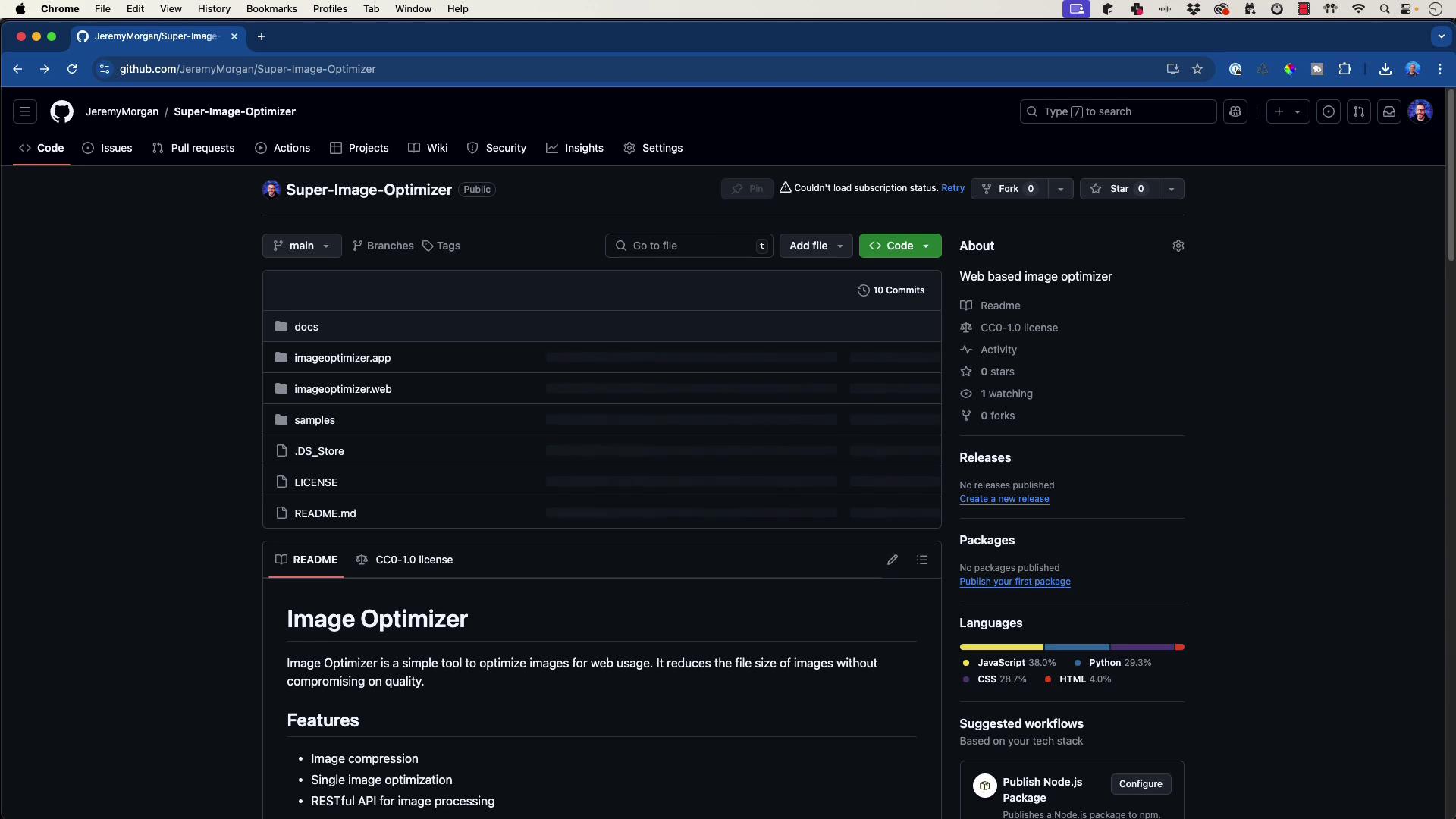
In this article, you’ll learn how to create the “Super Image Optimizer”—an application that allows users to upload an image, adjust its compression levels, and compare file sizes before and after compression. The key features include image compression, single image optimization, and a RESTful API for efficient image processing.To get started, clone the repository and navigate to the application directory:
The backend is built with Python Flask and is responsible for handling image uploads, processing them with OpenCV, and returning the optimized image along with file size details. This ensures a smooth server-side experience when users upload images for compression.
Below is a code snippet that shows how the Flask blueprint is configured to handle the image upload route:
import loggingfrom flask import Blueprint, request, jsonify, send_fileimport cv2import numpy as npimport ioimport imghdrfrom werkzeug.utils import secure_filenamefrom PIL import Image# Set up logginglogging.basicConfig(level=logging.INFO)logger = logging.getLogger(__name__)bp = Blueprint('main', __name__)@bp.route('/upload', methods=['POST'])def upload(): """ Handles the image upload request by validating the file, extracting the quality parameter, processing the image with OpenCV, and returning the compressed image as binary data. Returns: A Flask response with the processed image if successful. """ # The image processing code follows...
The image processing function utilizes OpenCV to compress the image. The following snippet demonstrates how the compression and error handling are implemented:
def upload(): if img is None: logger.error('Failed to decode image: %s', filename) return jsonify({'error': 'Failed to decode image'}), 400 # Process the image with OpenCV _, buffer = cv2.imencode('.jpg', img, [int(cv2.IMWRITE_JPEG_QUALITY), quality]) img_io = io.BytesIO(buffer) # Validate the processed image try: processed_img = Image.open(img_io) processed_img.verify() except (IOError, SyntaxError) as e: logger.error('Failed to process image: %s', e) return jsonify({'error': 'Failed to process image'}), 400 # Reset the BytesIO object pointer to the beginning img_io.seek(0) # Return the processed image as binary data return send_file(img_io, mimetype='image/jpeg')except Exception as e: logger.exception('An unexpected error occurred: %s', e)
The above code snippets are simplified to illustrate key functionalities. Make sure you add proper validations and error handling as needed for your production environment.
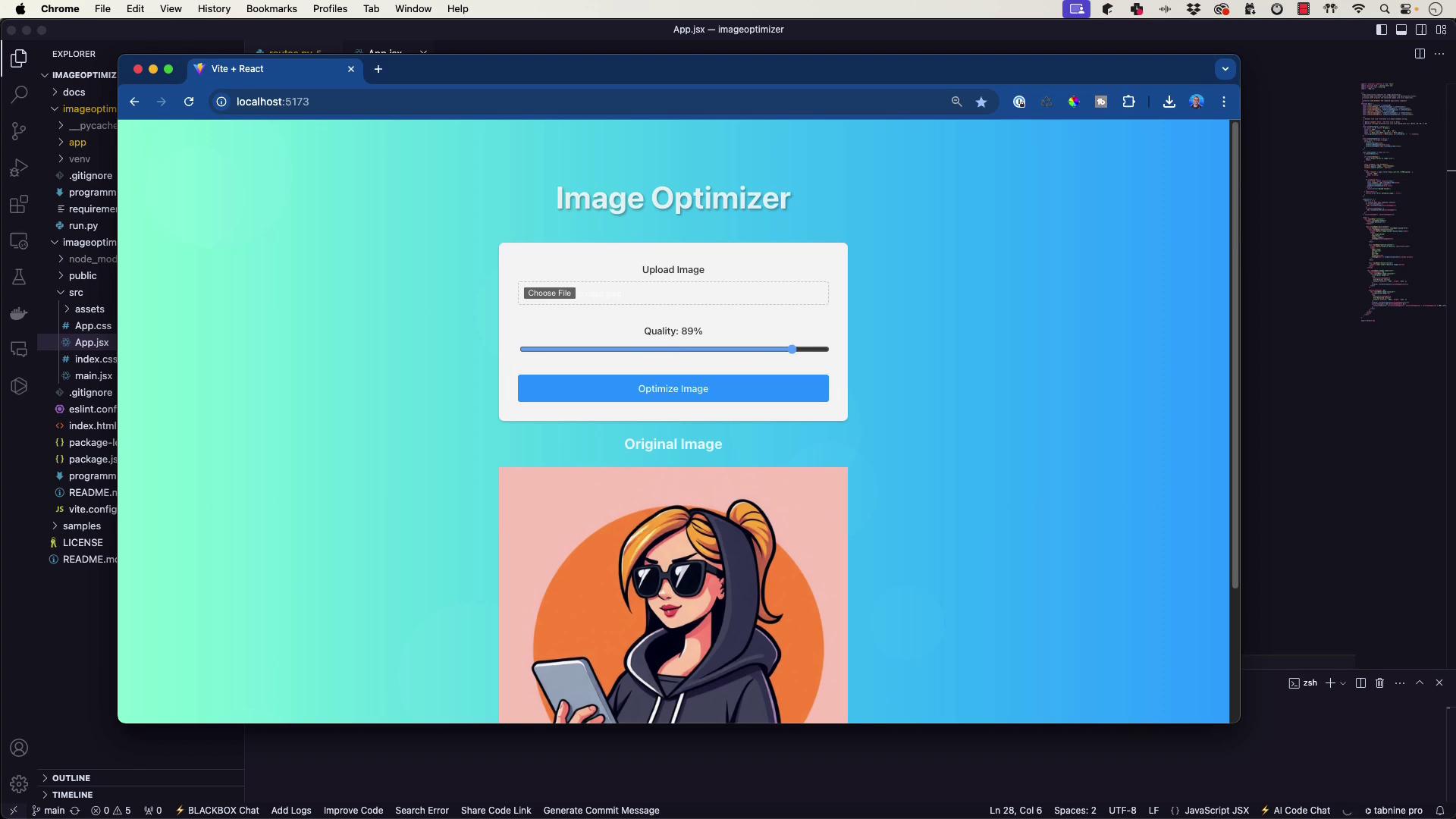
The React application provides an interactive user interface to work with the Super Image Optimizer. Through the frontend, users can select images, adjust the compression quality, and view optimized results in real time.After selecting an image and setting the desired compression level (e.g., 87%), the backend processes the image and returns the optimized version. Below is an illustration of the web interface:
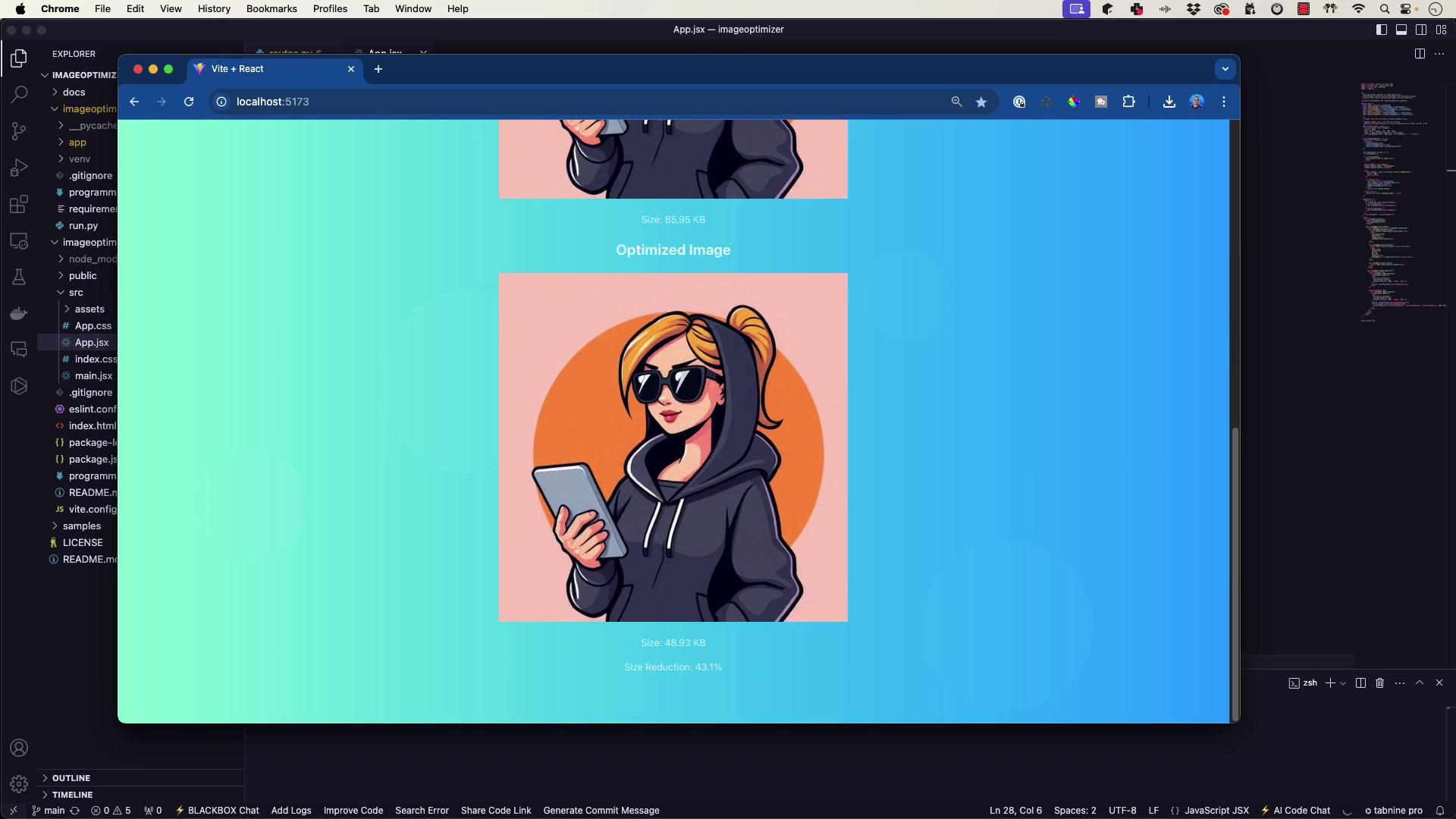
Once the image is processed, the user interface displays the new file size. For example, an image originally sized at 85 kilobytes might be reduced to 48 kilobytes. Take a look at this screenshot:
The interactive UI allows you to experiment with various compression levels—whether you choose a high reduction at 89% or a moderate compression at 77%, the React frontend seamlessly communicates with the Flask backend.