

Prerequisites
Make sure your IAM user or role has the following managed policies:
CloudWatchFullAccessAmazonSNSFullAccess
1. Open the Alarms Dashboard
- Sign in to the AWS Management Console and open CloudWatch.
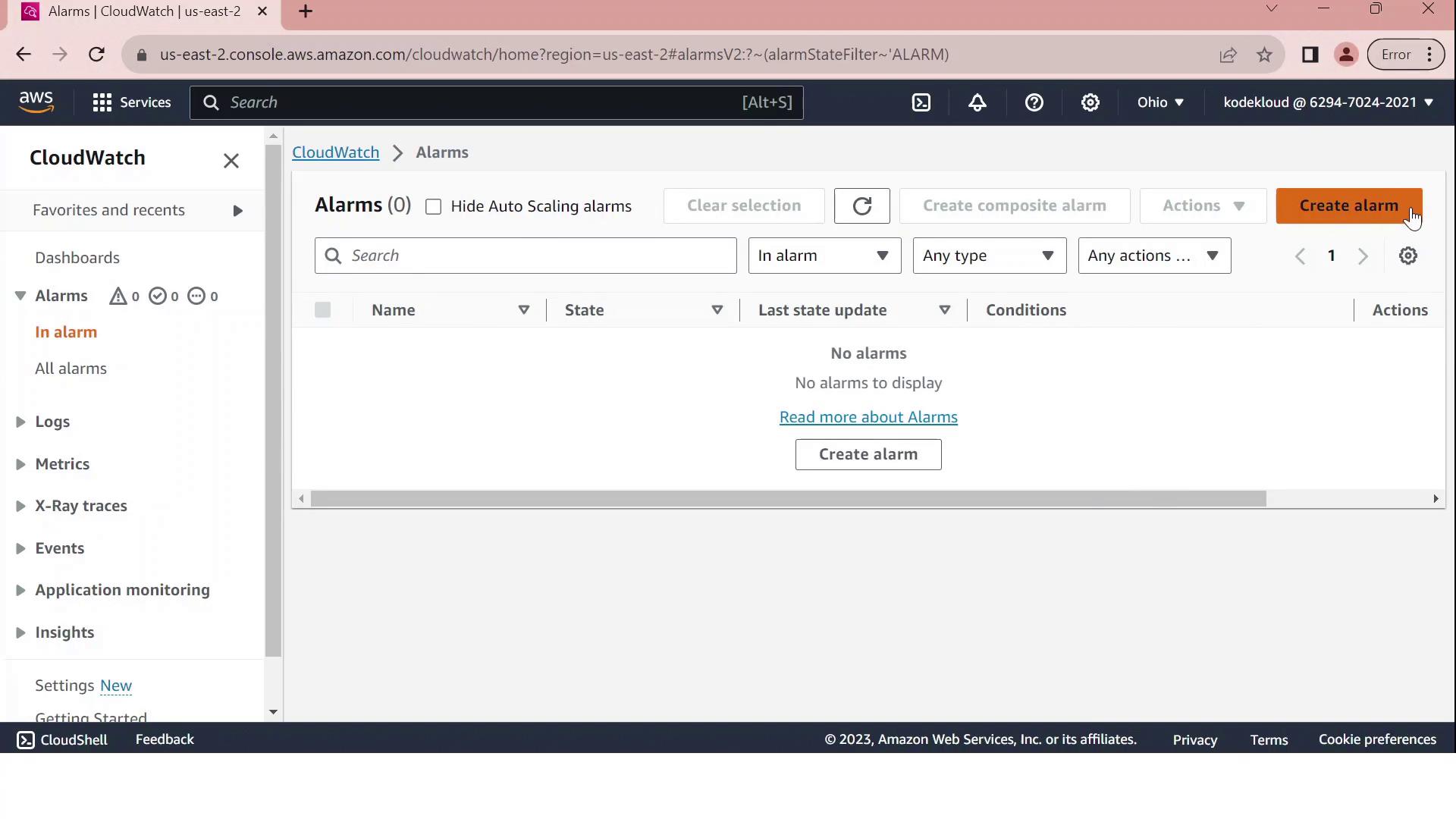
- In the left navigation pane, choose Alarms, then click Create alarm.
2. Select the EC2 CPUUtilization Metric
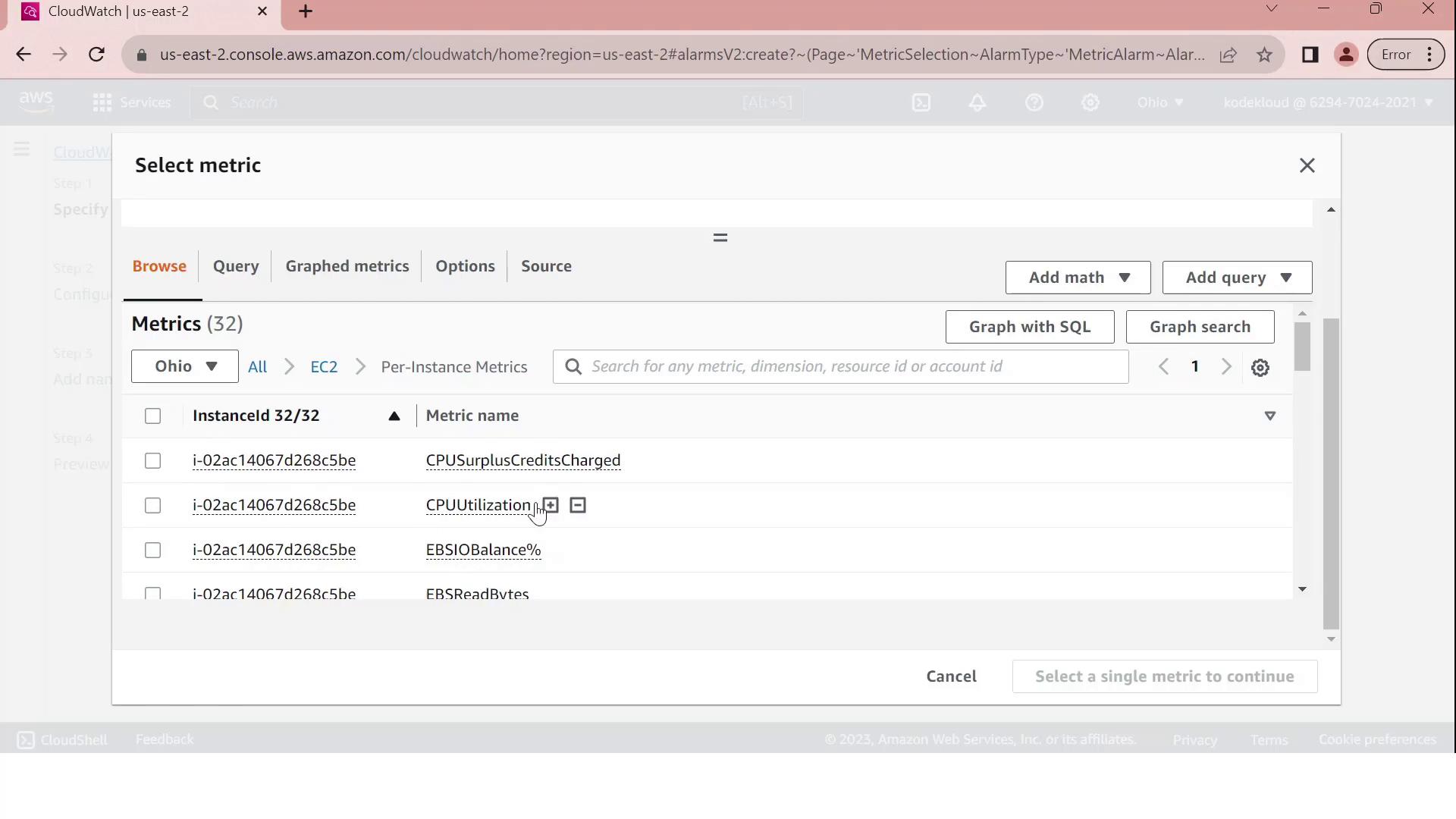
- On Select metric, pick EC2.
- Under Per-Instance Metrics, locate and select your instance’s CPUUtilization metric.
- Click Select metric.
3. Define the Alarm Threshold
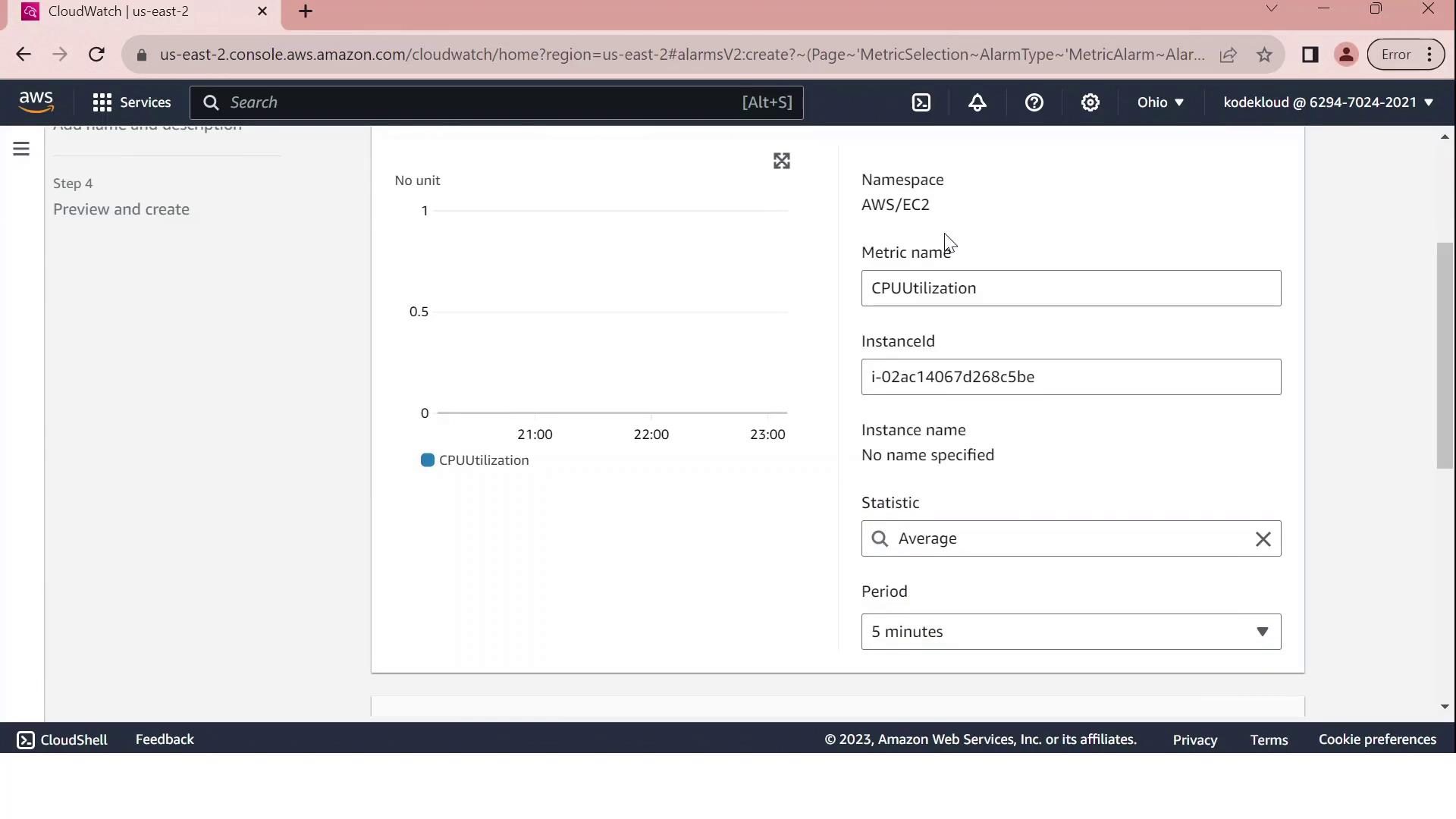
Configure the alarm conditions on the Configure metric page:
This setup tells CloudWatch to evaluate the average CPU utilization over each 5-minute interval and fire the alarm if it exceeds 70%.
Custom metrics and long-term storage can incur additional charges. Review CloudWatch pricing before enabling high-frequency monitoring.
4. Configure Notifications via SNS
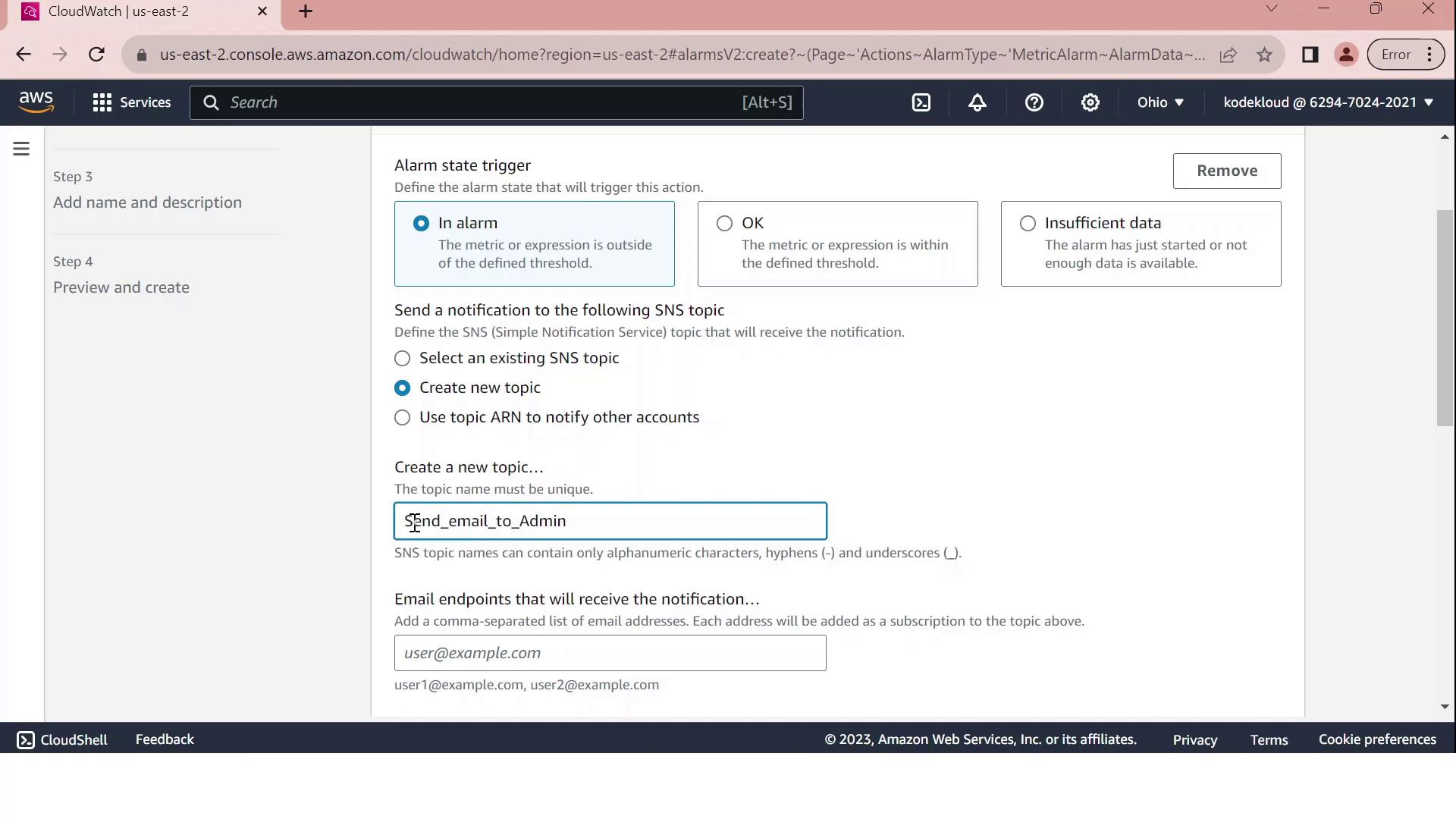
Under Notification, choose Create new topic and enter:- Topic name: Send_email_to_Admin
- Endpoint: admin@test.com

5. Name, Review, and Create
- Provide a name such as
CPUUtilizationAbove70and an optional description. - Review all settings:
- Metric: CPUUtilization for your EC2 instance
- Period and statistic
- Threshold: GreaterThan 70
- Notification: SNS email to admin@test.com
- Click Create alarm.
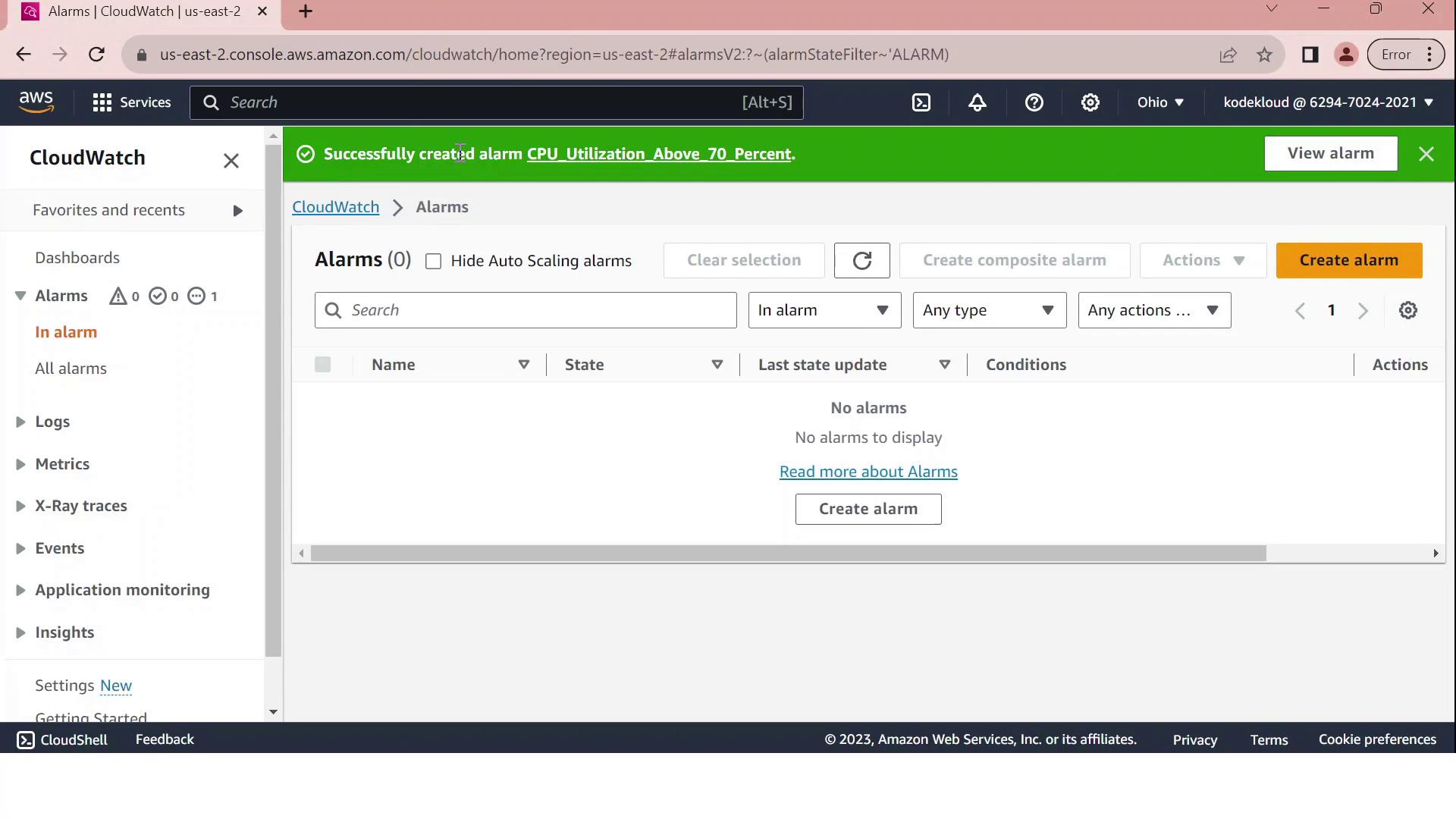
Your CloudWatch alarm is now active. When the average CPU utilization exceeds 70% over a five-minute span, an email is sent to the administrator. Monitor and adjust thresholds as needed to align with your application’s performance requirements.