

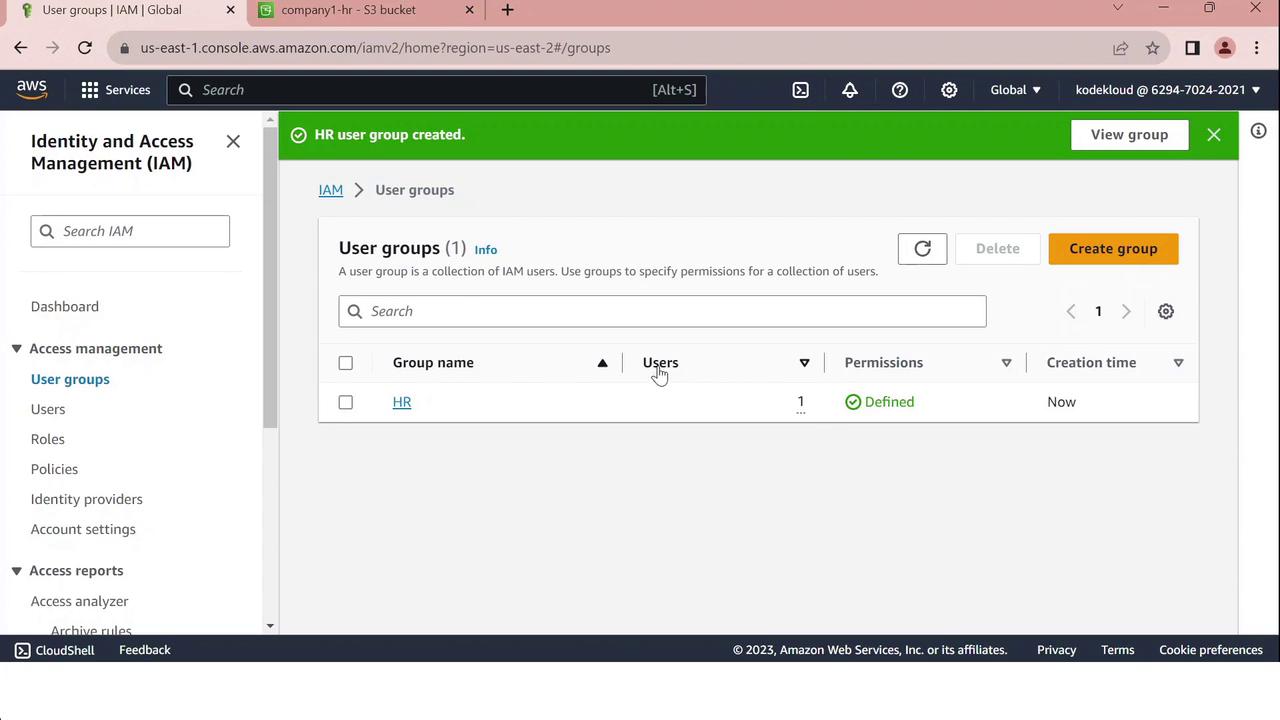
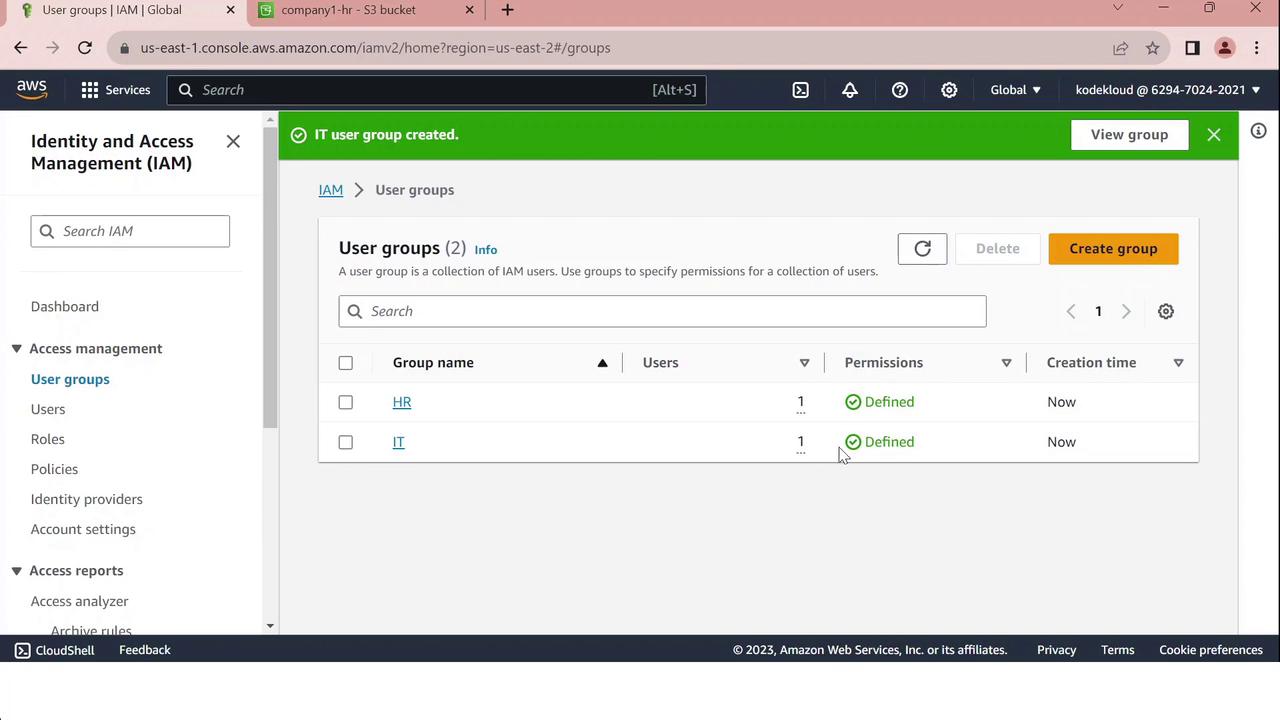
- HR: Grants access to a specific S3 bucket.
- IT: Provides full administrative privileges.
Always follow the principle of least privilege when assigning permissions. Create custom policies scoped to the resources your team actually needs.
Prerequisites
- An AWS account with sufficient privileges to manage IAM resources.
- Existing IAM users (e.g., John, Sarah).
Step 1: Open the IAM Console
- Sign in to the AWS Management Console.
- Navigate to Services > Security, Identity, & Compliance > IAM.
- In the left pane, select User groups.
Step 2: Create the “HR” Group
- Click Create group.
-
Enter
HRas the Group name. - Under Add users to group, select John.
-
In Attach managed policies, click Create policy, then paste the JSON below:
-
Review the policy, give it a name like
HRPolicy, and attach it to the group. - Click Create group to finalize.
Step 3: Create the “IT” Group
- Click Create group again.
- Enter
ITas the Group name. - Select Sarah under Add users to group.
- In Attach managed policies, search for and select AdministratorAccess.
- Click Create group.
Summary of IAM Groups
Links and References
Review and regularly audit your IAM policies to ensure compliance and security.