

john as our example user.
You must be signed in to the AWS Management Console with an account or IAM user that has administrator privileges.
1. Access the IAM Console
- Sign in to the AWS Management Console.
- In the search bar, type IAM and select Identity and Access Management.
- On the IAM dashboard, review any security recommendations (e.g., enabling MFA).
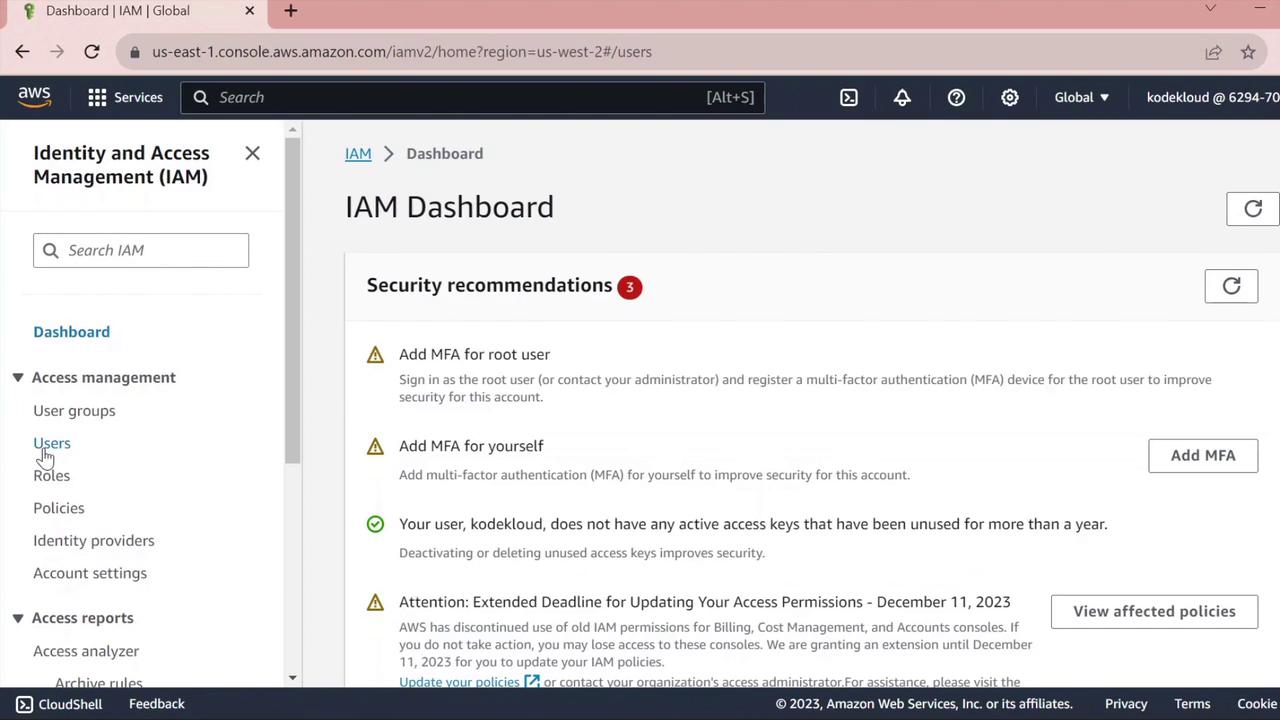
- In the left navigation pane, click Users to view existing IAM users.
2. Create a New IAM User
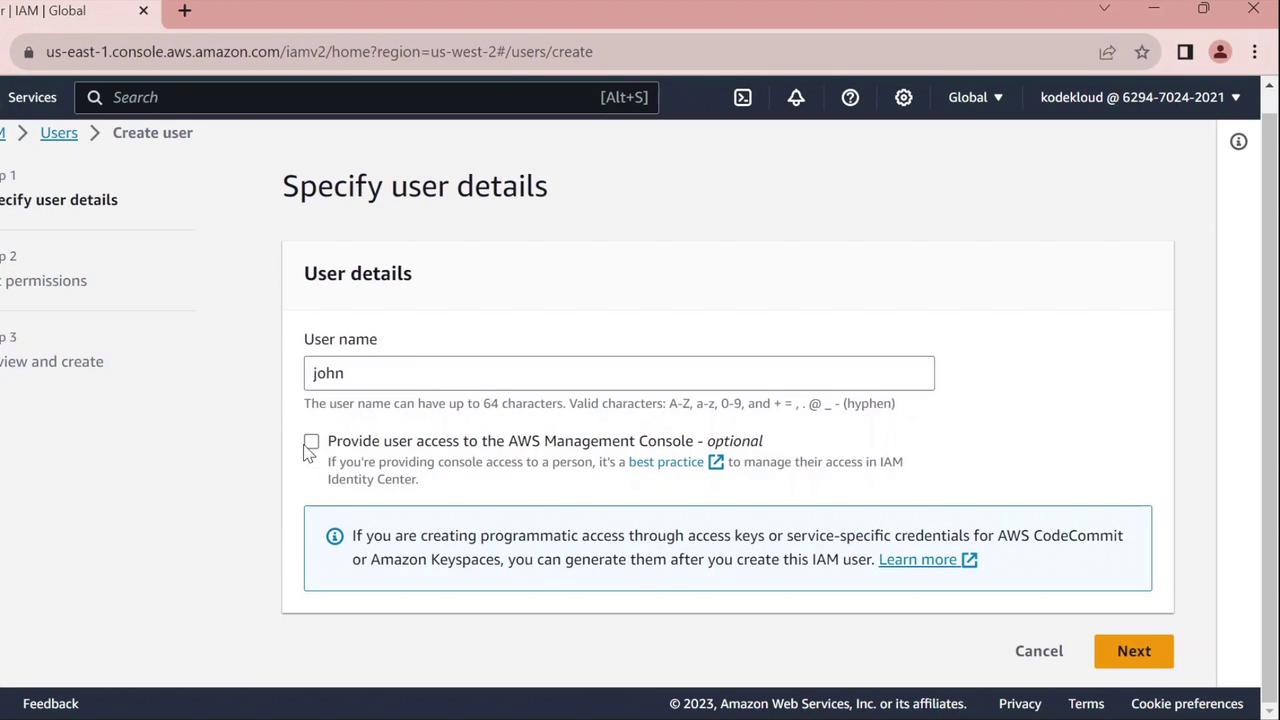
- Click Add users.
- Enter john as the User name.
- Under Select AWS access type, choose one or both of the following:
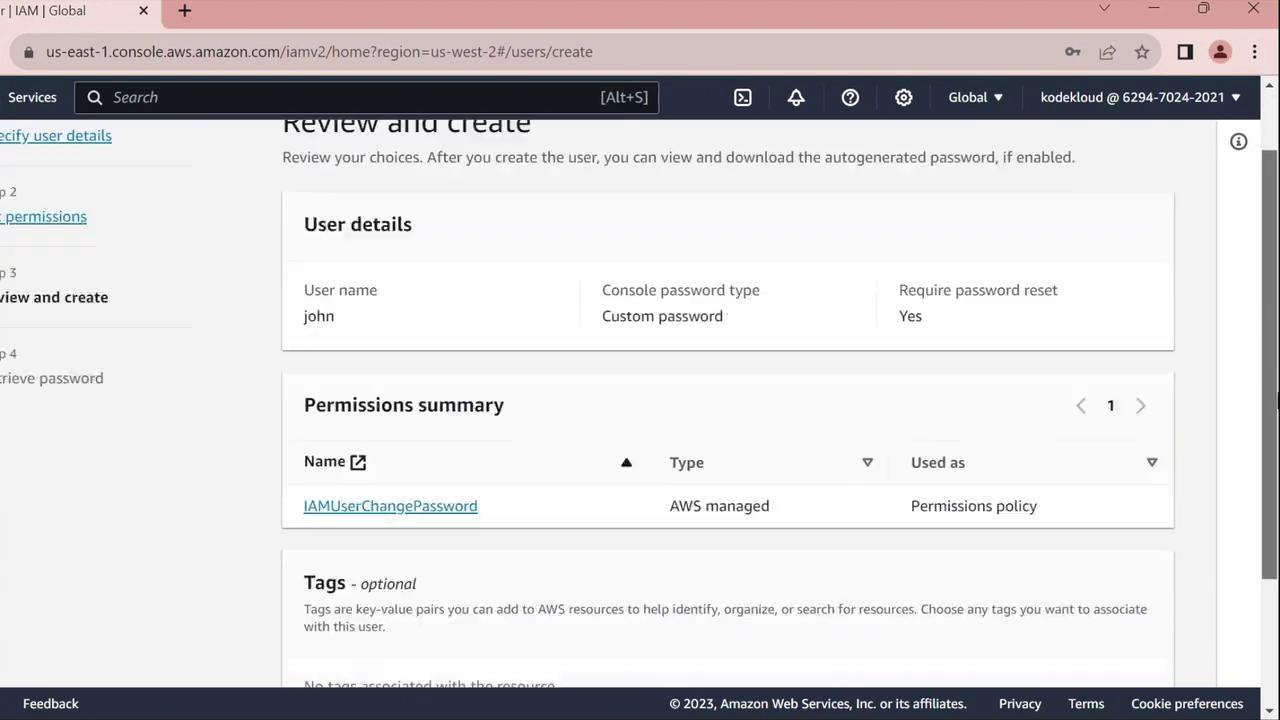
- For Console password, select Custom password and enter your desired password.
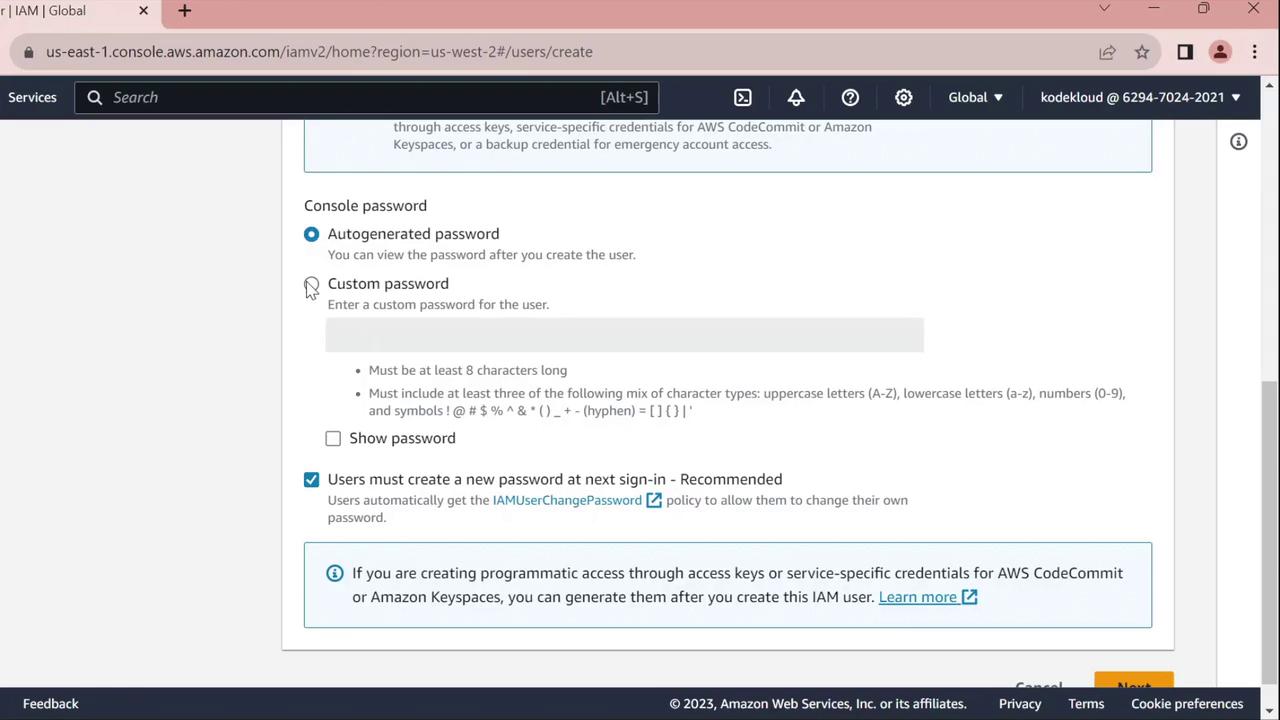
- Enable Require password reset to force
johnto set a new password at first sign-in.
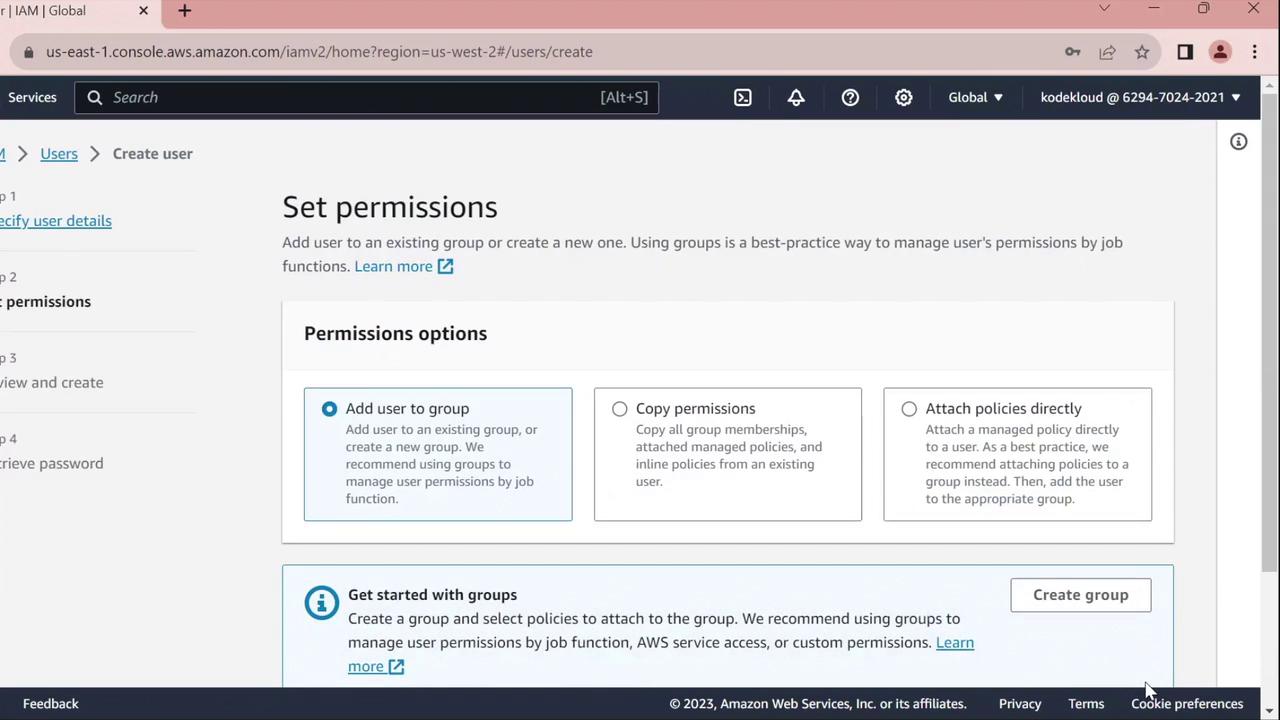
- On the Set permissions page, assign policies or skip this step to configure permissions later.
- Click Next until you reach the Review page, verify all settings, then click Create user.
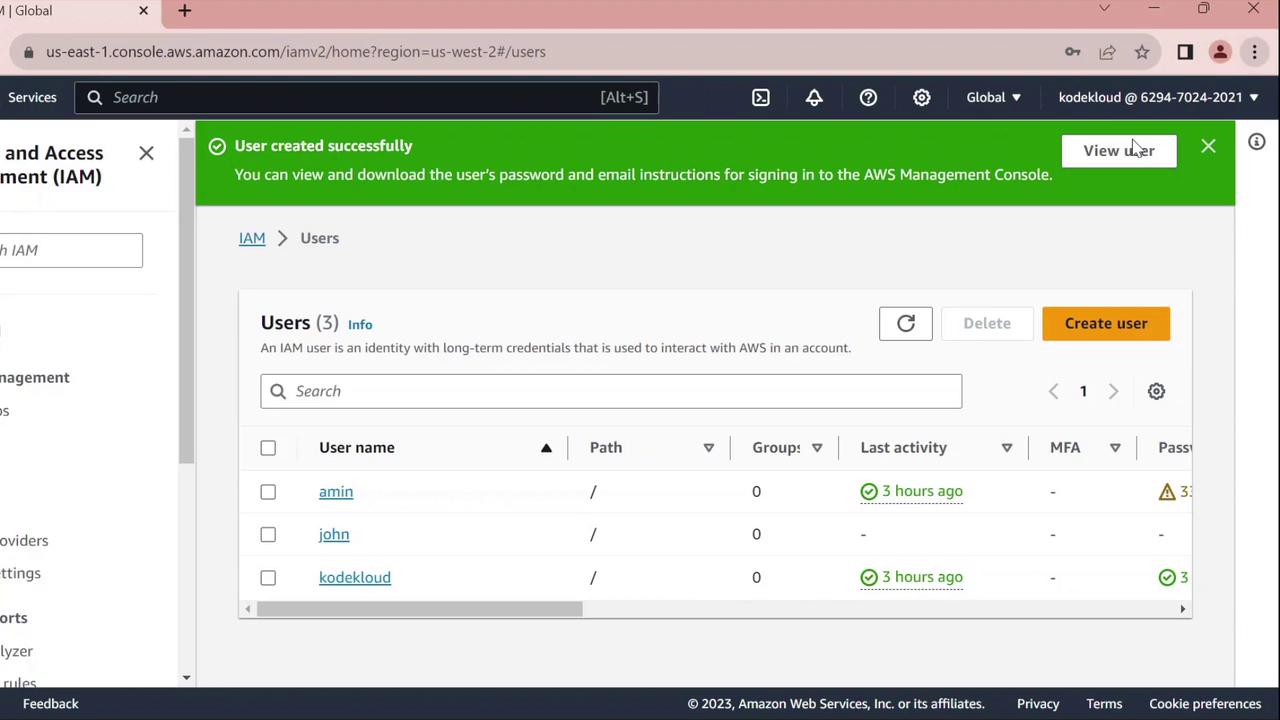
- Choose Return to users.
3. Test the Console Sign-In
- Open a private/incognito browser window.
- Navigate to https://aws.amazon.com and click Sign In.
- Select IAM user, enter your AWS account ID, then click Next.
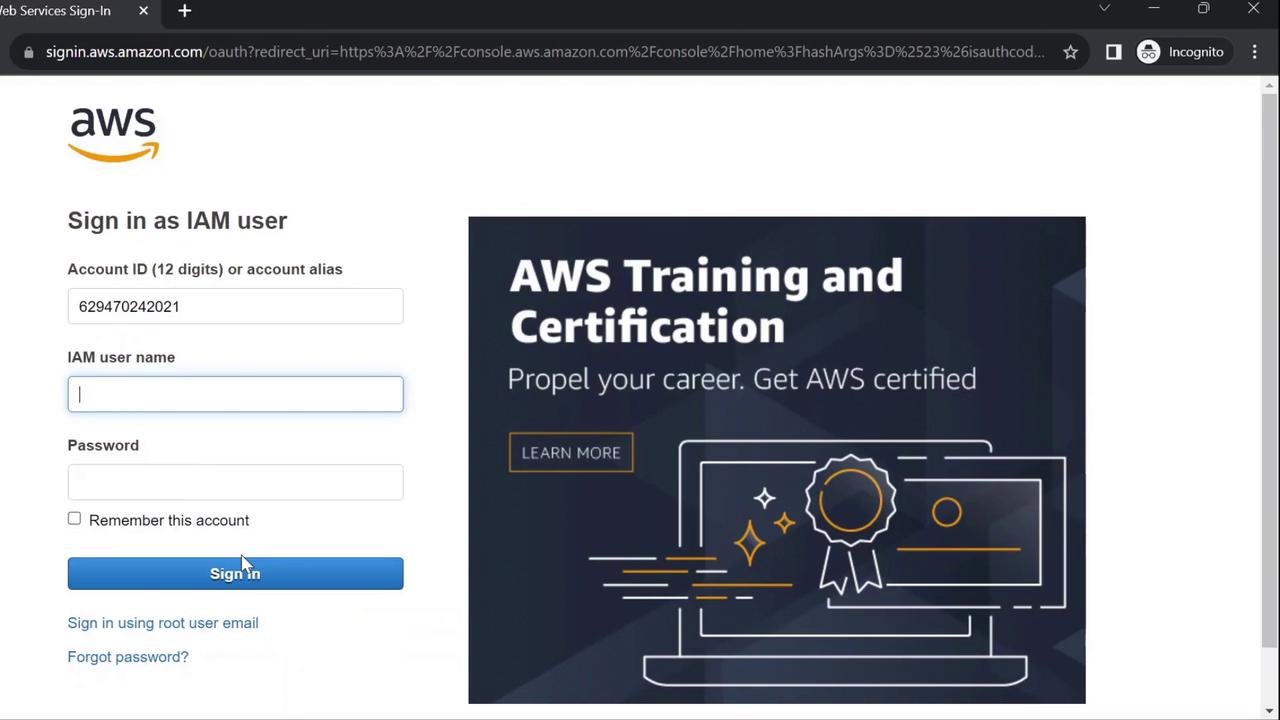
- Provide Username:
johnand the initial password you set.
- You’ll be prompted to change the password:
- Enter the old password, choose a new one, and confirm.

john.
4. Configure AWS CLI for the New User
Next, we’ll set up AWS CLI credentials in CloudShell for thejohn profile.
- From the AWS Console, open CloudShell.
- Verify your current identity (should show your admin user, e.g.,
kodekloud):
- Create access keys for
john:- In IAM Console, go to Users > john.
- Select the Security credentials tab.
- Under Access keys, click Create access key.
- For Use case, pick Command line interface and proceed.
- Copy the Access key ID and Secret access key.
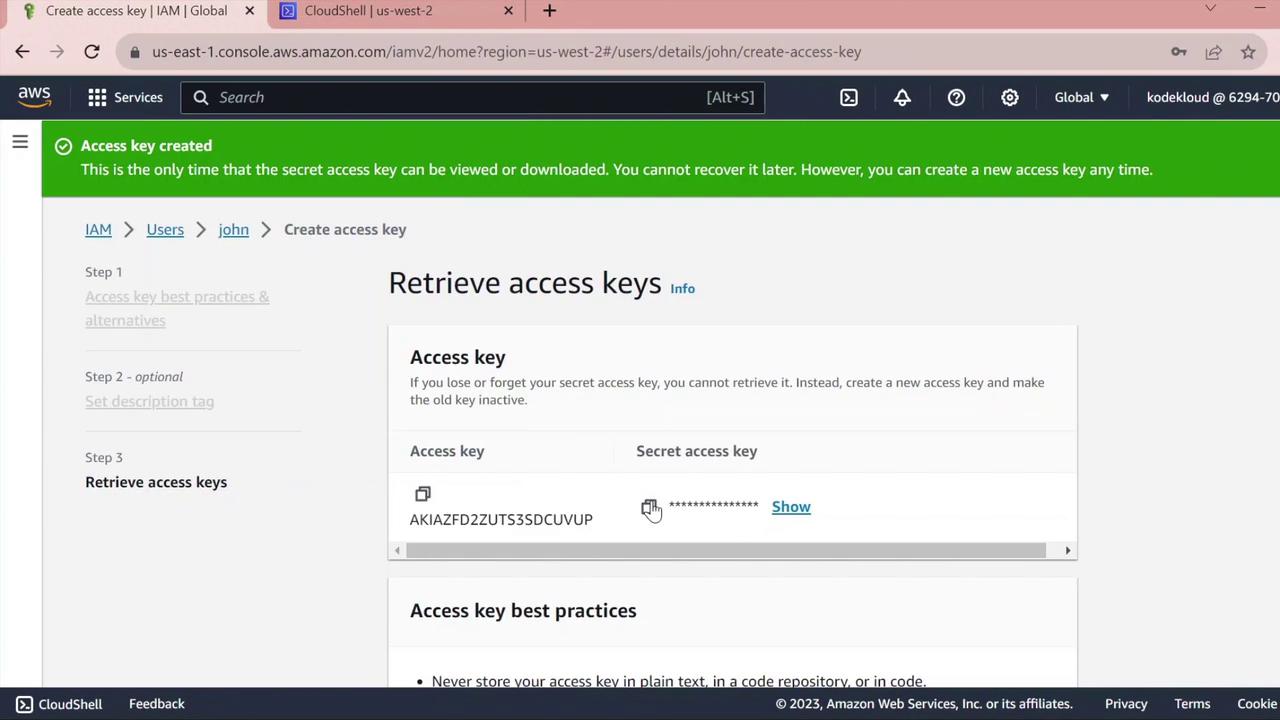
Keep the secret access key confidential. Do not commit it to version control or share it.
- Back in CloudShell, configure a dedicated profile:
- AWS Access Key ID:
<paste access key ID> - AWS Secret Access Key:
<paste secret key> - Default region name:
us-west-2(or your preferred region) - Default output format: (leave blank or choose
json)
- Validate the
johnprofile:
john.