

Prerequisites
- An AWS Organizations management account
- Permissions to manage IAM Identity Center and AWS Organizations
IAM Identity Center can only be enabled from your organization’s management account. Member accounts cannot enable or configure it.
Enabling IAM Identity Center
- Sign in to the AWS Management Console with your management account.
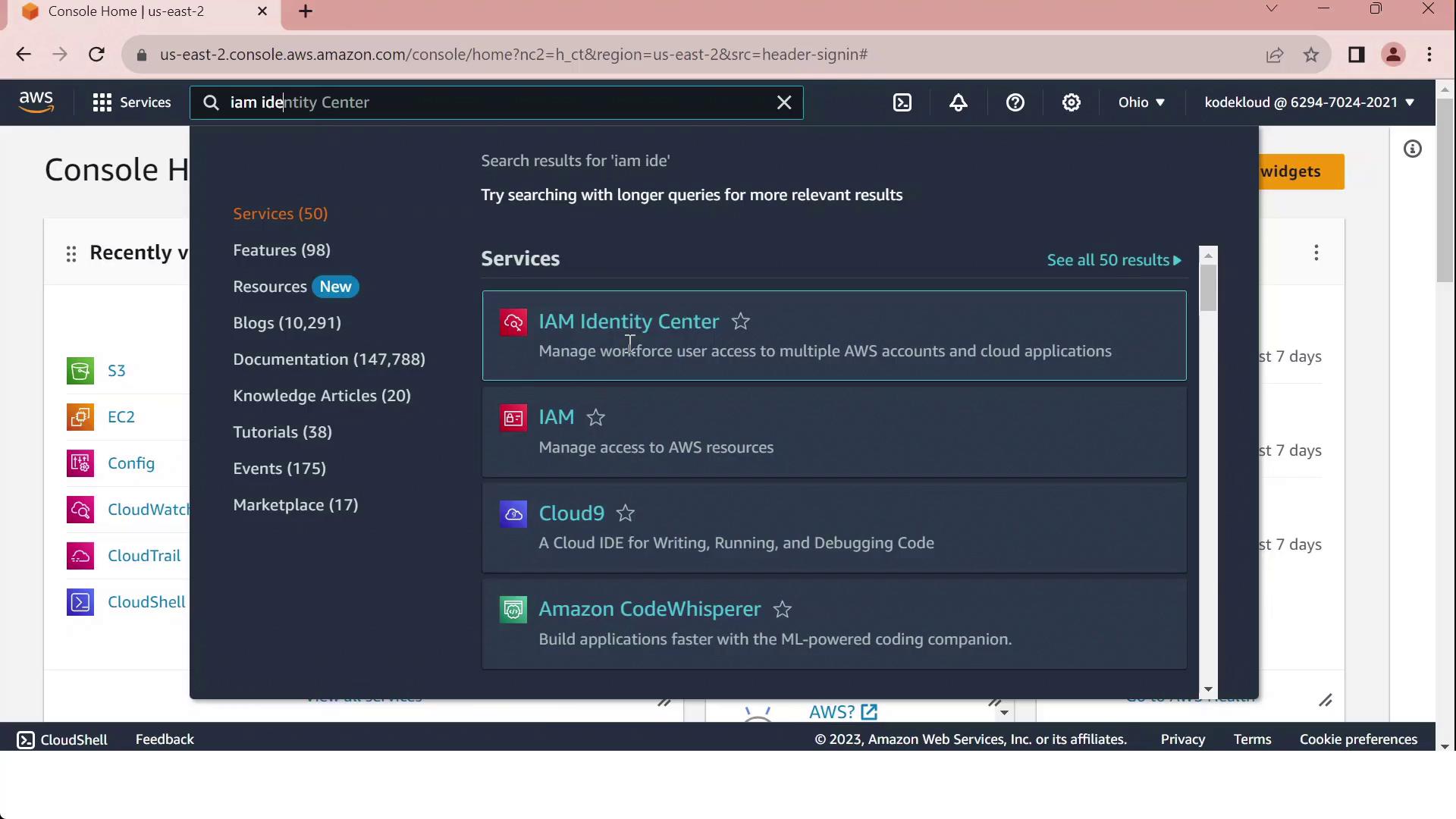
- In the top search bar, type IAM Identity Center and select it:
- Click Enable.
- Choose your identity source:
- Connect an existing directory (AWS Managed Microsoft AD, AD Connector, or external IdP)
- Use the built-in Identity Center directory
- After activation, create users and groups (if using the built-in directory), then assign permission sets to your AWS accounts or cloud applications.
IAM vs. IAM Identity Center
When you go to the IAM console and click Create user, selecting Provide console access will direct you to specify an Identity Center user: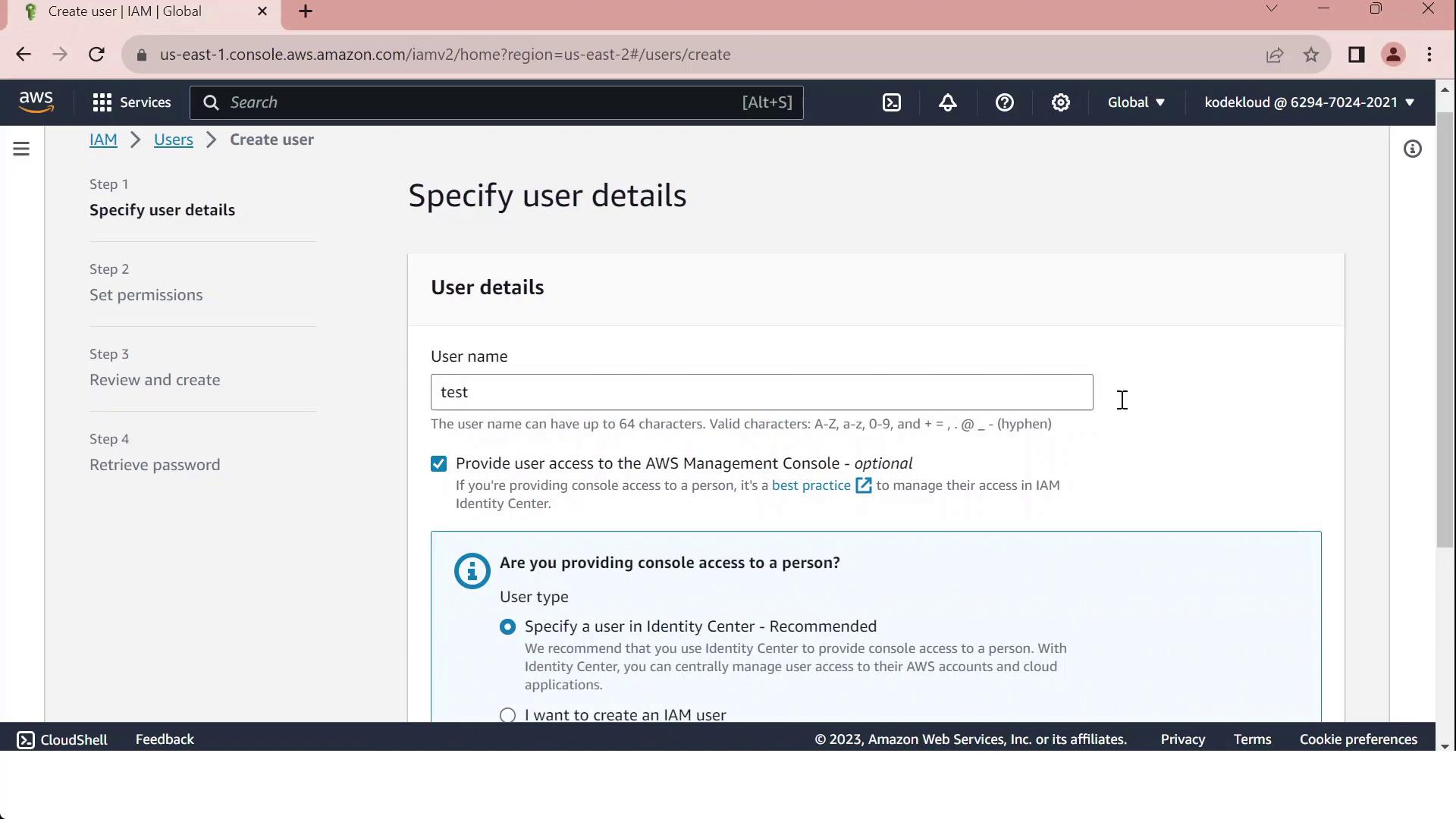
Reserve IAM users for programmatic or service-specific credentials. For scalable, centralized console access across multiple accounts, adopt IAM Identity Center.