

- Configuring the bucket policy
- Creating and trusting an IAM role
- Testing access via AWS CloudShell
1. Configure the Bucket Policy in the Target Account
In the target account, go to S3 > company1-logs > Permissions > Bucket policy and paste: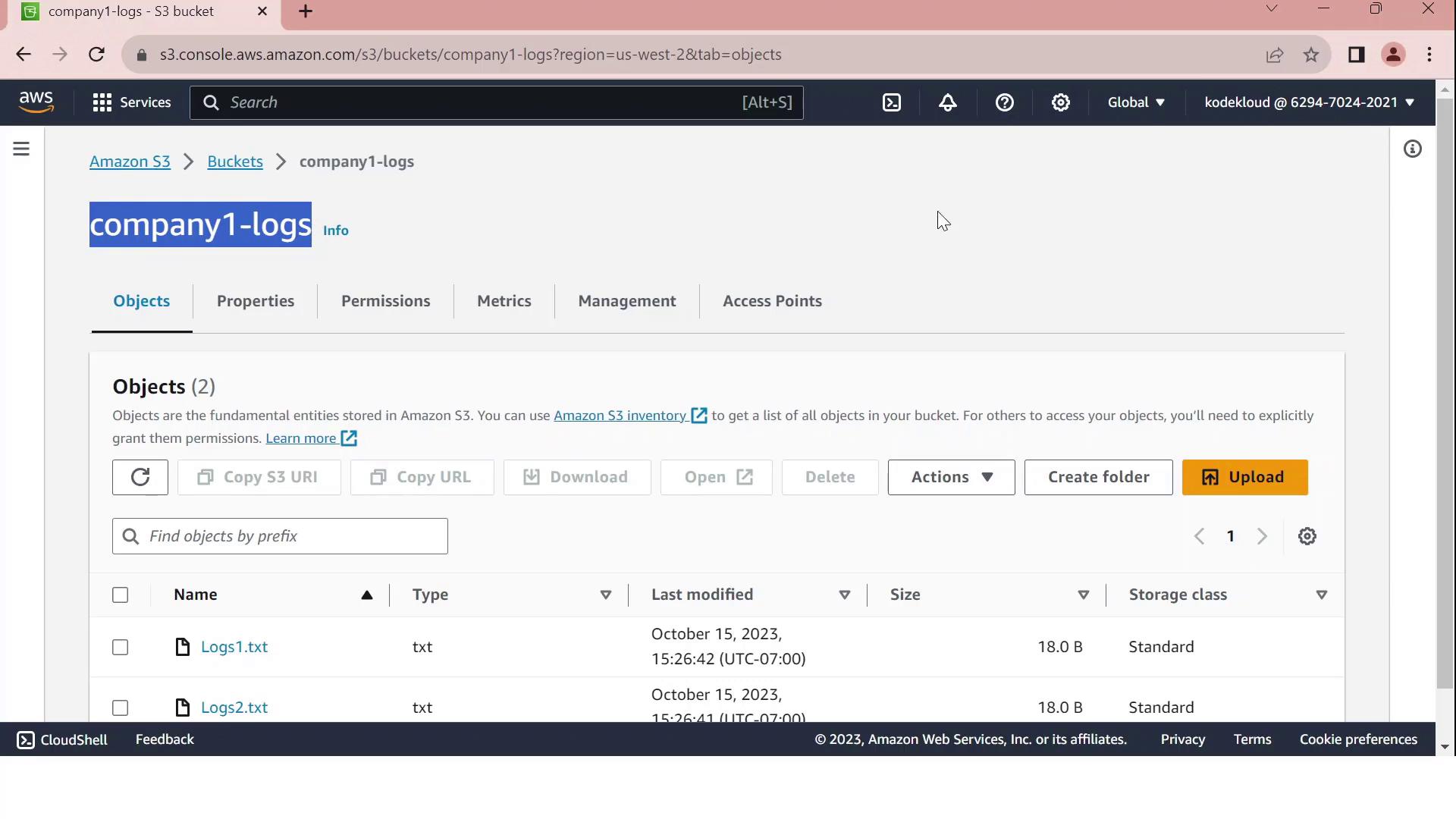
Ensure the bucket ARN and role ARN exactly match your resources. Typos in ARNs will prevent access.
2. Create the IAM Role in the Target Account
2.1 Define a Read-Only Policy
Create an IAM policy named company1-logs-read-policy:2.2 Create the Role and Configure Trust
- In IAM, create a role called LogAnalystsRole.
- Attach company1-logs-read-policy.
- Edit Trust relationships to allow the source account user (
amin) to assume this role:
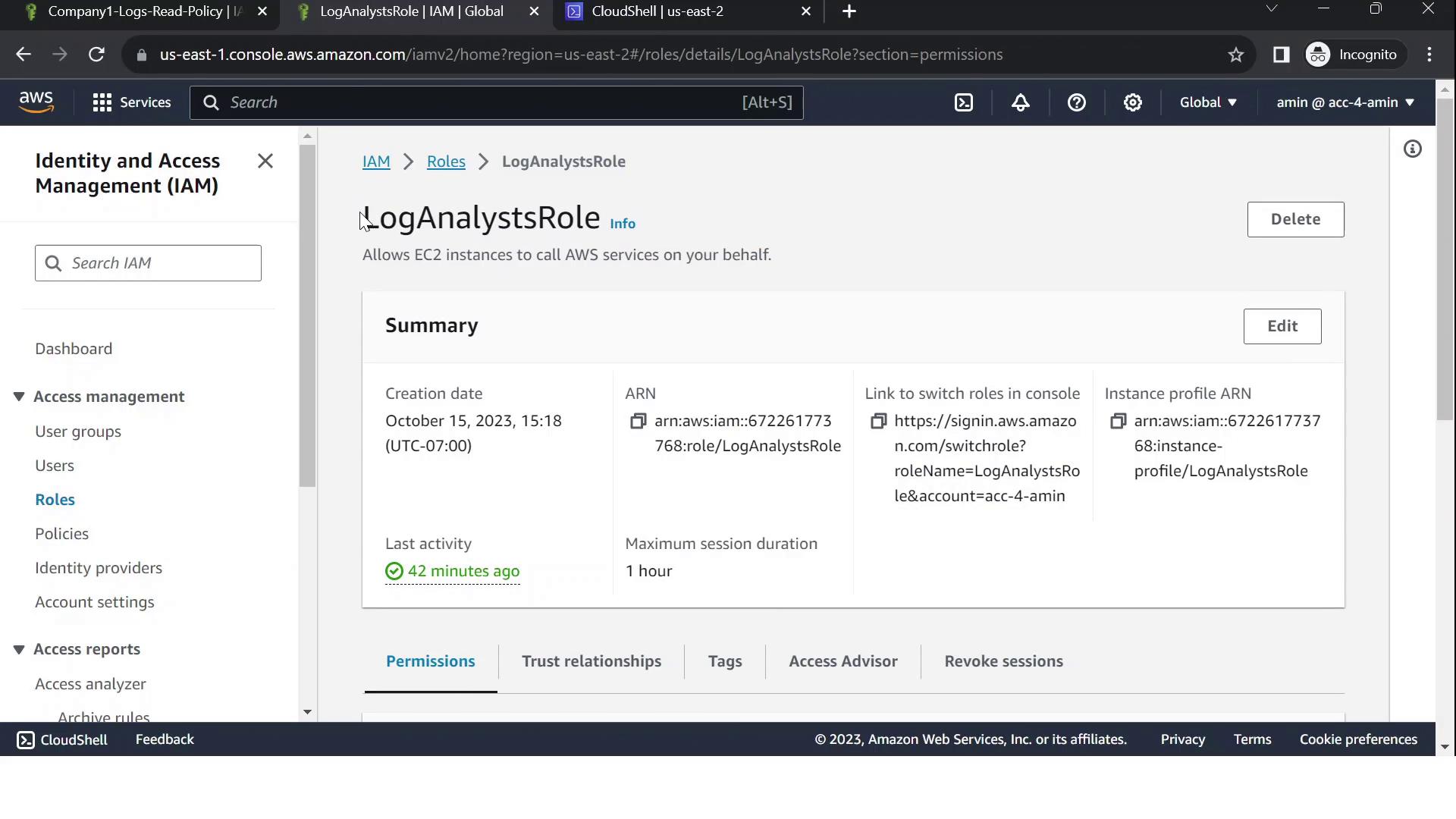
Grant only the minimum privileges needed. Review your trust policy to prevent unauthorized access.
3. Test Cross-Account Access via CloudShell
- Confirm your caller identity in the source account:
- Assume the cross-account role:
- Export the temporary credentials:
- Verify you’re now the assumed role:
You should see an ARN with
assumed-role/LogAnalystsRole. - List bucket contents:
Expected output: