Database backups are essential: your application state and business data live in the database. This guide focuses on Azure SQL Database and Azure SQL Managed Instance (PaaS). If you run SQL Server on an Azure VM (IaaS), use the Recovery Services vault for backups—open the vault and choose “SQL on Azure VM” to configure those backups. The design and operational principles below apply primarily to Azure SQL PaaS offerings.
Azure SQL backup types, retention windows, and configurable limits vary by service tier and deployment option. Always verify exact limits for your tier in the official Azure docs: https://learn.microsoft.com/azure/azure-sql/database/automatic-backups-overview. The concepts here (full, differential, and transaction log backups; PITR; LTR; geo-restore) are broadly applicable.
Backup types and frequency Azure SQL automatically performs three backup types to support point-in-time recovery (PITR) and other restore scenarios:
Backup typeTypical frequencyPurpose
Full backupWeekly (typical)Contains data files plus log records needed to make the backup consistent.
Differential backupEvery 12–24 hoursCaptures page-level data changes since the last full backup (smaller and faster than full).
Transaction log backupEvery 5–10 minutesCaptures transaction log records to enable PITR within the configured retention window.
These backups work together so you can restore a database to a full backup, a more recent differential, or to any point in time within the PITR window by replaying transaction log backups.
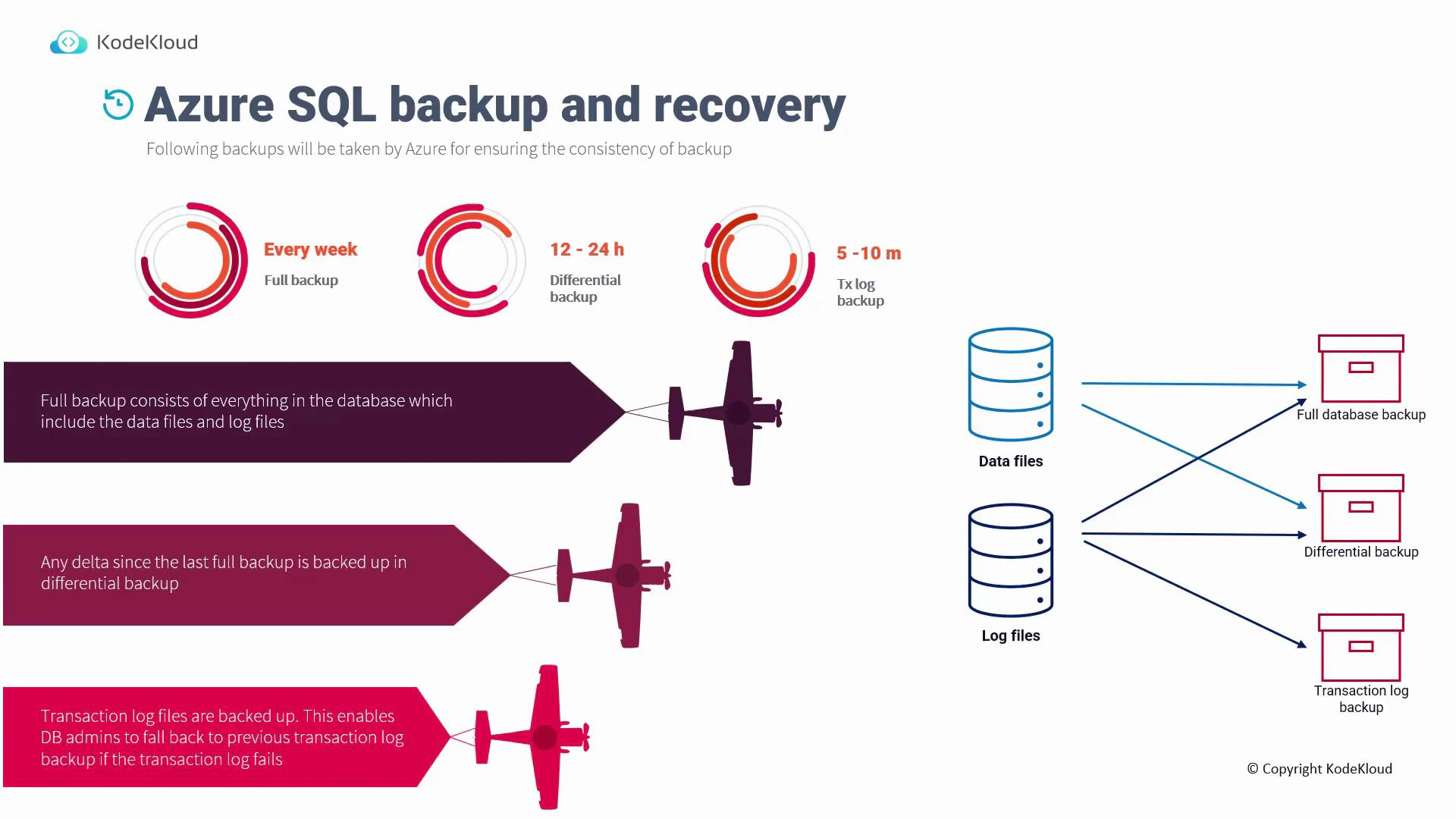
An infographic titled "Azure SQL backup and recovery" that explains full (weekly), differential (12–24h) and transaction log (5–10m) backups using circular icons, airplane banner callouts, and diagrams showing data/log files flowing to respective backup boxes. It visually summarizes what each backup contains and the backup frequency.
What each backup contains
  • Full backup: the database data files plus the transactional log records required to make the backup consistent.
  • Differential backup: only data page changes (delta) since the last full backup.
  • Transaction log backup: transaction log records only; used to replay transactions and perform PITR within retention.
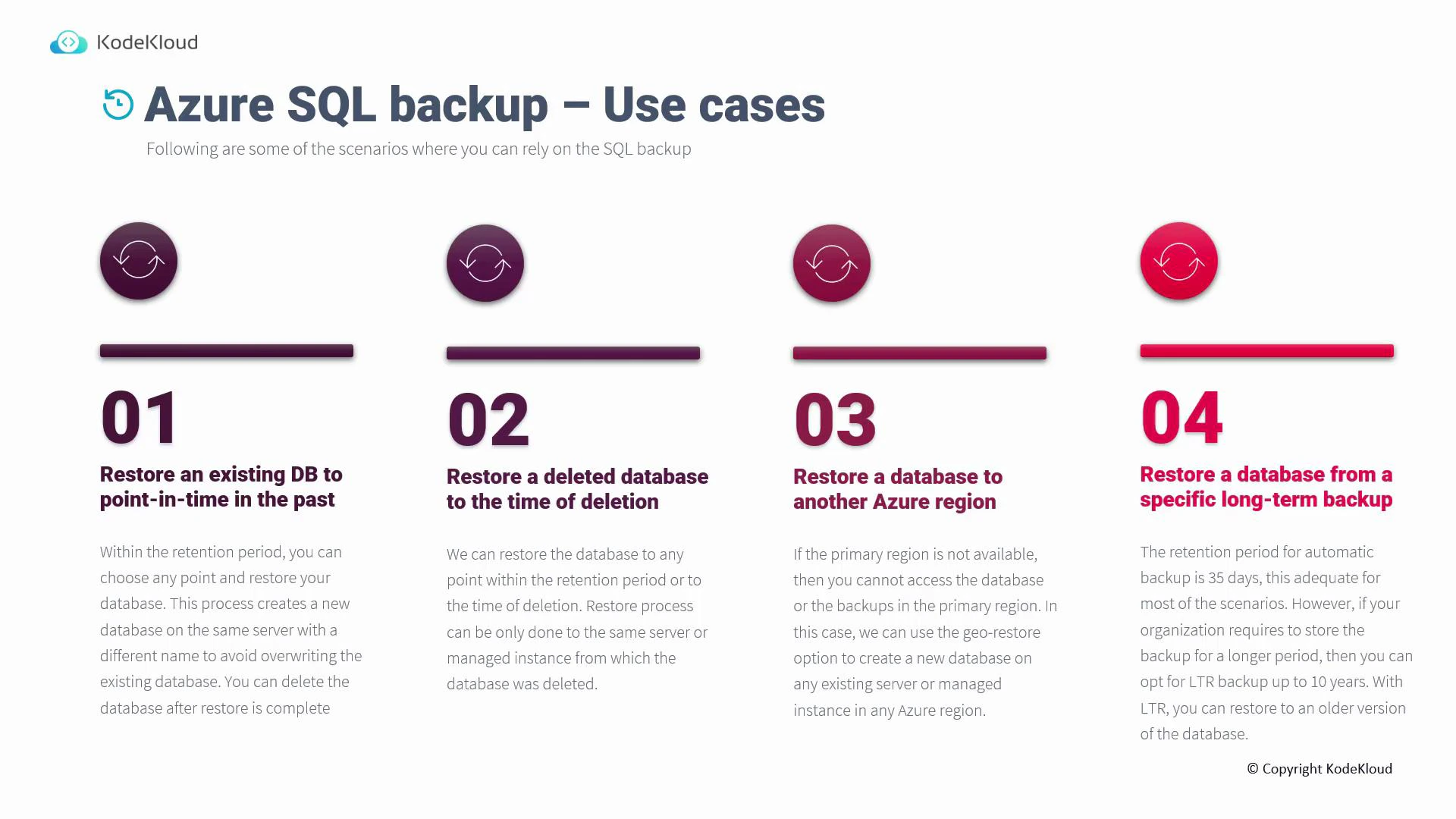
Backup use cases Use cases for Azure SQL backups include routine recovery, deleted-database recovery, cross-region disaster recovery, and long-term archival. The table below summarizes common restore scenarios and when to use them.
Restore scenarioWhen to use itNotes
Point-in-time restore (PITR)Recover recent data or undo recent changesRestores to any point within the configured PITR retention; creates a new database with a new name on the same server/instance. See: https://learn.microsoft.com/azure/azure-sql/database/point-in-time-restore
Restore deleted databaseRecover a dropped databaseYou can restore to any point within retention, including the time of deletion. Must restore to the same server or managed instance.
Geo-restorePrimary region unavailable or disaster recoveryUses geo-replicated backups to create a new database on any existing server/instance in another Azure region. See: https://learn.microsoft.com/azure/azure-sql/database/geo-restore-overview
Long-term retention (LTR) restoreRegulatory or archival requirementsUse LTR snapshots retained for weeks, months, or years (up to 10 years) to restore older snapshots beyond PITR limits. See: https://learn.microsoft.com/azure/azure-sql/database/long-term-retention-overview
A slide titled "Azure SQL backup – Use cases." It lists four numbered restore scenarios: point-in-time restore, restore a deleted database, restore to another Azure region, and restore from a long-term backup.
Configuring backups in the Azure portal To review backup settings and available restore points:
  1. Open the Azure portal and navigate to SQL databases.
  2. Select the database to inspect (for example, a migrated database).
  3. From the database page, click the server name to open the server overview.
  4. On the server overview, choose Backups.
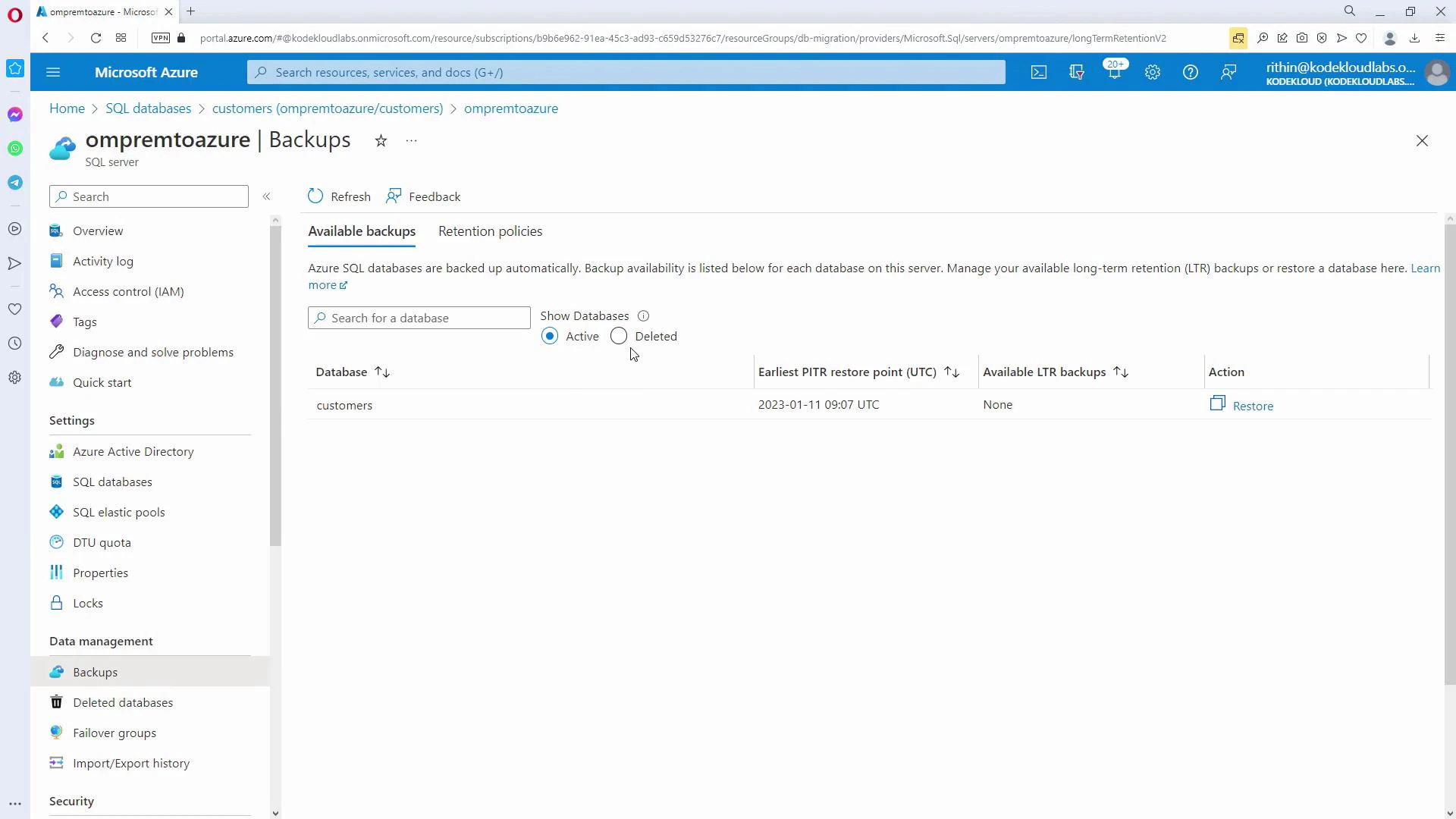
The Backups page lists available restore points (including the earliest PITR restore point), deleted backups that can be recovered, and any available LTR snapshots. Use the Restore action to create a new database from a selected restore point.
Screenshot of the Microsoft Azure portal on the "Backups" page for a SQL server, showing a "customers" database with its earliest PITR restore point and a "Restore" action. The left sidebar displays navigation items like Overview, Activity log, SQL databases, and Backups.
Retention and policy configuration From the Backups page, click Configure policies to manage retention and schedule settings:
  • Point-in-time restore (PITR) retention — set how many days of PITR you require (max varies by service tier; many tiers allow up to 35 days).
  • Differential backup frequency — tune differential backup frequency (for example, 24 hours) to balance recovery granularity and storage.
  • Long-term retention (LTR) — configure weekly, monthly, and yearly LTR snapshots and their retention durations (LTR supports retention up to 10 years).
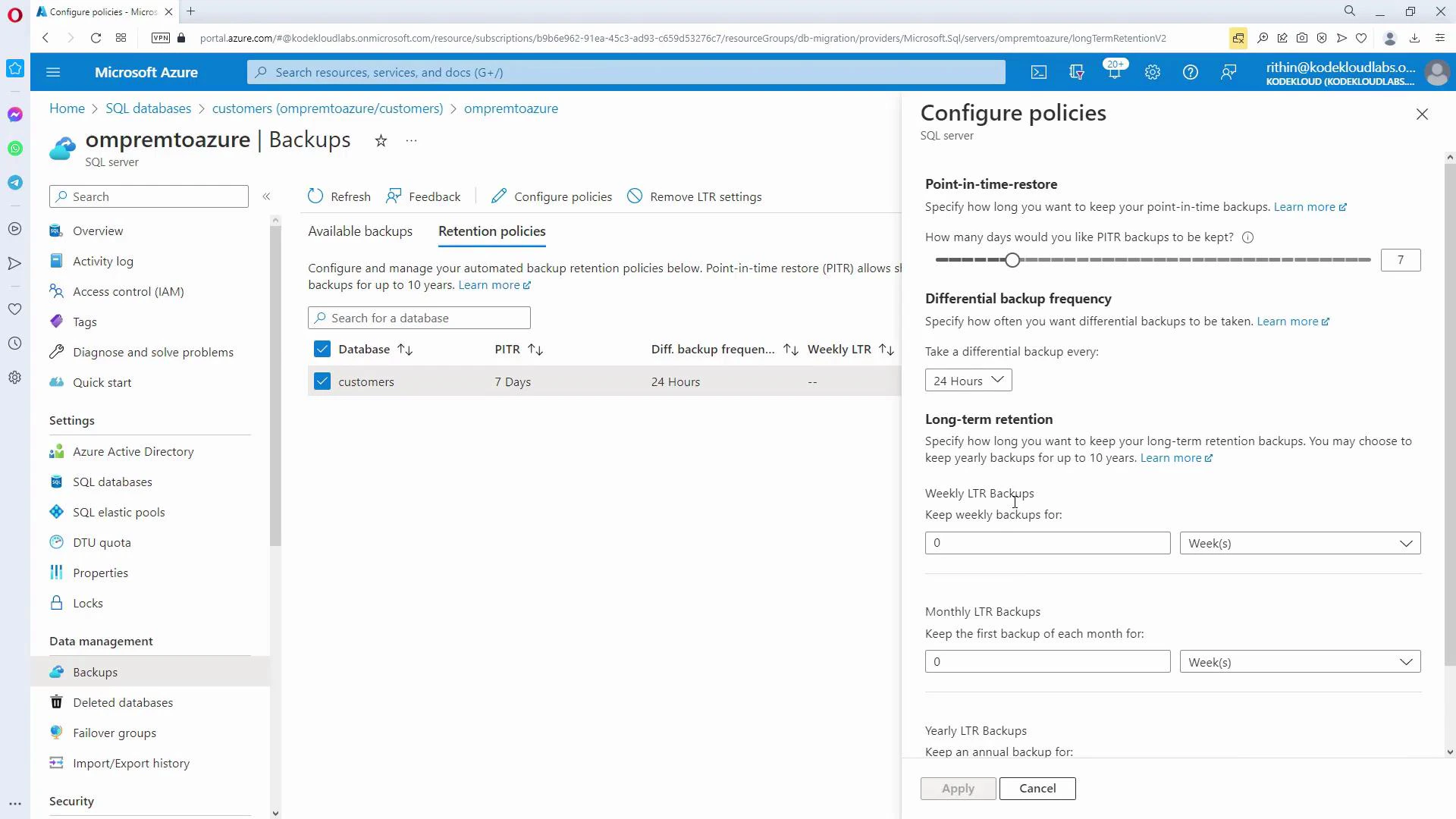
If you remove an LTR policy, existing LTR snapshots retained beyond the policy must be handled according to your retention rules.
A screenshot of the Microsoft Azure portal showing the Backups page for the SQL server "ompremtoazure" with a "customers" database and retention policies listed (PITR 7 days, differential 24 hours). The "Configure policies" pane is open on the right with settings for point-in-time restore, differential backup frequency, and long-term retention.
When restoring a deleted database, you must restore to the same server or managed instance from which it was deleted. For cross-region recovery when the primary region is inaccessible, use geo-restore instead (this creates a database on a different server/region using geo-replicated backups).
Summary and recommendations
  • Azure SQL uses full, differential, and transaction log backups in combination to enable PITR and other restore scenarios.
  • Configure PITR retention and differential frequency on the server’s Backups page; enable LTR for long-term archival (up to 10 years).
  • For SQL Server on Azure VMs, use the Recovery Services vault and select “SQL on Azure VM” to configure backups: https://learn.microsoft.com/azure/backup/backup-introduction-to-azure-backup.
  • Deleted-database restores must target the original server/managed instance; geo-restore is available for region-level failures.
Further reading and references

Watch Video