

Key Features of Azure Blob Storage
Azure Blob Storage provides two primary data protection features:-
Soft Delete:
- Protects blobs, containers, snapshots, and versions from accidental deletions.
- Retains deleted items for a configurable period (1 to 365 days), allowing for easy restoration to their original location.
- Supports both container-level and individual blob recovery.
-
Blob Versioning:
- Automatically creates a new version every time a blob is modified.
- Allows you to access and restore any previous version, providing a safety net against unwanted changes.
Configuring Backup and Recovery via the Azure Portal
Step 1: Set Up Soft Delete and Versioning
- Log in to the Azure portal and navigate to your storage account.
- In the Overview pane, inspect the settings for soft delete, container soft delete, versioning, change feed, and other features.
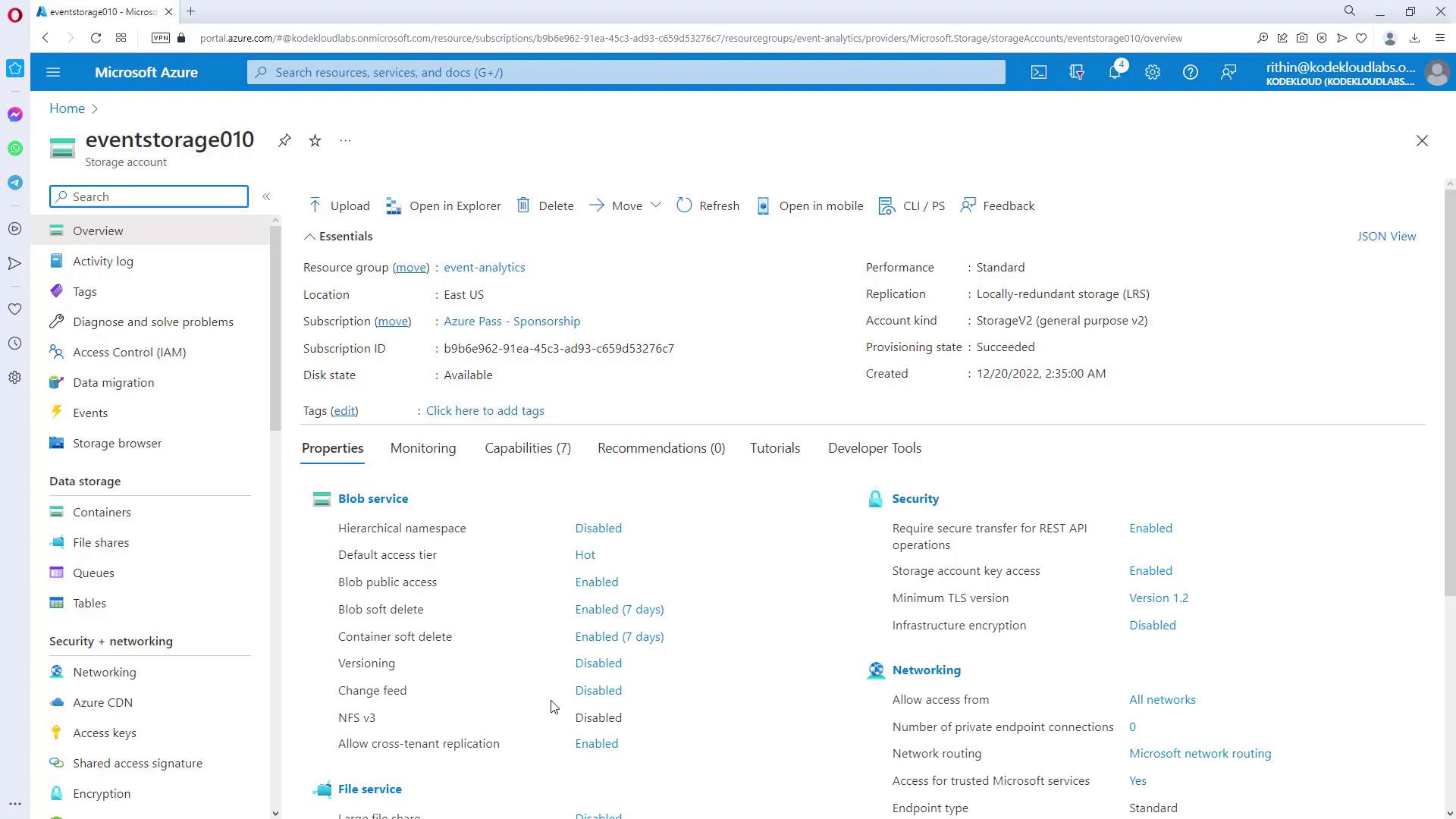
- Configure blob soft delete by setting the appropriate retention period.
- Enable container soft delete to recover an entire container and its contents.
- Activate blob versioning to maintain a history of changes made to blobs.
Step 2: Restore Deleted Containers and Blobs
Restoring a Deleted Container
If you accidentally delete a container:- Enable the Show deleted containers toggle in the Azure portal.
- Locate the deleted container.
- Click the three-dot menu (⋮) and select Undelete.
- Click Save to restore the container along with its contents.
Restoring an Individual Blob
For individual blobs:- Enable the Show deleted blobs option.
- Select the deleted blob.
- Click Undelete.
If the blob has multiple versions, all available versions will be displayed. Choose the version you wish to restore.
Restoring an individual version of a blob is useful when you need to revert to a specific state of your data prior to the most recent changes.
Step 3: Implement Point-In-Time Restore (PITR)
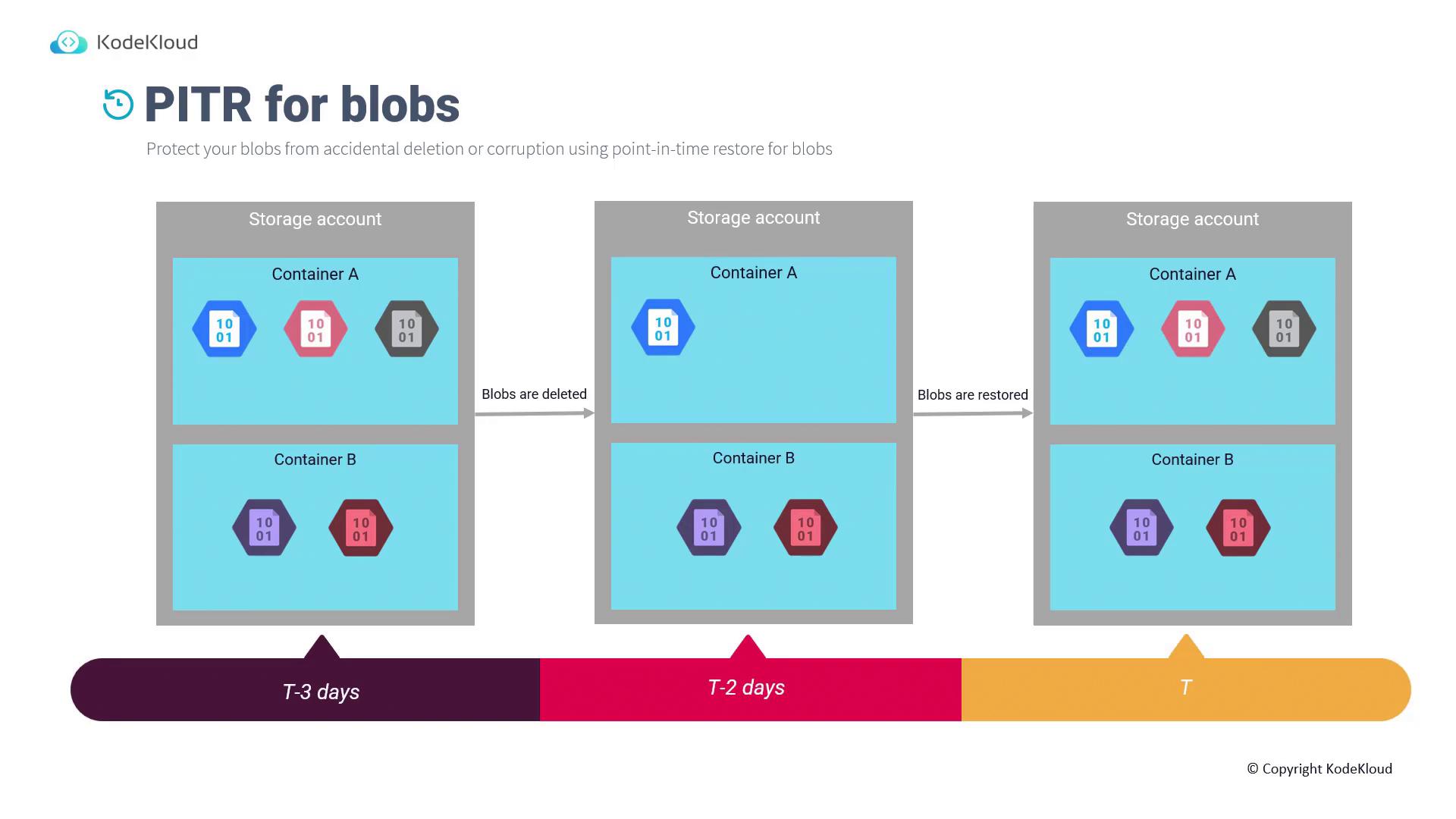
Point-In-Time Restore (PITR) provides an additional layer of protection by allowing you to revert your blob storage to a specific moment in time. Consider the following scenario:- Three days ago (T minus three days), Container A contained three blobs, and Container B had two blobs.
- Two days ago (T minus two days), some blobs were deleted, leaving Container A with only one blob.
- With PITR enabled, you can restore all blobs to their state from three days ago.
- Navigate to the Data Protection settings for your storage account.
- Set the maximum restore point duration (for example, up to 10 days).
- Ensure that the PITR retention period is equal to or less than the soft delete retention period, as PITR relies on the soft delete feature.
- Click Save to apply this configuration.
Make sure that the PITR retention period does not exceed the soft delete retention period to ensure compatibility between the two features.
Summary
Azure Blob Storage offers two key backup and recovery options:
By combining these methods, you can secure your data effectively and ensure rapid recovery in the event of unintended data loss or corruption.
Next, we will discuss the backup and recovery options available for Azure Files.