Key considerations
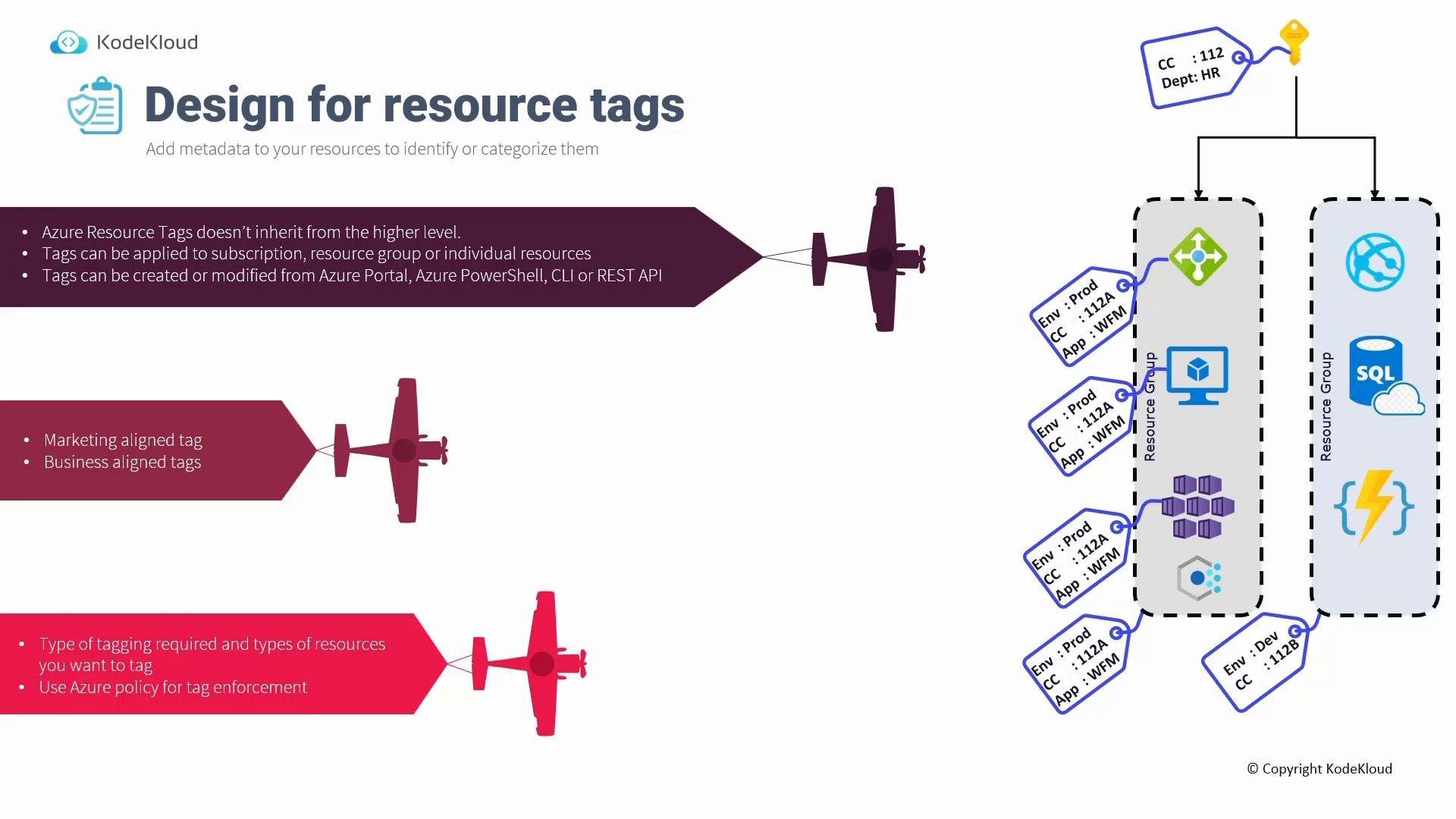
Tags are not inherited- Unlike role-based access control (RBAC) and many policy assignments, tags do not automatically propagate from a subscription or resource group down to the resources inside them.
- If you apply tags at the subscription or resource group scope, those tags are not automatically applied to the contained resources. You must explicitly tag resource groups and individual resources unless you use a policy to set or enforce tags.
Tags are not inherited by default. To enforce consistent tags across resources, use Azure Policy or automation at deployment time—do not rely on manual tagging only.
- Tags can be added or modified from the Azure Portal, Azure PowerShell, Azure CLI, or the REST API.
- By default, assignment is manual: to ensure a resource carries a tag you must set it on that resource (or configure automation or policy to set it).
- Azure Policy can automatically add tags to resources or require that specific tags exist at deployment time. With the right policy, you can achieve tag “inheritance” behavior by ensuring resources receive required tags when they are created.
- Policies can also force users to provide required tags during deployment rather than skipping them during the Review + create step.
Use Azure Policy to ensure consistent tagging across environments: it can add tags, require tags on deployment, and prevent resources from being created without required metadata.
Tag categories and recommended examples
Use a small, high-value set of tags that cover governance, cost, ownership, and lifecycle. Standardize keys and values across subscriptions and tenants.Common tagging dimensions
Using tags for billing and reporting
- Many organizations rely on tags during cost reporting. When tag values are included in the billing/export CSV, you can filter and aggregate costs by tag (for example, filter
CostCenter=112to view related charges). - Not all Azure resource types support tags in billing exports. Always check the Microsoft documentation to confirm whether a resource type supports tagging and whether tags appear in billing/export CSVs: https://learn.microsoft.com/azure/azure-resource-manager/management/tag-resources
Practical advice and operational steps
- Define a consistent naming and key/value format across subscriptions. For example, standardize
Environmentvalues toProduction,Staging,Development. - Favor a small set of high-value tags that drive governance, billing, security, and operations rather than many low-value tags.
- Use Azure Policy and automation (Terraform, ARM templates, Bicep, Azure CLI/PowerShell scripts) to apply and maintain tags so users don’t have to remember to add them manually.
- Consider lifecycle tags such as
EndOfLifeto aid capacity planning and cost forecasting. - Tagging becomes essential at scale: for hundreds or thousands of resources, consistent tags enable meaningful cost management, automation, and governance.
- Standardize tag names and allowed values.
- Enforce required tags with Azure Policy at deployment scope.
- Automate tagging in CI/CD, templates, or Terraform modules.
- Periodically audit tags (and their values) and report on missing or non-conforming entries.
Examples: CLI, PowerShell, and a simple Policy pattern
Azure CLI: update tags on a resourceEnvironment tag at deployment time
Examples in practice
- Tagging a resource group with
Environment=Productiondoes not automatically tag VMs, storage accounts, or other resources inside that group unless you use Azure Policy or automation to propagate that metadata. - Assigning an Azure Policy that enforces or adds
Environment=Productionto resources created in a scope ensures new resources receive the tag at creation time—achieving the desired inheritance behavior.
EndOfLife(a date): helps identify resources scheduled for retirement and supports cost forecasting and cleanup activities.